




Connect and Visualize Live Linear Data in Databricks Lakehouse Federation with CData Connect AI

Databricks Lakehouse Federation enables organizations to query and integrate data from multiple sources without requiring data movement. It allows federated queries across databases, data warehouses, and lakehouses, providing a unified interface for data analysis and management within Databricks. When combined with CData Connect AI, it enables seamless access to Linear data for data virtualization, while also supporting data lineage and fine-grained access control.
This article explains how to use CData Connect AI to establish a live connection to Linear and how to access live Linear data from the Databricks platform.
CData Connect AI offers a seamless SQL Server, cloud-to-cloud interface for Linear, enabling you to effortlessly create dashboards and visualizations using live Linear data in Databricks. While building visualizations, Databricks requires SQL queries to retrieve the necessary data. With built-in optimized data processing, CData Connect AI pushes all supported SQL operations (such as filters and JOINs) directly to Linear, utilizing server-side processing for fast and efficient data retrieval of Linear data.
Configure Linear connectivity for Databricks in CData Connect AI
To work with Linear data in Databricks - Lakehouse Federation, you need to connect to Linear from Connect AI and provide user access to the connection.
- Log into Connect AI, click Sources, and then click Add Connection
- Select "Linear" from the Add Connection panel
-
Enter the necessary authentication properties to connect to Linear.
You can authenticate to Linear with a personal API key or with OAuth 2.0. The API key is the simplest option for connecting with your own Linear account.
Authenticating with an API Key
Set the following connection properties:
- AuthScheme: Set this to APIKey.
- APIKey: A Linear personal API key.
To create a personal API key, log in to Linear, open Settings > Security & access > Personal API keys, select New API key, and create it. Copy the key immediately, because Linear shows it only once.
Authenticating with OAuth
OAuth requires a custom OAuth application registered in Linear (Settings > API > OAuth applications), which provides the OAuthClientId and OAuthClientSecret. Two flows are supported:
- Authorization code: Set AuthScheme to OAuth, InitiateOAuth to GETANDREFRESH, and provide OAuthClientId, OAuthClientSecret, and the CallbackURL defined in your application (e.g., http://localhost:33333). The driver opens Linear in your browser so you can grant access.
- Client credentials: Set AuthScheme to OAuthClient and provide OAuthClientId and OAuthClientSecret. This authenticates the application itself, with no browser interaction, and suits machine-to-machine integrations.
By default, the driver requests the read,write scopes. The driver refreshes the access token automatically when it expires.

- Click Save & Test
-
Navigate to the Permissions tab in the Add Linear Connection page and update the User-based permissions.



Add a Personal Access Token
When connecting to Connect AI through the REST API, the OData API, or the Virtual SQL Server, a Personal Access Token (PAT) is used to authenticate the connection to Connect AI. It is best practice to create a separate PAT for each service to maintain granularity of access.
- Click on the Gear icon () at the top right of the Connect AI app to open the settings page.
- On the Settings page, go to the Access Tokens section and click Create PAT.
-
Give the PAT a name and click Create.

- The personal access token is only visible at creation, so be sure to copy it and store it securely for future use.
With the connection configured and a PAT generated, you are ready to connect to Linear data from Databricks.
Connecting live Linear data in Databricks
Follow these steps to establish a connection from Databricks to the CData Connect AI Virtual SQL Server API.
- Log into Databricks.
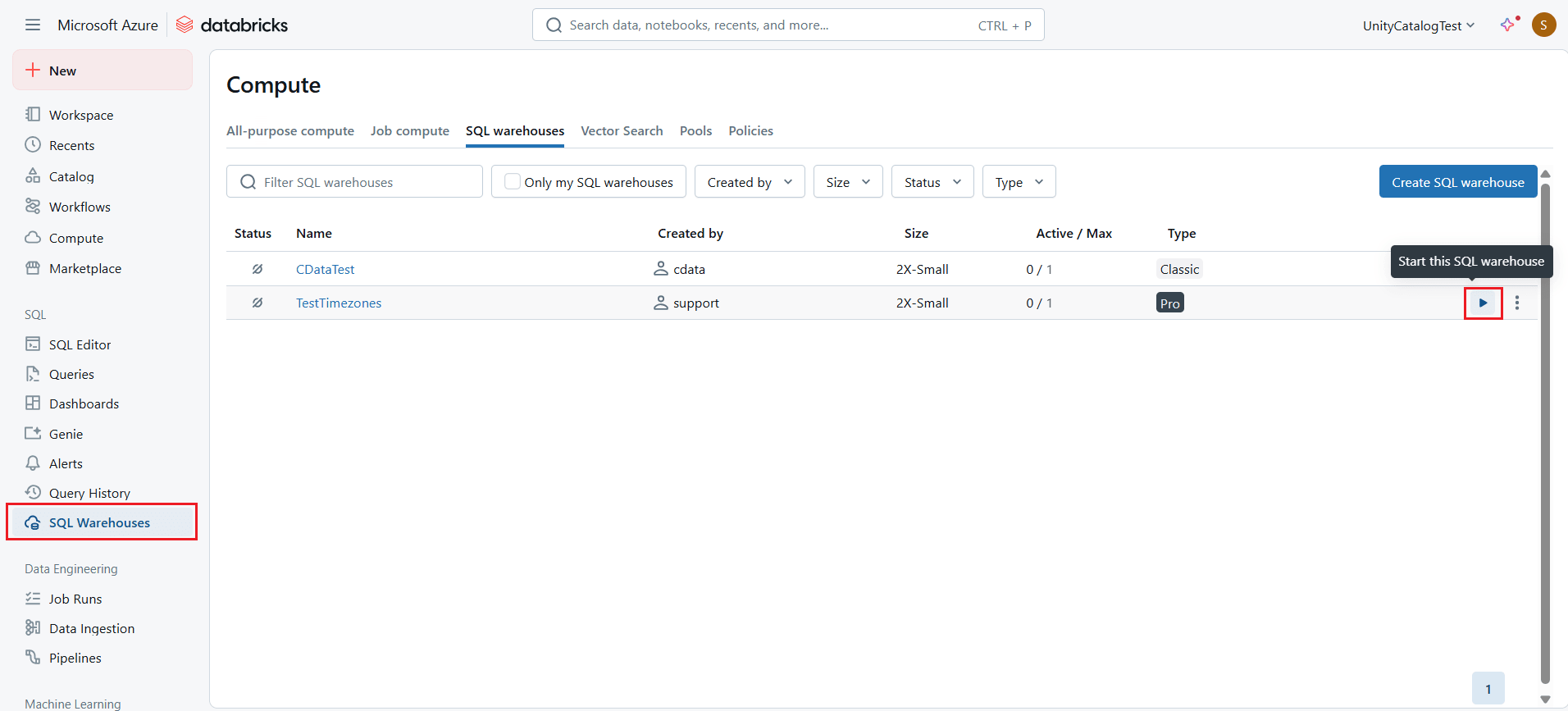
- Navigate to SQL Warehouses and start any warehouse of your choice.
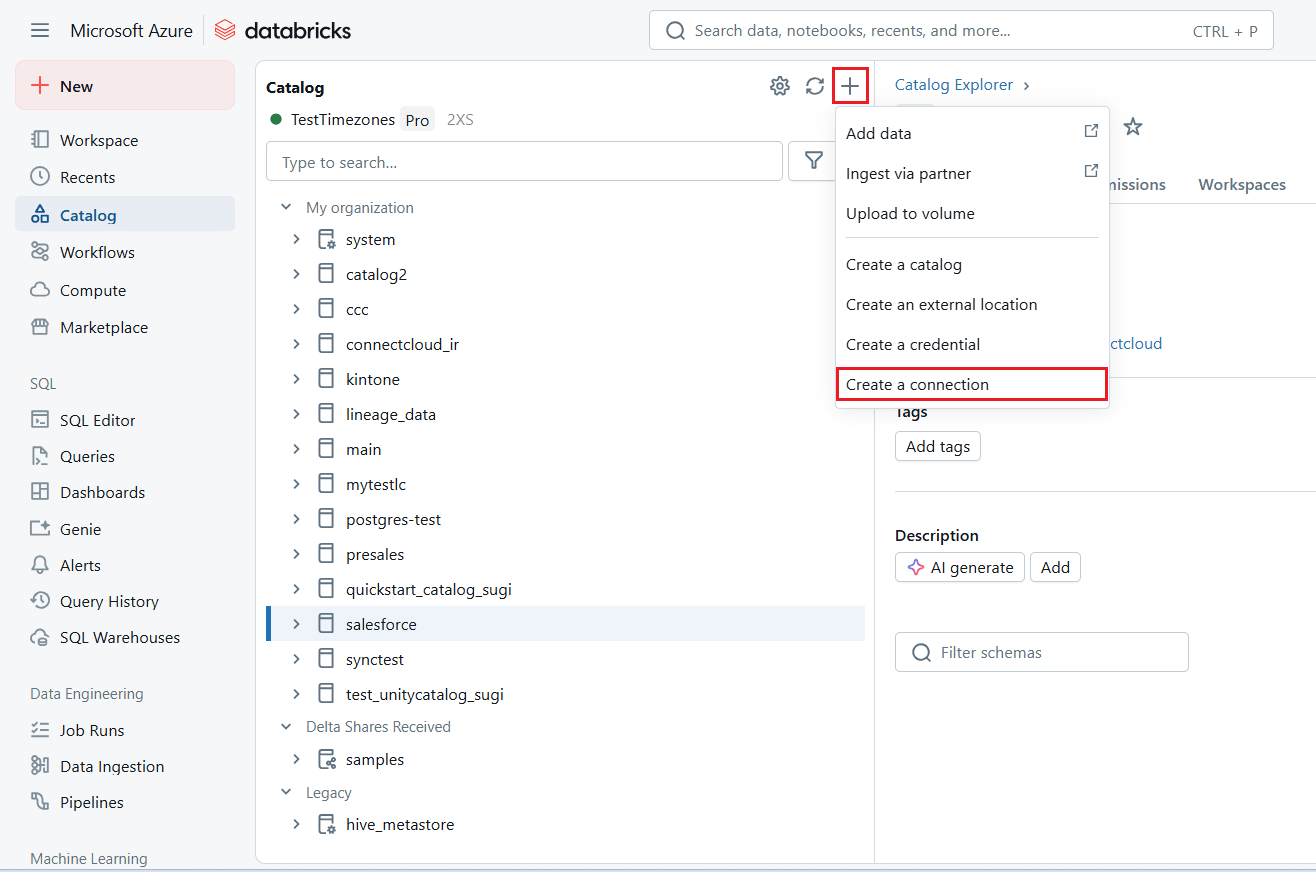
- In the navigation pane, select Catalog. Click and select Create a connection.
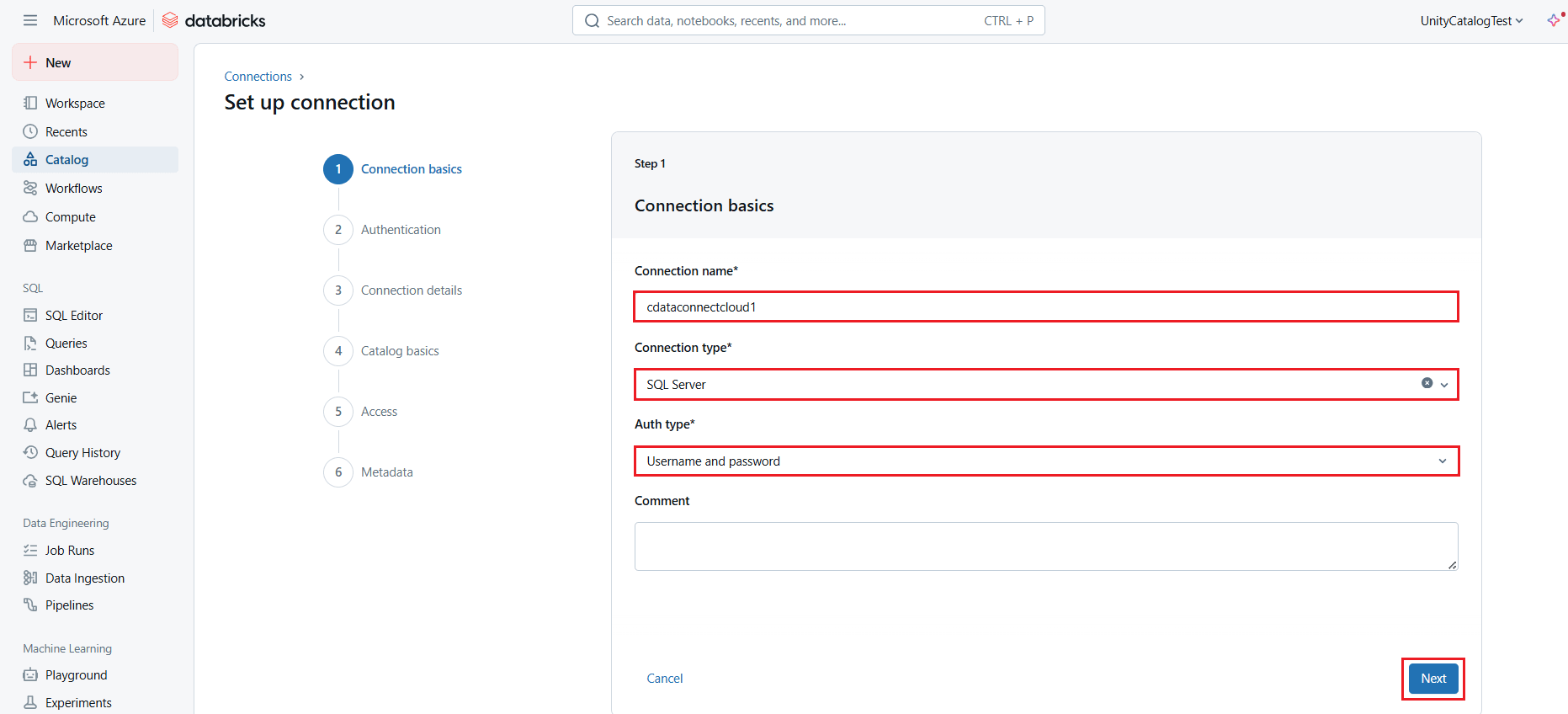
- In the Connection basics section (or Step 1 of Set up connection page), enter the following connection details and click Next:
- Connection name: a user-defined connection name.
- Connection type: select SQL Server from the drop-down list.
- Auth type: select Username and password.
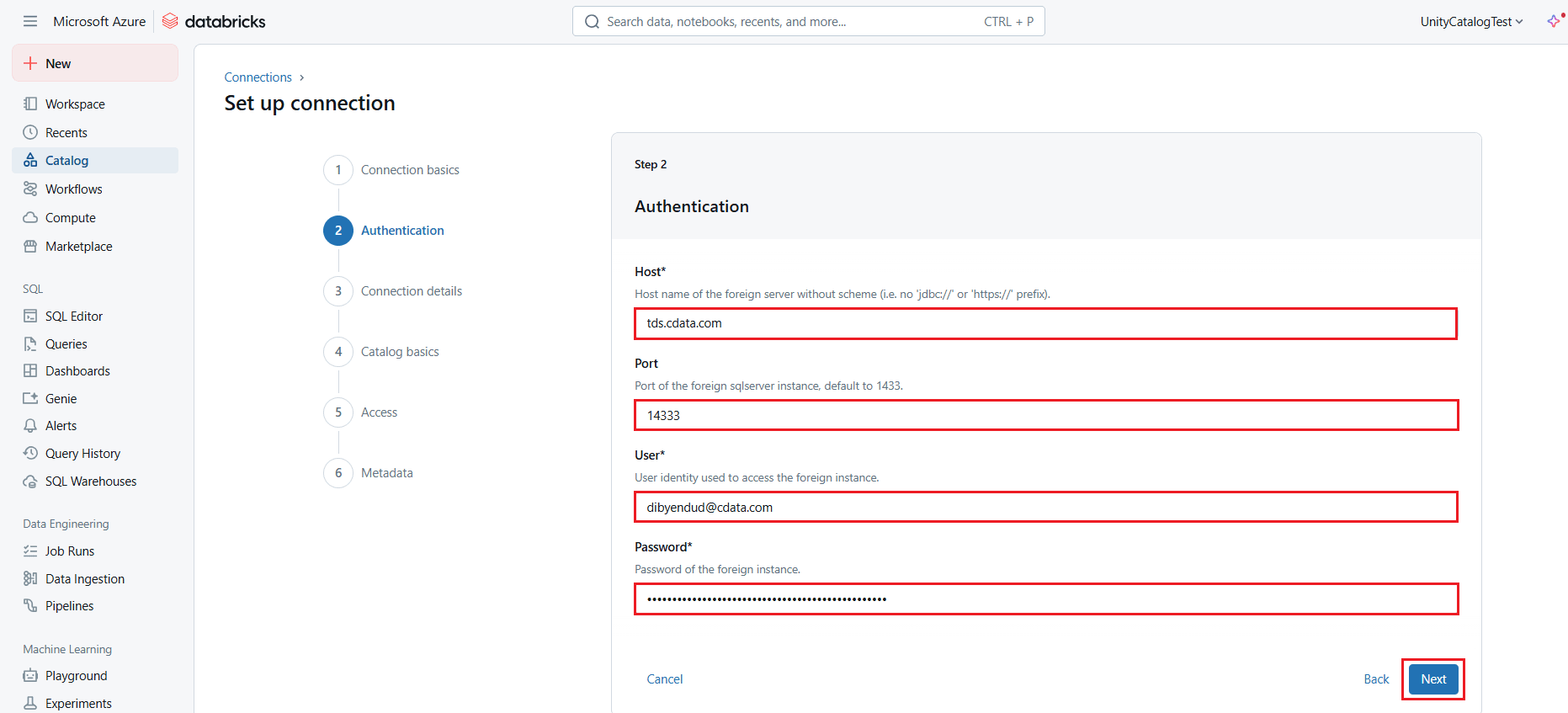
- In the Authentication section (or Step 2), enter the required authentication details, and click Next:
- Host: tds.cdata.com
- Port: 14333
- User: enter your CData Connect AI username, displayed in the top-right corner of the CData Connect AI interface. For example, [email protected]
- Password: enter the PAT generated and copied in the previous section.
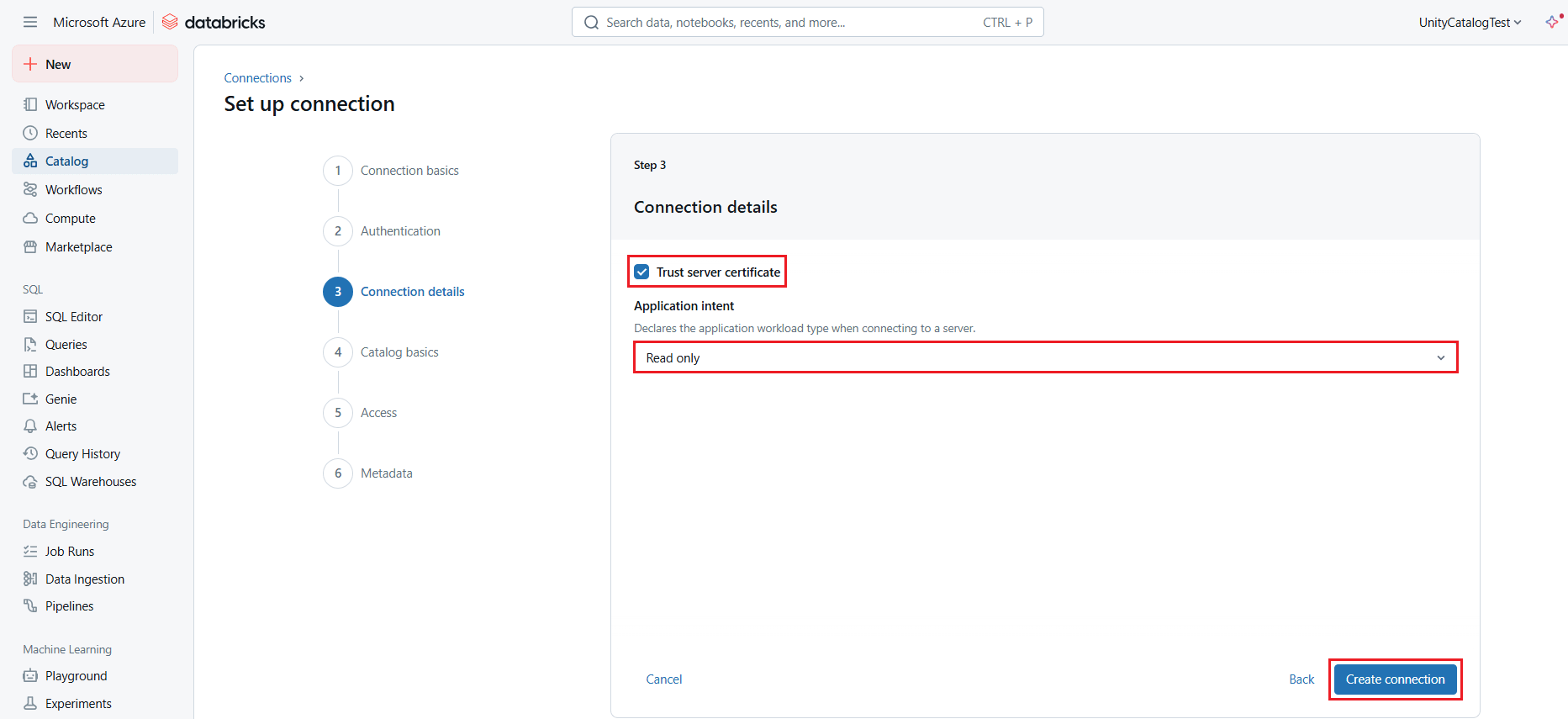
- In the Connection details section (or Step 3), enable the Trust server certificate checkbox and select the appropriate Application intent. Click Create Connection.
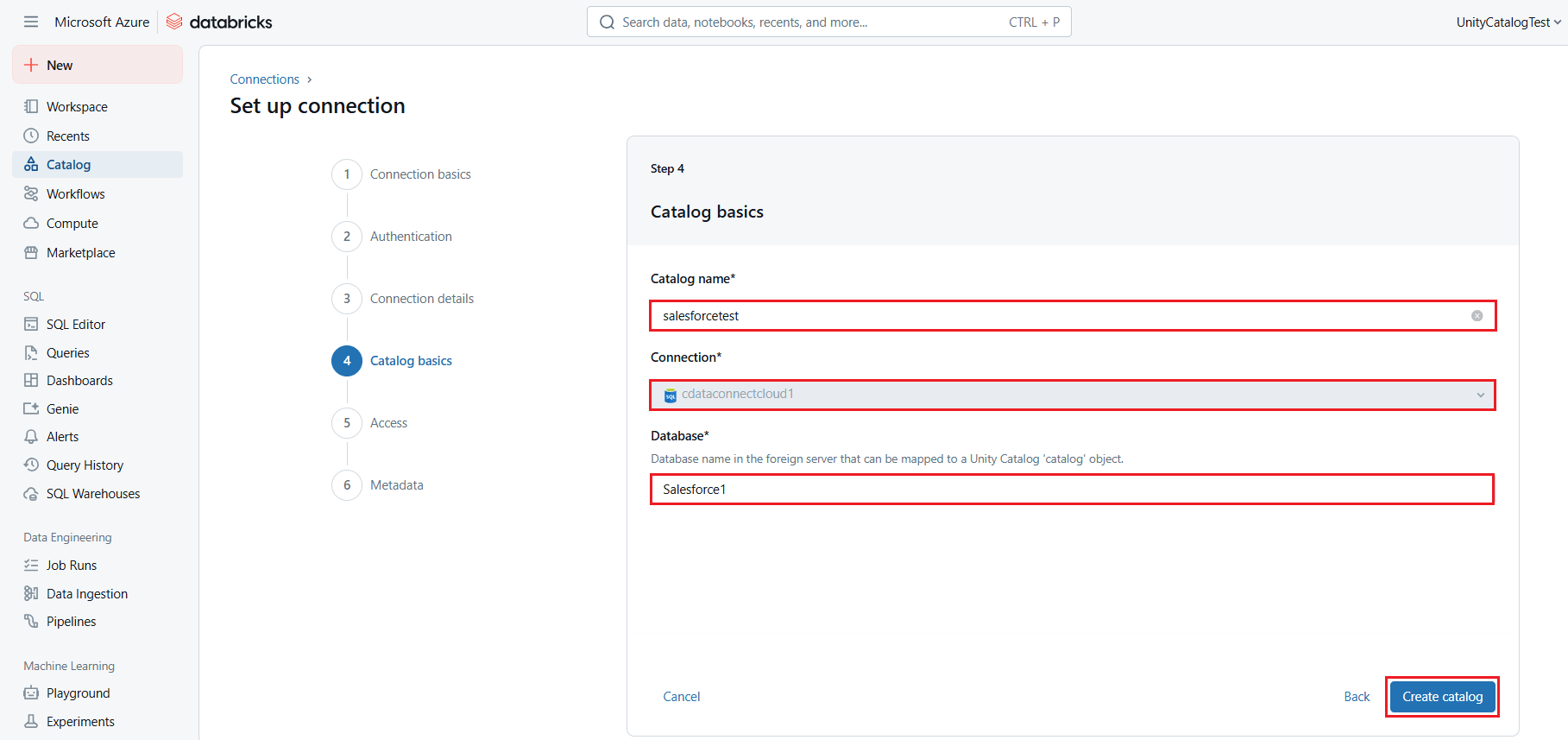
- In the Catalog basics section (or Step 4), enter the required details and click Create catalog:
- Catalog name: enter a name of your choice
- Connection: this will be the Databricks connection you defined earlier
- Database: enter your Linear connection name (for example, Linear1)
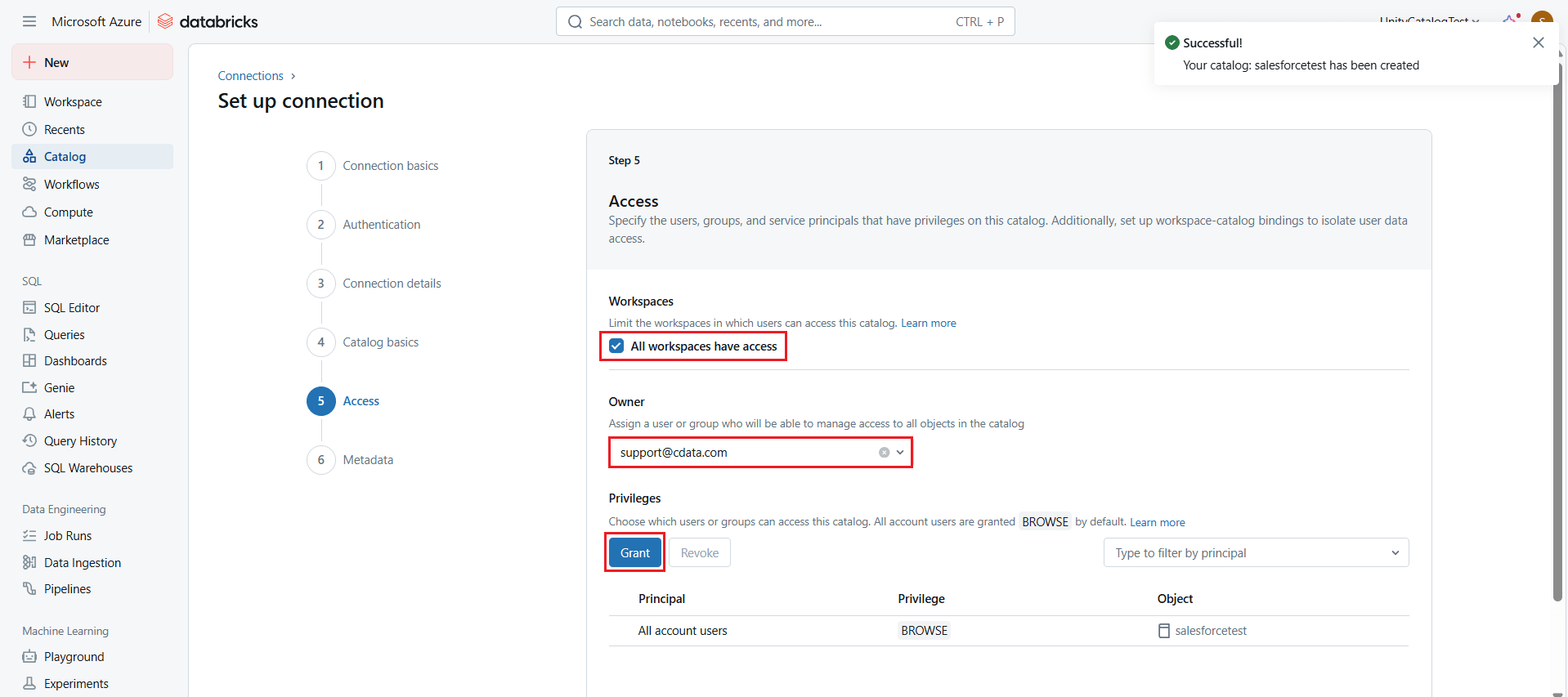
- In the Access section (or Step 5), assign the Workspace, User access rights, and Grant read or edit privileges to the catalog.
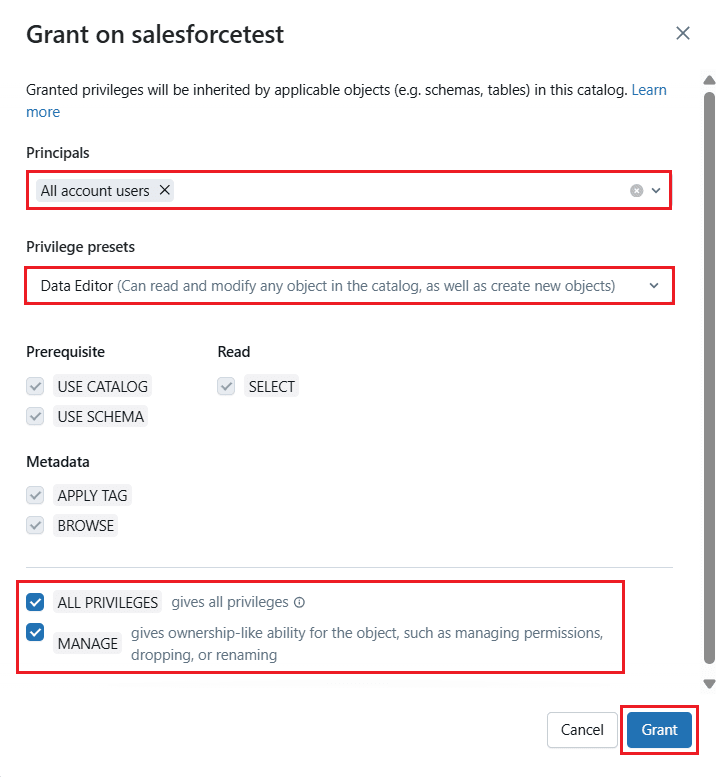
- Click Next > Save to save all the details for the catalog.
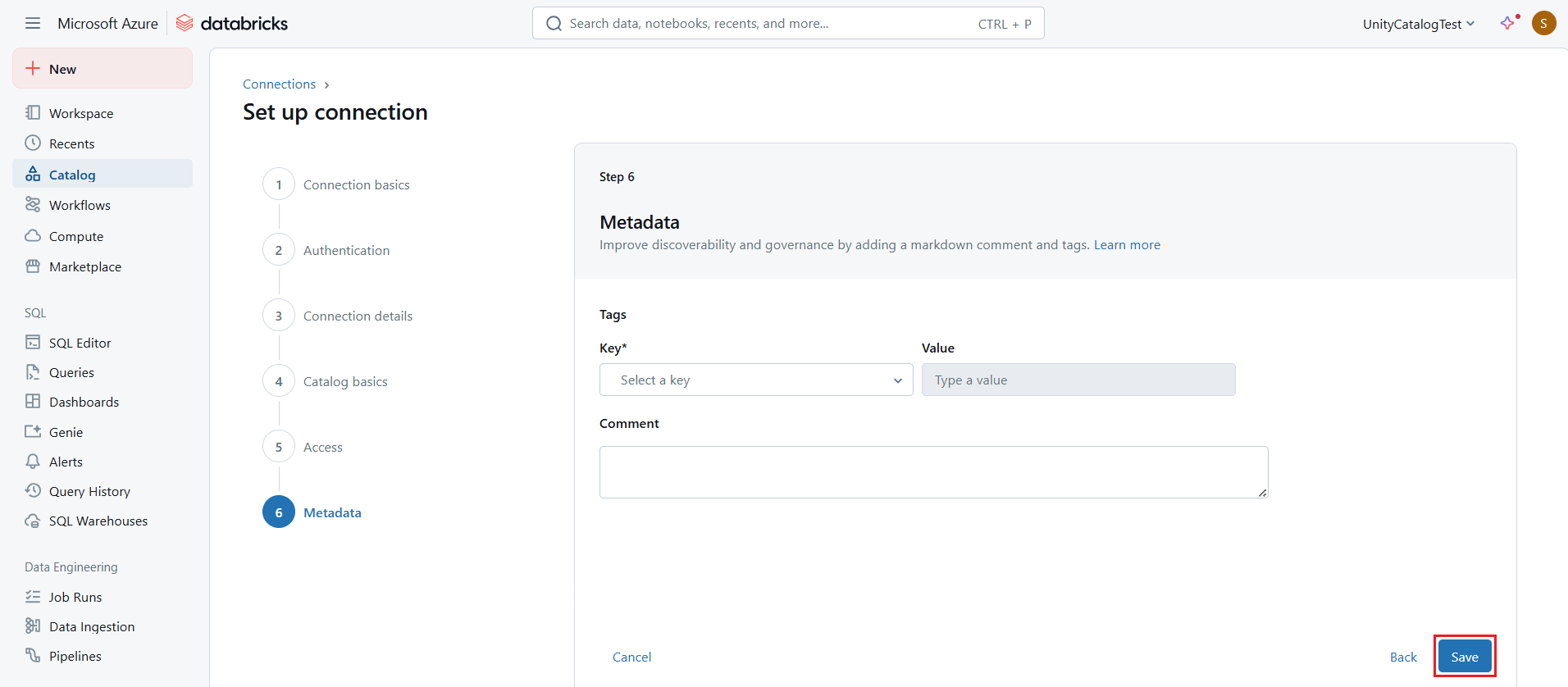
Access the catalog and visualize live Linear data in Databricks
To access the newly created catalog and create a dashboard to visualize live Linear data in Databricks, follow these steps:
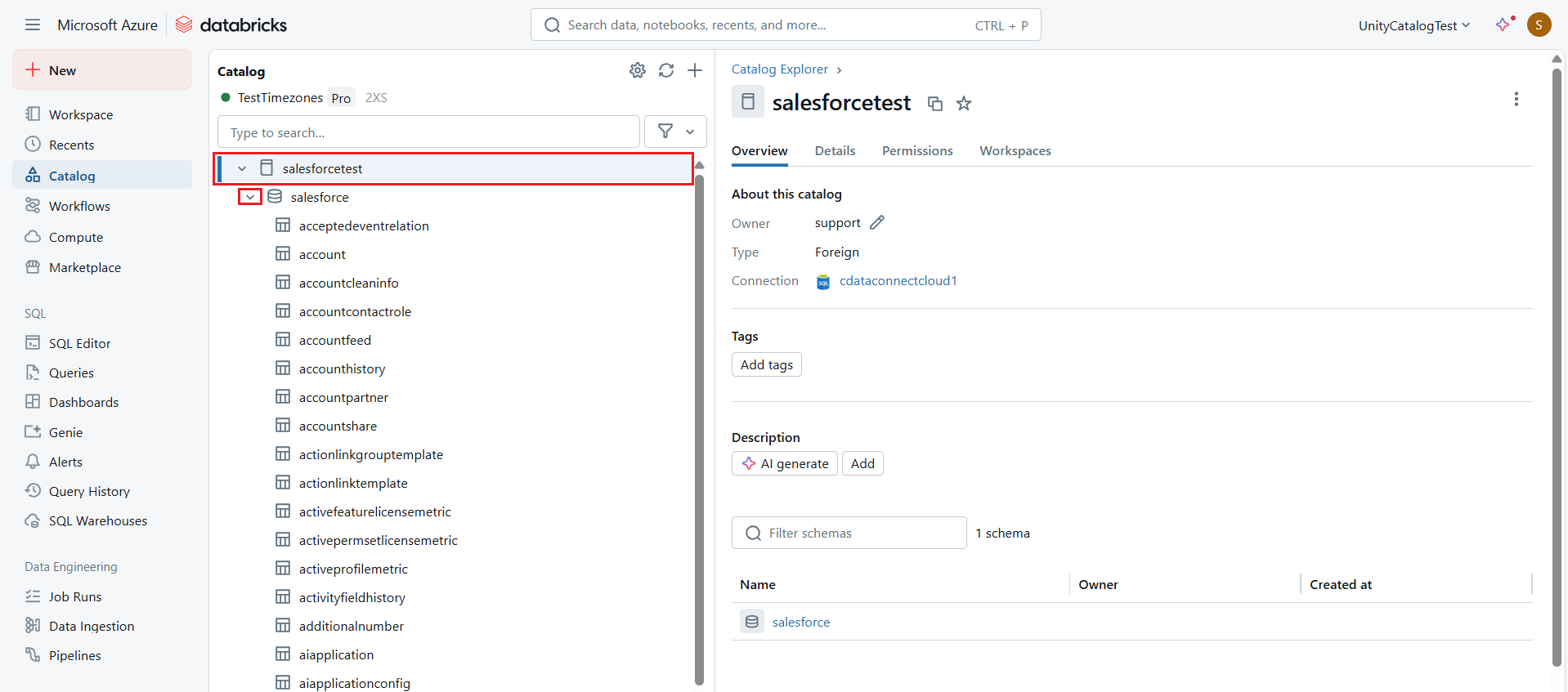
- Select the catalog and expand it. A list of tables from Linear will appear on the screen.
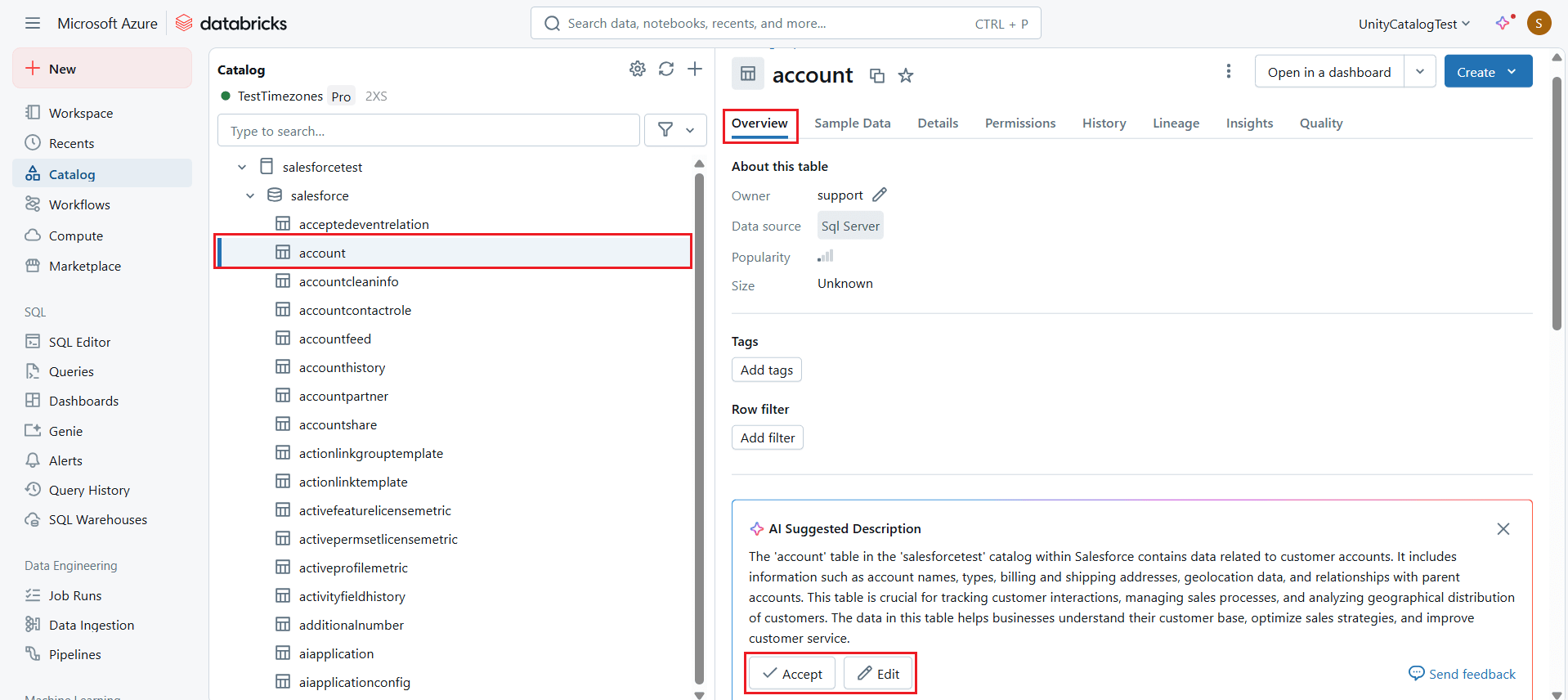
- Choose the desired table and click the Overview tab to view the table metadata.
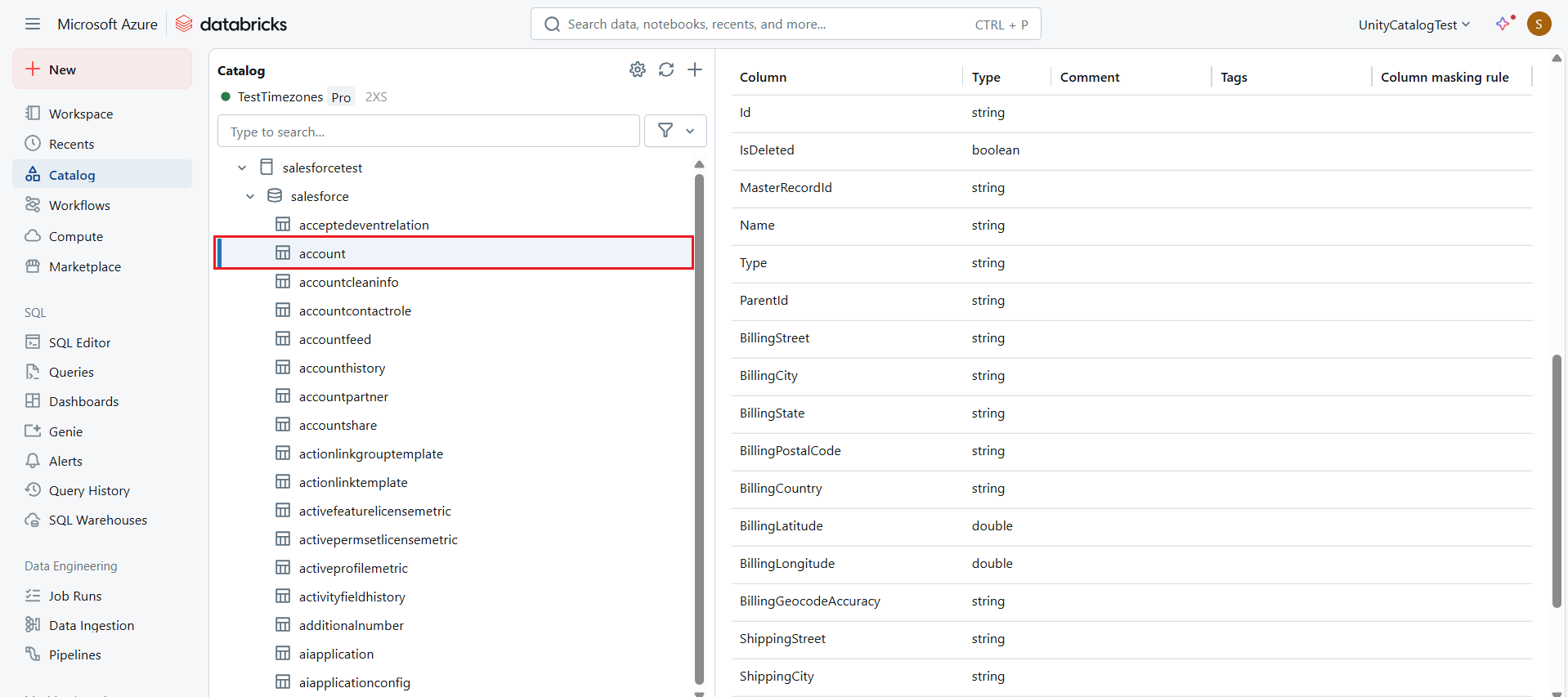
- Click the Sample Data tab to view real-time data in the table.
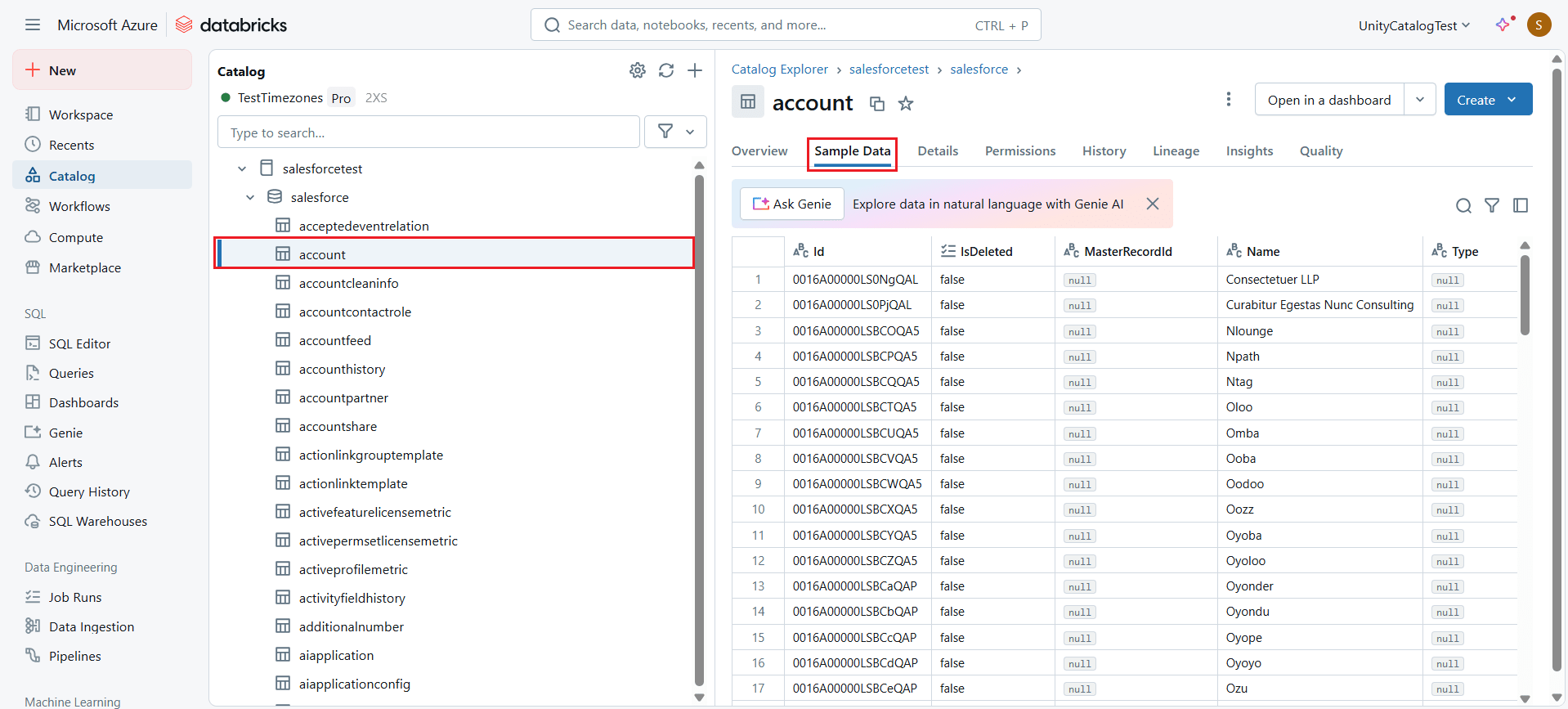
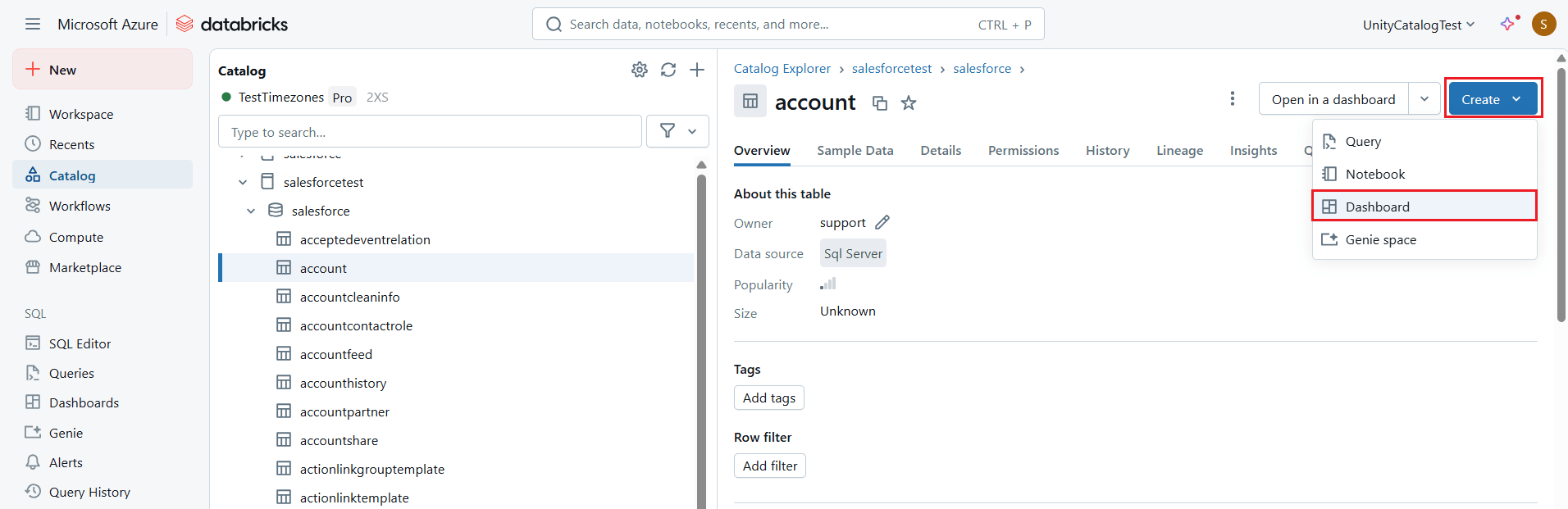
- Now, click Create at the top right corner and select Dashboard.
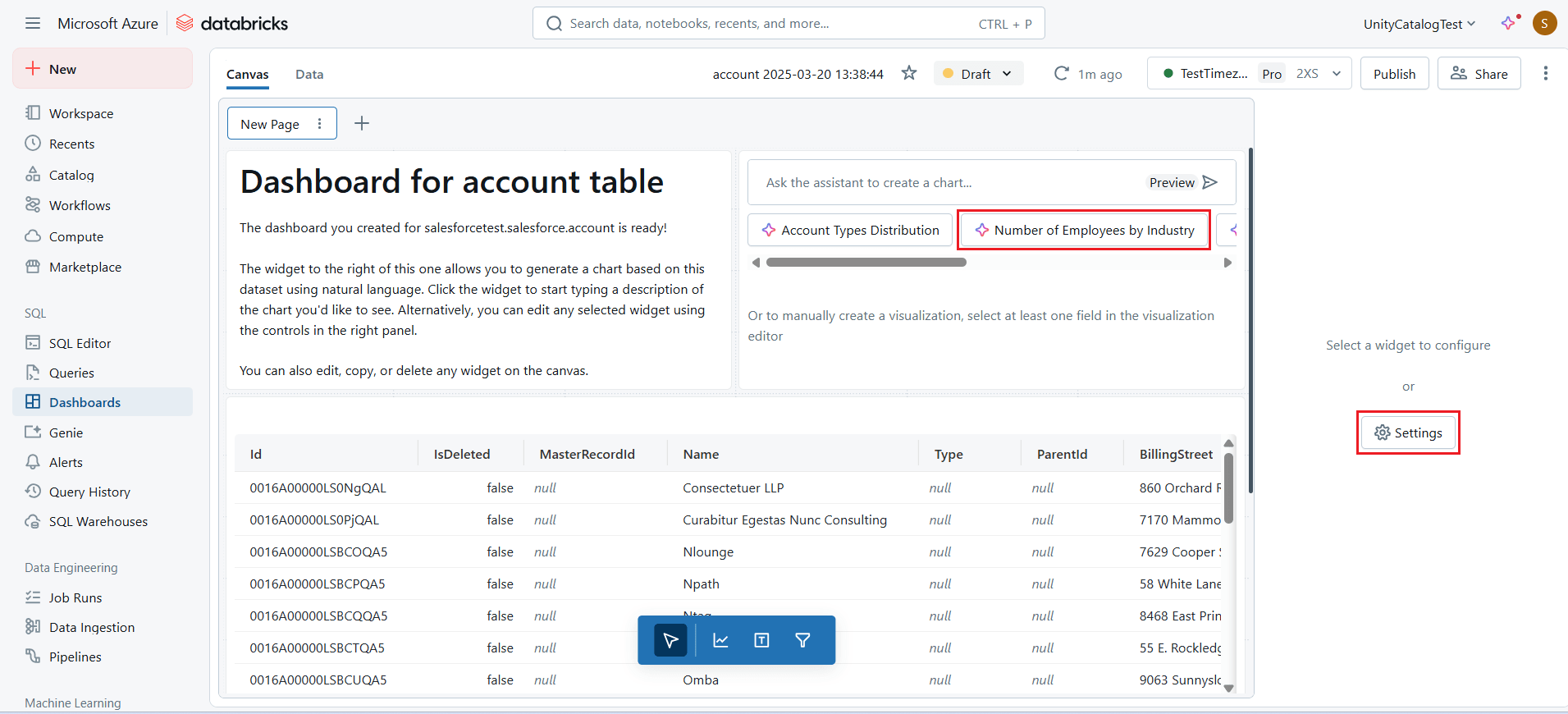
- Manually create a visualization by selecting at least one field in the visualization editor from the widget, or choose one of the visualization options suggested by Databricks AI.
- Once the visualization is created, edit the details in the widget settings of the dashboard.
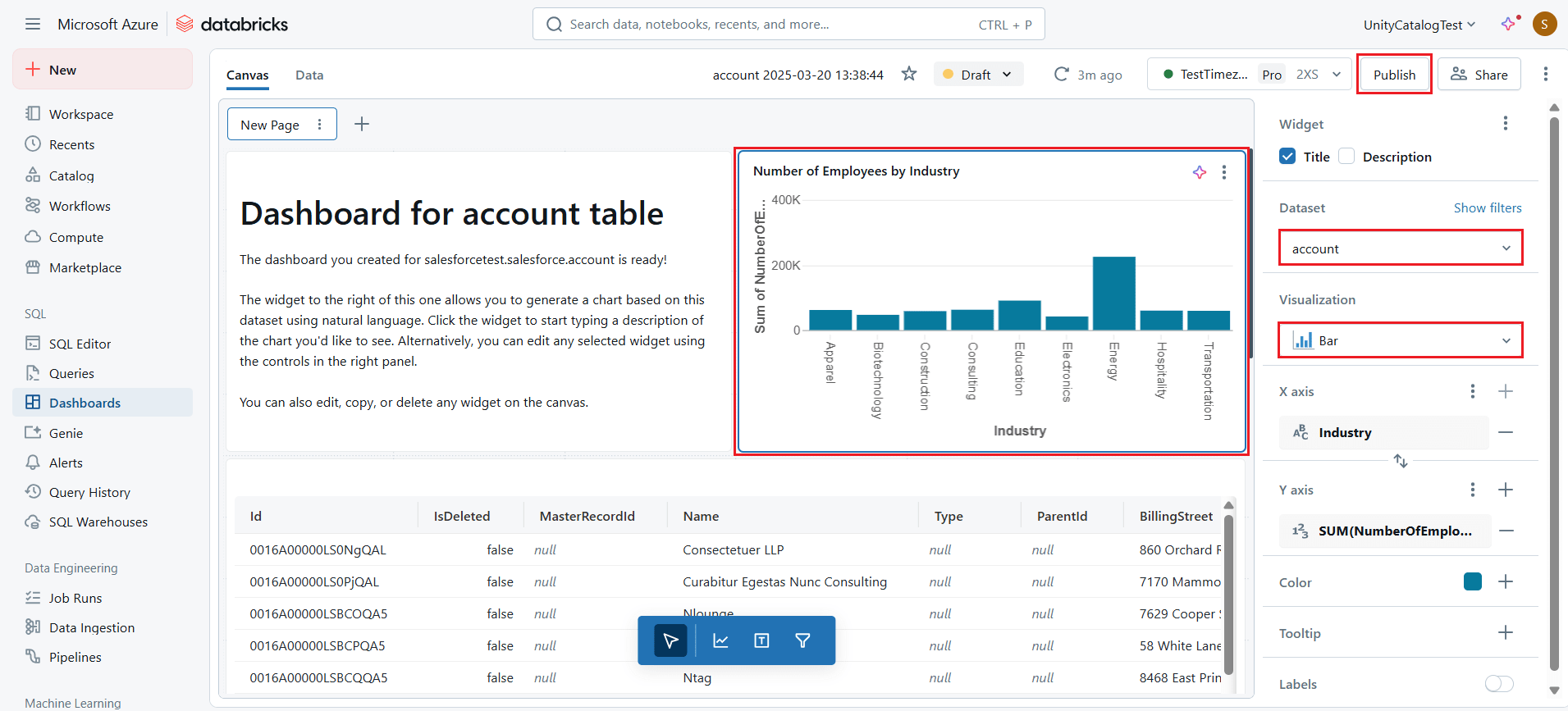
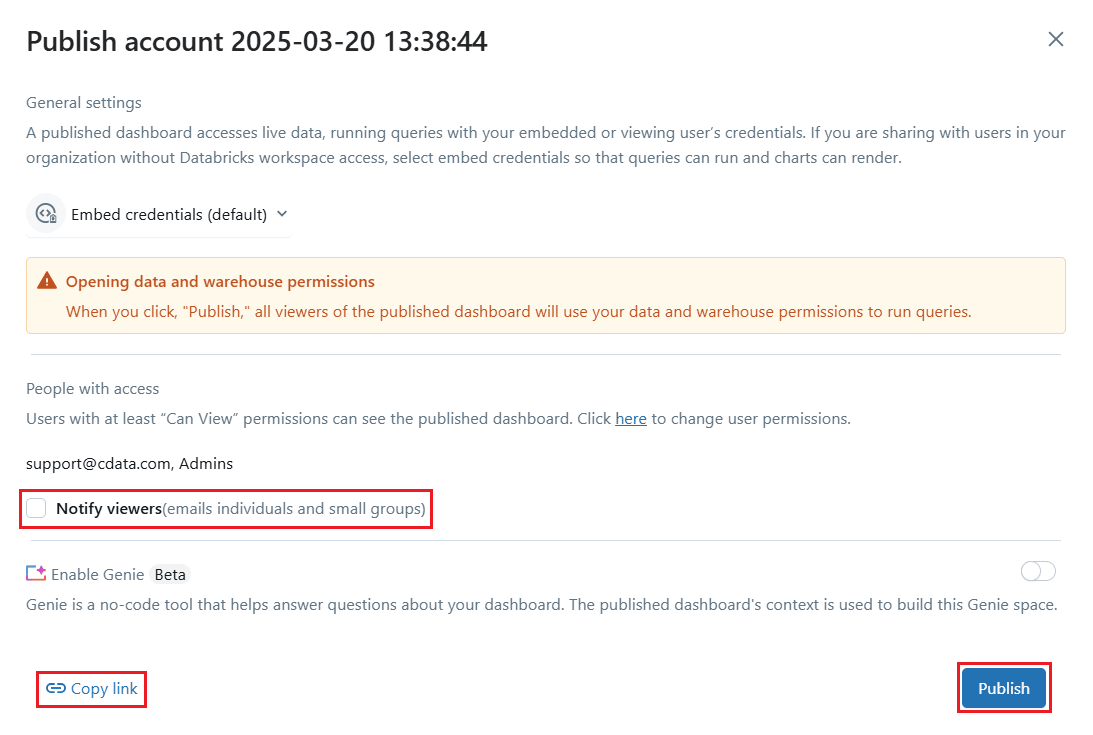
- Click Publish to publish the dashboard report.
Live access to Linear data from cloud applications
At this stage, you have established a direct, cloud-to-cloud connection to live Linear data in Databricks. This enables you to create dashboards to monitor and visualize your data seamlessly.
For more details on accessing live data from over 100 SaaS, Big Data, and NoSQL sources through cloud applications like Databricks, visit our Connect AI page. As always, let us know if you have any questions during your evaluation. Our world-class CData Support Team is always available to help!