




Build Semantic Layer Views for Linear Data in APOS Live Data Gateway

APOS Live Data Gateway (LDG) is a data connection and data transformation solution that enables live data connectivity and expanded data source options for SAP Analytics Cloud and other SAP solutions. When paired with CData Connectors, users can build semantic layer views for live Linear data, enabling real-time analytics on Linear just like working with a relational database.
With built-in optimized data processing, the CData Connector offers unmatched performance for interacting with live Linear data. When you issue complex SQL queries to Linear, the driver pushes supported SQL operations, like filters and aggregations, directly to Linear and utilizes the embedded SQL engine to process unsupported operations client-side (often SQL functions and JOIN operations). Its built-in dynamic metadata querying allows you to work with and analyze Linear data using native data types.
Download and Install the Connector Files
In order to access Linear data through the APOS Live Data Gateway, you will need to download the connector files from APOS and install them on the machine hosting the Live Data Gateway. An APOS representative can deliver the necessary files.
- Install the CData DLL file (System.Data.CData.Linear.dll) to the APOS Live Data Gateway installation directory (C:\Program Files\Live Data Gateway\Admin\ by default).
- Install the CData JAR file (cdata.jdbc.linear.jar) to the ConnectionTest_lib folder in the installation directory (C:\Program Files\Live Data Gateway\Admin\ConnectionTest_lib\ by default).
- Install the CData JAR file (cdata.jdbc.linear.jar) to the lib folder in the Web UI installation directory (e.g.: C:\LDG_WebUI\lib\)
Configuring the Linear Connection String
Before establishing the connection to Linear from the APOS Live Data Gateway, you need to configure the Linear JDBC Connection String.
Built-in Connection String Designer
For assistance in constructing the JDBC Connection String, use the connection string designer built into the Linear JDBC Driver. Either double-click the JAR file or execute the jar file from the command-line.
java -jar cdata.jdbc.linear.jar
Fill in the connection properties and copy the connection string to the clipboard.
You can authenticate to Linear with a personal API key or with OAuth 2.0. The API key is the simplest option for connecting with your own Linear account.
Authenticating with an API Key
Set the following connection properties:
- AuthScheme: Set this to APIKey.
- APIKey: A Linear personal API key.
To create a personal API key, log in to Linear, open Settings > Security & access > Personal API keys, select New API key, and create it. Copy the key immediately, because Linear shows it only once.
Authenticating with OAuth
OAuth requires a custom OAuth application registered in Linear (Settings > API > OAuth applications), which provides the OAuthClientId and OAuthClientSecret. Two flows are supported:
- Authorization code: Set AuthScheme to OAuth, InitiateOAuth to GETANDREFRESH, and provide OAuthClientId, OAuthClientSecret, and the CallbackURL defined in your application (e.g., http://localhost:33333). The driver opens Linear in your browser so you can grant access.
- Client credentials: Set AuthScheme to OAuthClient and provide OAuthClientId and OAuthClientSecret. This authenticates the application itself, with no browser interaction, and suits machine-to-machine integrations.
By default, the driver requests the read,write scopes. The driver refreshes the access token automatically when it expires.

Your connection string will look similar to the following:
jdbc:Linear:AuthScheme=APIKey;APIKey=myAPIKey;
Connecting to Linear & Creating a Semantic Layer View
After installing the connector files and configuring the connection string, you are ready to connect to Linear in the Live Data Gateway Admin tool and build a semantic layer view in the Live Data Gateway Web UI.
Configuring the Connection to Linear
- Log into your APOS Live Data Gateway Manager
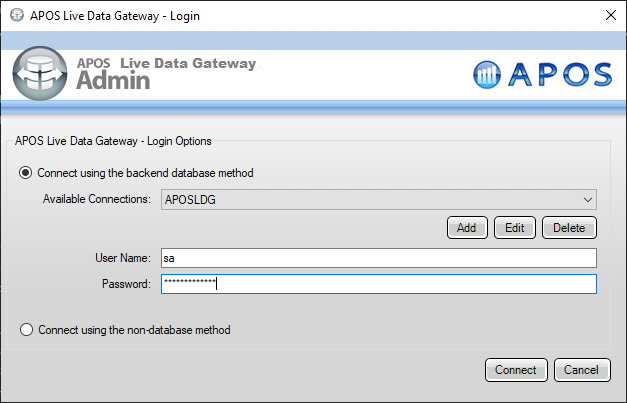
- If you haven't already, update your APOS LDG license file
- Click File -> Configurations
- Click on the "..." Menu for the License
- Select the license file from the APOS team that includes your CData Connector license
- In the APOS Live Data Gateway Manager, click "Add"
- In the APOS Live Data Gateway On the Connection tab, configure the connection:
- Set Data Source to "Database"
- Set Database to "CData Drivers"
- Set Database CData Drivers to "Linear"
- Set Connection String to the connection string configured earlier (e.g.:
jdbc:Linear:AuthScheme=APIKey;APIKey=myAPIKey; - Set Driver Class to "cdata.jdbc.linear.LinearDriver" (this should be set by default)
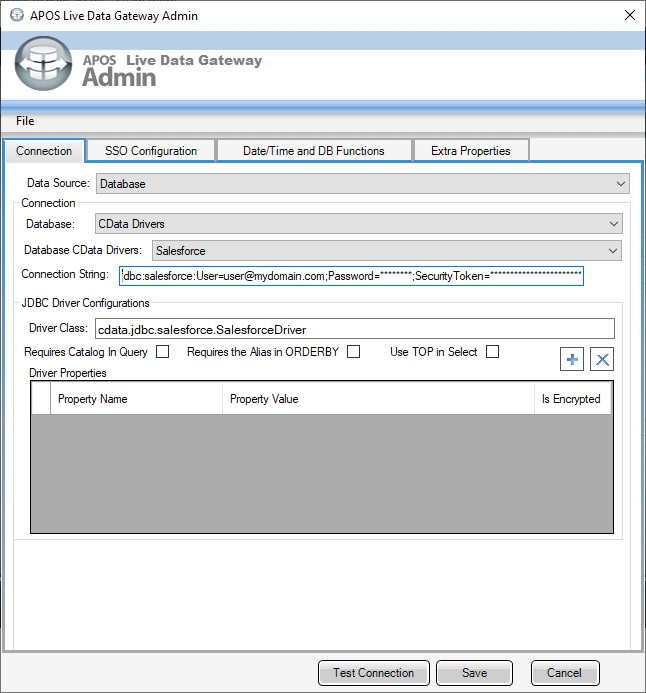
- Click Test Connection
- Click Save
- Give your connection a unique prefix (e.g. "linear")
- Highlight the newly created connection and click File -> "Approve Users For Web UI"
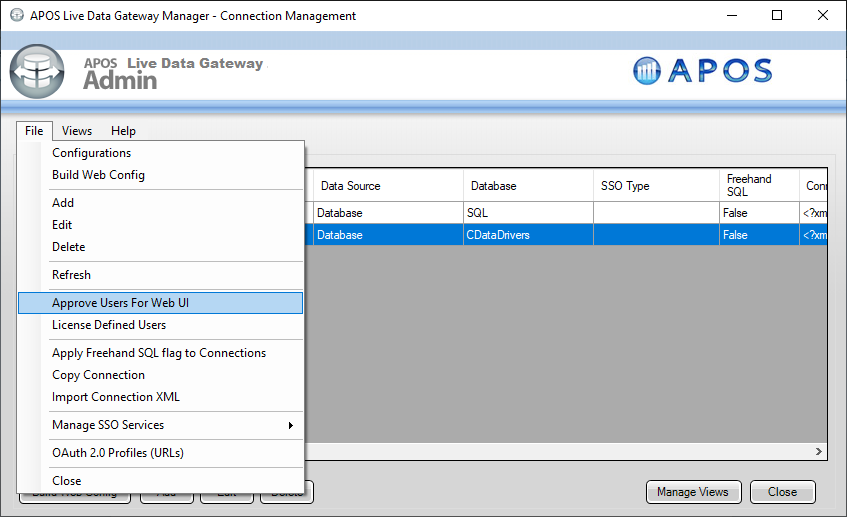
- Approve the appropriate DB users to create views and click "Save"
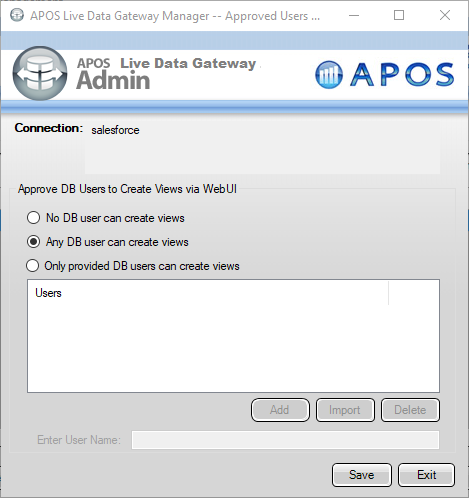
At this point, we are ready to build our semantic layer view in the Live Data Gateway Web UI.
Creating a Semantic Layer View
- In your browser, navigate to the APOS Live Data Gateway Portal
- Select a Connection (e.g. "linear")
- Since Linear does not require a User or Password to authenticate, you may use whatever values you wish for User Name and Password
- Click "Login"
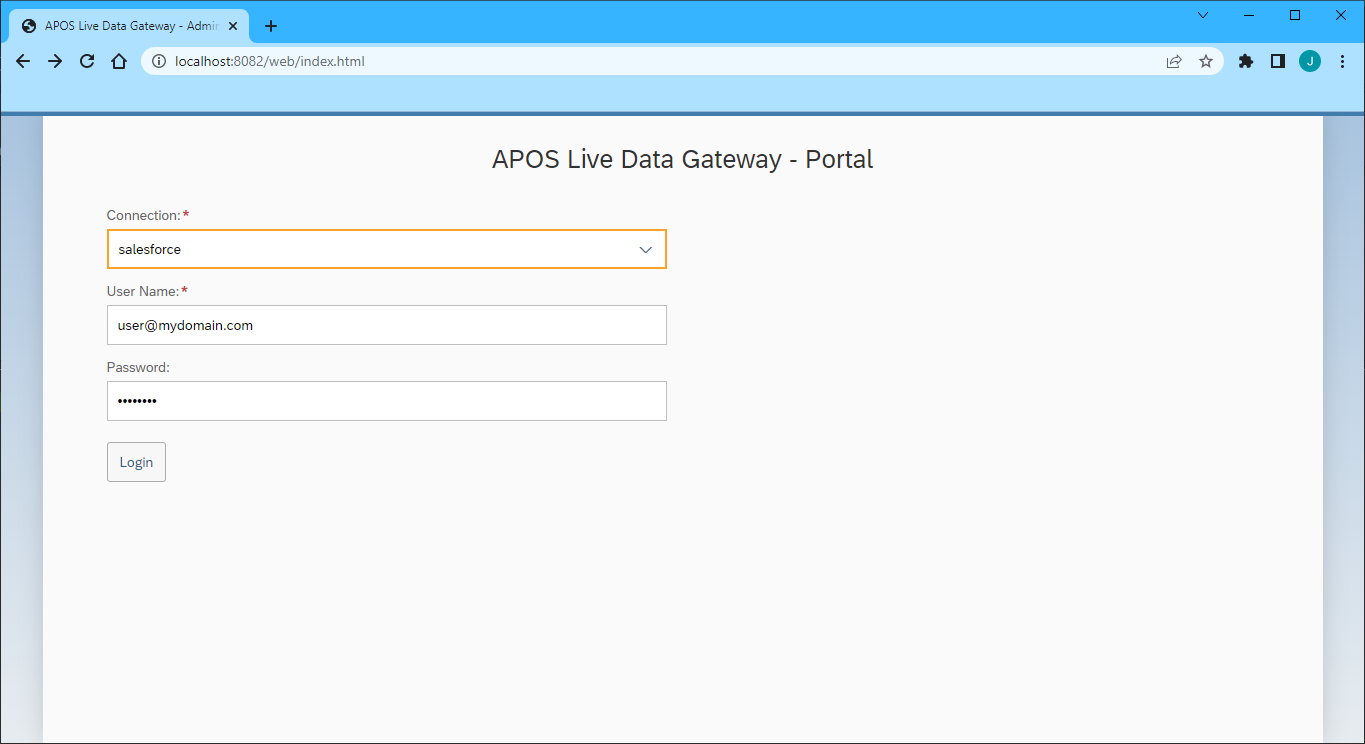
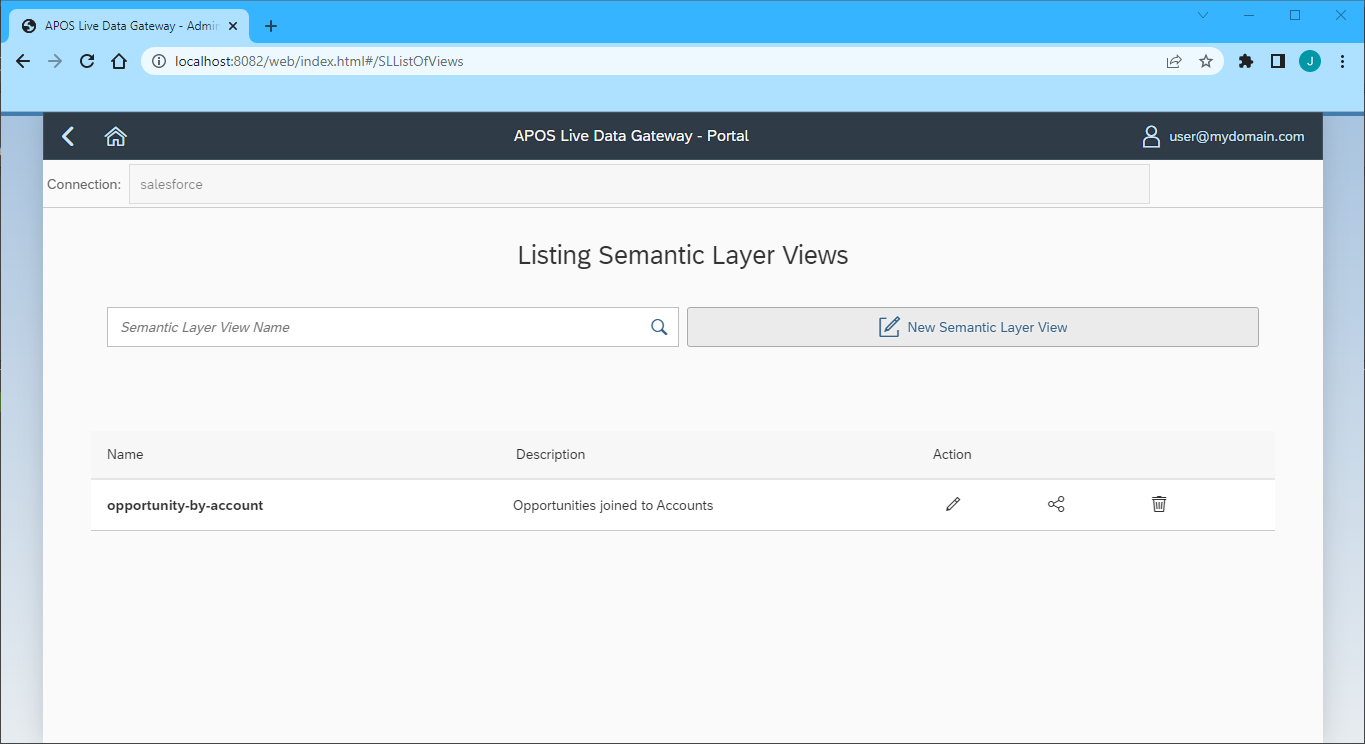
- Once connected, click "Semantic Layer" to create a new semantic layer view
- Click "New Semantic Layer View"
- Set the Semantic Layer View Prefix and Semantic Layer View Name
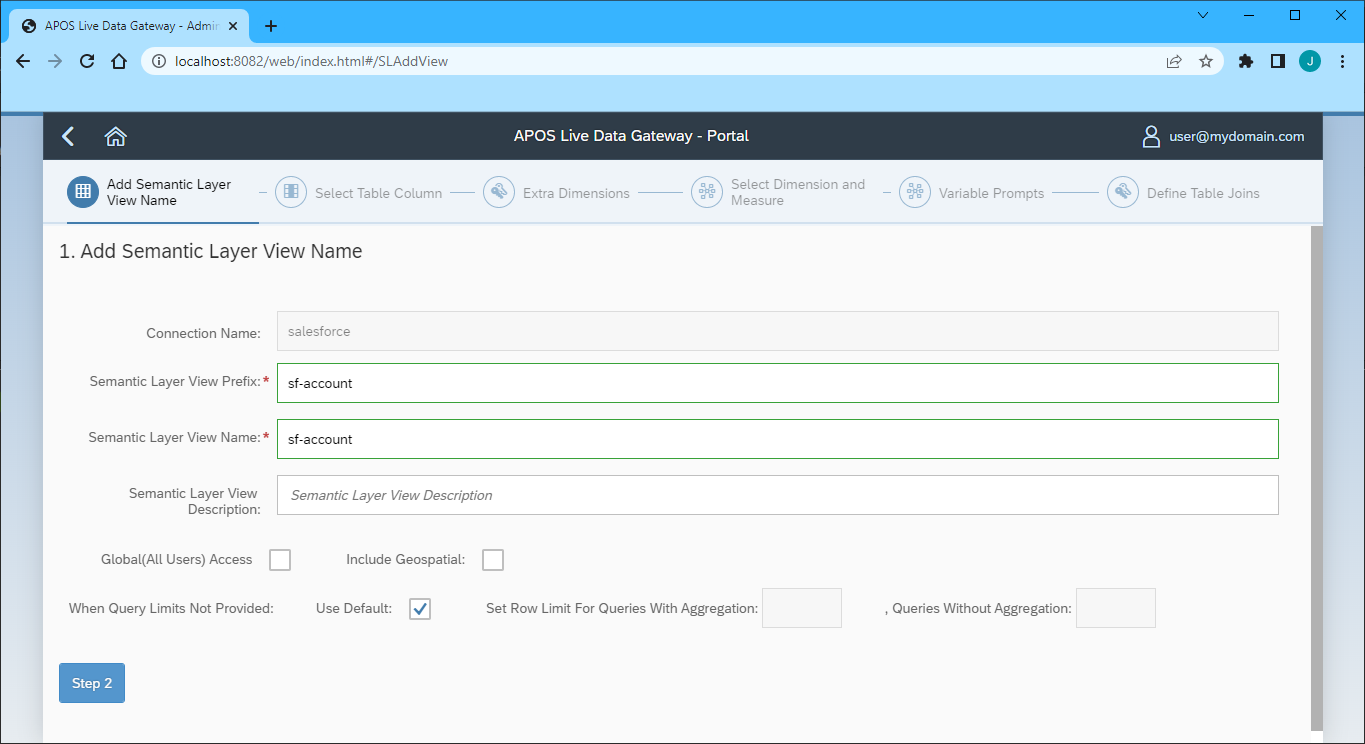
- Click "Step 2"
- Select the table(s) and column(s) you wish to include in your view
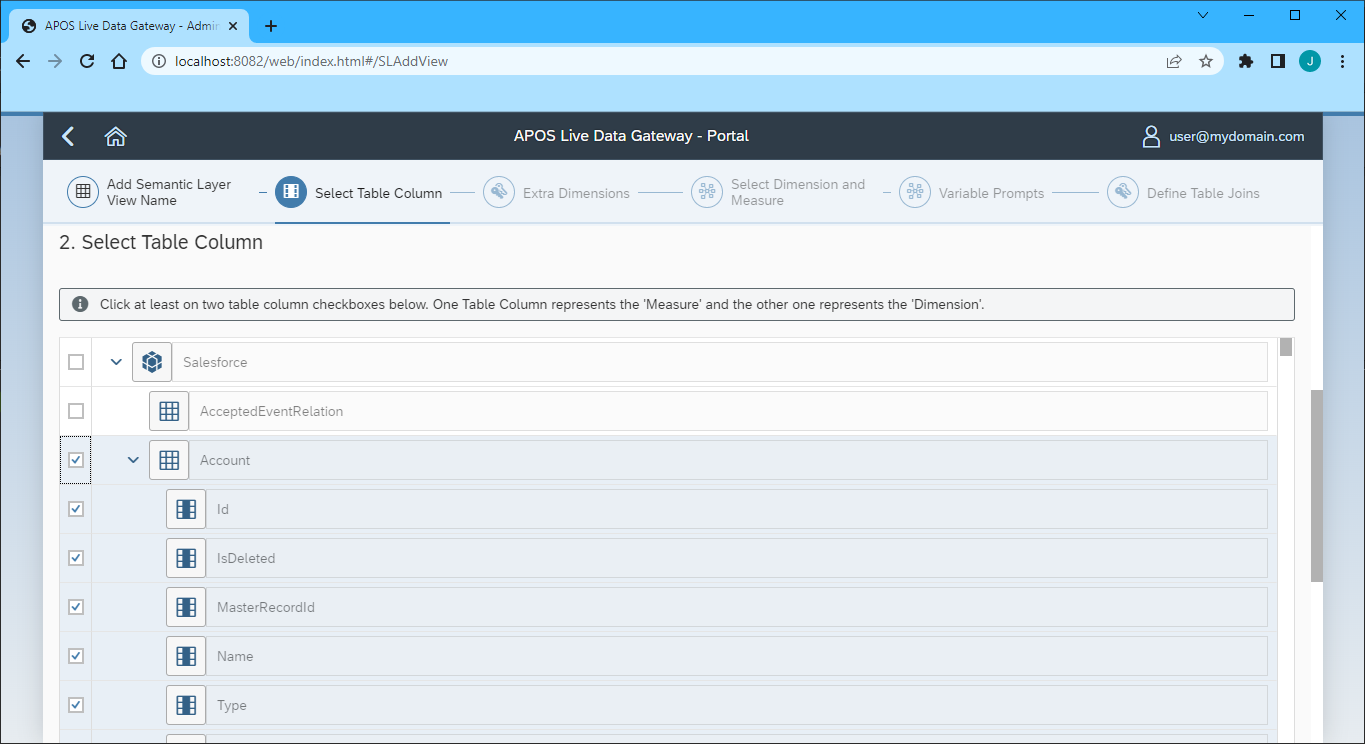
- Click "Step 3"
- Select the Measures from the available table columns
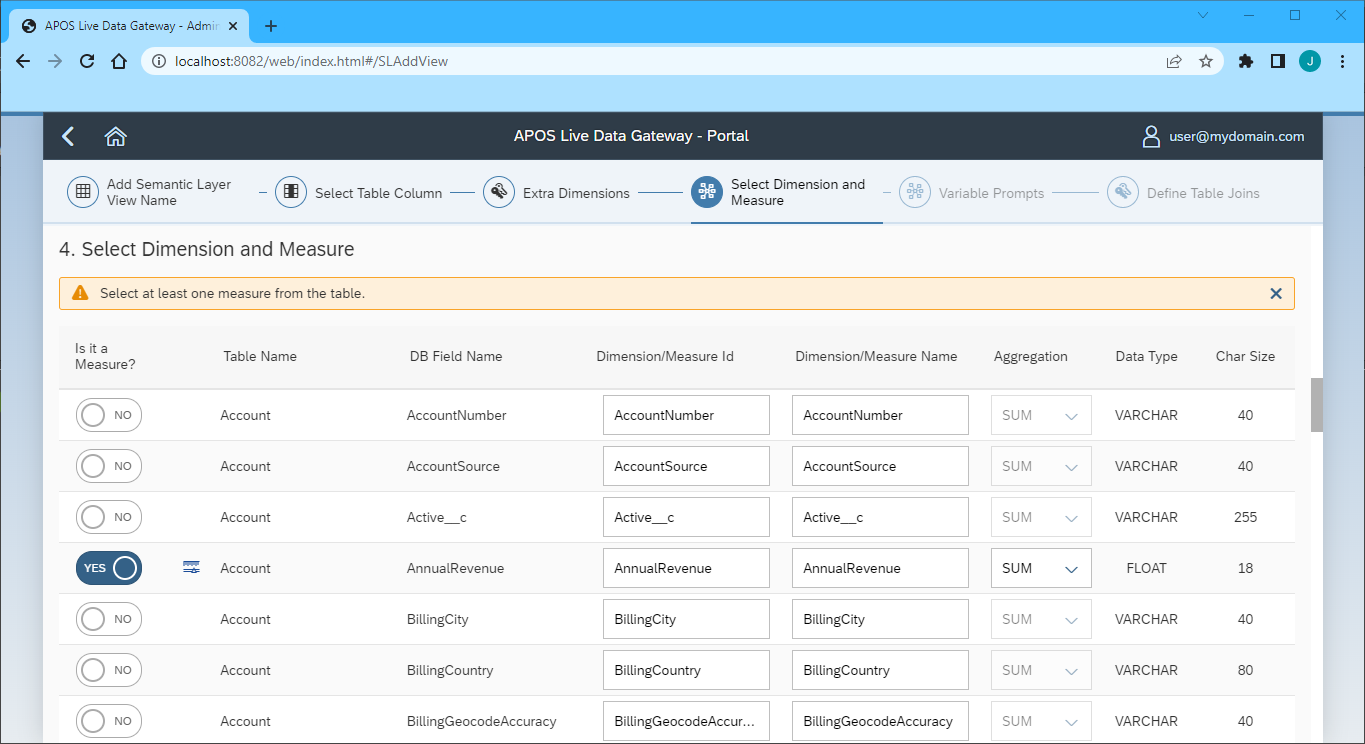
- Click "Step 5" (we skipped the "Extra Dimensions" step)
- Add any Variable Prompts
- Click "Step 6"
- Define any Table Joins
- Click "Review"
- Review you semantic layer view and click "Save"
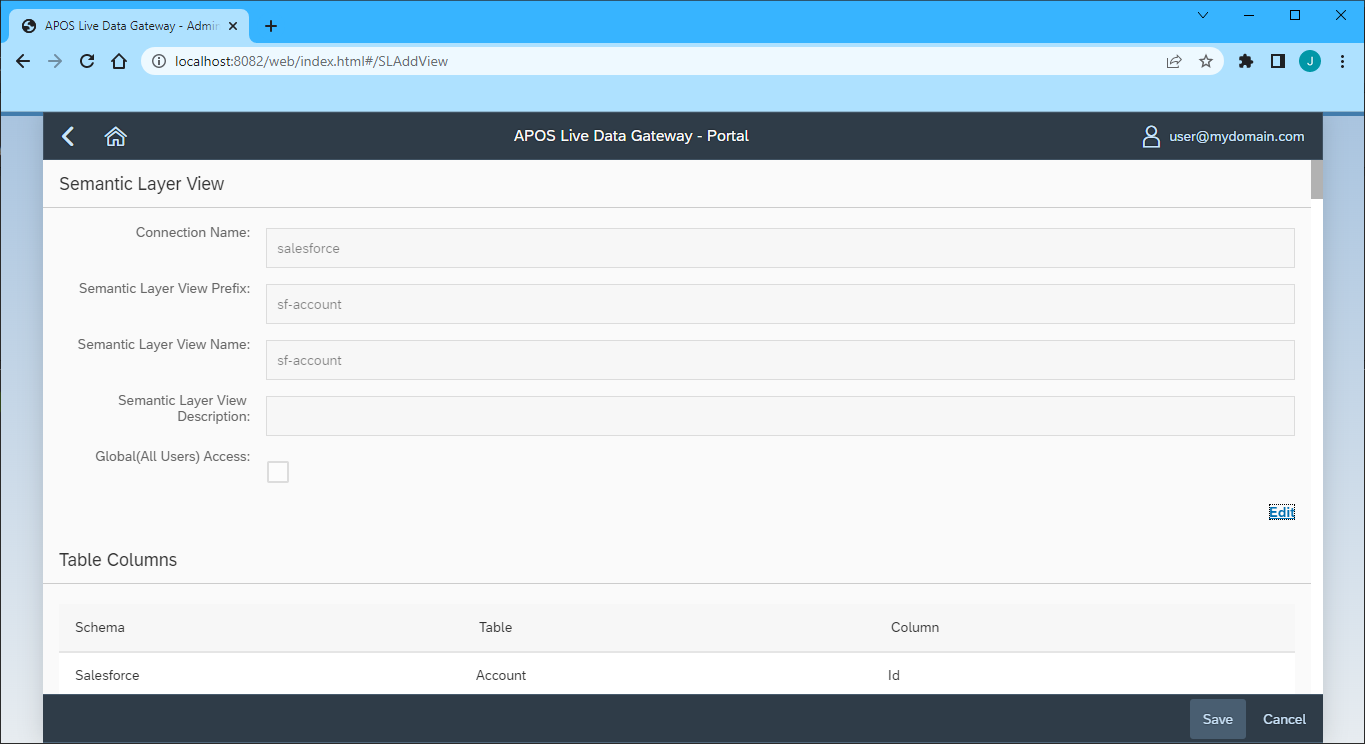
With the Semantic Layer View created, you are ready to access your Linear data through the APOS Live Data Gateway, enabling real-time data connectivity to Linear data from SAP Analytics Cloud and other SAP solutions.
More Information & Free Evaluation
Please visit APOS Systems - APOS Solutions - Request Evaluation Software to request evaluation software or email [email protected] for more information on working with your live Linear data in APOS Live Data Gateway.
Ready to get started?
Download a free trial of the Linear Driver to get started:
Download NowLearn more:
 Linear JDBC Driver
Rapidly create and deploy powerful Java applications that integrate with Linear data including AgentSession, Comment, Customer, Cycle, Initiative, Integration, Issue, ProjectStatus, Release, Team, User, and more!