




Process & Analyze Linear Data in Databricks (AWS)

Databricks is a cloud-based service that provides data processing capabilities through Apache Spark. When paired with the CData JDBC Driver, customers can use Databricks to perform data engineering and data science on live Linear data. This article explains how to host the CData JDBC Driver in AWS, as well as connect to and process live Linear data in Databricks.
With built-in optimized data processing, the CData JDBC Driver offers unmatched performance for interacting with live Linear data. When you issue complex SQL queries to Linear, the driver pushes supported SQL operations, like filters and aggregations, directly to Linear and utilizes the embedded SQL engine to process unsupported operations client-side (often SQL functions and JOIN operations). Its built-in dynamic metadata querying allows you to work with and analyze Linear data using native data types.
Install the CData JDBC Driver in Databricks
To work with live Linear data in Databricks, install the driver on your Databricks cluster.
- Navigate to your Databricks administration screen and select the target cluster.
- On the Libraries tab, click "Install New."
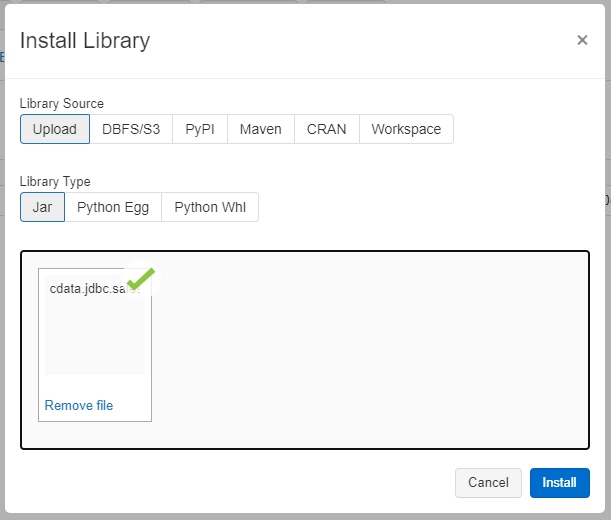
- Select "Upload" as the Library Source and "Jar" as the Library Type.
- Upload the JDBC JAR file (cdata.jdbc.linear.jar) from the installation location (typically C:\Program Files\CData\CData JDBC Driver for Linear\lib).
Access Linear Data in your Notebook: Python
With the JAR file installed, we are ready to work with live Linear data in Databricks. Start by creating a new notebook in your workspace. Name the notebook, select Python as the language (though Scala is available as well), and choose the cluster where you installed the JDBC driver. When the notebook launches, we can configure the connection, query Linear, and create a basic report.
Configure the Connection to Linear
Connect to Linear by referencing the JDBC Driver class and constructing a connection string to use in the JDBC URL. Additionally, you will need to set the RTK property in the JDBC URL (unless you are using a Beta driver). You can view the licensing file included in the installation for information on how to set this property.
Step 1: Connection Information
driver = "cdata.jdbc.linear.LinearDriver"
url = "jdbc:linear:RTK=5246...;AuthScheme=APIKey;APIKey=myAPIKey;"
Built-in Connection String Designer
For assistance in constructing the JDBC URL, use the connection string designer built into the Linear JDBC Driver. Either double-click the JAR file or execute the jar file from the command-line.
java -jar cdata.jdbc.linear.jar
Fill in the connection properties and copy the connection string to the clipboard.
You can authenticate to Linear with a personal API key or with OAuth 2.0. The API key is the simplest option for connecting with your own Linear account.
Authenticating with an API Key
Set the following connection properties:
- AuthScheme: Set this to APIKey.
- APIKey: A Linear personal API key.
To create a personal API key, log in to Linear, open Settings > Security & access > Personal API keys, select New API key, and create it. Copy the key immediately, because Linear shows it only once.
Authenticating with OAuth
OAuth requires a custom OAuth application registered in Linear (Settings > API > OAuth applications), which provides the OAuthClientId and OAuthClientSecret. Two flows are supported:
- Authorization code: Set AuthScheme to OAuth, InitiateOAuth to GETANDREFRESH, and provide OAuthClientId, OAuthClientSecret, and the CallbackURL defined in your application (e.g., http://localhost:33333). The driver opens Linear in your browser so you can grant access.
- Client credentials: Set AuthScheme to OAuthClient and provide OAuthClientId and OAuthClientSecret. This authenticates the application itself, with no browser interaction, and suits machine-to-machine integrations.
By default, the driver requests the read,write scopes. The driver refreshes the access token automatically when it expires.

Load Linear Data
Once you configure the connection, you can load Linear data as a dataframe using the CData JDBC Driver and the connection information.
Step 2: Reading the data
remote_table = spark.read.format ( "jdbc" ) \
	.option ( "driver" , driver) \
	.option ( "url" , url) \
	.option ( "dbtable" , "Team") \
	.load ()
Display Linear Data
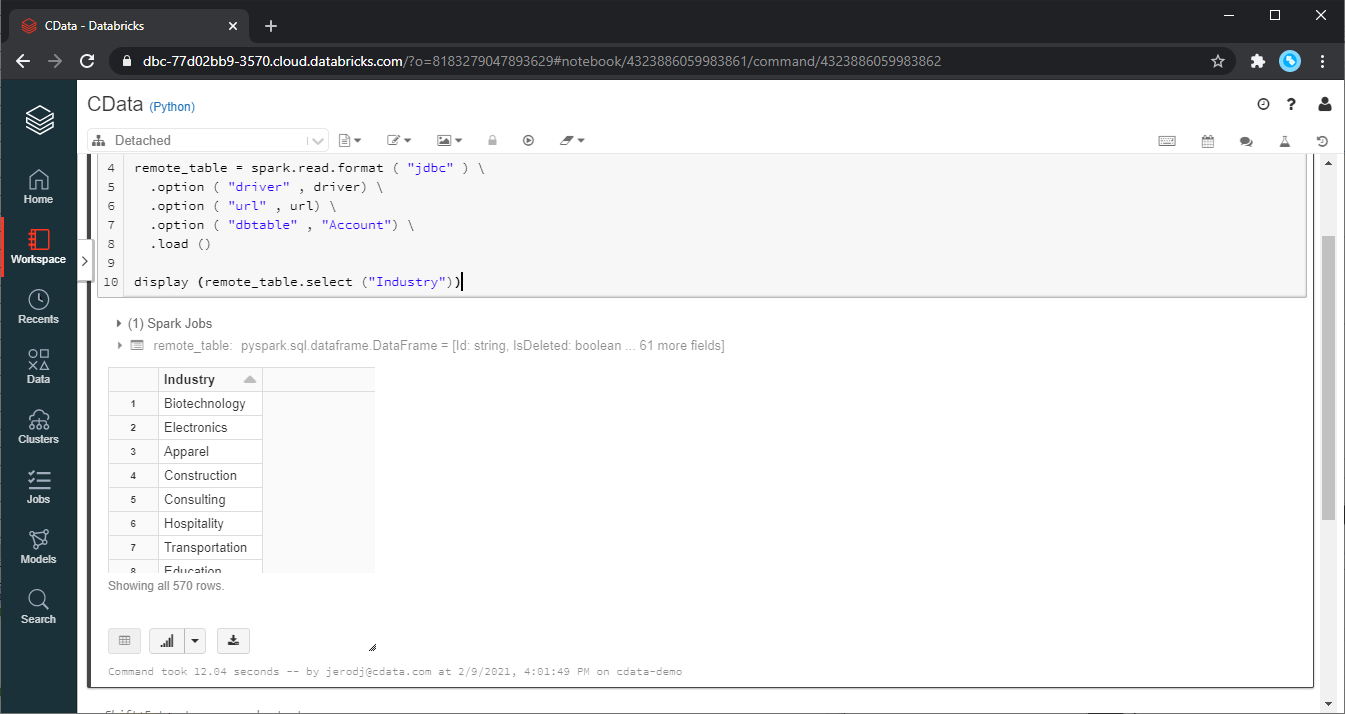
Check the loaded Linear data by calling the display function.
Step 3: Checking the result
display (remote_table.select ("id"))
Analyze Linear Data in Databricks
If you want to process data with Databricks SparkSQL, register the loaded data as a Temp View.
Step 4: Create a view or table
remote_table.createOrReplaceTempView ( "SAMPLE_VIEW" )
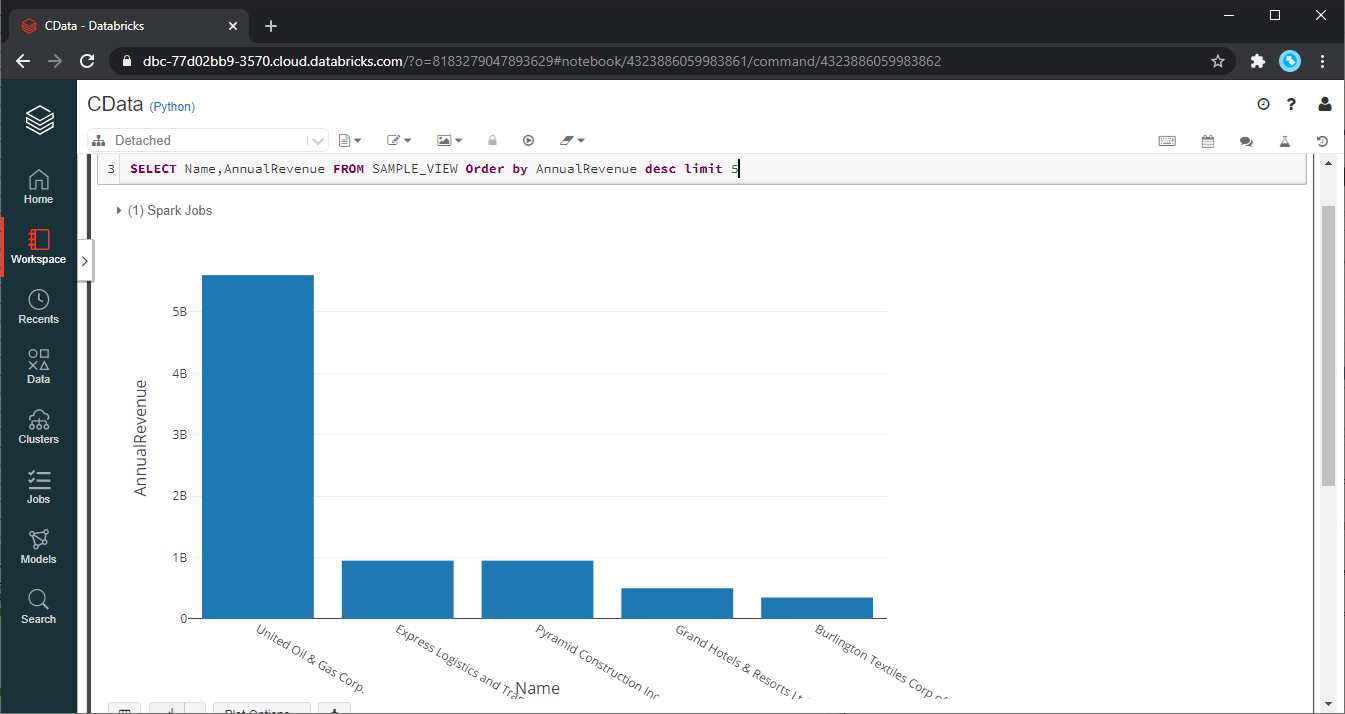
With the Temp View created, you can use SparkSQL to retrieve the Linear data for reporting, visualization, and analysis.
% sql

SELECT id, name FROM SAMPLE_VIEW ORDER BY name DESC LIMIT 5
The data from Linear is only available in the target notebook. If you want to use it with other users, save it as a table.
remote_table.write.format ( "parquet" ) .saveAsTable ( "SAMPLE_TABLE" )
Download a free, 30-day trial of the CData JDBC Driver for Linear and start working with your live Linear data in Databricks. Reach out to our Support Team if you have any questions.
Ready to get started?
Download a free trial of the Linear Driver to get started:
Download NowLearn more:
 Linear JDBC Driver
Rapidly create and deploy powerful Java applications that integrate with Linear data including AgentSession, Comment, Customer, Cycle, Initiative, Integration, Issue, ProjectStatus, Release, Team, User, and more!