




Connect Linear to IBM WebSphere Using the CData JDBC Driver

IBM WebSphere is a powerful application server that runs many enterprise level Java applications and services. When paired with the CData JDBC Driver for Linear, IBM WebSphere applications can connect to Linear and work with data using standard SQL queries instead of complex APIs. This simplifies integration, reduces development effort, and provides secure, real-time access to critical business data.
Prerequisites
- Access to a Linear account (with API permissions)
- IBM WebSphere Application Server (configured and running)
- CData JDBC Driver for Linear
- Java Servlet WAR application ready for deployment
Note: This article uses Salesforce as a demonstration data source, but the same steps can be followed to connect to any of the 250+ JDBC Drivers available in our portfolio.
Getting Started
Step 1: Download and install the CData JDBC Driver for Linear
Download and install the CData JDBC Driver for Linear, which provides a .jar file: cdata.jdbc.linear.jar
Step 2: Install and configure IBM Websphere
- Create an account in IBM WebSphere using the official IBM site.
- Install and configure the IBM Websphere Application server in the local system using the documentation: IBM Websphere Application Server
- Once the application server is installed, start the WebSphere Server using the Admin Console in your browser: https://your-server:9043/ibm/console
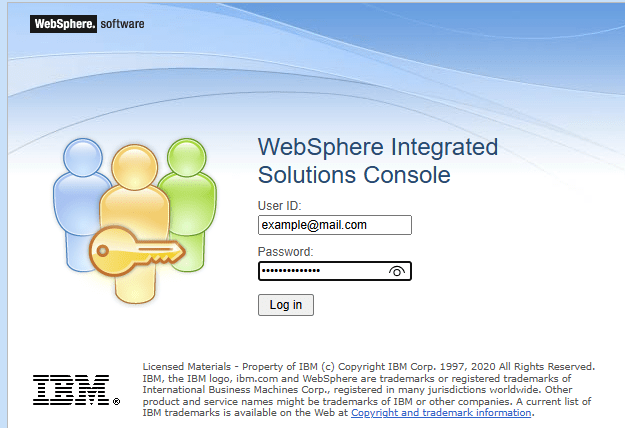
Step 3: Set up the JDBC provider and data source for Linear
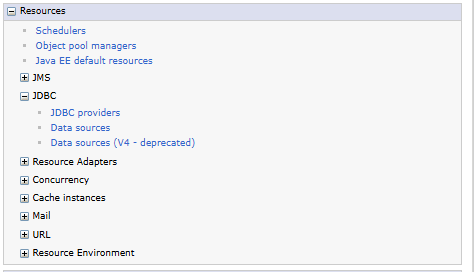
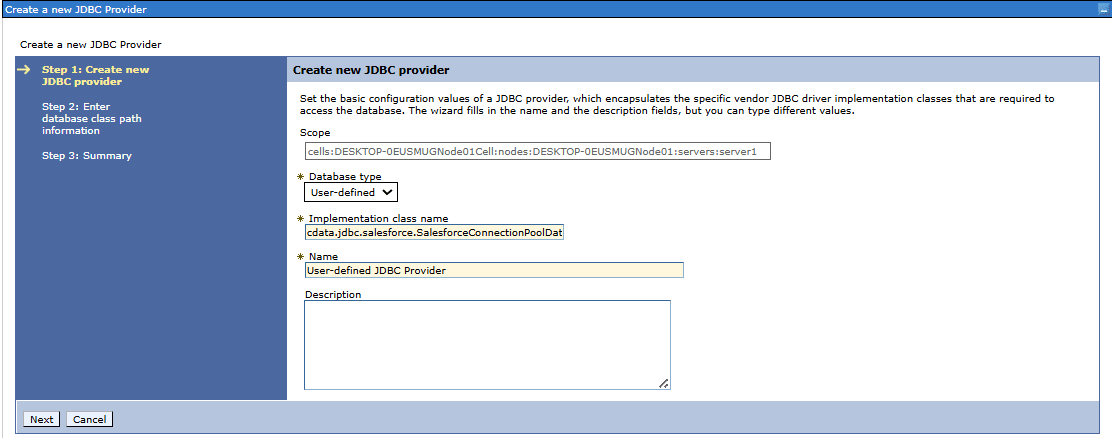
- Go to Resources, expand the JDBC section, and then select JDBC providers to create a new provider
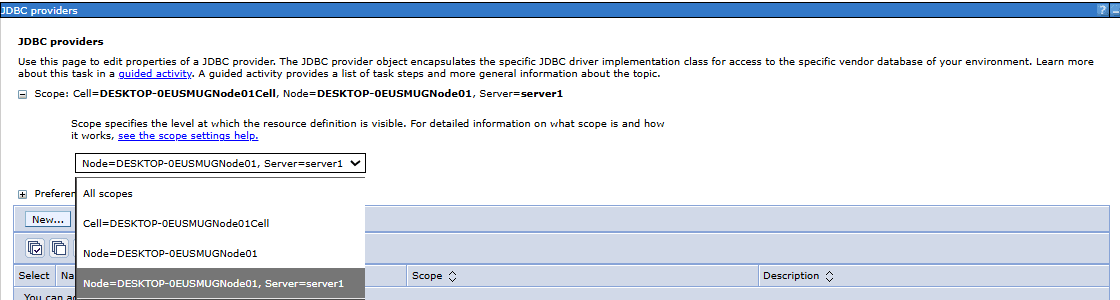
- Select the appropriate scope from the drop down menu
- Click New to add a JDBC provider
- Choose User defined as the database type
- Enter cdata.jdbc.linear.LinearConnectionPoolDataSource as the implementation class name
- Type a name for the provider, for example User defined JDBC Provider
- Enter the full path of the JDBC driver JAR file in the classpath field
- Click Next, then Finish, and save the changes to the master configuration.
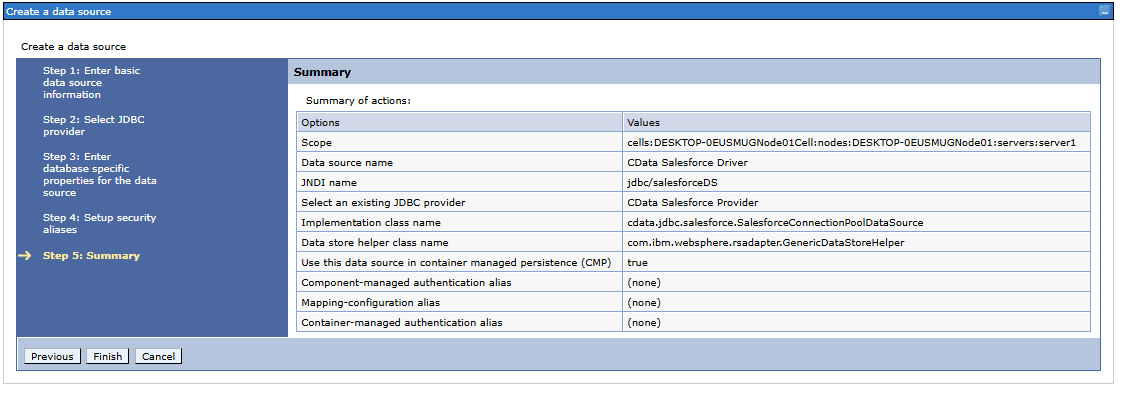
- Once the JDBC provider is created, add a JDBC data source.
- Enter the basic details such as Data Source Name and JNDI name
- Select the existing JDBC provider created earlier (e.g., CData Linear Provider)
- Provide the Implementation class name: cdata.jdbc.linear.LinearConnectionPoolDataSource
- Add the Data Store Helper Class Name: com.ibm.websphere.rsadapter.GenericDataStoreHelper
- Configure security by setting authentication aliases if required
- Review the Summary page to verify all details and click Finish to complete the data source creation
- Select the newly created data source from the list and open Custom properties
-
Add the JDBC connection string under the URL property and press OK. For example:
jdbc:linear:RTK=5246...;AuthScheme=APIKey;APIKey=myAPIKey;You can authenticate to Linear with a personal API key or with OAuth 2.0. The API key is the simplest option for connecting with your own Linear account.
Authenticating with an API Key
Set the following connection properties:
- AuthScheme: Set this to APIKey.
- APIKey: A Linear personal API key.
To create a personal API key, log in to Linear, open Settings > Security & access > Personal API keys, select New API key, and create it. Copy the key immediately, because Linear shows it only once.
Authenticating with OAuth
OAuth requires a custom OAuth application registered in Linear (Settings > API > OAuth applications), which provides the OAuthClientId and OAuthClientSecret. Two flows are supported:
- Authorization code: Set AuthScheme to OAuth, InitiateOAuth to GETANDREFRESH, and provide OAuthClientId, OAuthClientSecret, and the CallbackURL defined in your application (e.g., http://localhost:33333). The driver opens Linear in your browser so you can grant access.
- Client credentials: Set AuthScheme to OAuthClient and provide OAuthClientId and OAuthClientSecret. This authenticates the application itself, with no browser interaction, and suits machine-to-machine integrations.
By default, the driver requests the read,write scopes. The driver refreshes the access token automatically when it expires.
Built-in Connection String Designer
For assistance in constructing the JDBC URL, use the connection string designer built into the Linear JDBC Driver. Either double-click the JAR file or execute the jar file from the command-line.
java -jar cdata.jdbc.linear.jarFill in the connection properties and copy the connection string to the clipboard.

Note: If the URL property is not available, create it and then add the JDBC connection string.
Tip: Always test the connection string with the driver before entering it in the URL property.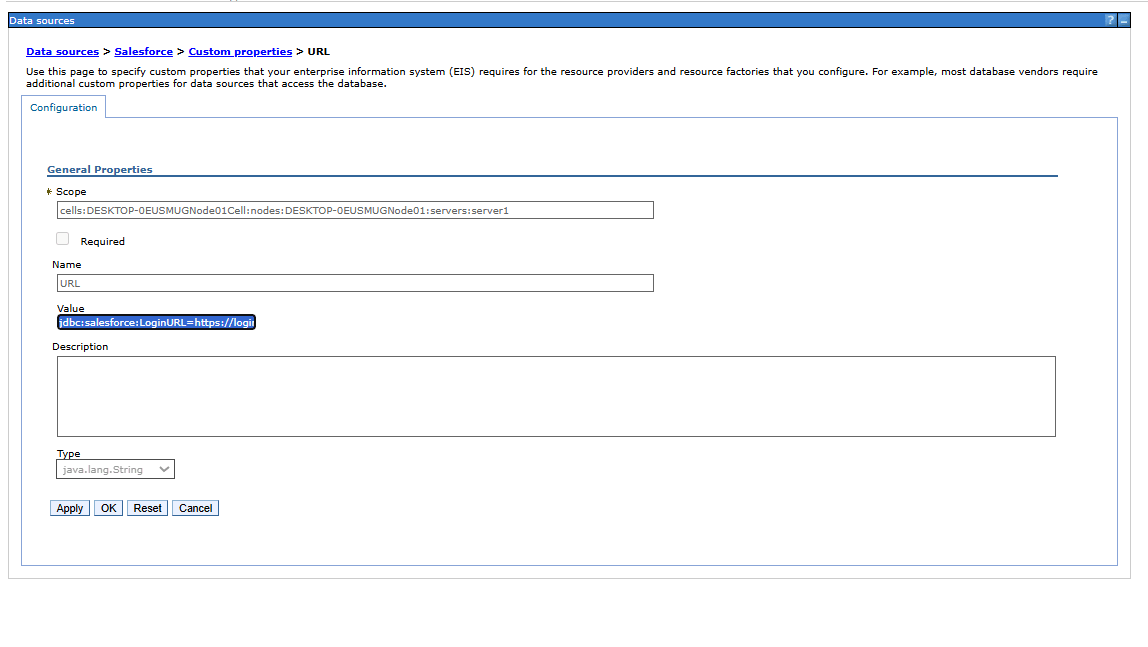
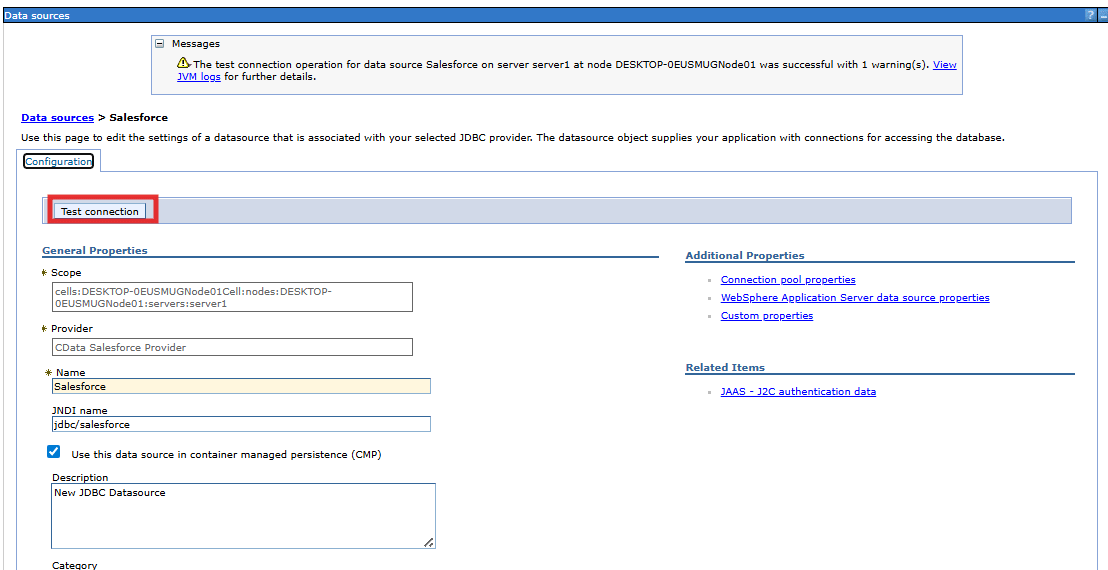
- Now open the data source and choose Test Connection
Step 4: Build the web application
- Build the web application using preferred Java framework (Servlet, JSP, or Spring). The resulting .war file will typically follow a structure like this:
- Define the data access logic using JDBC or JPA, referencing the data source through a JNDI name
- This article explains how to set up a JDBC connection and deploy a Java Servlet application
- Package the project as a WAR (Web Application Archive) or EAR (Enterprise Archive) file for deployment
- In a terminal compile the java file using the command:
cd webcontent jar cvf ..\LinearServletApp.war *
		LinearServletApp.war
		|--webcontent
		|  |--index.jsp                 -- JSP page (entry point)
		|  |
		|  |--WEB-INF/                  --Hidden from direct browser access
		|     |--web.xml                 -- Deployment descriptor
		|     |
		|     |--classes/                  --Compiled .class files
		|       |--com/example/Linear/
		|          |--LinearServlet.class
		|
		|--lib/                      --Dependency JARs
		|--cdata.jdbc.linear.jar
Step 5: Deploy the Linear application in WebSphere
- In the WebSphere admin console, go to Applications and select Install New Application
- Browse and upload the WAR file, then continue with the installation wizard.
Step 6: Retrieve Linear data through WebSphere
- Access the application using its context root: http://hostname:port/context-root/page
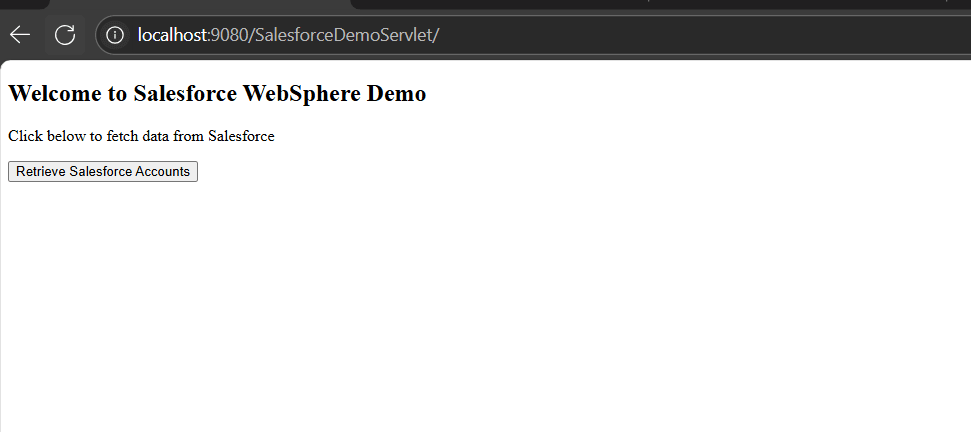 Note: Ensure the deployed application is started before opening it in the browser.
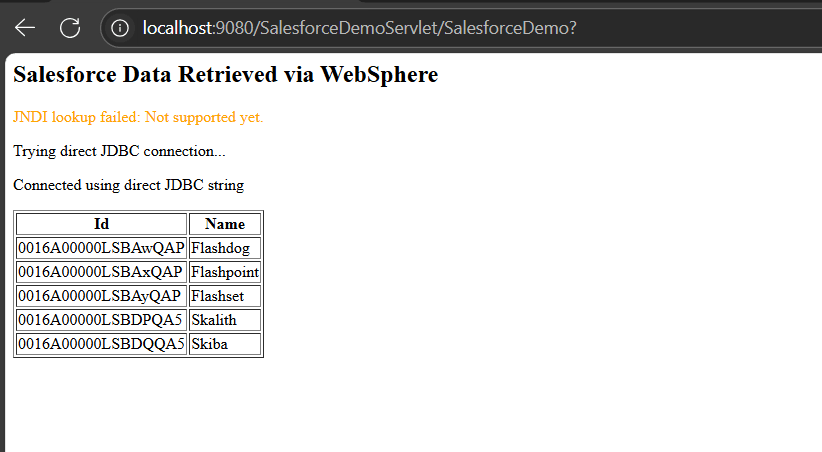
We can now view the retrieved data from the source. The data is accessible directly through IBM WebSphere. This setup demonstrates how a servlet can be deployed in WebSphere to retrieve Linear data using the JDBC driver, creating a strong foundation for building advanced Linear powered enterprise applications.
Get Started with Connecting Linear to IBM WebSphere
Start connecting Linear to IBM WebSphere with the CData JDBC Connector today. Download the free 30-day trial and explore how easy it is to enable secure, real-time data access for your applications. As always, our world-class Support Team is available to help with any questions you may have.
Ready to get started?
Download a free trial of the Linear Driver to get started:
Download NowLearn more:
 Linear JDBC Driver
Rapidly create and deploy powerful Java applications that integrate with Linear data including AgentSession, Comment, Customer, Cycle, Initiative, Integration, Issue, ProjectStatus, Release, Team, User, and more!