




Use the CData JDBC Driver for Linear in MicroStrategy

MicroStrategy is an analytics and mobility platform that enables data-driven innovation. When you pair MicroStrategy with the CData JDBC Driver for Linear, you gain database-like access to live Linear data from MicroStrategy, expanding your reporting and analytics capabilities. In this article, we walk through creating a database instance for Linear in MicroStrategy Developer and create a Warehouse Catalog for the Linear data.
The CData JDBC Driver offers unmatched performance for interacting with live Linear data in MicroStrategy due to optimized data processing built into the driver. When you issue complex SQL queries from MicroStrategy to Linear, the driver pushes supported SQL operations, like filters and aggregations, directly to Linear and utilizes the embedded SQL engine to process unsupported operations (often SQL functions and JOIN operations) client-side. With built-in dynamic metadata querying, you can visualize and analyze Linear data using native MicroStrategy data types.
Connect to Linear in MicroStrategy Developer
You can connect to Linear in MicroStrategy Developer by adding a database instance based on the CData JDBC Driver for Linear.* Before you begin, you will need to install the JDBC Driver for Linear on the machine hosting the MicroStrategy Intelligence Server that your instance of MicroStrategy Developer is connected to.
- Open MicroStrategy Developer and select a Project Source.
- Navigate to Administration -> Configuration Managers -> Database Instances and right-click to add a new instance.
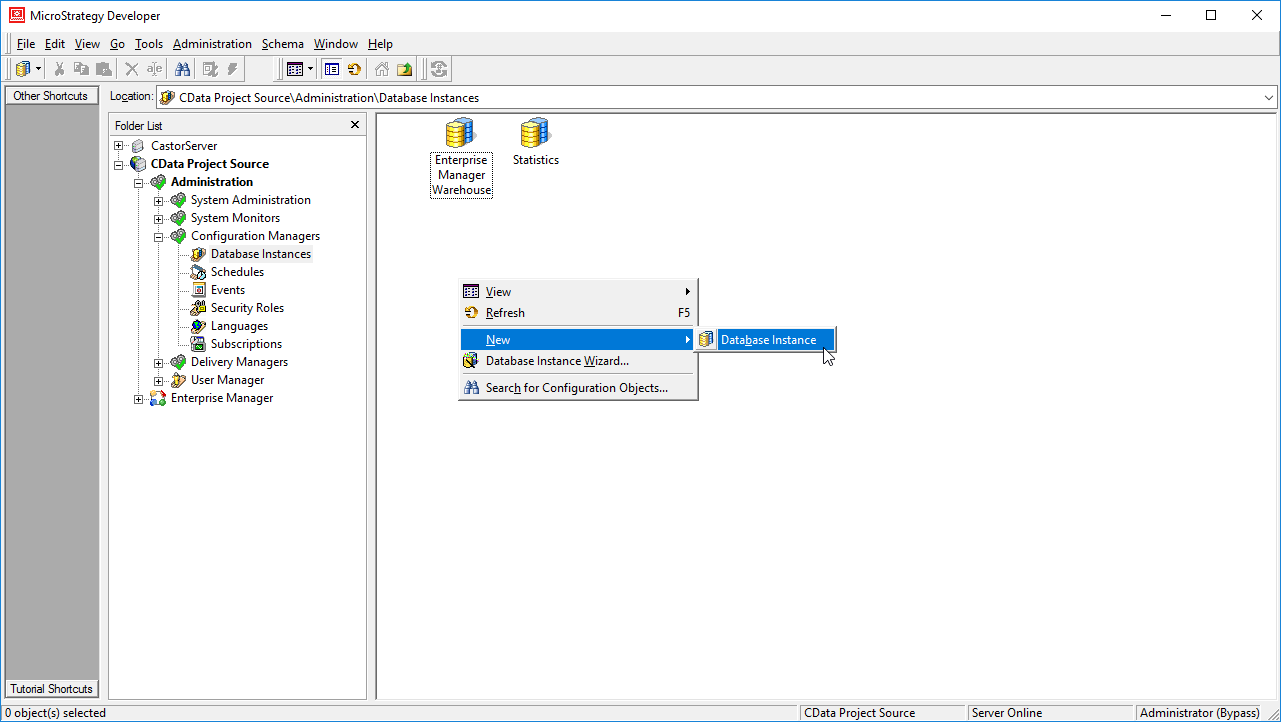
- Name the instance, select Generic DBMS as the database connection type, and create a new database connection.
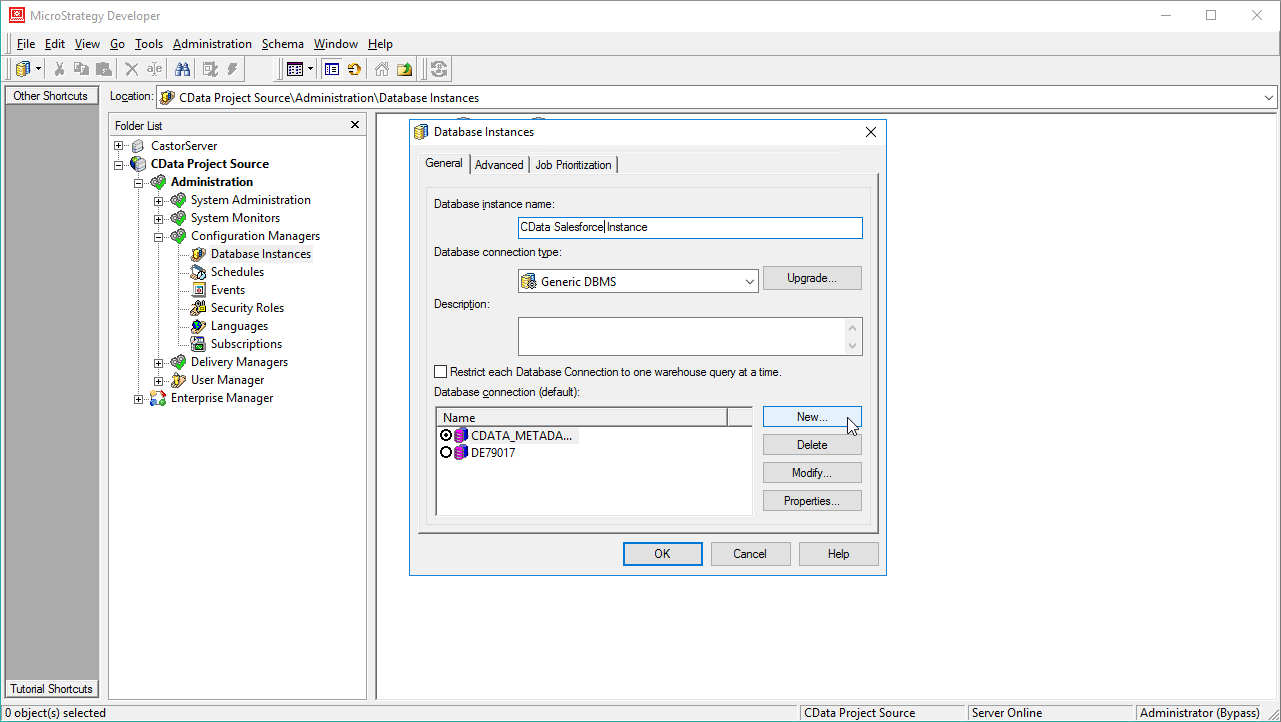
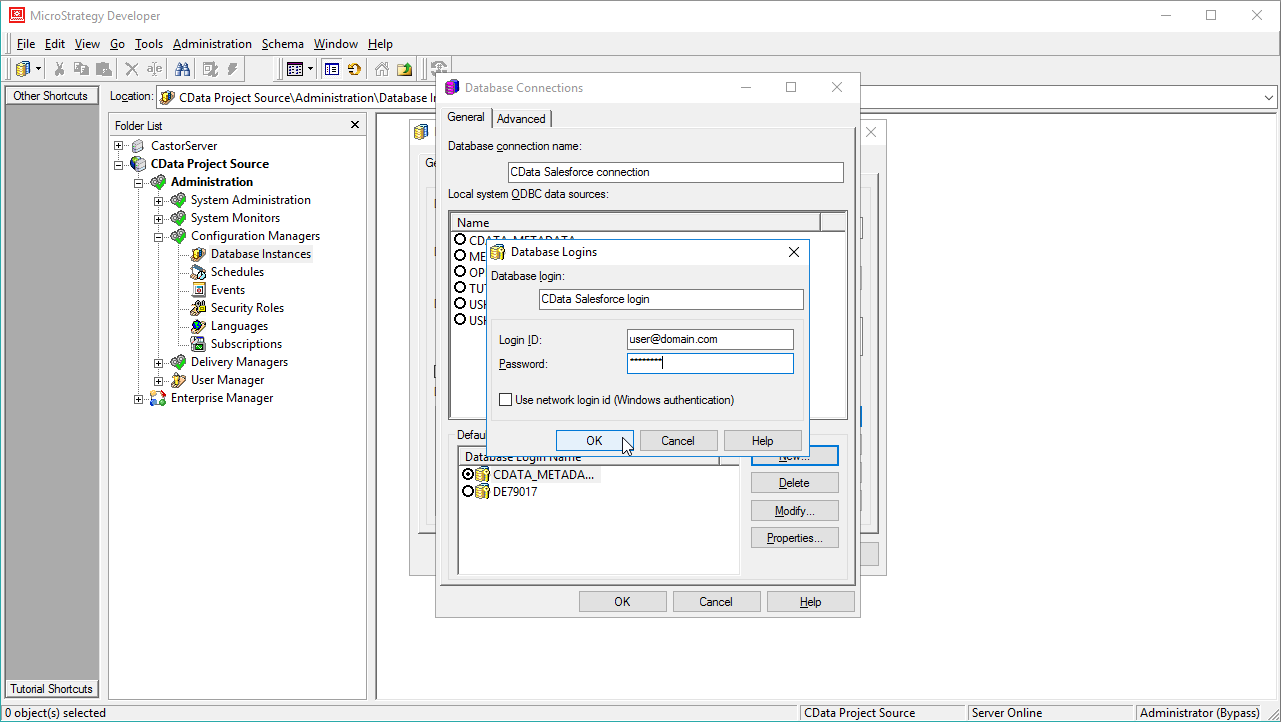
- In the database connection wizard, name the connection and create a new Database Login name, setting the user and password for Linear.
- On the Advanced tab for the connection wizard, set the additional connection string parameters as follows.
- Add the JDBC keyword to the connection string.
- Set MSTR_JDBC_JAR_FOLDER to the path of the directory containing the JAR file for the JDBC driver. (C:\Program Files\CData JDBC Driver for Linear\lib\ on Windows.)
- Set DRIVER to cdata.jdbc.linear.LinearDriver, the driver class.
- Set URL to the JDBC URL for the Linear driver, which contains the necessary connection properties.
You can authenticate to Linear with a personal API key or with OAuth 2.0. The API key is the simplest option for connecting with your own Linear account.
Authenticating with an API Key
Set the following connection properties:
- AuthScheme: Set this to APIKey.
- APIKey: A Linear personal API key.
To create a personal API key, log in to Linear, open Settings > Security & access > Personal API keys, select New API key, and create it. Copy the key immediately, because Linear shows it only once.
Authenticating with OAuth
OAuth requires a custom OAuth application registered in Linear (Settings > API > OAuth applications), which provides the OAuthClientId and OAuthClientSecret. Two flows are supported:
- Authorization code: Set AuthScheme to OAuth, InitiateOAuth to GETANDREFRESH, and provide OAuthClientId, OAuthClientSecret, and the CallbackURL defined in your application (e.g., http://localhost:33333). The driver opens Linear in your browser so you can grant access.
- Client credentials: Set AuthScheme to OAuthClient and provide OAuthClientId and OAuthClientSecret. This authenticates the application itself, with no browser interaction, and suits machine-to-machine integrations.
By default, the driver requests the read,write scopes. The driver refreshes the access token automatically when it expires.
Built-in Connection String Designer
For assistance in constructing the JDBC URL, use the connection string designer built into the Linear JDBC Driver. Either double-click the JAR file or execute the jar file from the command-line.
java -jar cdata.jdbc.linear.jarFill in the connection properties and copy the connection string to the clipboard.

When you configure the JDBC URL, you may also want to set the Max Rows connection property. This will limit the number of rows returned, which is especially helpful for improving performance when designing reports and visualizations.
Typical additional connection string properties follow:
JDBC;MSTR_JDBC_JAR_FOLDER=PATH\TO\JAR\;DRIVER=cdata.jdbc.linear.LinearDriver;URL={jdbc:linear:AuthScheme=APIKey;APIKey=myAPIKey;};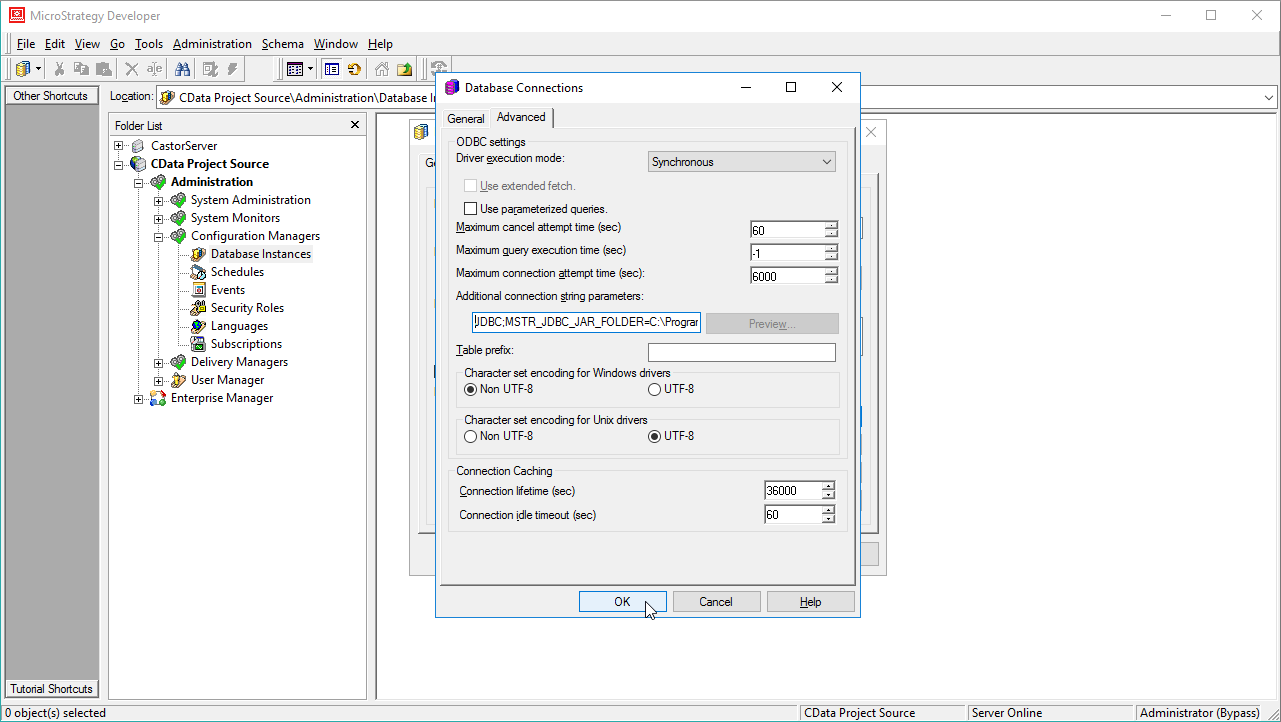
- Ensure that you have not selected an ODBC data source (this will trigger MicroStrategy to use the additional connection string parameters to build the database instance) and click OK.
- Click OK to close the database instance wizard.
- In the Project Source, right-click the project and open the Project configuration.
- Navigate to Database Instances, select the newly created database instance, and click OK.
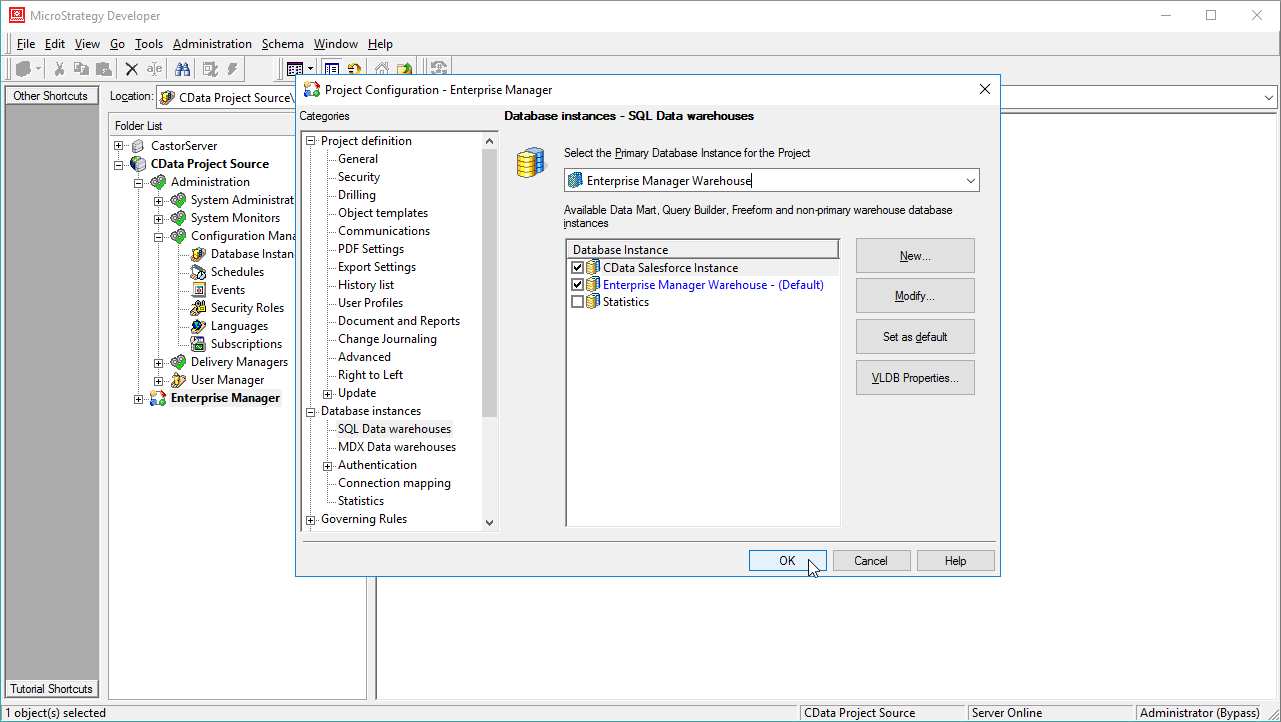
- Close MicroStrategy Developer and restart the connected MicroStrategy Intelligence Server to complete the database instance creation.
With the database instance configured, you will now be able to connect to Linear data from the Warehouse Catalog and Data Import.
Connect to Linear Data from the Warehouse Catalog
Once you have created a database instance based on the JDBC Driver for Linear, you can connect to data from the Warehouse Catalog.
- Select your project and click Schema -> Warehouse Catalog.
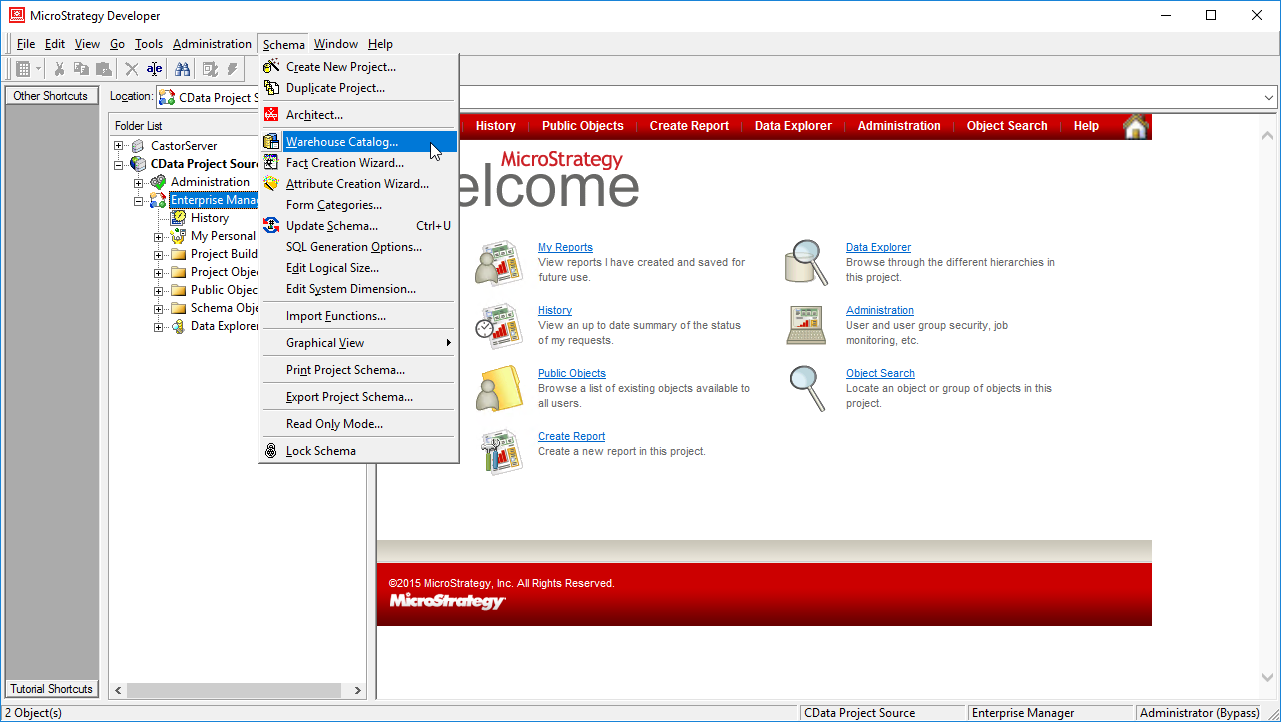
- In the Read Settings for the Catalog, click Settings and set the queries to retrieve the schema:
- To retrieve the list of tables, use the following query:
SELECT * FROM SYS_TABLES - To retrieve the list of columns for selected tables, use the following query:
SELECT DISTINCT
  CatalogName NAME_SPACE,
  TableName TAB_NAME,
  ColumnName COL_NAME,
  DataTypeName DATA_TYPE,
  Length DATA_LEN,
  NumericPrecision DATA_PREC,
  NumericScale DATA_SCALE
FROM
  SYS_TABLECOLUMNS
WHERE
  TableName IN (#TABLE_LIST#)
ORDER BY
  1,2,3

- To retrieve the list of tables, use the following query:
- Select tables to be used in the project.
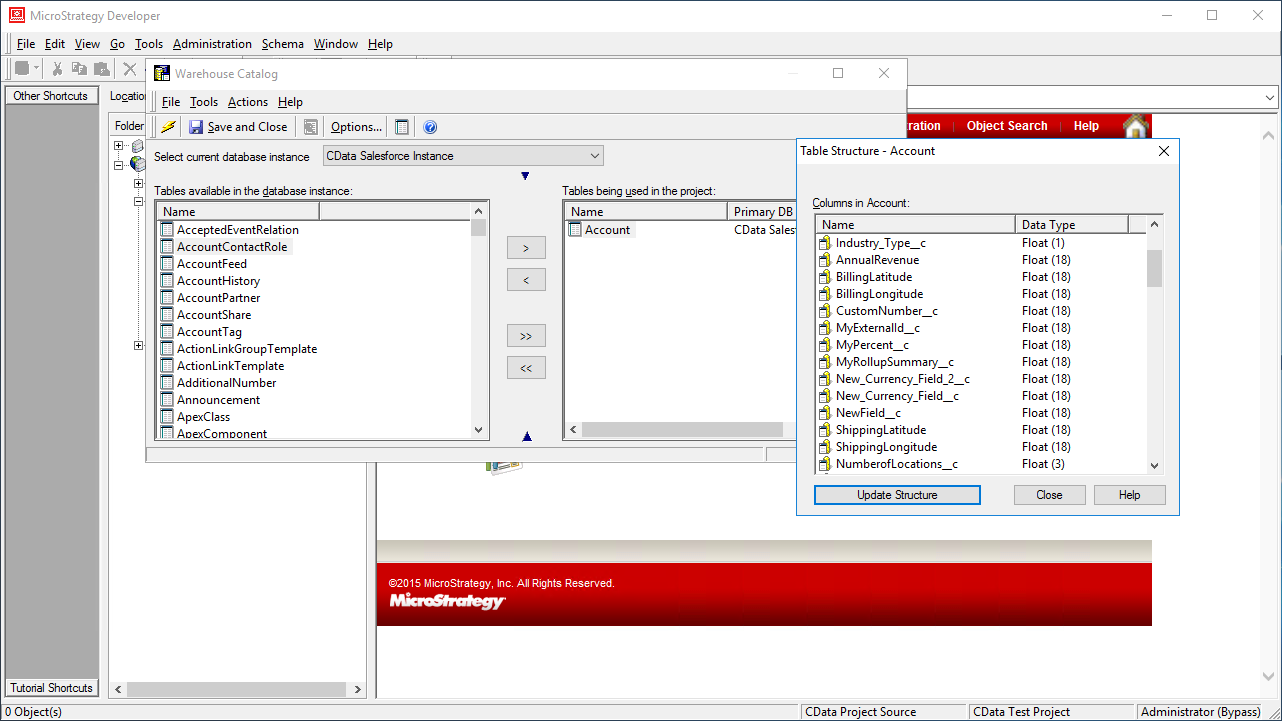
Using the CData JDBC Driver for Linear in MicroStrategy, you can easily create robust visualizations and reports on Linear data. Read our other articles on connecting to Linear in MictroStrategy Web and connecting to Linear in MicroStrategy Desktop for more information.
Note: Connecting using a JDBC Driver requires a 3- or 4-Tier Architecture.
Ready to get started?
Download a free trial of the Linear Driver to get started:
Download NowLearn more:
 Linear JDBC Driver
Rapidly create and deploy powerful Java applications that integrate with Linear data including AgentSession, Comment, Customer, Cycle, Initiative, Integration, Issue, ProjectStatus, Release, Team, User, and more!