




Linear Reporting in OBIEE with the Linear JDBC Driver

The CData JDBC Driver for Linear is a standard database driver that can integrate real-time access to Linear data into your Java-based reporting server. This article shows how to deploy the driver to Oracle Business Intelligence Enterprise Edition (OBIEE) and create reports on Linear data that reflect any changes.
Deploy the JDBC Driver
Follow the steps below to add the JDBC driver to WebLogic's classpath.
For WebLogic 12.2.1, simply place the driver JAR and .lic file into DOMAIN_HOME\lib; for example, ORACLE_HOME\user_projects\domains\MY_DOMAIN\lib. These files will be added to the server classpath at startup.
You can also manually add the driver to the classpath: This is required for earlier versions. Prepend the following to PRE_CLASSPATH in setDomainEnv.cmd (Windows) or setDomainEnv.sh (Unix). This script is located in the bin subfolder of the folder for that domain. For example: ORACLE_HOME\user_projects\domains\MY_DOMAIN\bin.
set PRE_CLASSPATH=your-installation-directory\lib\cdata.jdbc.linear.jar;%PRE_CLASSPATH%
Restart all servers; for example, run the stop and start commands in DOMAIN_HOME\bitools\bin.
Create a JDBC Data Source for Linear
After deploying the JDBC driver, you can create a JDBC data source from BI Publisher.
- Log into BI Publisher, at the URL http://localhost:9502/analytics, for example, and click Administration -> Manage BI Publisher.
- Click JDBC Connection -> Add Data Source.
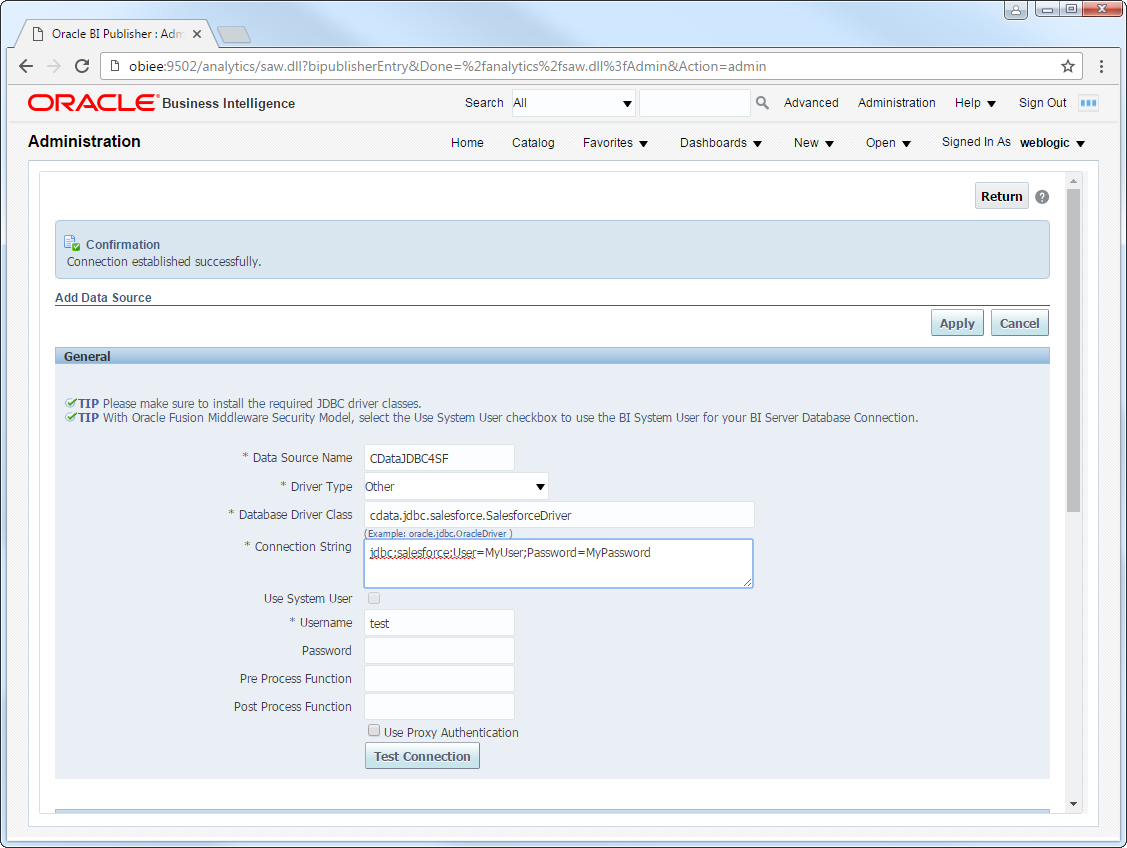
- Enter the following information:
- Data Source Name: Enter the name that users will create connections to in their reports.
- Driver Type: Select Other.
- Database DriverClass: Enter the driver class, cdata.jdbc.linear.LinearDriver.
- Connection String: Enter the JDBC URL.
You can authenticate to Linear with a personal API key or with OAuth 2.0. The API key is the simplest option for connecting with your own Linear account.
Authenticating with an API Key
Set the following connection properties:
- AuthScheme: Set this to APIKey.
- APIKey: A Linear personal API key.
To create a personal API key, log in to Linear, open Settings > Security & access > Personal API keys, select New API key, and create it. Copy the key immediately, because Linear shows it only once.
Authenticating with OAuth
OAuth requires a custom OAuth application registered in Linear (Settings > API > OAuth applications), which provides the OAuthClientId and OAuthClientSecret. Two flows are supported:
- Authorization code: Set AuthScheme to OAuth, InitiateOAuth to GETANDREFRESH, and provide OAuthClientId, OAuthClientSecret, and the CallbackURL defined in your application (e.g., http://localhost:33333). The driver opens Linear in your browser so you can grant access.
- Client credentials: Set AuthScheme to OAuthClient and provide OAuthClientId and OAuthClientSecret. This authenticates the application itself, with no browser interaction, and suits machine-to-machine integrations.
By default, the driver requests the read,write scopes. The driver refreshes the access token automatically when it expires.
Built-in Connection String Designer
For assistance in constructing the JDBC URL, use the connection string designer built into the Linear JDBC Driver. Either double-click the JAR file or execute the jar file from the command-line.
java -jar cdata.jdbc.linear.jarFill in the connection properties and copy the connection string to the clipboard.

When you configure the JDBC URL, you may also want to set the Max Rows connection property. This will limit the number of rows returned, which is especially helpful for improving performance when designing reports and visualizations.
A typical JDBC URL is below:
jdbc:linear:AuthScheme=APIKey;APIKey=myAPIKey; - Username: Enter the username.
- Password: Enter the password.
- In the Security section, select the allowed user roles.
Create Real-Time Linear Reports
You can now create reports and analyses based on real-time Linear data. Follow the steps below to use the standard report wizard to create an interactive report that reflects any changes to Linear data.
- On the global header, click New -> Data Model.
- On the Diagram tab, select SQL query in the menu.
- Enter a name for the query and in the Data Source menu select the Linear JDBC data source you created.
- Select standard SQL and enter a query like the following:
SELECT id, name FROM Team WHERE key = 'ENG'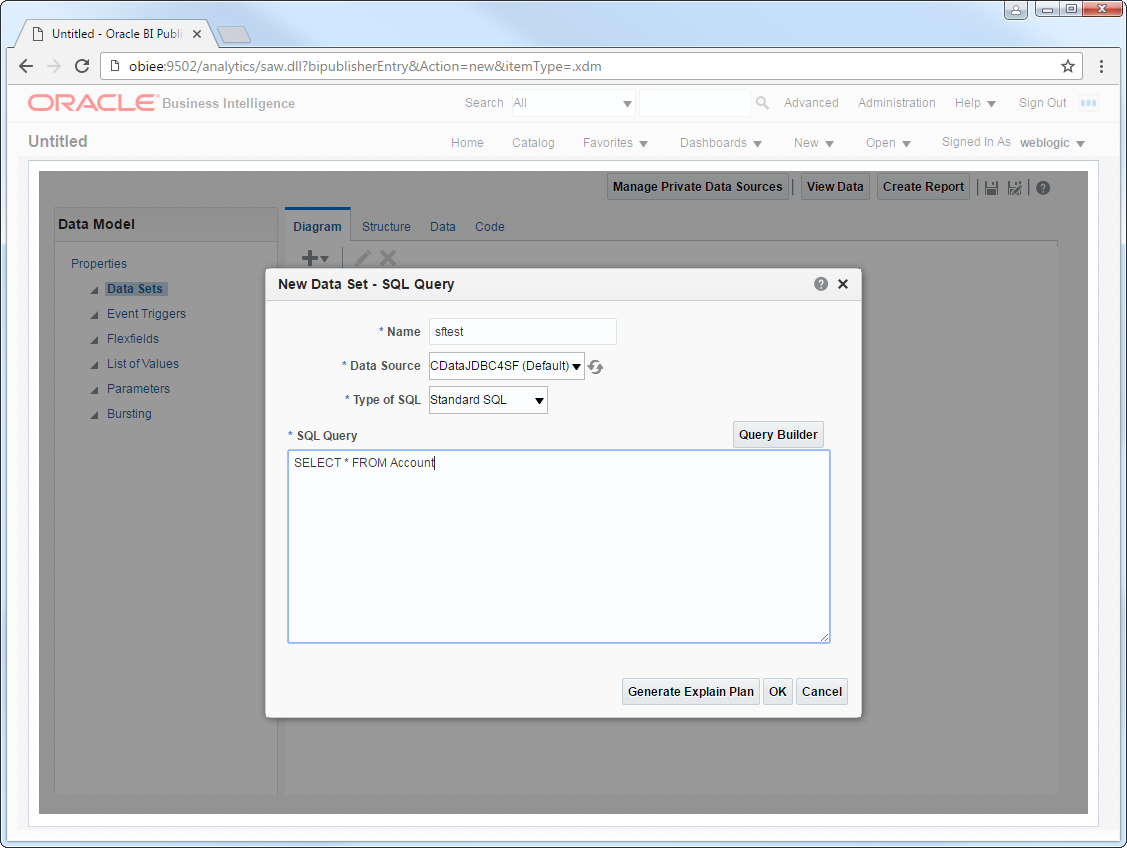
- Click View Data to generate the sample data to be used as you build your report.
- Select the number of rows to include in the sample data, click View, and then click Save As Sample Data.
- Click Create Report -> Use Data Model.
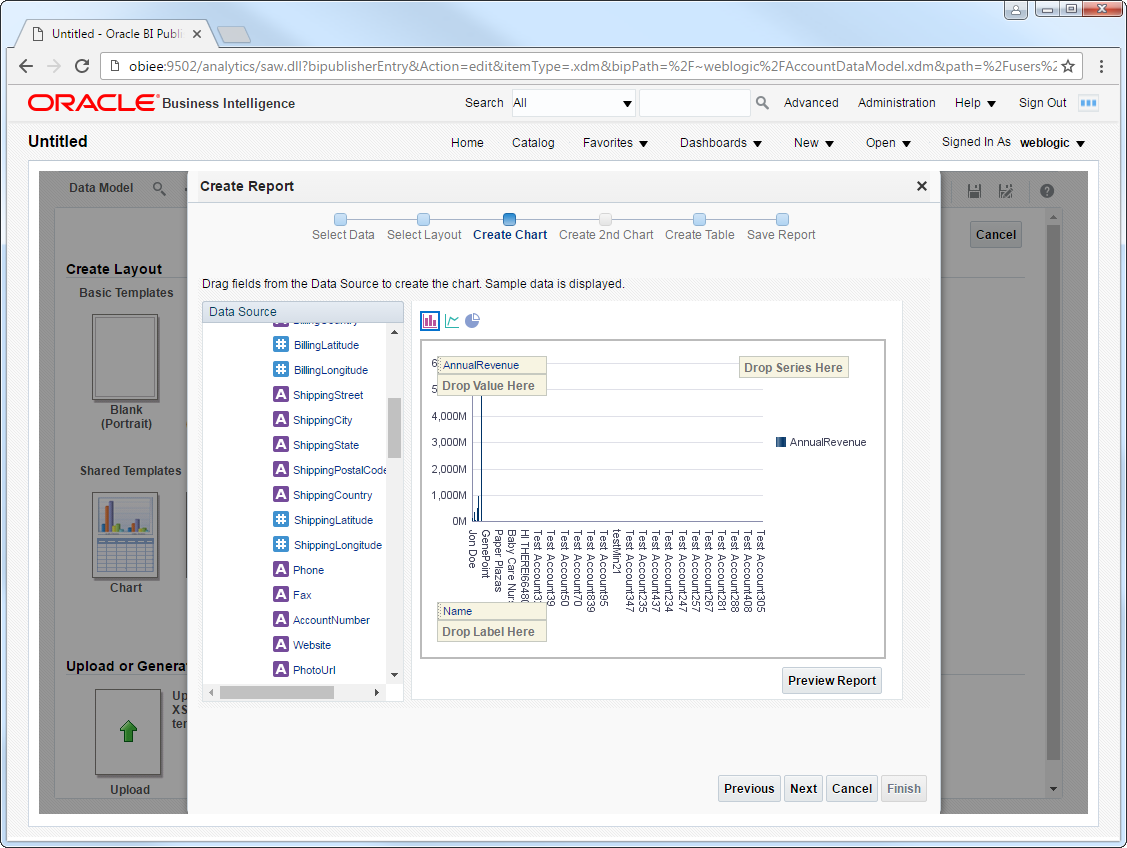
- Select Guide Me and on the Select Layout page select the report objects you want to include. In this example we select Chart and Table.
- Drop a numeric column like name onto the Drop Value Here box on the y-axis. Drop a dimension column like id onto the Drop Label Here box on the x-axis.
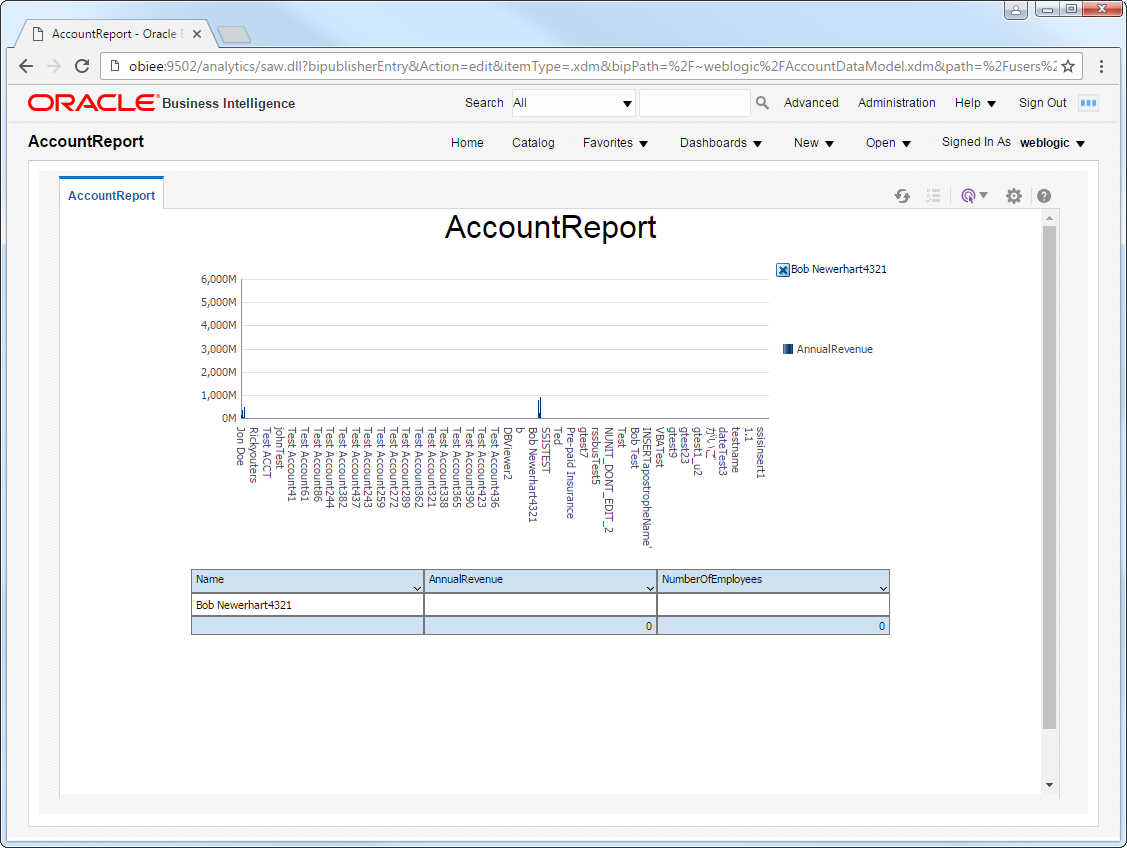
- Click Refresh to pick up any changes to the Linear data.
Ready to get started?
Download a free trial of the Linear Driver to get started:
Download NowLearn more:
 Linear JDBC Driver
Rapidly create and deploy powerful Java applications that integrate with Linear data including AgentSession, Comment, Customer, Cycle, Initiative, Integration, Issue, ProjectStatus, Release, Team, User, and more!