




ETL Linear in Oracle Data Integrator

Leverage existing skills by using the JDBC standard to connect to Linear: Through drop-in integration into ETL tools like Oracle Data Integrator (ODI), the CData JDBC Driver for Linear connects real-time Linear data to your data warehouse, business intelligence, and Big Data technologies.
JDBC connectivity enables you to work with Linear just as you would any other database in ODI. As with an RDBMS, you can use the driver to connect directly to the Linear APIs in real time instead of working with flat files.
This article covers a JDBC-based ETL -- Linear to Oracle. After reverse engineering a data model of Linear entities, you will create a mapping and select a data loading strategy -- since the driver supports SQL-92, this last step can easily be accomplished by selecting the built-in SQL to SQL Loading Knowledge Module.
Install the Driver
To install the driver, copy the driver JAR (cdata.jdbc.linear.jar) and .lic file (cdata.jdbc.linear.lic), located in the installation folder, into the ODI appropriate directory:
- UNIX/Linux without Agent: ~/.odi/oracledi/userlib
- UNIX/Linux with Agent: ~/.odi/oracledi/userlib and $ODI_HOME/odi/agent/lib
- Windows without Agent: %APPDATA%\Roaming\odi\oracledi\userlib
- Windows with Agent: %APPDATA%\odi\oracledi\userlib and %APPDATA%\odi\agent\lib
Restart ODI to complete the installation.
Reverse Engineer a Model
Reverse engineering the model retrieves metadata about the driver's relational view of Linear data. After reverse engineering, you can query real-time Linear data and create mappings based on Linear tables.
-
In ODI, connect to your repository and click New -> Model and Topology Objects.
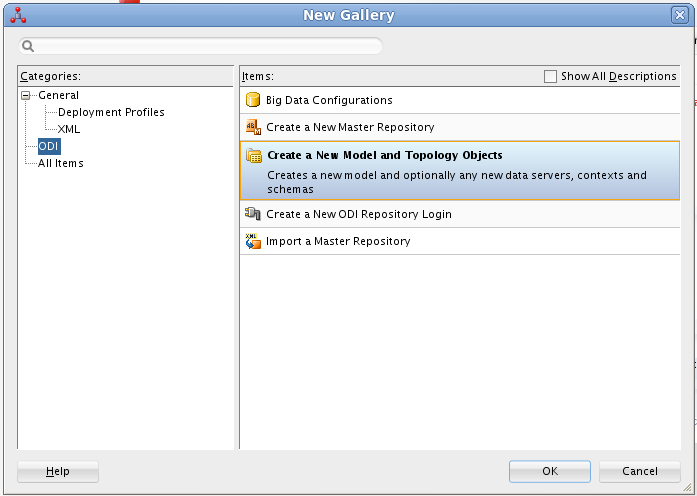
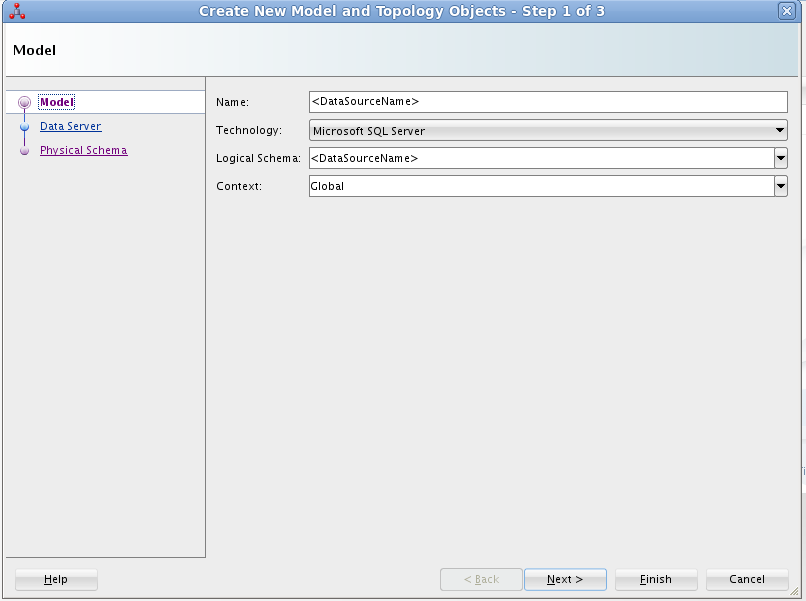
- On the Model screen of the resulting dialog, enter the following information:
- Name: Enter Linear.
- Technology: Select Generic SQL (for ODI Version 12.2+, select Microsoft SQL Server).
- Logical Schema: Enter Linear.
- Context: Select Global.
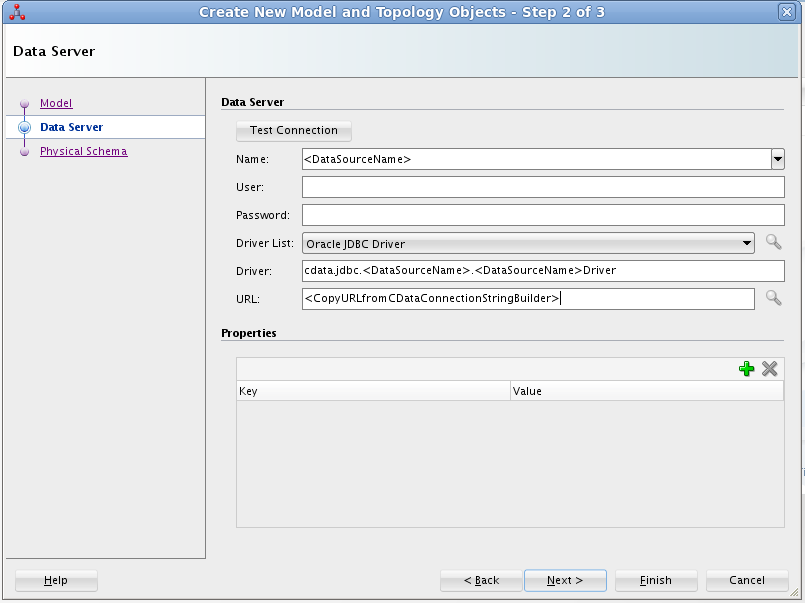
- On the Data Server screen of the resulting dialog, enter the following information:
- Name: Enter Linear.
- Driver List: Select Oracle JDBC Driver.
- Driver: Enter cdata.jdbc.linear.LinearDriver
- URL: Enter the JDBC URL containing the connection string.
You can authenticate to Linear with a personal API key or with OAuth 2.0. The API key is the simplest option for connecting with your own Linear account.
Authenticating with an API Key
Set the following connection properties:
- AuthScheme: Set this to APIKey.
- APIKey: A Linear personal API key.
To create a personal API key, log in to Linear, open Settings > Security & access > Personal API keys, select New API key, and create it. Copy the key immediately, because Linear shows it only once.
Authenticating with OAuth
OAuth requires a custom OAuth application registered in Linear (Settings > API > OAuth applications), which provides the OAuthClientId and OAuthClientSecret. Two flows are supported:
- Authorization code: Set AuthScheme to OAuth, InitiateOAuth to GETANDREFRESH, and provide OAuthClientId, OAuthClientSecret, and the CallbackURL defined in your application (e.g., http://localhost:33333). The driver opens Linear in your browser so you can grant access.
- Client credentials: Set AuthScheme to OAuthClient and provide OAuthClientId and OAuthClientSecret. This authenticates the application itself, with no browser interaction, and suits machine-to-machine integrations.
By default, the driver requests the read,write scopes. The driver refreshes the access token automatically when it expires.
Built-in Connection String Designer
For assistance in constructing the JDBC URL, use the connection string designer built into the Linear JDBC Driver. Either double-click the JAR file or execute the jar file from the command-line.
java -jar cdata.jdbc.linear.jarFill in the connection properties and copy the connection string to the clipboard.

Below is a typical connection string:
jdbc:linear:AuthScheme=APIKey;APIKey=myAPIKey;
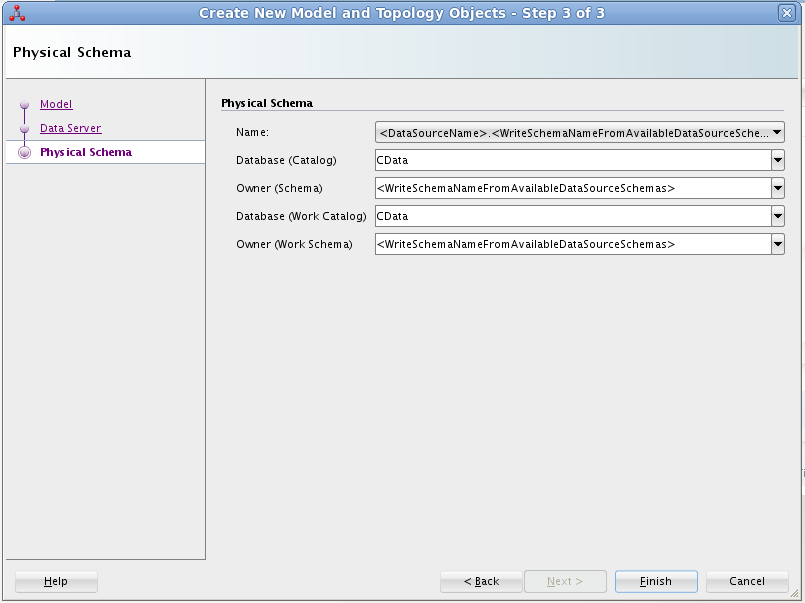
- On the Physical Schema screen, enter the following information:
- Name: Select from the Drop Down menu.
- Database (Catalog): Enter CData.
- Owner (Schema): If you select a Schema for Linear, enter the Schema selected, otherwise enter Linear.
- Database (Work Catalog): Enter CData.
- Owner (Work Schema): If you select a Schema for Linear, enter the Schema selected, otherwise enter Linear.
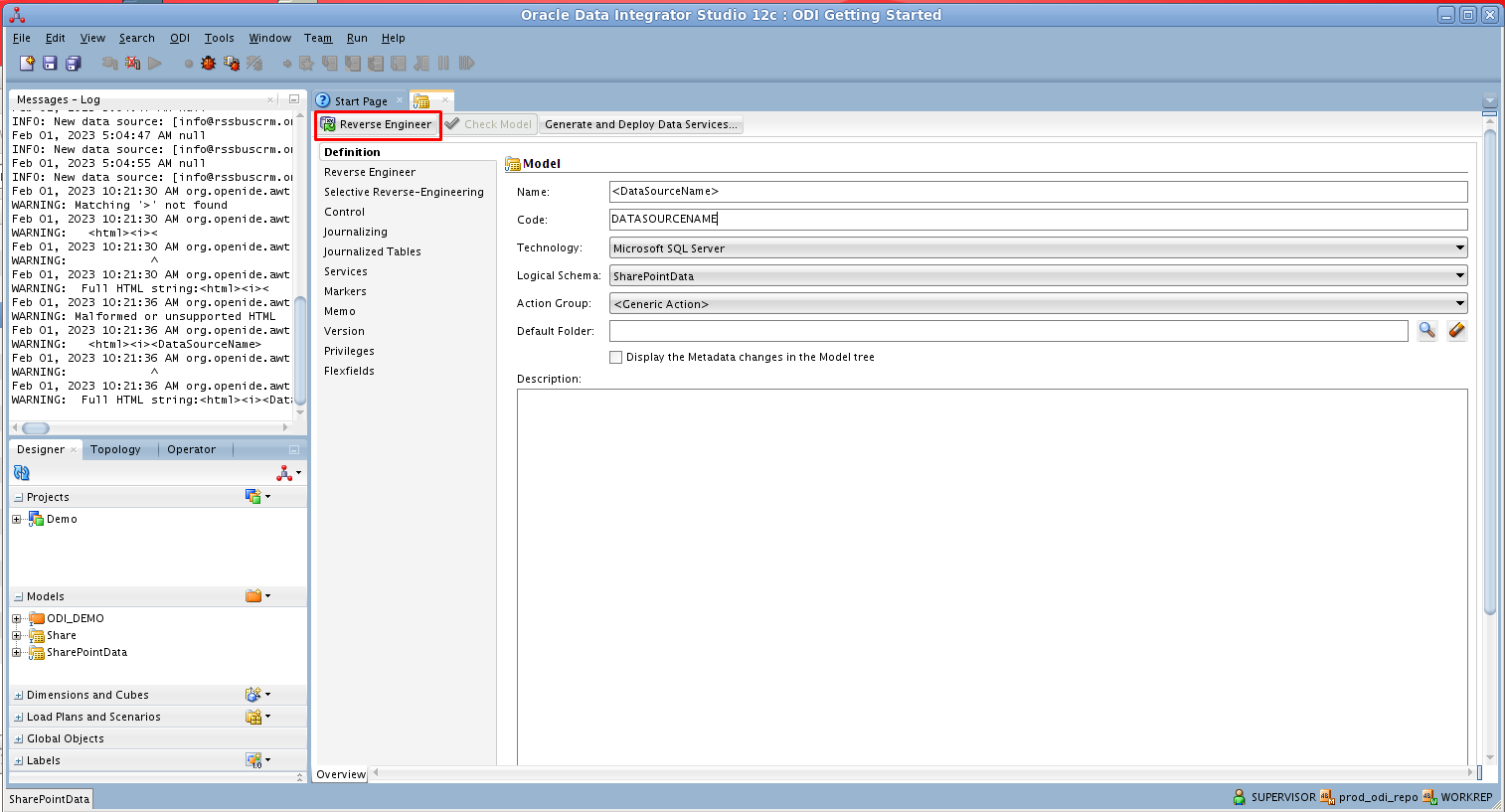
- In the opened model click Reverse Engineer to retrieve the metadata for Linear tables.
Edit and Save Linear Data
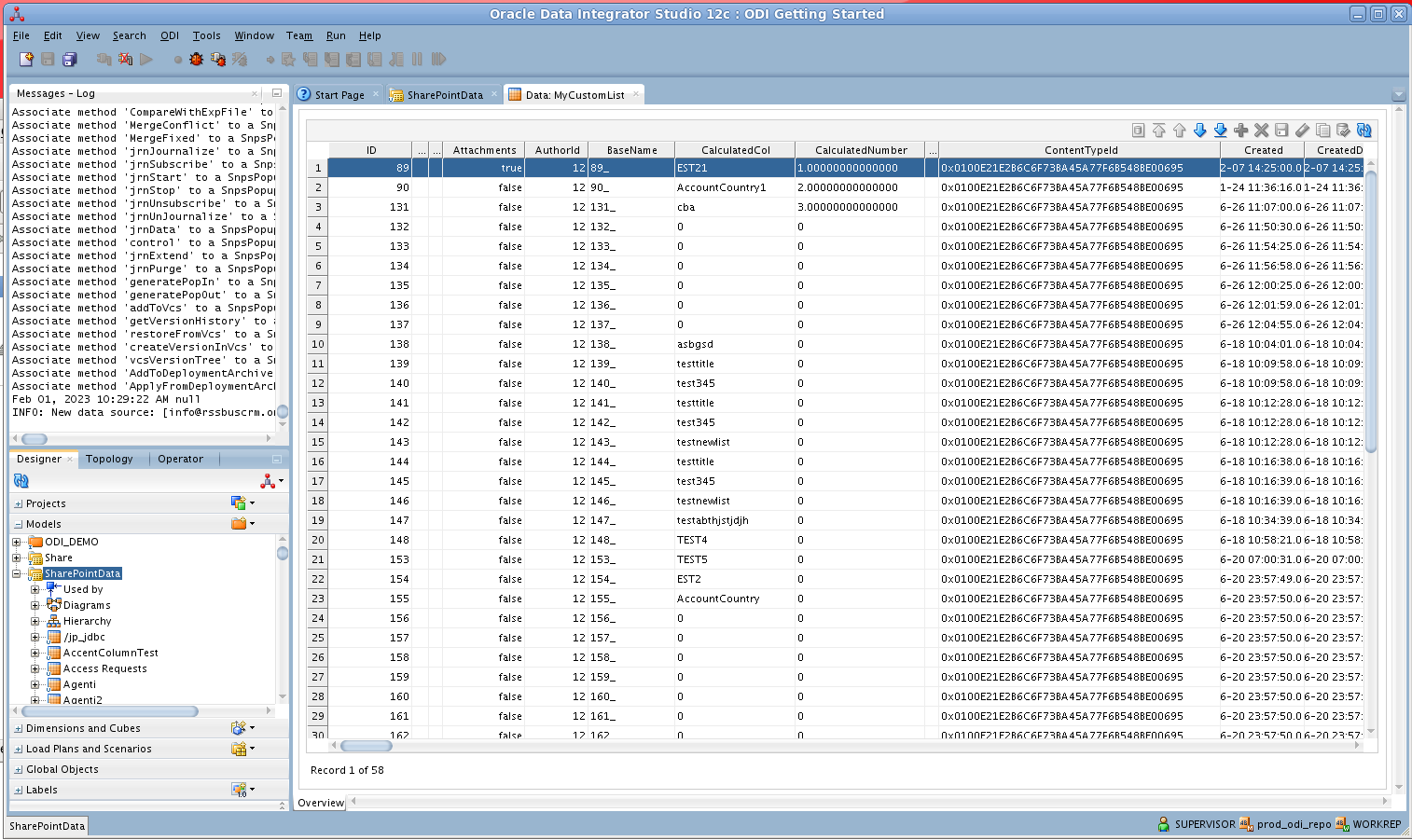
After reverse engineering you can now work with Linear data in ODI.
To view Linear data, expand the Models accordion in the Designer navigator, right-click a table, and click View data.
Create an ETL Project
Follow the steps below to create an ETL from Linear. You will load Team entities into the sample data warehouse included in the ODI Getting Started VM.
Open SQL Developer and connect to your Oracle database. Right-click the node for your database in the Connections pane and click new SQL Worksheet.
Alternatively you can use SQLPlus. From a command prompt enter the following:
sqlplus / as sysdba- Enter the following query to create a new target table in the sample data warehouse, which is in the ODI_DEMO schema. The following query defines a few columns that match the Team table in Linear:
CREATE TABLE ODI_DEMO.TRG_TEAM (NAME NUMBER(20,0),id VARCHAR2(255)); - In ODI expand the Models accordion in the Designer navigator and double-click the Sales Administration node in the ODI_DEMO folder. The model is opened in the Model Editor.
- Click Reverse Engineer. The TRG_TEAM table is added to the model.
- Right-click the Mappings node in your project and click New Mapping. Enter a name for the mapping and clear the Create Empty Dataset option. The Mapping Editor is displayed.
- Drag the TRG_TEAM table from the Sales Administration model onto the mapping.
- Drag the Team table from the Linear model onto the mapping.
- Click the source connector point and drag to the target connector point. The Attribute Matching dialog is displayed. For this example, use the default options. The target expressions are then displayed in the properties for the target columns.
- Open the Physical tab of the Mapping Editor and click TEAM_AP in TARGET_GROUP.
- In the TEAM_AP properties, select LKM SQL to SQL (Built-In) on the Loading Knowledge Module tab.
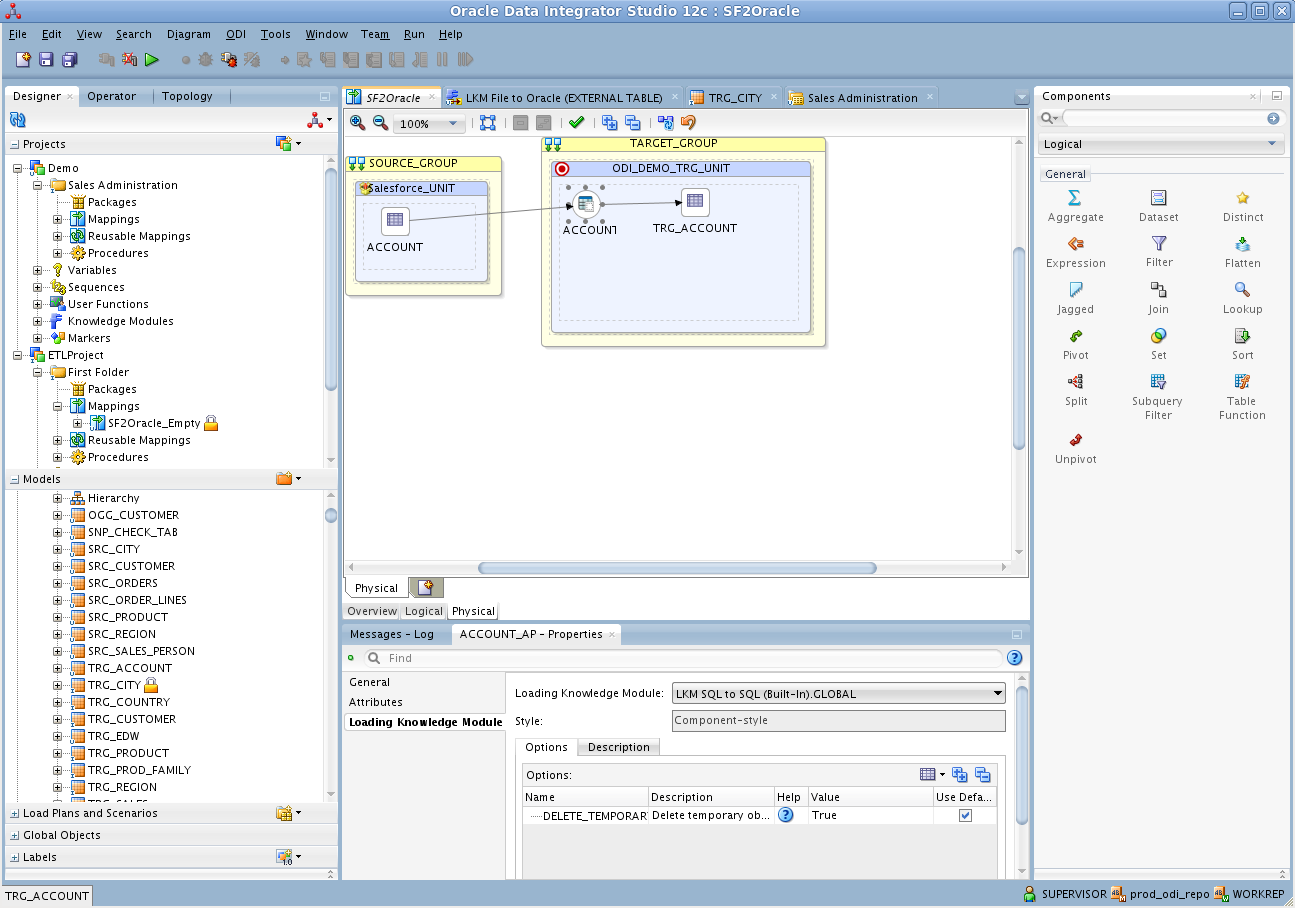
You can then run the mapping to load Linear data into Oracle.
Ready to get started?
Download a free trial of the Linear Driver to get started:
Download NowLearn more:
 Linear JDBC Driver
Rapidly create and deploy powerful Java applications that integrate with Linear data including AgentSession, Comment, Customer, Cycle, Initiative, Integration, Issue, ProjectStatus, Release, Team, User, and more!