




Create an SAP BusinessObjects Universe on the CData JDBC Driver for Linear

This article shows how to use the CData JDBC Driver for Linear to connect to Linear from SAP BusinessObjects Business Intelligence applications. You will use the Information Design Tool to analyze Linear data and create a universe on the CData JDBC Driver for Linear. You will then connect to the universe from Web Intelligence.
Create the JDBC Connection to Linear
Follow the steps below to create a connection to the Linear JDBC data source in the Information Design Tool.
- Copy the CData JAR and .lic file into the following subfolder in the installation directory for BusinessObjects: dataAccess\connectionServer\jdbc\drivers\jdbc. The CData JAR is located in the lib subfolder of the installation directory.
- Right-click your project and click New -> New Relational Connection.
- In the wizard that results, click Generic -> Generic JDBC datasource -> JDBC Drivers.
- On the next page of the wizard enter the connection details.
On the next page, set the Authentication Mode option to "Use specified username and password". Enter the username, password, and JDBC URL. The JDBC URL begins with jdbc:linear: and is followed by a semicolon-separated list of connection properties.
You can authenticate to Linear with a personal API key or with OAuth 2.0. The API key is the simplest option for connecting with your own Linear account.
Authenticating with an API Key
Set the following connection properties:
- AuthScheme: Set this to APIKey.
- APIKey: A Linear personal API key.
To create a personal API key, log in to Linear, open Settings > Security & access > Personal API keys, select New API key, and create it. Copy the key immediately, because Linear shows it only once.
Authenticating with OAuth
OAuth requires a custom OAuth application registered in Linear (Settings > API > OAuth applications), which provides the OAuthClientId and OAuthClientSecret. Two flows are supported:
- Authorization code: Set AuthScheme to OAuth, InitiateOAuth to GETANDREFRESH, and provide OAuthClientId, OAuthClientSecret, and the CallbackURL defined in your application (e.g., http://localhost:33333). The driver opens Linear in your browser so you can grant access.
- Client credentials: Set AuthScheme to OAuthClient and provide OAuthClientId and OAuthClientSecret. This authenticates the application itself, with no browser interaction, and suits machine-to-machine integrations.
By default, the driver requests the read,write scopes. The driver refreshes the access token automatically when it expires.
Built-in Connection String Designer
For assistance in constructing the JDBC URL, use the connection string designer built into the Linear JDBC Driver. Either double-click the JAR file or execute the jar file from the command-line.
java -jar cdata.jdbc.linear.jarFill in the connection properties and copy the connection string to the clipboard.

When you configure the JDBC URL, you may also want to set the Max Rows connection property. This will limit the number of rows returned, which is especially helpful for improving performance when designing reports and visualizations.
A typical JDBC URL is below:
jdbc:linear:AuthScheme=APIKey;APIKey=myAPIKey;- Enter the driver class: cdata.jdbc.linear.LinearDriver
- Finish the wizard with the default values for connection pooling and custom parameters.
Analyze Linear Data in the Information Design Tool
You can use the JDBC connection to analyze Linear data in the Information Design Tool.
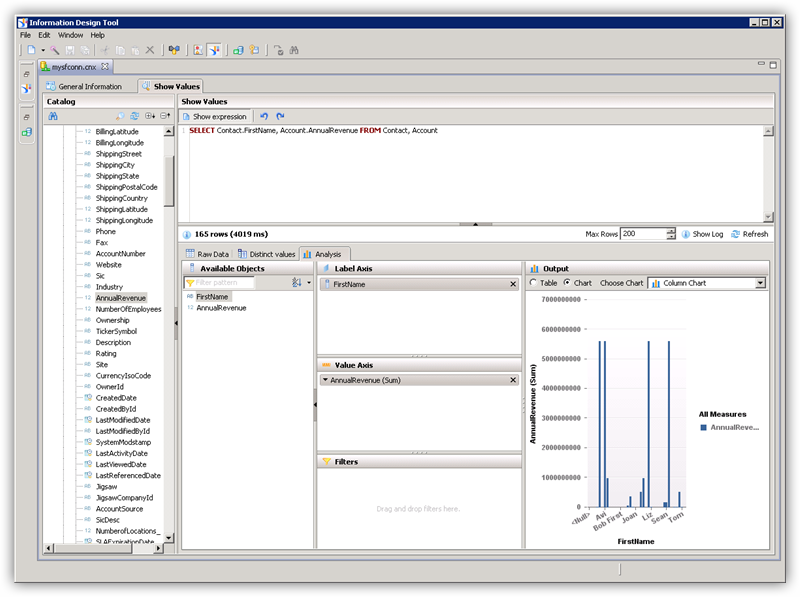
- In the Local Projects view, double-click the connection (the .cnx file) to open the Linear data source.
- On the Show Values tab, you can load table data and enter SQL queries. To view table data, expand the node for the table, right-click the table, and click Show Values. Values will be displayed in the Raw Data tab.
- On the Analysis tab, you can then analyze data by dragging and dropping columns onto the axes of a chart.
Publish the Local Connection
To publish the universe to the CMS, you additionally need to publish the connection.
- In the Local Projects view, right-click the connection and click Publish Connection to a Repository.
- Enter the host and port of the repository and connection credentials.
- Select the folder where the connection will be published.
- In the success dialog that results, click Yes to create a connection shortcut.
Create a Universe on the JDBC Driver for Linear
You can follow the steps below to create a universe on the JDBC driver. The universe in this example will be published to a repository, so it uses the published connection created in the previous step.
- In the Information Design Tool, click File->New Universe.
- Select your project.
- Select the option to create the universe on a relational data source.
- Select the shortcut to the published connection.
- Enter a name for the Data Foundation.
- Import tables and columns that you want to access as objects.
- Enter a name for the Business Layer.
Publish the Universe
You can follow the steps below to publish the universe to the CMS.
- In the Local Projects view, right-click the business layer and click Publish -> To a Repository.
- In the Publish Universe dialog, enter any integrity checks before importing.
- Select or create a folder on the repository where the universe will be published.
Query Linear Data in Web Intelligence
You can use the published universe to connect to Linear in Web Intelligence.
- Copy the cdata.jdbc.linear.lic file to the following subfolder in the BusinessObjects installation directory: \dataAccess\connectionServer\jdbc\drivers\jdbc. The license file is located in the lib subfolder of the installation directory.
- Open Web Intelligence from the BusinessObjects launchpad and create a new document.
- Select the Universe option for the data source.
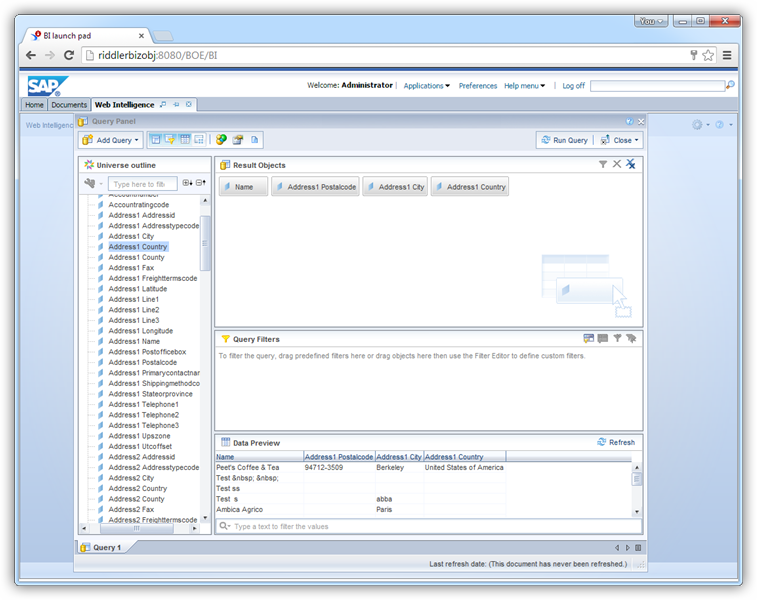
- Select the Linear universe. This opens a Query Panel. Drag objects to the Result Objects pane to use them in the query.
Ready to get started?
Download a free trial of the Linear Driver to get started:
Download NowLearn more:
 Linear JDBC Driver
Rapidly create and deploy powerful Java applications that integrate with Linear data including AgentSession, Comment, Customer, Cycle, Initiative, Integration, Issue, ProjectStatus, Release, Team, User, and more!