






LINQ to MailerSend Data

This article illustrates using LINQ to access tables within the MailerSend via the CData ADO.NET Data Provider for MailerSend. To achieve this, we will use LINQ to Entity Framework, which facilitates the generation of connections and can be seamlessly employed with any CData ADO.NET Data Providers to access data through LINQ.
See the help documentation for a guide to setting up an EF 6 project to use the provider.
- In a new project in Visual Studio, right-click on the project and choose to add a new item. Add an ADO.NET Entity Data Model.
- Choose EF Designer from Database and click Next.
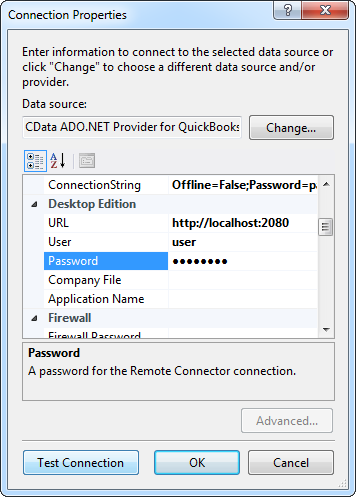
- Add a new Data Connection, and change your data source type to "CData MailerSend Data Source".
Enter your data source connection information.
The MailerSend API uses API Key authentication via a Bearer token in the Authorization request header.
Using API Key Authentication
Your MailerSend API token is required to create a connection. To obtain your API token:
- Log into your MailerSend account at app.mailersend.com.
- Navigate to Settings > API Tokens in your account dashboard.
- Click Generate new token, provide a name and select the appropriate permissions.
- Copy the generated API token.
After obtaining your API token, set the following connection properties:
- AuthScheme: Set this to APIKey.
- APIKey: Set this to your MailerSend API token.
Example connection string:
Profile=C:\profiles\Mailersend.apip;AuthScheme=APIKey;ProfileSettings='APIKey=your_api_token';
Below is a typical connection string:
Profile=C:\profiles\Mailersend.apip;AuthScheme=APIKey;ProfileSettings='APIKey=your_api_token';
- If saving your entity connection to App.Config, set an entity name. In this example we are setting APIEntities as our entity connection in App.Config.
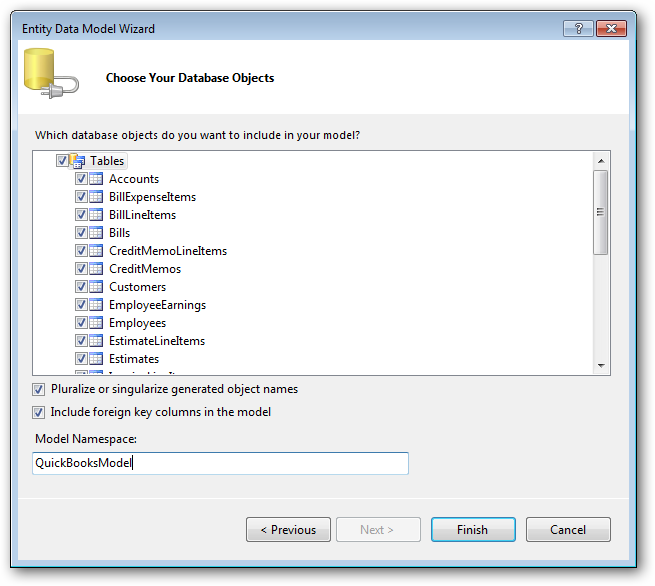
- Enter a model name and select any tables or views you would like to include in the model.
Using the entity you created, you can now perform select commands. For example:
APIEntities context = new APIEntities();

var activityQuery = from activity in context.Activity
  select activity;

foreach (var result in activityQuery) {
  Console.WriteLine("{0} {1} ", result.Id, result.);
}
See "LINQ and Entity Framework" chapter in the help documentation for example queries of the supported LINQ.