






Getting Started with the CData JDBC Driver for Mailgun
This guide walks you through everything you need to get started with the CData JDBC driver for Mailgun. You'll learn how to install and license the driver, configure your first connection, and explore next steps for working with Mailgun data in your Java applications.
Installation & Licensing
Installing the Driver
- Download the JDBC driver installer from the CData site.
- Run the installer and follow the installation wizard.
- The driver will be installed to the following location: C:\Program Files\CData\CData JDBC Driver for Mailgun 20xx\lib\
- The JAR file will be named: cdata.jdbc.api.jar
Once installed, you can add the JAR file to your Java project's classpath using your IDE or build tool.
Activating Your License
You should have received your license key via email from the CData Orders Team. The alphanumeric license key should take the following format:
XXXX-XXXX-XXXX-XXXX-XXXXWindows
On Windows, the primary licensing method is via license file. When you install the JDBC driver, a license file is automatically created and stored with the driver installation. The driver will automatically detect and use this license file when the JAR is loaded in your application.
If you need to manually activate or update your license:
- Locate the license file in your installation directory.
- Update the license file with your license key.
- The driver will automatically use the updated license on the next connection.
macOS/Linux
Navigate to the JAR's installation directory and in the lib folder run the following command: java -jar cdata.jdbc.api.jar --license
Follow the prompts to enter your license key. This will create a license file in the installation directory that the driver will use for licensing validation.
For detailed license file configuration instructions, refer to the Licensing section under the Getting Started sub-page in the help documentation.
Common Licensing Questions
Can I use my license on multiple machines?
Yes, depending on your subscription tier. Check your order confirmation or contact your account representative for details. If you are unsure of who your account representative is, contact [email protected].
I lost my license key. How do I retrieve it?
Email [email protected] with your order number, and we'll resend your license key.
Can I transfer my license to a different machine?
Yes. When transferring the license to a different machine, you will need to submit a License Transfer Request on our site linked below:
https://www.cdata.com/lic/transfer/
After the License Transfer Request is submitted and successfully processed, an activation will be added to your Product Key and you will be able to activate the full license on the other machine. Once this process is finished, the license on the previous machine will be invalid.
When should I use RTK instead of the license file?
Use RTK when deploying to environments where the machine/node ID changes dynamically, such as containers, cloud instances, or when distributing your application to multiple machines.
For additional licensing questions, contact [email protected]. Viewing and upgrading your license can now be done through our self-service portal at portal.cdata.com.
Connection Configuration
Once your driver is installed and licensed, you're ready to configure a connection to Mailgun. JDBC connections are established using a connection URL (also called a connection string).
Understanding JDBC Connection URLs
JDBC connection URLs for CData drivers follow this pattern:
jdbc:api:Profile=C:\profiles\Mailgun.apip;ProfileSettings='Password=your_api_key';Building Your Connection URL
Recommended: Use the Built-in Connection String Designer
The JDBC driver includes a connection string designer tool that helps you build the correct JDBC URL with all required connection properties.
To launch the Connection String Designer:
- Navigate to the driver installation directory: C:\Program Files\CData\CData JDBC Driver for Mailgun 20xx\lib\
- Double-click the JAR file: cdata.jdbc.api.jar
OR
Run from the command line: java -jar cdata.jdbc.api.jar - The Connection String Designer will open.
- Fill in your connection properties in the provided fields.
- Click Test Connection to verify your settings.
- Copy the generated JDBC URL from the designer.
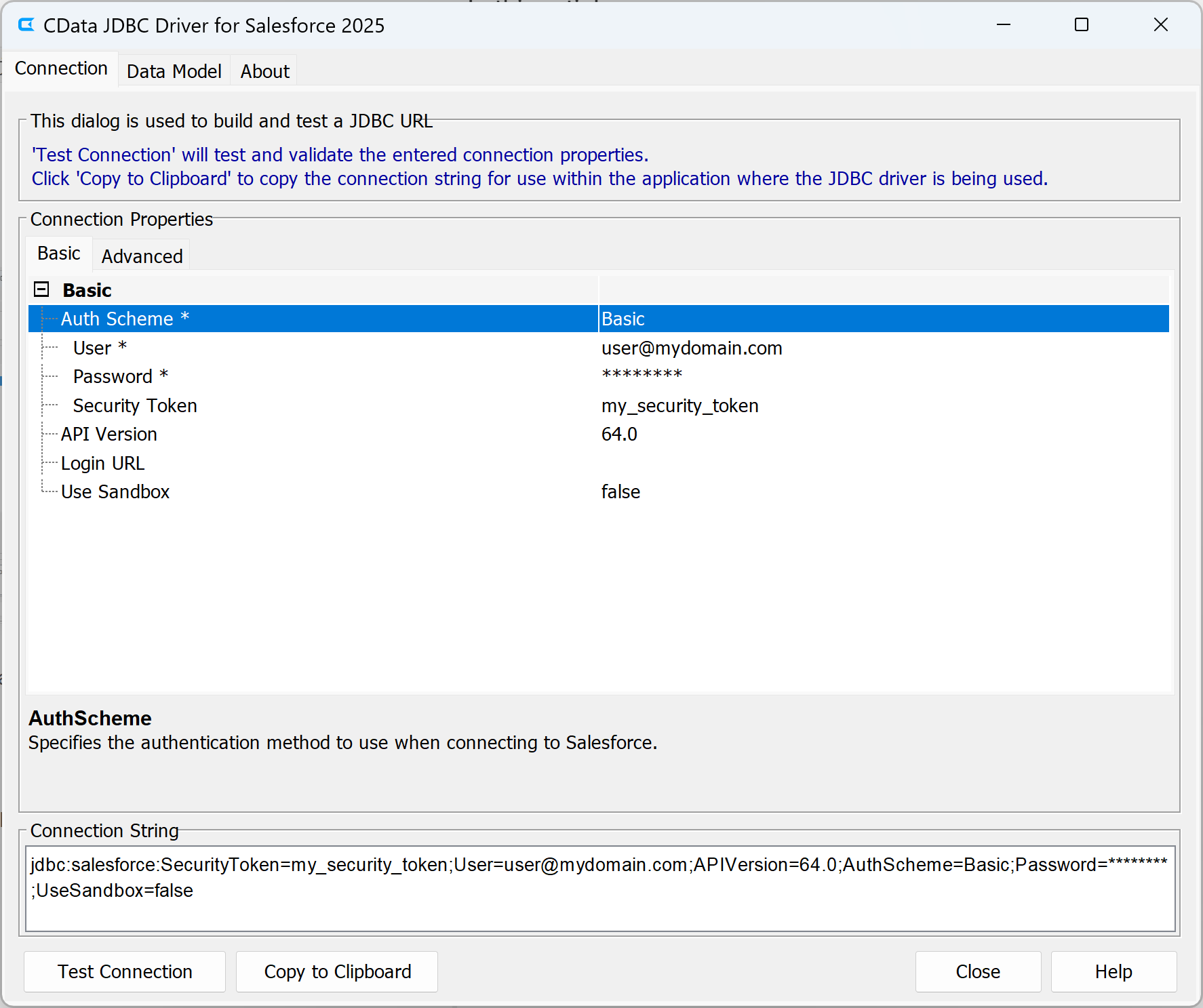
The Connection String Designer ensures correct syntax and shows all available connection properties for Mailgun.
Driver Class Name
When configuring the JDBC driver in IDEs (such as IntelliJ IDEA, Eclipse, or DBeaver) or other tools, you will need to specify the driver class name:
cdata.jdbc.api.APIDriverConfiguring Connection Properties
The specific connection properties required depend on your data source.
Start by setting the Profile connection property to the location of the Mailgun Profile on disk (e.g. C:\profiles\Mailgun.apip). Next, set the ProfileSettings connection property to the connection string for Mailgun (see below).
Mailgun API Profile Settings
Generate an API key in your Mailgun account by selecting Account Settings > API Security > Create Key from the account dropdown menu.
For complete information on all available connection properties for Mailgun, refer to the Establishing a Connection section in the help documentation.
Testing Your Connection
You can test your connection in several ways:
In the Connection String Designer
Click the Test Connection button after entering your properties. A successful test confirms your credentials and connection settings are correct.
In Your Application
If the application requires you to move the driver JAR to a specific location, do so now and ensure the JAR is included in your application's classpath. Also, ensure that the .lic file is also moved to the same location for licensing validation purposes.
Note: Many JDBC Connected tools, like DBeaver, do not actually send a live request to the provider when using their Test Connection functionality. It only does a surface test, which essentially just checks that the JAR file functions at a base level. When using a JDBC connected tool, the ConnectOnOpen property should be set to True to ensure a valid Test Connection.
If you are working with the JDBC driver in your IDE, you can execute a simple query to verify the connection:
import java.sql.Connection;
import java.sql.DriverManager;
import java.sql.ResultSet;
import java.sql.Statement;

String url = "jdbc:api:Profile=C:\profiles\Mailgun.apip;ProfileSettings='Password=your_api_key';
Connection conn = DriverManager.getConnection(url);
Statement stmt = conn.createStatement();
ResultSet rs = stmt.executeQuery("SELECT * FROM Allowlists LIMIT 1");

if (rs.next()) {
    System.out.println("Connection successful!");
}
If you encounter connection errors:
- Verify that your connection properties are correct using the Connection String Designer.
- Check that the driver JAR is in your application's classpath.
- Review the error message for specific guidance.
- Contact [email protected] with the error details for troubleshooting assistance.
Common Connection Issues
Driver Not Found / ClassNotFoundException
Solution: Ensure the JDBC driver JAR (cdata.jdbc.api.jar) is properly added to your project's classpath. The configuration method varies by IDE and build tool. Refer to your development environment's documentation or contact [email protected] for assistance.
Authentication Errors
Solution: Verify that your credentials are correct and current. Use the Connection String Designer to test your credentials before adding them to your application. For specific authentication requirements for Mailgun, consult the Establishing a Connection section in the help documentation.
Network Connectivity Issues
Solution: Ensure that your firewall allows outbound connections on the required ports. Contact [email protected] for specific port and firewall requirements for your data source.
Invalid Connection String Format
Solution: Use the Connection String Designer to generate a properly formatted JDBC URL. The designer ensures correct syntax and property names.
For additional troubleshooting, contact [email protected] with your specific error message.
What's Next
Now that you have installed, licensed, and configured the driver, here are some scenarios you can use to explore our JDBC Drivers:
Get Support
If you need assistance at any point:
- Technical Support: [email protected]
- Knowledge Base: CData Knowledge Base
- Community Forum: CData Community Site
- Help Documentation: Installed locally and available online
FAQs
Installation & Licensing
- Where is the JDBC driver installed?
The default installation directories are the following:
Windows: C:\Program Files\CData\CData JDBC Driver for Mailgun\lib
Mac: /Application/CData JDBC Driver for Mailgun/lib
Linux: /home//CData/CData JDBC Driver for Mailgun /lib - How do I retrieve my license key?
Your license key is sent via email when you purchase. If you need it resent, contact [email protected] with your order number. - Can I use my license across multiple applications?
Yes. The license file works across all your Java applications on your machine that use the driver. - When should I use RTK (Runtime Key)?
Use RTK when deploying to environments where machine/node IDs change dynamically: containers (Docker/Kubernetes), cloud instances, or when distributing your application across multiple machines. If you require an RTK, reach out to your Account Representative.
Connecting
- How do I build a JDBC connection URL?
Use the built-in Connection String Designer tool. Double-click the driver JAR or run java -jar cdata.jdbc.api.jar to launch the designer. It will help you build a properly formatted connection URL. - What is the driver class name?
The driver class follows this pattern: cdata.jdbc.api.APIDriver
You'll need this when configuring the driver in IDEs like IntelliJ IDEA, Eclipse, or DBeaver. - What connection properties does Mailgun require?
Refer to the Establishing a Connection section in the help documentation for complete details on required and optional connection properties for Mailgun. The Connection String Designer also shows all available properties. - How do I connect to multiple Mailgun accounts?
Create separate connection URLs with different authentication credentials for each account. You can manage multiple connections in your application. - How do I store credentials securely?
Use environment variables, configuration files, or secrets management systems (like AWS Secrets Manager or Azure Key Vault). Never hardcode credentials in your source code.
Usage & Development
- Which SQL operations are supported?
Refer to the SQL Compliance chapter in the help documentation for the complete list of supported SQL operations. - Can I use the driver in a multi-threaded application?
Yes. Follow standard JDBC best practices for thread safety. Use connection pooling for concurrent access. - How do I add the driver to my IDE?
Add the JAR file (cdata.jdbc.api.jar) to your project's classpath. Refer to your IDE's documentation for adding external JARs. The driver class name is: cdata.jdbc.api.APIDriver
Performance & Troubleshooting
- Why are my queries slow?
Check the following:- Use connection pooling.
- Add filters (WHERE clauses) to reduce result set size.
- Contact [email protected] for query optimization assistance.
- How do I enable logging for troubleshooting?
Add logging properties to your connection string or configure logging in your application by setting the Logfile property to a valid file path and the Verbosity property to a desired logging level (we typically recommmend setting Verbosity=3 to capture http requests and responses). Refer to the Advanced Features section of the help documentation for logging configuration details. Contact [email protected] for troubleshooting assistance. - What firewall ports need to be open?
Port requirements vary by data source. Most cloud applications use HTTPS (port 443). Refer to the Advanced Features section of the help documentation for Firewall & Proxy configuration if needed. Contact [email protected] for specific firewall requirements for Mailgun. - How do I deploy the driver in Docker?
Include the driver JAR in your Docker image and use RTK (Runtime Key) for licensing in your connection string. This handles dynamic container node IDs. - I'm getting ClassNotFoundException. How do I fix it?
This means the driver JAR is not in your classpath. Verify the JAR file location and ensure it's added to your project's classpath in your IDE or build configuration.
General
- Where can I find the help documentation?
The help documentation is installed with the driver in the installation directory and is also available on the CData website. - How often is the driver updated?
CData releases major version updates for our drivers annually. Check your account portal or contact [email protected] for the latest version. - Do you offer code examples for specific use cases?
Yes. The help documentation includes numerous code examples. Contact [email protected] if you need examples for a specific scenario.
For questions not covered in this FAQ, contact [email protected].