Connect to Mistral AI Data in NetBeans

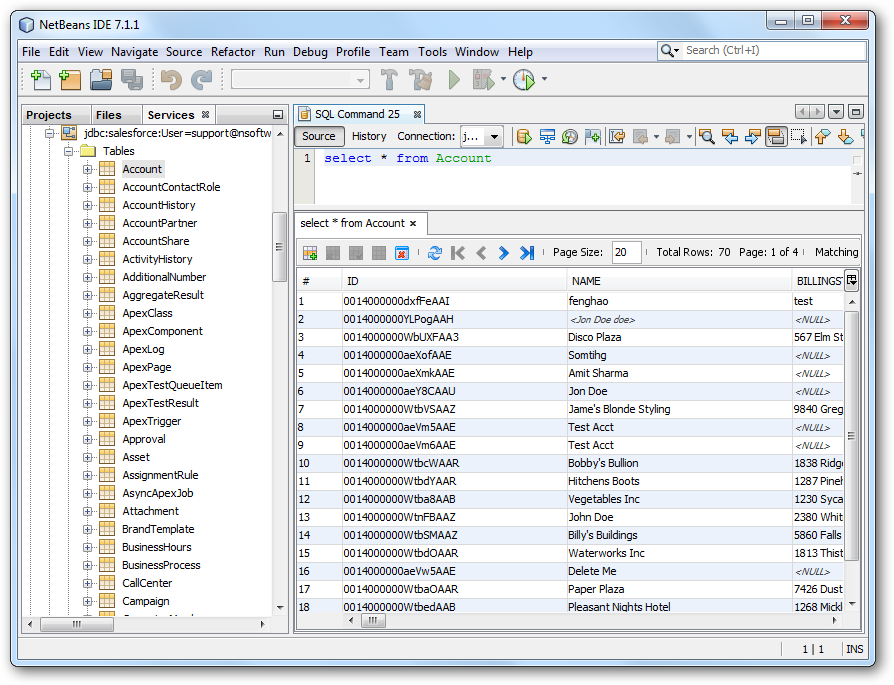
The CData JDBC Driver for Mistral AI integrates connectivity to live Mistral AI data in IDEs that support JDBC. The JDBC standard enables you to use built-in data access wizards and other tools supporting rapid development. This article shows how to connect to Mistral AI data in NetBeans. You will create a connection and load Mistral AI data in the Table Editor.
Create a JDBC Data Source for Mistral AI in NetBeans
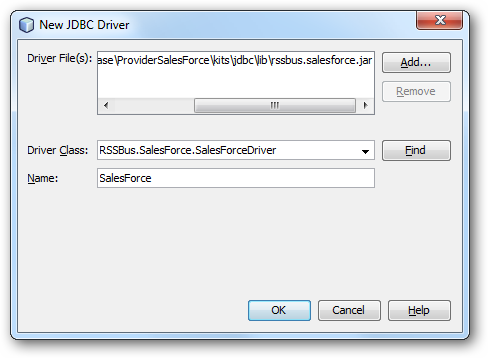
To create the JDBC data source, expand the Database node in the Service window, right-click the Drivers node, and select New Driver. In the New Driver wizard that results, enter the following information:
- Driver File(s): Click Add and, in the file explorer dialog that appears, select the cdata.jdbc.api.jar file. The driver JAR is located in the lib subfolder of the installation directory.
- Driver Class: Click Find to search for the driver class inside the JAR. Then select cdata.jdbc.api.APIDriver from the menu.
- Name: Enter the name for the driver.
Define Connection Parameters
Follow the steps below to define required connection properties:
In the Service window, right-click the Database node and click New Connection.
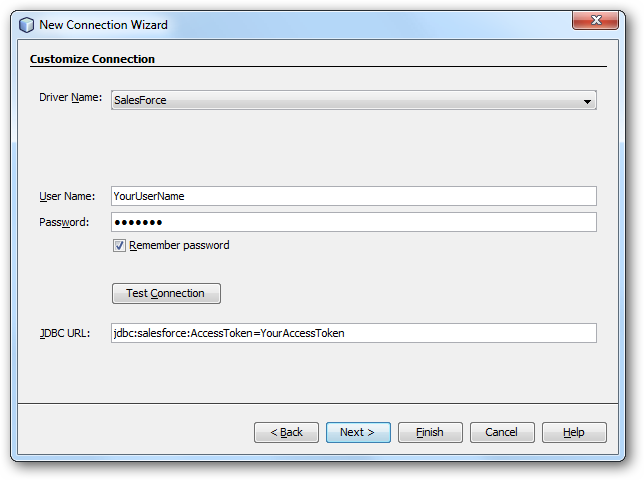
In the New Connection Wizard, enter the following connection properties:
- Driver Name: In the menu, select the CData JDBC Driver for Mistral AI.
- User Name: Enter the username. This can also be defined in the JDBC URL.
- Password: Enter the password. This can also be defined in the JDBC URL.
JDBC URL: Specify the JDBC URL.
The MistralAI API uses API key authentication.
Using API Key Authentication
Your MistralAI API Key is required to create a connection to MistralAI. API Keys can be obtained from your MistralAI account at console.mistral.ai by navigating to the API Keys section. Once you have obtained the API key, set it in the ProfileSettings connection property.
Example Connection string
Profile=C:\profiles\MistralAI.apip;ProfileSettings='APIKey=my_api_key;';AuthScheme=APIKey;
Built-in Connection String Designer
For assistance in constructing the JDBC URL, use the connection string designer built into the Mistral AI JDBC Driver. Either double-click the JAR file or execute the jar file from the command-line.
java -jar cdata.jdbc.api.jar
Fill in the connection properties and copy the connection string to the clipboard.

A typical JDBC URL is the following:
jdbc:api:Profile=C:\profiles\MistralAI.apip;ProfileSettings='APIKey=my_api_key;';AuthScheme=APIKey;
Query Mistral AI Data
To connect to Mistral AI data, right-click the connection in the Database node and click Connect. After the connection is established, you can expand it to discover schema information.
To load a table in the Data Views window, right-click the table and then click View Data..