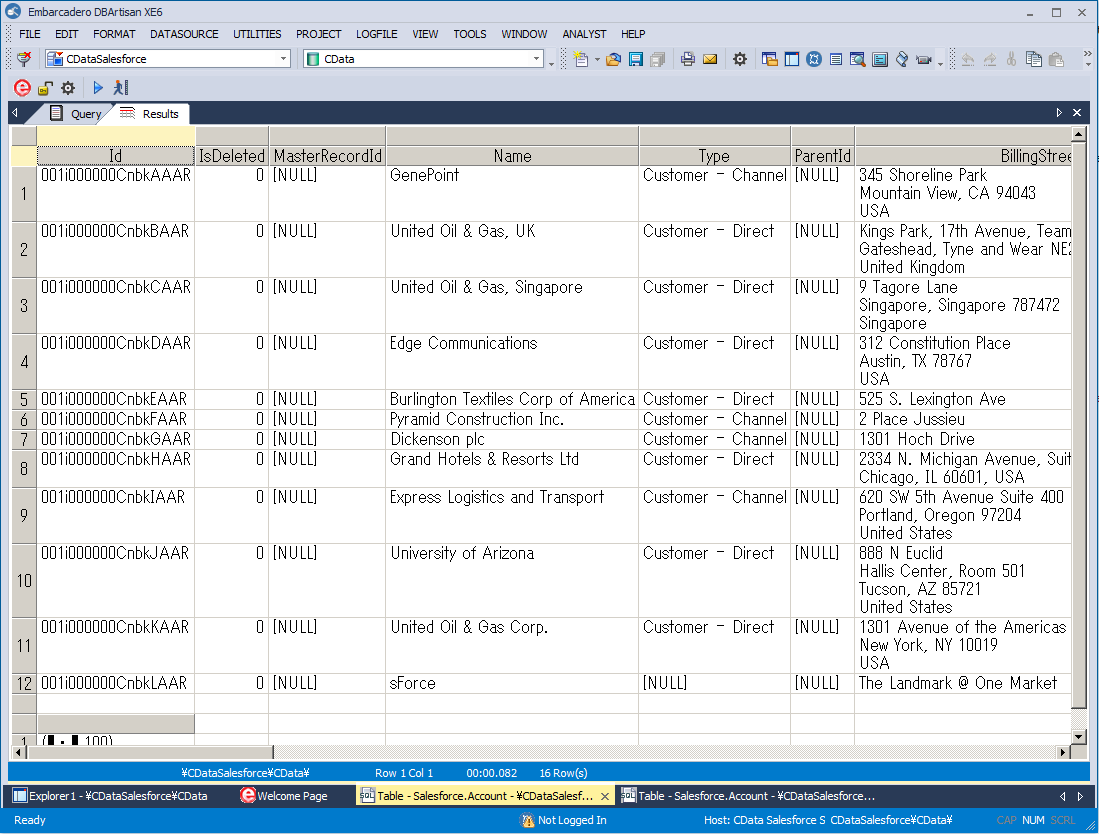
Connect to Mode Data in DBArtisan

The CData ODBC Driver for Mode seamlessly integrates Mode data into database management tools like DBArtisan by enabling you to access Mode data as a database. This article shows how to create an data source for Mode in DBArtisan and execute queries. You can then edit data visually and execute standard SQL.
Integrate Mode Data into DBArtisan Projects
If you have not already, first specify connection properties in an ODBC DSN (data source name). This is the last step of the driver installation. You can use the Microsoft ODBC Data Source Administrator to create and configure ODBC DSNs.
Start by setting the Profile connection property to the location of the Mode Profile on disk (e.g. C:\profiles\Mode.apip). Next, set the ProfileSettings connection property to the connection string for Mode (see below).
Mode API Profile Settings
In Mode, go to My Account > API Tokens to generate an access token and access secret, which serve as the User and Password credentials respectively.
You can then follow the steps below to register Mode data as a database instance in your project:
- In DBArtisan, click Data Source -> Register Datasource.
- Select Generic ODBC.
- Enter a name for the data source and select the DSN.
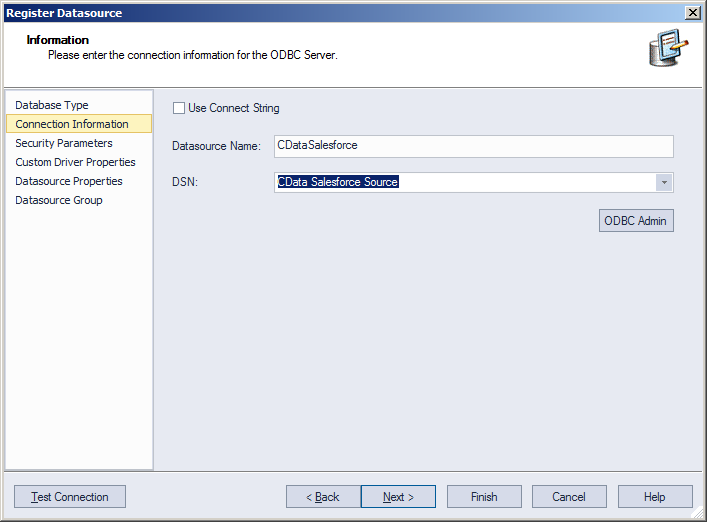
- Finish the wizard to connect to Mode data. Mode entities are displayed in the Datasource Explorer.
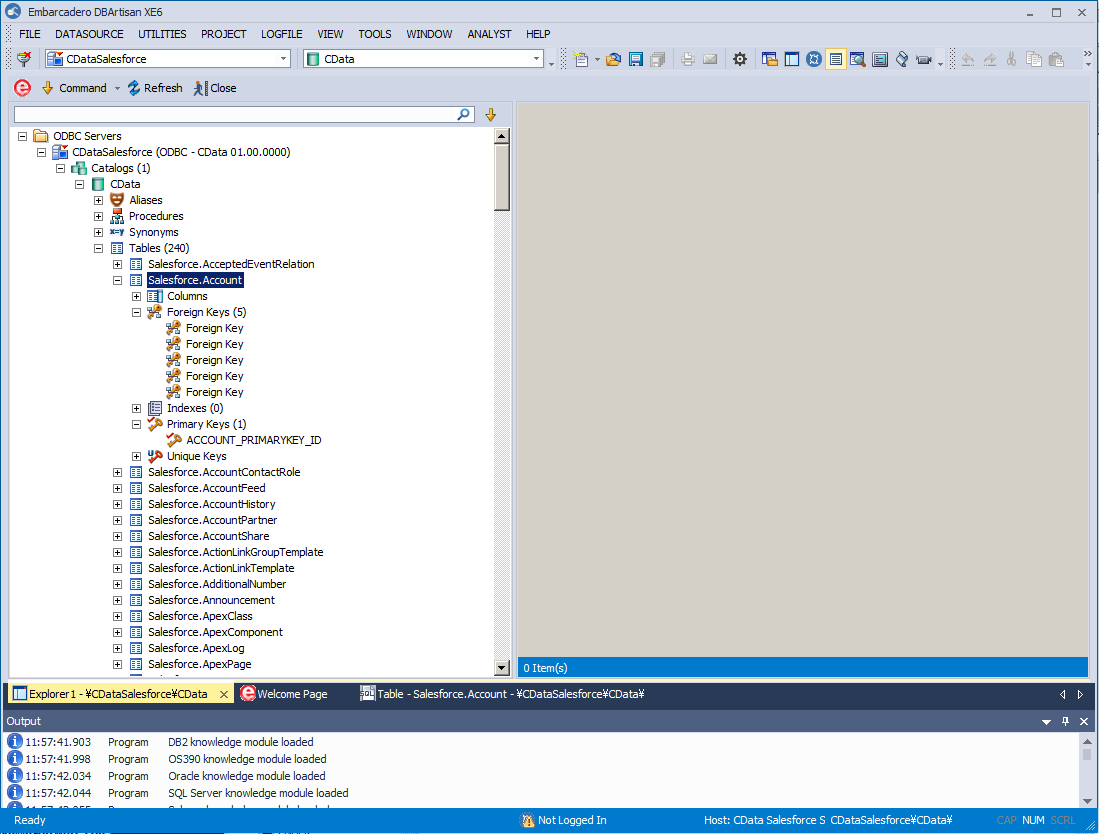
You can now work with Mode data as you work with any other database. See the driver help documentation for more information on the queries supported by the Mode API.