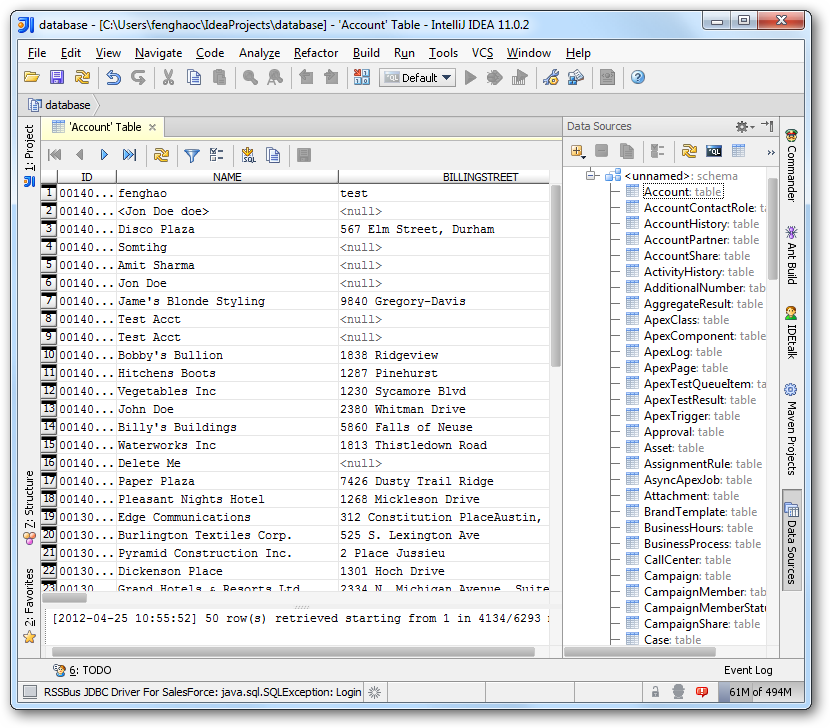
How to connect to Nuclia Data from IntelliJ

The CData JDBC Driver for Nuclia enables you to access Nuclia as a JDBC data source, providing integration with rapid development tools in IDEs. This article shows how to use the data source configuration wizard to connect to Nuclia data in IntelliJ.
Create a JBDC Data Source for Nuclia
Follow the steps below to add the driver JAR and define connection properties required to connect to Nuclia data.
- In the Data Sources window, right-click and then click Add Data Source -> DB Data Source.
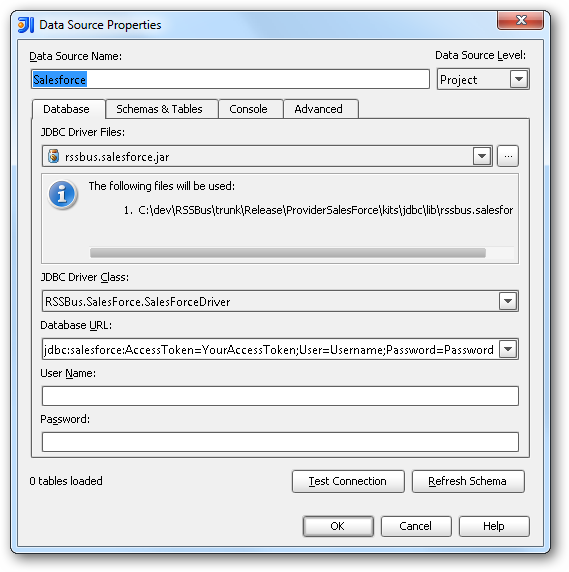
In the Data Source Properties dialog that appears, the following properties are required:
- JDBC Driver Files: Click the button next to this menu to add the JDBC Driver file cdata.jdbc.api.jar, located in the installation directory.
- JDBC Driver Class: In this menu, select cdata.jdbc.api.APIDriver from the list.
Database URL: Enter the connection URL in the JDBC URL property. The URL must start with jdbc:api: and includes connection properties separated with semicolons.
Using API Key Authentication
Nuclia uses API key authentication for accessing Knowledge Box data. To obtain an API key:
- Log in to the Nuclia Cloud Dashboard at https://nuclia.cloud
- Navigate to your Knowledge Box settings
- Go to the Service Accounts section
- Create a new service account or copy an existing API key
After obtaining your API key, set the following connection properties:
- AuthScheme: Set this to APIKey.
- APIKey: Set this to your Nuclia service account API key.
- KbId: Set this to your Knowledge Box UUID.
- Zone: Set this to your Nuclia deployment zone (e.g., aws-us-east-2-1).
Example Connection String
Profile=C:\profiles\Nuclia.apip;AuthScheme=APIKey;APIKey=your_service_account_key;KbId=your_kb_uuid;Zone=aws-us-east-2-1;
Connecting to Nuclia
Once the authentication is configured, you can connect to Nuclia and query data from any of the available tables such as Resources, KnowledgeBox, LabelSets, and ProcessingStatus.
Built-in Connection String Designer
For assistance in constructing the JDBC URL, use the connection string designer built into the Nuclia JDBC Driver. Either double-click the JAR file or execute the jar file from the command-line.
java -jar cdata.jdbc.api.jar
Fill in the connection properties and copy the connection string to the clipboard.

A typical JDBC URL is the following:
jdbc:api:Profile=C:\profiles\Nuclia.apip;AuthScheme=APIKey;APIKey=your_service_account_key;KbId=your_kb_uuid;Zone=aws-us-east-2-1;
Edit and Save Nuclia Data
To discover schema information, right-click the data source you just created and click Refresh Tables. To query a table, right-click it and then click Open Tables Editor.