






Using the CData ODBC Driver for Nuclia in PyCharm

The CData ODBC Drivers can be used in any environment that supports loading an ODBC Driver. In this tutorial we will explore using the CData ODBC Driver for Nuclia from within PyCharm. Included are steps for adding the CData ODBC Driver as a data source, as well as basic PyCharm code to query the data source and display results.
To begin, this tutorial will assume that you have already installed the CData ODBC Driver for Nuclia as well as PyCharm.
Add Pyodbc to the Project
Follow the steps below to add the pyodbc module to your project.
- Click File -> Settings to open the project settings window.
- Click Project Interpreter from the Project: YourProjectName menu.
- To add pyodbc, click the + button and enter pyodbc.
- Click Install Package to install pyodbc.
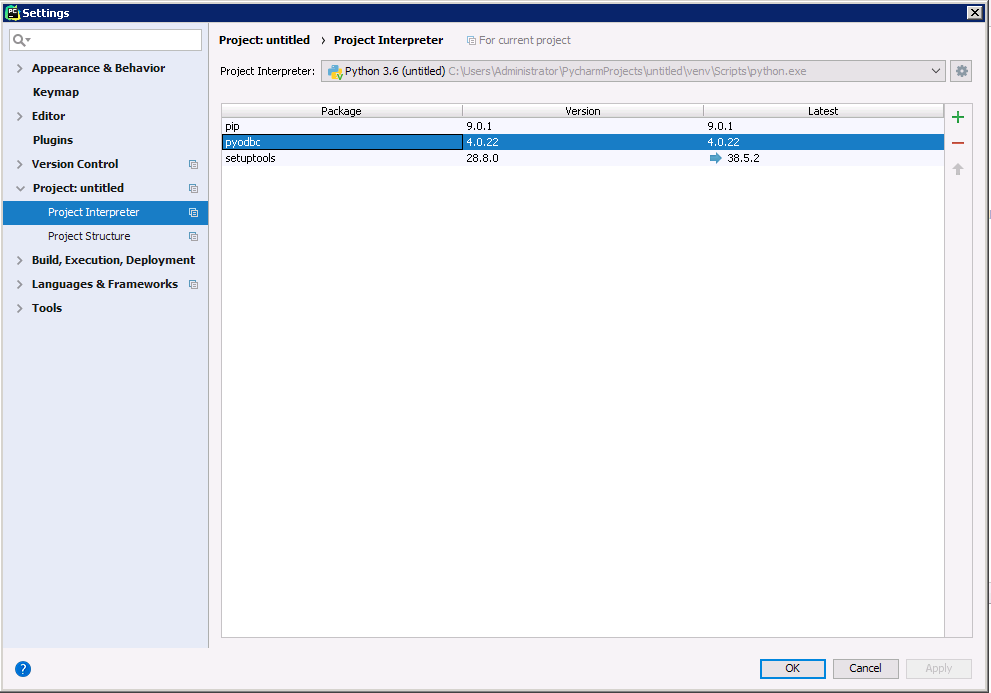
Connect to Nuclia
You can now connect with an ODBC connection string or a DSN. See the Getting Started section in the CData driver documentation for a guide to creating a DSN on your OS.
Using API Key Authentication
Nuclia uses API key authentication for accessing Knowledge Box data. To obtain an API key:
- Log in to the Nuclia Cloud Dashboard at https://nuclia.cloud
- Navigate to your Knowledge Box settings
- Go to the Service Accounts section
- Create a new service account or copy an existing API key
After obtaining your API key, set the following connection properties:
- AuthScheme: Set this to APIKey.
- APIKey: Set this to your Nuclia service account API key.
- KbId: Set this to your Knowledge Box UUID.
- Zone: Set this to your Nuclia deployment zone (e.g., aws-us-east-2-1).
Example Connection String
Profile=C:\profiles\Nuclia.apip;AuthScheme=APIKey;APIKey=your_service_account_key;KbId=your_kb_uuid;Zone=aws-us-east-2-1;
Connecting to Nuclia
Once the authentication is configured, you can connect to Nuclia and query data from any of the available tables such as Resources, KnowledgeBox, LabelSets, and ProcessingStatus.
Below is the syntax for a DSN:
[CData API Source]
Driver = CData ODBC Driver for Nuclia
Description = My Description
Profile = C:\profiles\Nuclia.apip
AuthScheme = APIKey
APIKey = your_service_account_key
KbId = your_kb_uuid
Zone = aws-us-east-2-1
Execute SQL to Nuclia
Instantiate a Cursor and use the execute method of the Cursor class to execute any SQL statement.
import pyodbc

cnxn = pyodbc.connect('DRIVER={CData ODBC Driver for API};Profile = C:\profiles\Nuclia.apip;AuthScheme = APIKey;APIKey = your_service_account_key;KbId = your_kb_uuid;Zone = aws-us-east-2-1;')
cursor = cnxn.cursor()
cursor.execute("SELECT ,  FROM KnowledgeBox WHERE  = ''")
rows = cursor.fetchall()
for row in rows:
  print(row., row.)
After connecting to Nuclia in PyCharm using the CData ODBC Driver, you will be able to build Python apps with access to Nuclia data as if it were a standard database. If you have any questions, comments, or feedback regarding this tutorial, please contact us at [email protected].