Provide OData Services of Outlook Data from a WCF Application

The CData ADO.NET Provider for Outlook enables you to rapidly develop service-oriented applications using the Windows Communication Foundation (WCF) framework, providing Outlook data data to OData consumers. This article guides you through creating an entity data model for connectivity and a WCF Data Service to expose OData services. You can then consume the feed with various OData clients, such as Power Pivot or applications using the CData ADO.NET Provider for OData.
Create the OData Service
Follow the steps below to create a WCF service application that will provide connectivity to Outlook data via OData.
- Open Visual Studio and create a new project. Select the WCF Service Application template.
- Delete the autogenerated IService.cs and Service1.svc.
- Install Entity Framework 6:
Use the Package Manager Console in Visual Studio to install the latest version of Entity Framework. Run the following command to download and install Entity Framework automatically:
Install-Package EntityFramework
- Register the Entity Framework provider:
- Add the following provider entry in the "providers" section of your App.config or Web.config file. This section should already exist if the Entity Framework installation was successful.
<configuration> ... <entityFramework> <providers> ... <provider invariantName="System.Data.CData.API" type="System.Data.CData.API.APIProviderServices, System.Data.CData.API.Entities.EF6" /> </providers> </entityFramework> </configuration> - Add a reference to System.Data.CData.API.Entities.dll, located in lib/4.0 in the installation directory.
- Build the project to complete the setup for using EF6.
- Add the following provider entry in the "providers" section of your App.config or Web.config file. This section should already exist if the Entity Framework installation was successful.
- Click Project -> Add New Item -> ADO.NET Entity Data Model.
- In the Entity Data Model wizard that is displayed, select the 'EF Designer from Database' option.
- In the resulting Choose Your Connection dialog, click New Connection.
In the Connection properties dialog, select the CData Outlook Data Source and enter the necessary credentials.
A typical connection string is below:
Profile=C:\profiles\Outlook.apip;AuthScheme=OAuth;InitiateOAuth=GETANDREFRESH;OAuthClientId=your_client_id;OAuthClientSecret=your_client_secret;TenantId=your_tenant_id;CallbackUrl=http://localhost:33333;
Using OAuth Authentication
Microsoft Graph API uses OAuth 2.0 for authentication. You must register an application in the Microsoft Azure Portal to obtain OAuth credentials (Client ID and Client Secret).
Obtaining OAuth Credentials
- Log in to the Azure Portal.
- Navigate to Azure Active Directory > App registrations.
- Click New registration to create a new application.
- Enter an application name and select the appropriate account types.
- Set the Redirect URI to your application's callback URL (e.g., http://localhost:33333 for desktop apps).
- Click Register to create the application.
- On the application overview page, copy the Application (client) ID - this is your OAuthClientId.
- Navigate to Certificates & secrets and create a new client secret.
- Copy the client secret value - this is your OAuthClientSecret.
- Navigate to API permissions and add the required Microsoft Graph API permissions:
- Mail.Read - For accessing email messages
- Contacts.Read - For accessing contacts
- Calendars.Read - For accessing calendar events
- Tasks.Read - For accessing To Do tasks
- offline_access - For obtaining refresh tokens
- Click Grant admin consent to grant these permissions.
Connecting with OAuth
After setting the following connection properties, you are ready to connect:
- AuthScheme: Set this to OAuth.
- InitiateOAuth: Set this to GETANDREFRESH. The CData API Profile for Outlook will automatically walk through the OAuth process in order to obtain the access token.
- OAuthClientId: Set this to the Application (client) ID from Azure Portal.
- OAuthClientSecret: Set this to the client secret value from Azure Portal.
- TenantId: Set this to your Azure AD tenant identifier (GUID or domain name like 'contoso.onmicrosoft.com').
- CallbackURL: Set this to the Redirect URI you specified in your app registration (e.g., http://localhost:33333 for desktop apps).
Example connection string
Profile=C:\profiles\Outlook.apip;AuthScheme=OAuth;InitiateOAuth=GETANDREFRESH;OAuthClientId=your_client_id;OAuthClientSecret=your_client_secret;TenantId=your_tenant_id;CallbackUrl=http://localhost:33333;
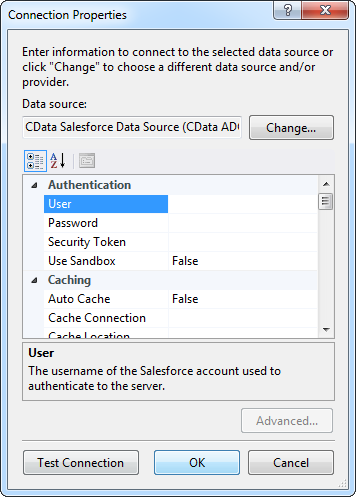
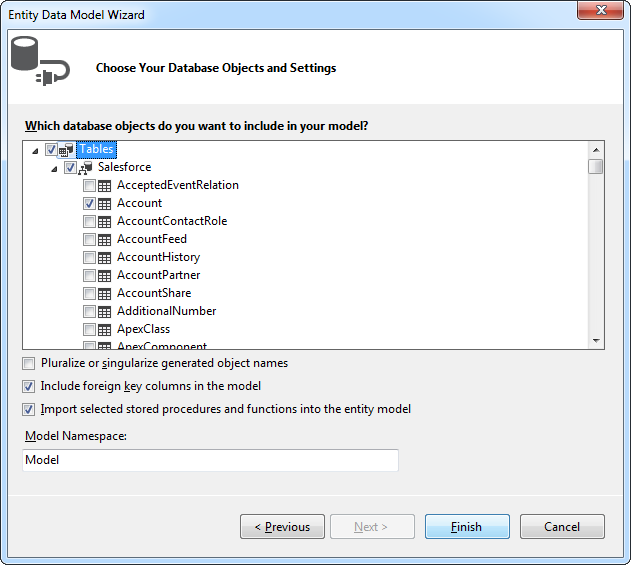
- Select Outlook tables and views that you want OData clients to access.
- Click Project -> Add New Item -> WCF Data Service.
Specify the data source class and configure access to the new WCF Data Service. In the example below, the Access Rule for the entities is set to All. This means that any user will be able to read and modify data.
using System; using System.Collections.Generic; using System.Data.Services; using System.Data.Services.Common; using System.Linq; using System.ServiceModel.Web; using System.Web; namespace APIService{ public class APIDataService : DataService<APIEntities> { public static void InitializeService(DataServiceConfiguration config) { config.SetEntitySetAccessRule("*", EntitySetRights.All); config.DataServiceBehavior.MaxProtocolVersion = DataServiceProtocolVersion.V3; } } }-
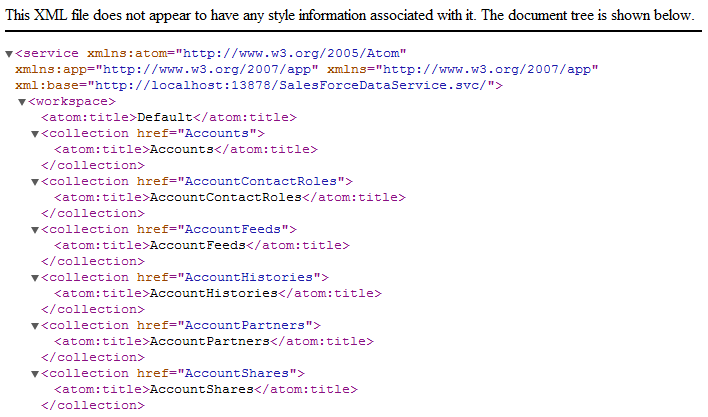
Run the project. Applications that support OData can now access the Salesforce data and reflect any changes. You can access the feed in your browser. The feed will resemble the following:
Consume the OData Service from Power Pivot
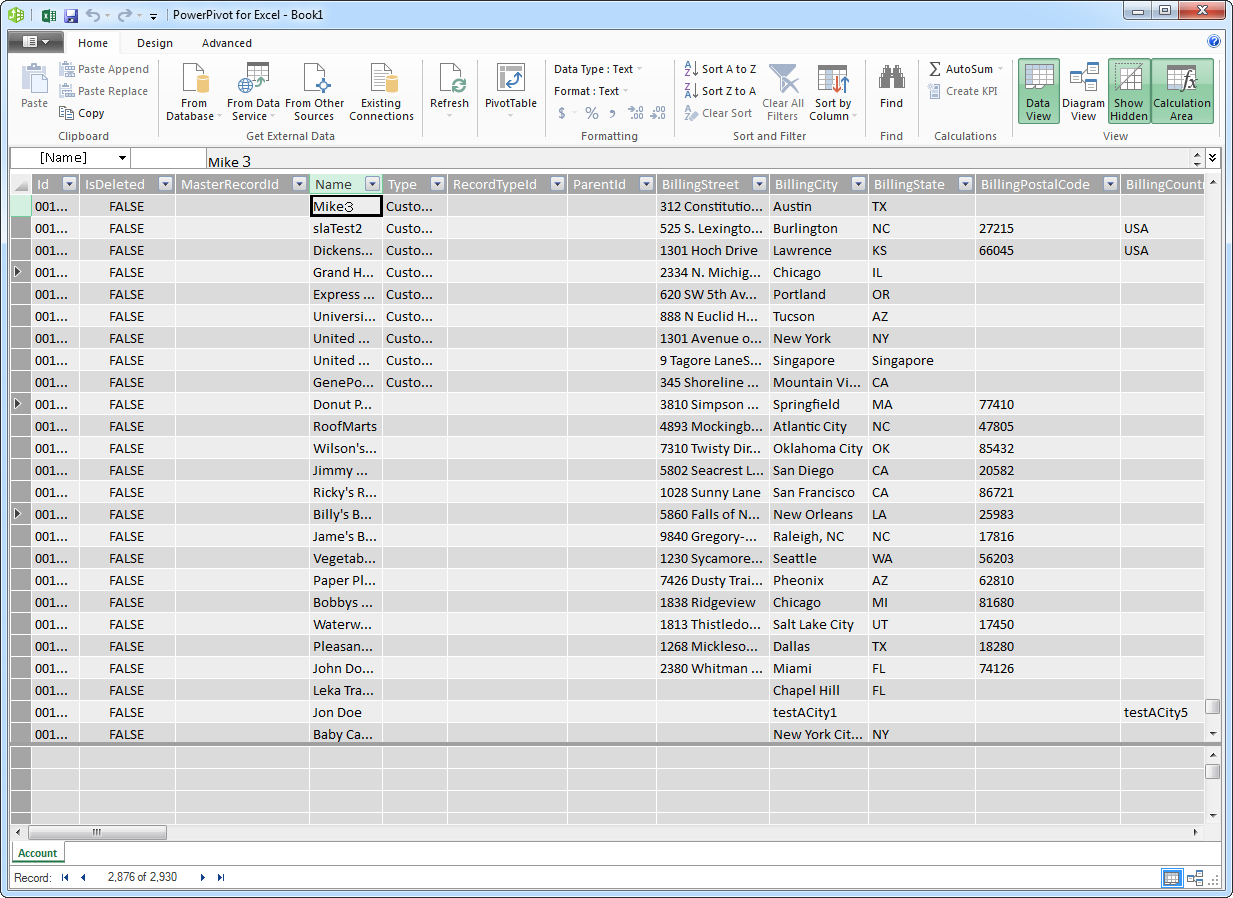
You can now use the service from any OData client; for example, Excel Power Pivot.
- Open Excel and click on the Power Pivot Window button.
- A new pop-up will appear. Select the option From Data Feeds.
- In the resulting Table Import Wizard, enter the OData URL. For example, http://localhost:12449/APIDataService.svc/.
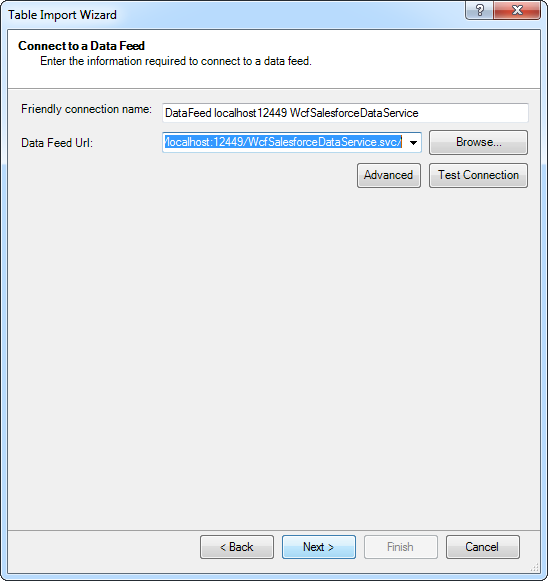
- After connecting to the OData service, click the Next button at the bottom of the window.
- A table listing of the available tables will appear in the next window of the wizard. Select which tables you want to import and click Finish.
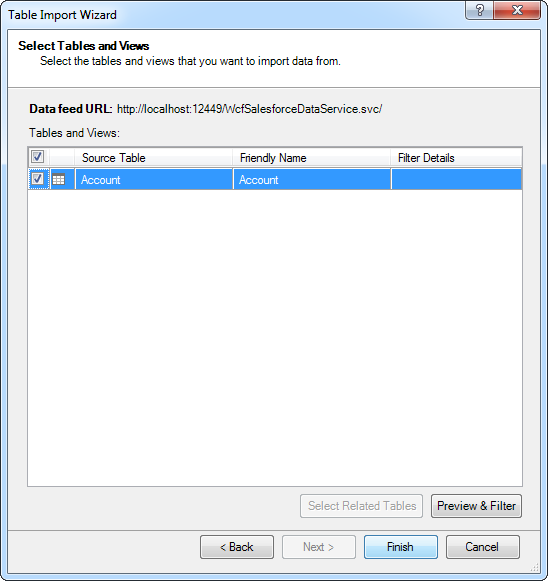
- Click Close to import the data in Power Pivot.