






Publish Reports with Outlook Data in SAP Crystal Reports

Crystal Reports has many options for offloading data processing to remote data; this enables real-time reporting. With the support for JDBC in Crystal Reports, the CData API Driver for JDBC brings this capability to Crystal Reports. This article shows how to create a report on Outlook data that refreshes when you run the report.
Refer to the given table for the tools and their versions used in this article:
| Application Name | Version |
|---|---|
| SAP Crystal Reports 2020 | SP3 |
| JDBC Driver | 23.0.8565 |
Deploy the JDBC Driver
Install the CData API Driver for JDBC by including the driver JAR in the Crystal Reports classpath: Add the full file path, including the .jar, to the paths in the ClassPath element under the DataDriverCommonElement.
The default location for the CRConfig.xml file is C:\Program Files (x86)\SAP BusinessObjects\SAP BusinessObjects Enterprise XI 4.0\java — the path might be slightly different based on your installation. The driver JAR is located in the lib subfolder of the installation directory.
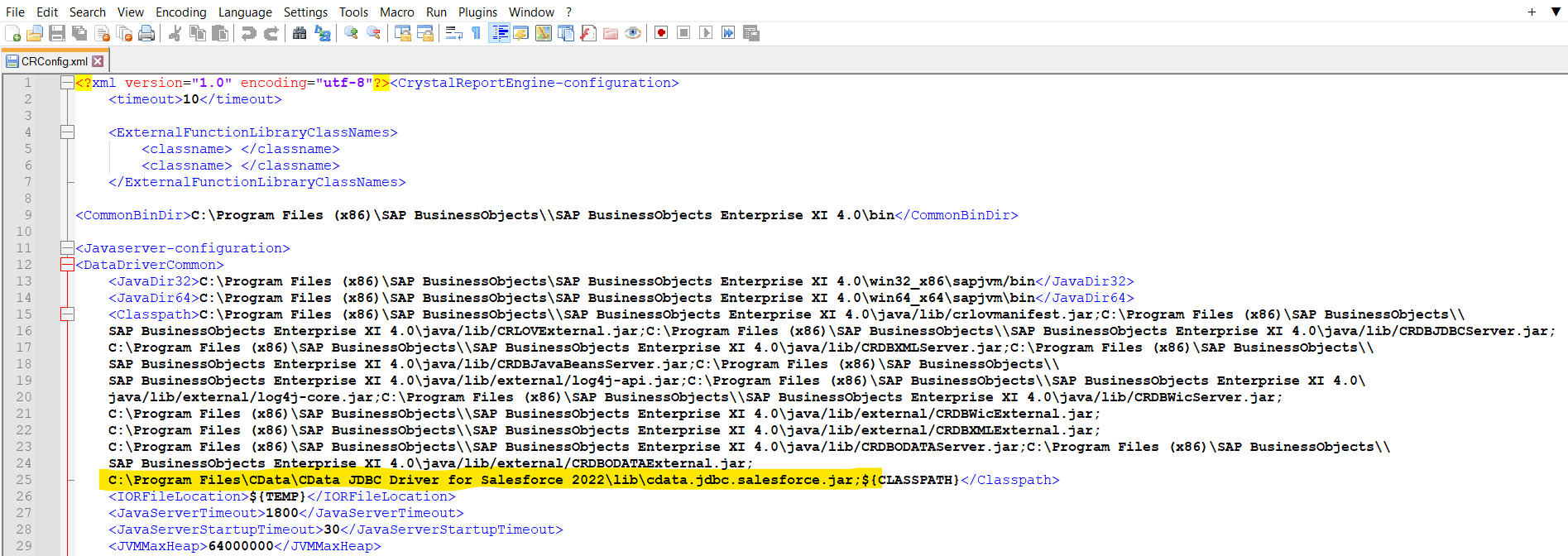
After you have added the JAR to the ClassPath, restart Crystal Reports.
Connect to Outlook Data
After deploying the JDBC driver for Outlook, you can use the Report Wizard to add Outlook data to a new report.
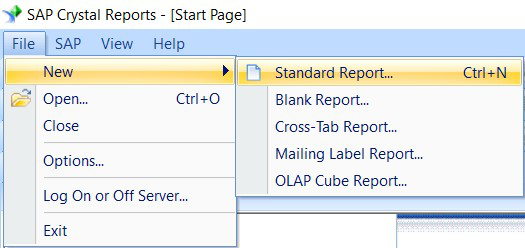
- Click File -> New -> Standard Report.
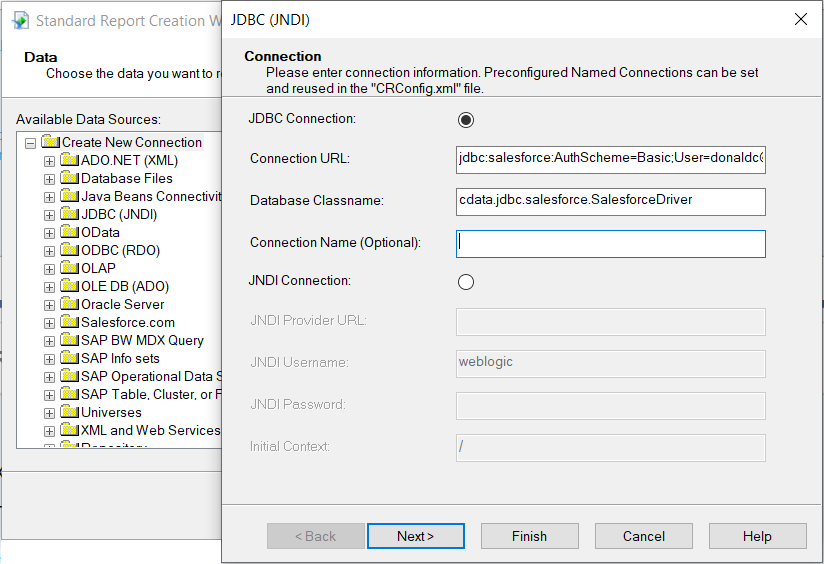
- Expand the JDBC (JNDI) under Create New Connection and double-click Make a New Connection.
- Create a connection string using CData API Driver for JDBC.
- Log in to the Azure Portal.
- Navigate to Azure Active Directory > App registrations.
- Click New registration to create a new application.
- Enter an application name and select the appropriate account types.
- Set the Redirect URI to your application's callback URL (e.g., http://localhost:33333 for desktop apps).
- Click Register to create the application.
- On the application overview page, copy the Application (client) ID - this is your OAuthClientId.
- Navigate to Certificates & secrets and create a new client secret.
- Copy the client secret value - this is your OAuthClientSecret.
- Navigate to API permissions and add the required Microsoft Graph API permissions:
- Mail.Read - For accessing email messages
- Contacts.Read - For accessing contacts
- Calendars.Read - For accessing calendar events
- Tasks.Read - For accessing To Do tasks
- offline_access - For obtaining refresh tokens
- Click Grant admin consent to grant these permissions.
- AuthScheme: Set this to OAuth.
- InitiateOAuth: Set this to GETANDREFRESH. The CData API Profile for Outlook will automatically walk through the OAuth process in order to obtain the access token.
- OAuthClientId: Set this to the Application (client) ID from Azure Portal.
- OAuthClientSecret: Set this to the client secret value from Azure Portal.
- TenantId: Set this to your Azure AD tenant identifier (GUID or domain name like 'contoso.onmicrosoft.com').
- CallbackURL: Set this to the Redirect URI you specified in your app registration (e.g., http://localhost:33333 for desktop apps).
In the wizard, enter the JDBC connection URL:
jdbc:api:Profile=C:\profiles\Outlook.apip;AuthScheme=OAuth;InitiateOAuth=GETANDREFRESH;OAuthClientId=your_client_id;OAuthClientSecret=your_client_secret;TenantId=your_tenant_id;CallbackUrl=http://localhost:33333;
Set the driver class name:
cdata.jdbc.api.APIDriver
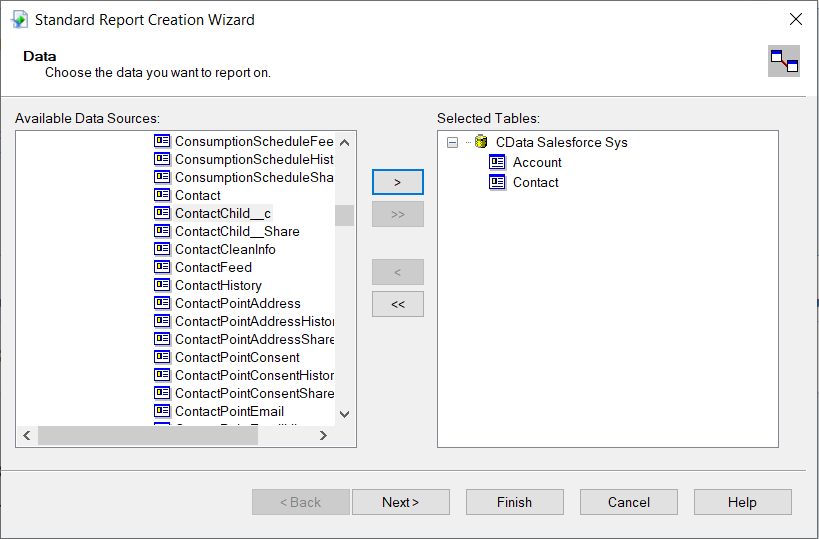
- Select the tables needed in the report.
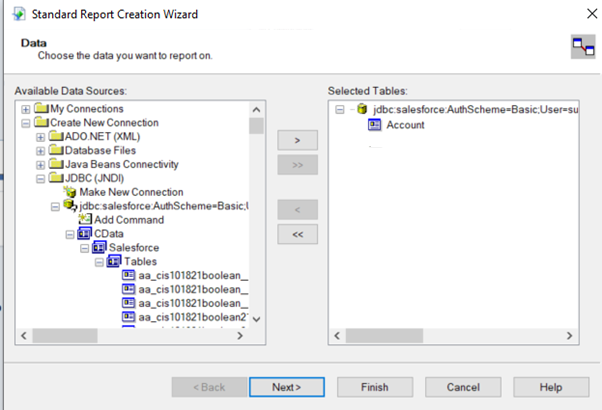
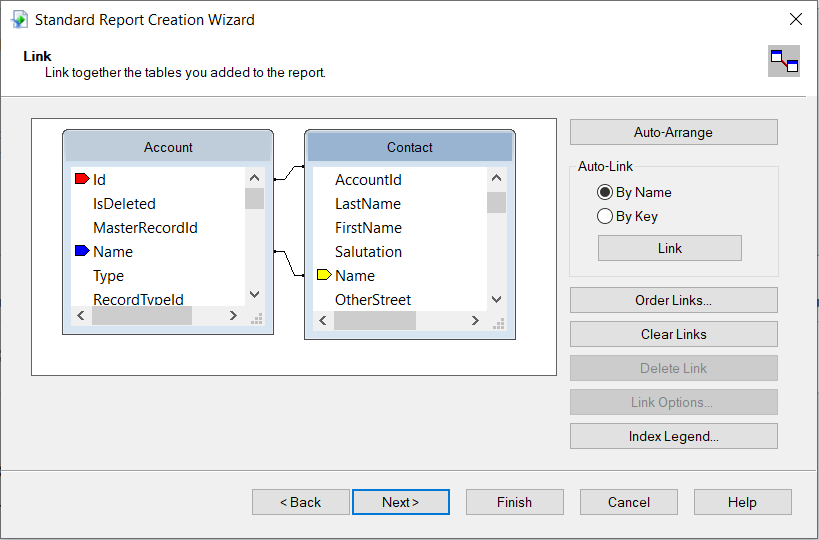
- You can also link tables from the Outlook data in SAP Crystal Reports. Click on NEXT after adding the links between tables.
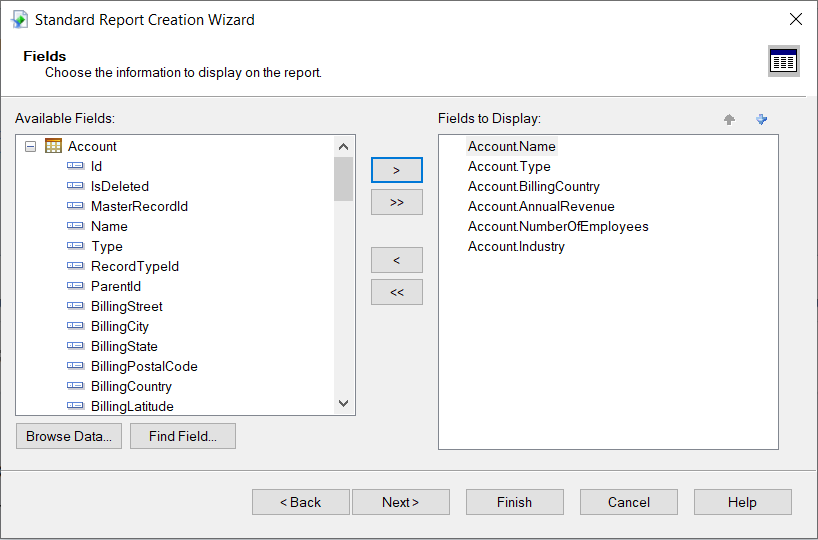
- After the tables are selected, select the fields you want displayed in the report from the selected table, followed by NEXT.
- Select the "Group By" field to group the information on the report.
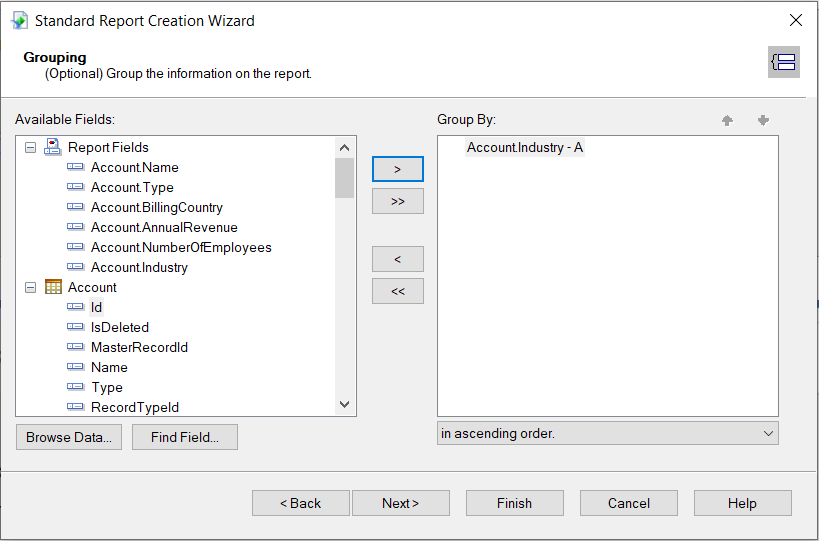
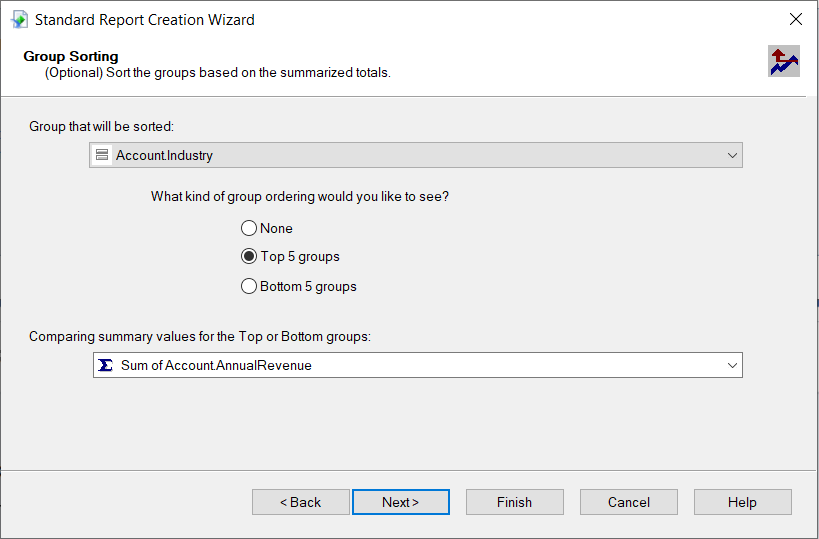
- Sort the groups based on summarised totals and click on NEXT.
For assistance constructing the JDBC URL, use the connection string designer built into the Outlook JDBC Driver. Double-click the JAR file or execute the jar file from the command line.
java -jar cdata.jdbc.api.jar
Using OAuth Authentication
Microsoft Graph API uses OAuth 2.0 for authentication. You must register an application in the Microsoft Azure Portal to obtain OAuth credentials (Client ID and Client Secret).
Obtaining OAuth Credentials
Connecting with OAuth
After setting the following connection properties, you are ready to connect:
Example connection string
Profile=C:\profiles\Outlook.apip;AuthScheme=OAuth;InitiateOAuth=GETANDREFRESH;OAuthClientId=your_client_id;OAuthClientSecret=your_client_secret;TenantId=your_tenant_id;CallbackUrl=http://localhost:33333;
Fill in the connection properties and copy the connection string to the clipboard.

When configuring the JDBC URL, you may also want to set the Max Rows connection property. This will limit the number of rows returned, which is especially helpful for improving performance when designing reports and visualizations.
You can then configure grouping, sorting, and summaries. See the following section to use the aggregate and summary to create a chart.
Create a Chart
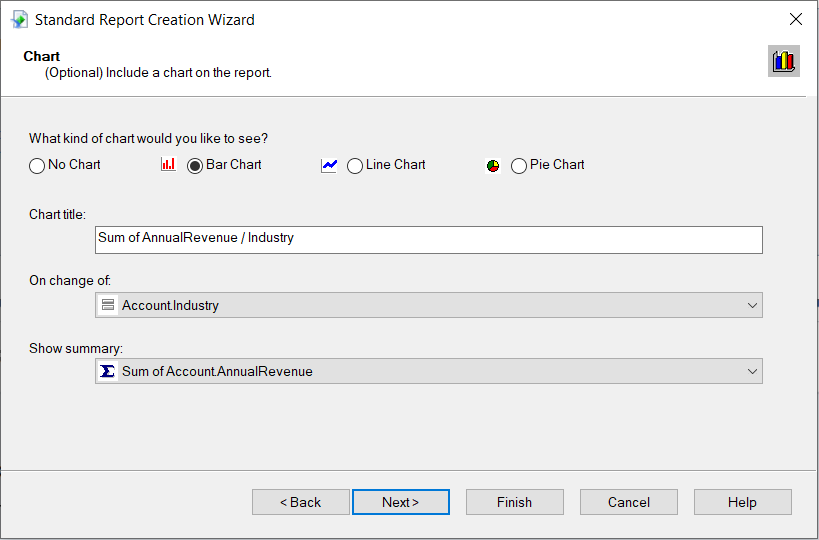
After selecting a column to group by, the Standard Report Creation Wizard presents the option to create a chart. Follow the steps below to create a chart aggregating the column's values.
- In the Standard Report Creation Wizard, select the Bar Chart option and select the column you grouped by in the "On change of" menu.
- In the Show Summary menu, select the summary you created.
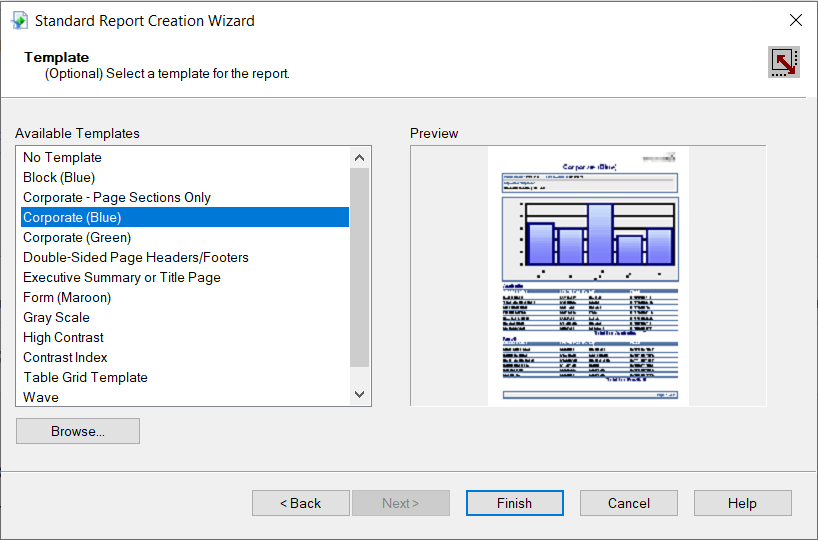
- Select filters and a template, as needed, to finish the wizard.
Select a template for the report to preview the finished report and view the chart populated with your data.
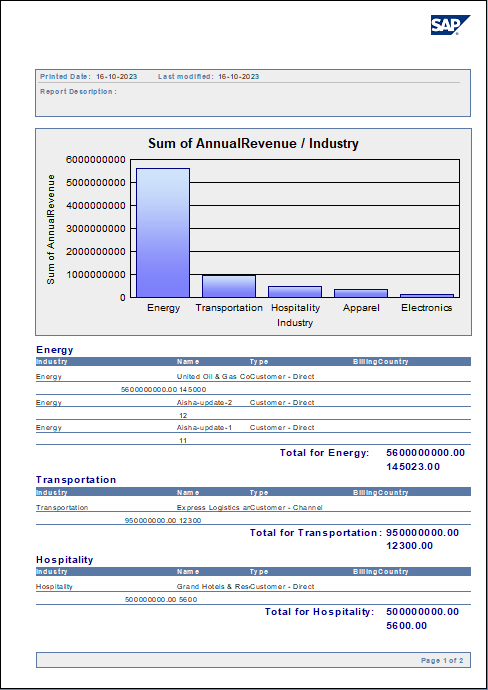
The Final Report
You can now see that the report contains all the fields initially specified.
Working with Remote Data
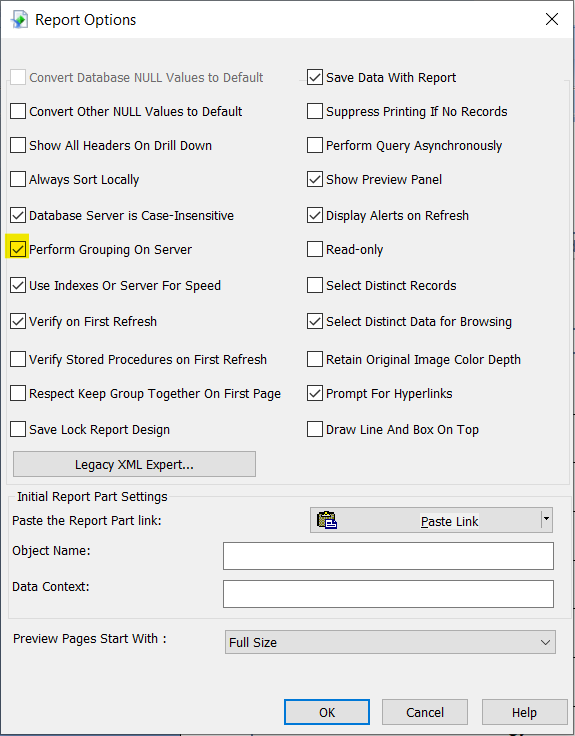
To ensure that you see updates to the data, click File and clear the "Save Data with Report" option. As you interact with the report, for example, drilling down to hidden details, Crystal Reports executes SQL queries to retrieve the data needed to display the report. To reload data you have already retrieved, refresh or rerun the report.
You can offload processing onto the driver by hiding details elements and enabling server-side grouping. To do this, you need to select a column to group by in the report creation wizard.
- Click File -> Report Options and select the "Perform Grouping On Server" option.
- Click Report -> Section Expert and select the Details section of your report. Select the "Hide (Drill-Down OK)" option.
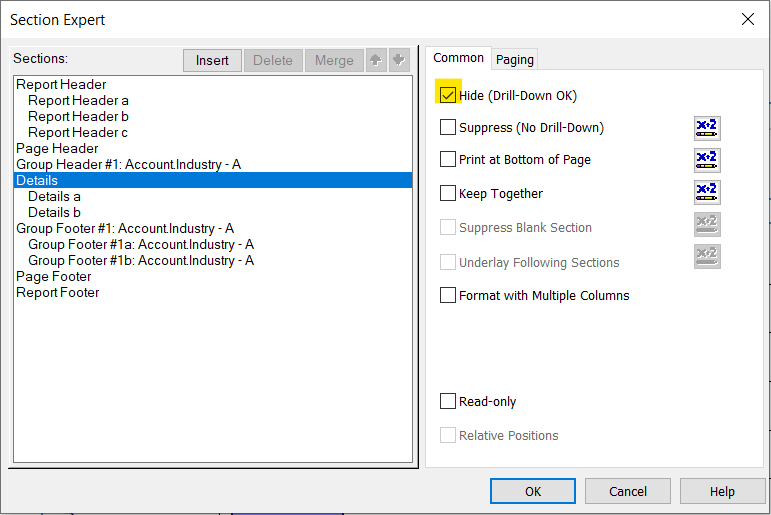
When you preview your report with the hidden details, Crystal Reports executes a GROUP BY query. When you double-click a column in the chart to drill down to details, Crystal Reports executes a SELECT WHERE query that decreases load times by retrieving only the data needed.
At this point, you have created a SAP Crystal report built on top of live Outlook data using SAP Crystal Reports and a CData JDBC Driver. Learn more about the CData API Driver for JDBC and download a free trial from the Outlook JDBC Driver page. Let our Support Team know if you have any questions.