






Access Outlook Data in Mule Applications Using the CData JDBC Driver

The CData API Driver for JDBC connects Outlook data to Mule applications enabling read functionality with familiar SQL queries. The JDBC Driver allows users to easily create Mule applications to backup, transform, report, and analyze Outlook data.
This article demonstrates how to use the CData API Driver for JDBC inside of a Mule project to create a Web interface for Outlook data. The application created allows you to request Outlook data using an HTTP request and have the results returned as JSON. The exact same procedure outlined below can be used with any CData JDBC Driver to create a Web interface for the hundreds of available data sources.
- Create a new Mule Project in Anypoint Studio.
- Add an HTTP Connector to the Message Flow.
- Configure the address for the HTTP Connector.
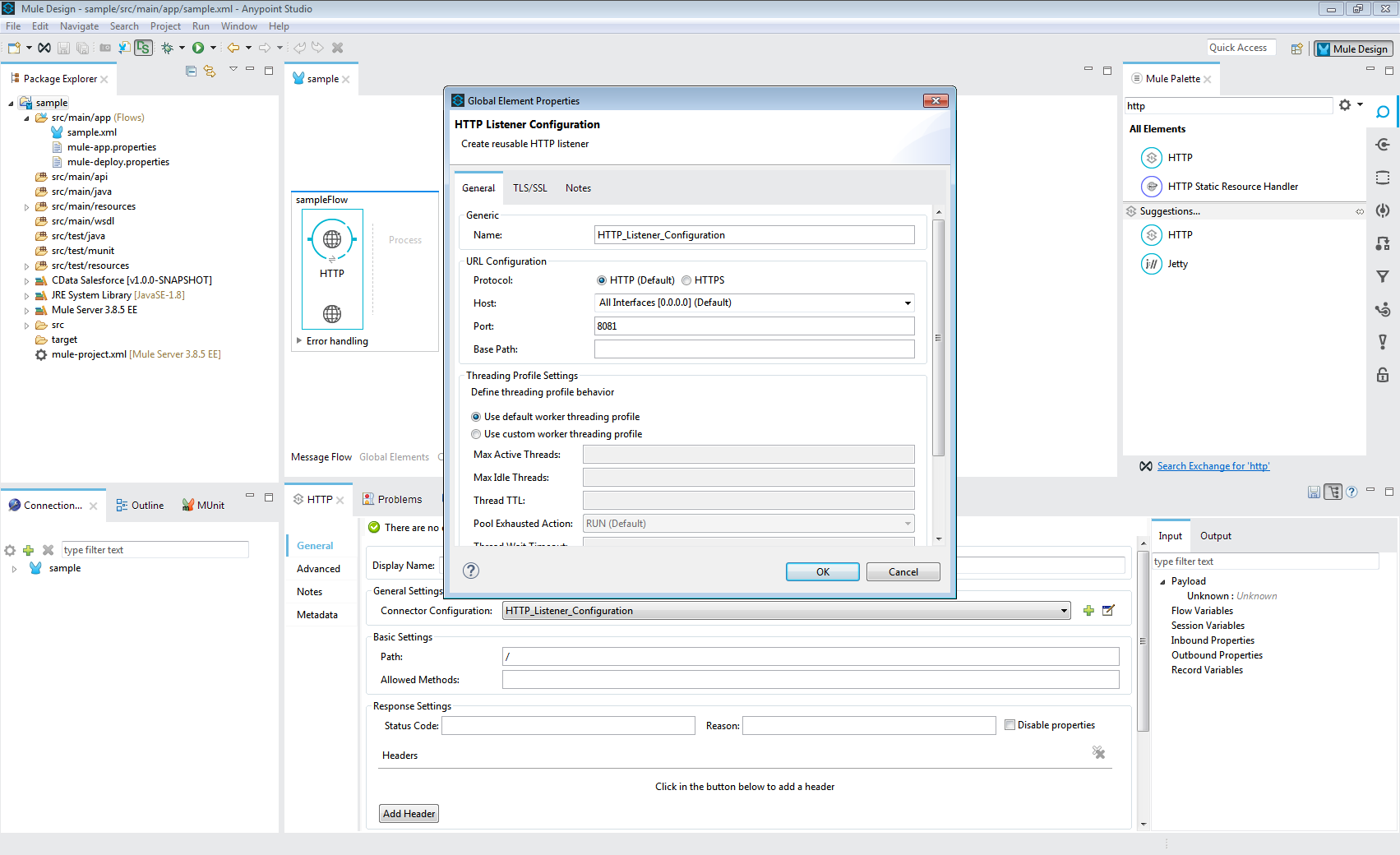
- Add a Database Select Connector to the same flow, after the HTTP Connector.
- Create a new Connection (or edit an existing one) and configure the properties.
- Set Connection to "Generic Connection"
- Select the CData JDBC Driver JAR file in the Required Libraries section (e.g. cdata.jdbc.api.jar).
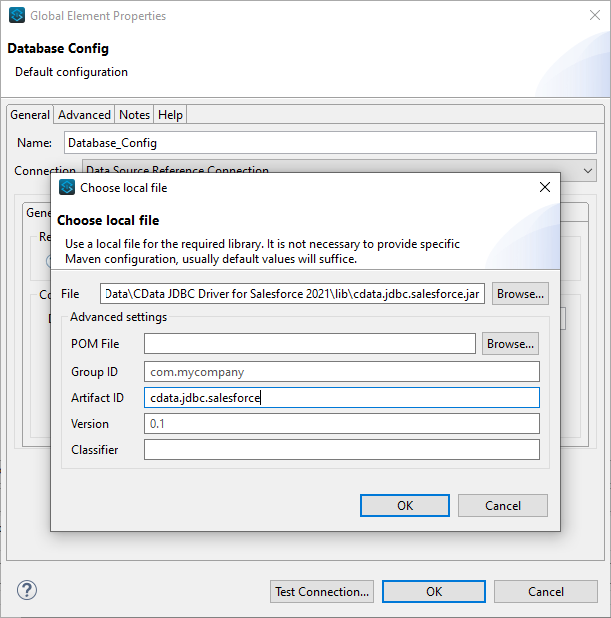
- Set the URL to the connection string for Outlook
Using OAuth Authentication
Microsoft Graph API uses OAuth 2.0 for authentication. You must register an application in the Microsoft Azure Portal to obtain OAuth credentials (Client ID and Client Secret).
Obtaining OAuth Credentials
- Log in to the Azure Portal.
- Navigate to Azure Active Directory > App registrations.
- Click New registration to create a new application.
- Enter an application name and select the appropriate account types.
- Set the Redirect URI to your application's callback URL (e.g., http://localhost:33333 for desktop apps).
- Click Register to create the application.
- On the application overview page, copy the Application (client) ID - this is your OAuthClientId.
- Navigate to Certificates & secrets and create a new client secret.
- Copy the client secret value - this is your OAuthClientSecret.
- Navigate to API permissions and add the required Microsoft Graph API permissions:
- Mail.Read - For accessing email messages
- Contacts.Read - For accessing contacts
- Calendars.Read - For accessing calendar events
- Tasks.Read - For accessing To Do tasks
- offline_access - For obtaining refresh tokens
- Click Grant admin consent to grant these permissions.
Connecting with OAuth
After setting the following connection properties, you are ready to connect:
- AuthScheme: Set this to OAuth.
- InitiateOAuth: Set this to GETANDREFRESH. The CData API Profile for Outlook will automatically walk through the OAuth process in order to obtain the access token.
- OAuthClientId: Set this to the Application (client) ID from Azure Portal.
- OAuthClientSecret: Set this to the client secret value from Azure Portal.
- TenantId: Set this to your Azure AD tenant identifier (GUID or domain name like 'contoso.onmicrosoft.com').
- CallbackURL: Set this to the Redirect URI you specified in your app registration (e.g., http://localhost:33333 for desktop apps).
Example connection string
Profile=C:\profiles\Outlook.apip;AuthScheme=OAuth;InitiateOAuth=GETANDREFRESH;OAuthClientId=your_client_id;OAuthClientSecret=your_client_secret;TenantId=your_tenant_id;CallbackUrl=http://localhost:33333;
Built-in Connection String Designer
For assistance in constructing the JDBC URL, use the connection string designer built into the Outlook JDBC Driver. Either double-click the JAR file or execute the jar file from the command-line.
java -jar cdata.jdbc.api.jar
Fill in the connection properties and copy the connection string to the clipboard.
- Set the Driver class name to cdata.jdbc.api.APIDriver.
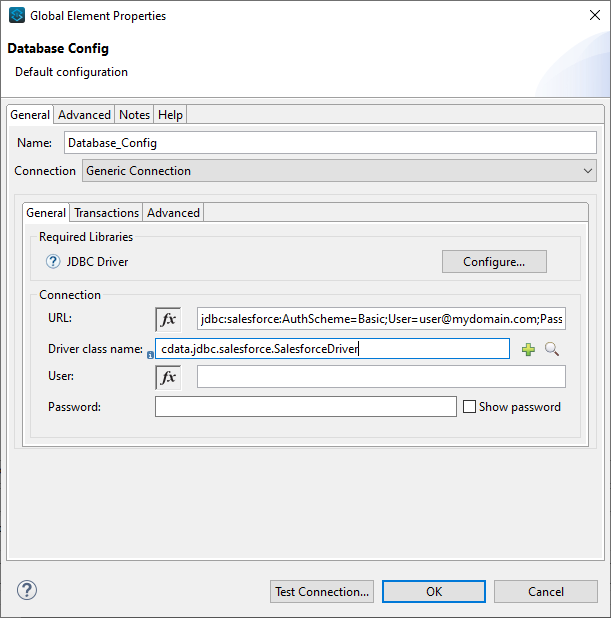
- Click Test Connection.
- Set the SQL Query Text to a SQL query to request Outlook data. For example:
SELECT , FROM CalendarGroupCalendars WHERE CalendarGroupId = 'group_id'
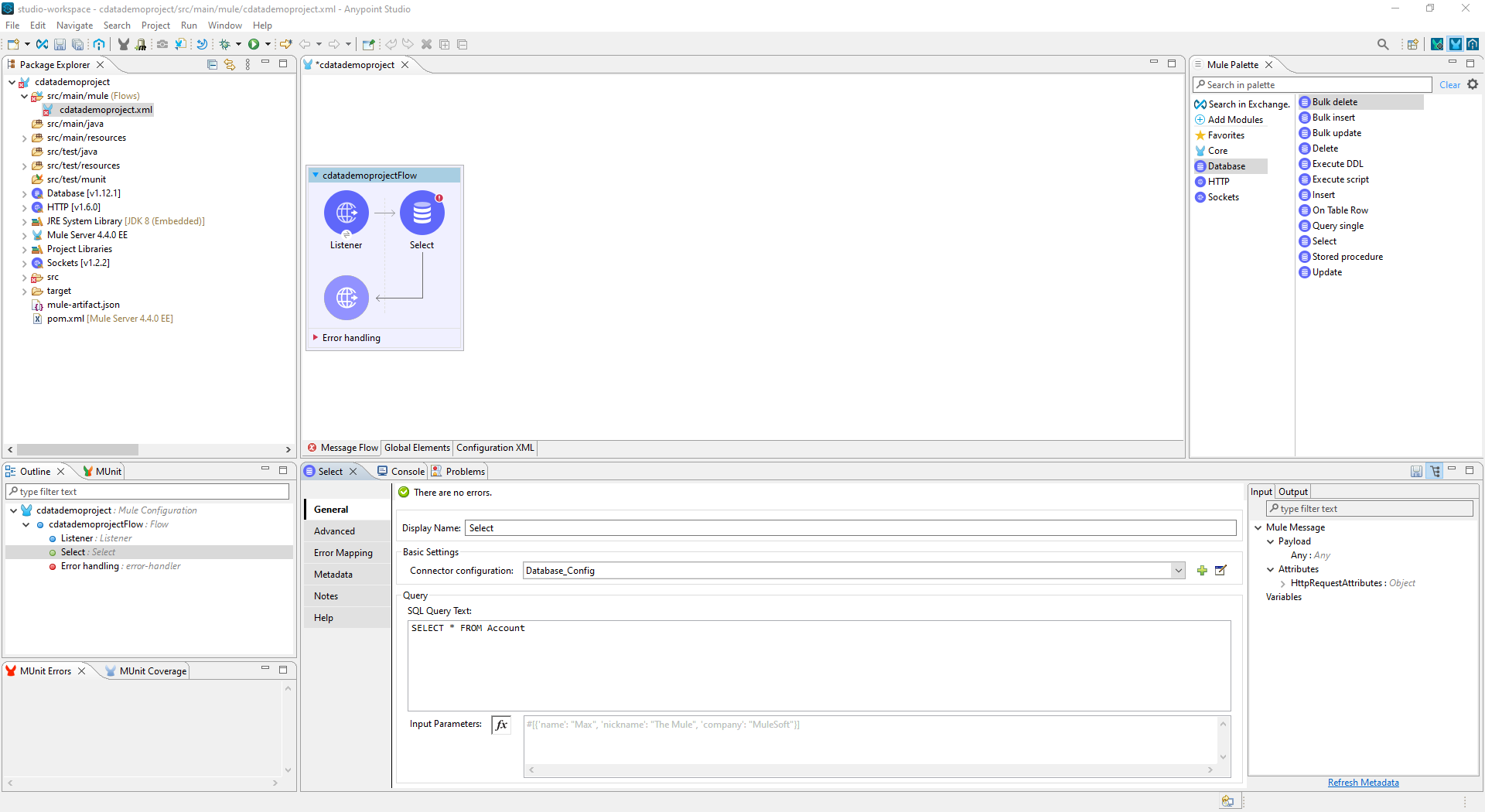
- Add a Transform Message Component to the flow.
- Set the Output script to the following to convert the payload to JSON:
%dw 2.0
output application/json
---
payload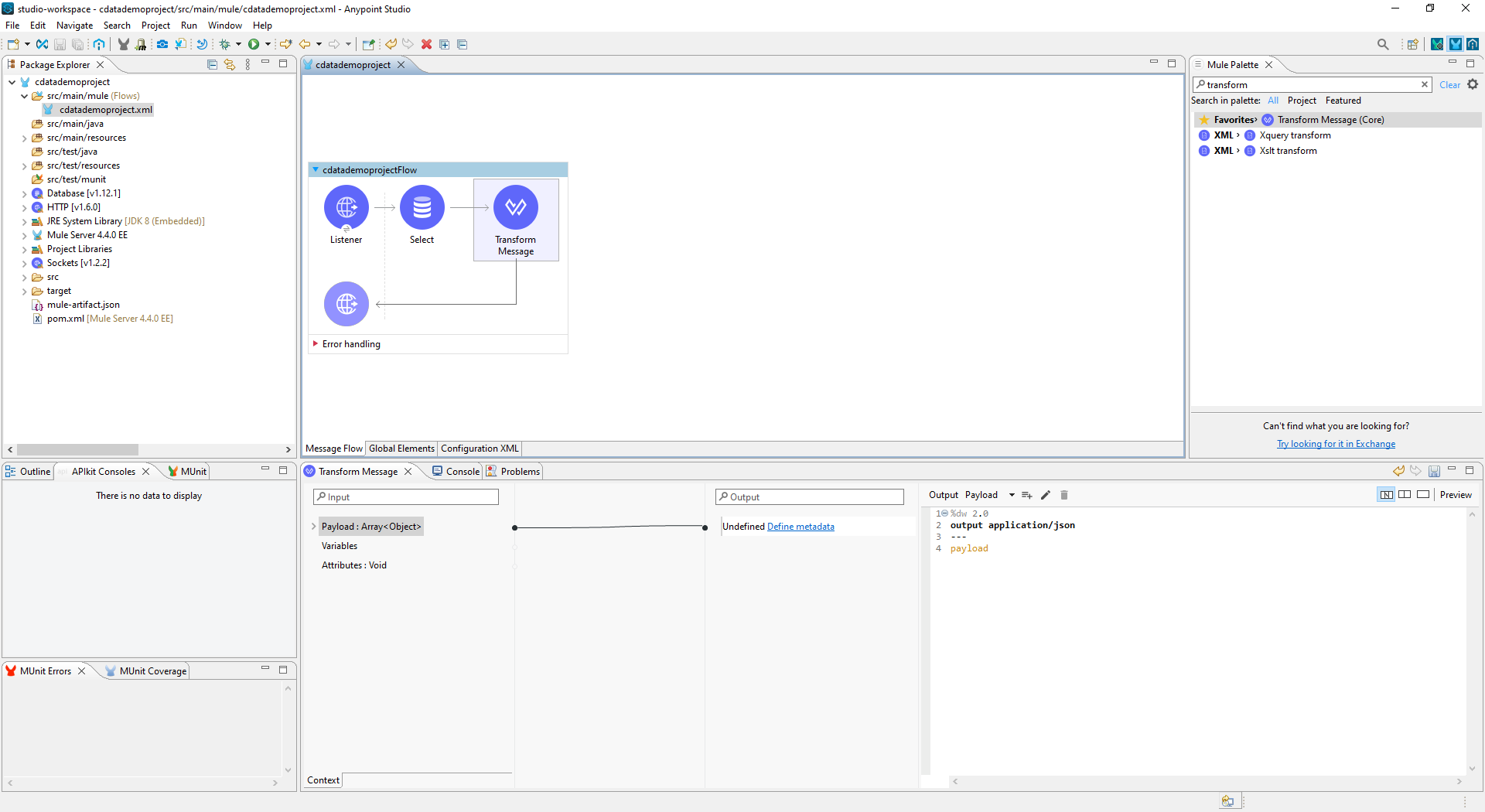
- To view your Outlook data, navigate to the address you configured for the HTTP Connector (localhost:8081 by default): http://localhost:8081. The Outlook data is available as JSON in your Web browser and any other tools capable of consuming JSON endpoints.
At this point, you have a simple Web interface for working with Outlook data (as JSON data) in custom apps and a wide variety of BI, reporting, and ETL tools. Download a free, 30 day trial of the JDBC Driver for Outlook and see the CData difference in your Mule Applications today.