






How to connect PolyBase to Outlook

PolyBase for SQL Server allows you to query external data by using the same Transact-SQL syntax used to query a database table. When paired with the CData API Driver for ODBC, you get access to your Outlook data directly alongside your SQL Server data. This article describes creating an external data source and external tables to grant access to live Outlook data using T-SQL queries.
NOTE: PolyBase is only available on SQL Server 19 and above.
The CData ODBC drivers offer unmatched performance for interacting with live Outlook data using PolyBase due to optimized data processing built into the driver. When you issue complex SQL queries from SQL Server to Outlook, the driver pushes down supported SQL operations, like filters and aggregations, directly to Outlook and utilizes the embedded SQL engine to process unsupported operations (often SQL functions and JOIN operations) client-side. And with PolyBase, you can also join SQL Server data with Outlook data, using a single query to pull data from distributed sources.
Connect to Outlook
If you have not already, first specify connection properties in an ODBC DSN (data source name). This is the last step of the driver installation. You can use the Microsoft ODBC Data Source Administrator to create and configure ODBC DSNs. To create an external data source in SQL Server using PolyBase, configure a System DSN (CData Outlook Sys is created automatically).
Using OAuth Authentication
Microsoft Graph API uses OAuth 2.0 for authentication. You must register an application in the Microsoft Azure Portal to obtain OAuth credentials (Client ID and Client Secret).
Obtaining OAuth Credentials
- Log in to the Azure Portal.
- Navigate to Azure Active Directory > App registrations.
- Click New registration to create a new application.
- Enter an application name and select the appropriate account types.
- Set the Redirect URI to your application's callback URL (e.g., http://localhost:33333 for desktop apps).
- Click Register to create the application.
- On the application overview page, copy the Application (client) ID - this is your OAuthClientId.
- Navigate to Certificates & secrets and create a new client secret.
- Copy the client secret value - this is your OAuthClientSecret.
- Navigate to API permissions and add the required Microsoft Graph API permissions:
- Mail.Read - For accessing email messages
- Contacts.Read - For accessing contacts
- Calendars.Read - For accessing calendar events
- Tasks.Read - For accessing To Do tasks
- offline_access - For obtaining refresh tokens
- Click Grant admin consent to grant these permissions.
Connecting with OAuth
After setting the following connection properties, you are ready to connect:
- AuthScheme: Set this to OAuth.
- InitiateOAuth: Set this to GETANDREFRESH. The CData API Profile for Outlook will automatically walk through the OAuth process in order to obtain the access token.
- OAuthClientId: Set this to the Application (client) ID from Azure Portal.
- OAuthClientSecret: Set this to the client secret value from Azure Portal.
- TenantId: Set this to your Azure AD tenant identifier (GUID or domain name like 'contoso.onmicrosoft.com').
- CallbackURL: Set this to the Redirect URI you specified in your app registration (e.g., http://localhost:33333 for desktop apps).
Example connection string
Profile=C:\profiles\Outlook.apip;AuthScheme=OAuth;InitiateOAuth=GETANDREFRESH;OAuthClientId=your_client_id;OAuthClientSecret=your_client_secret;TenantId=your_tenant_id;CallbackUrl=http://localhost:33333;
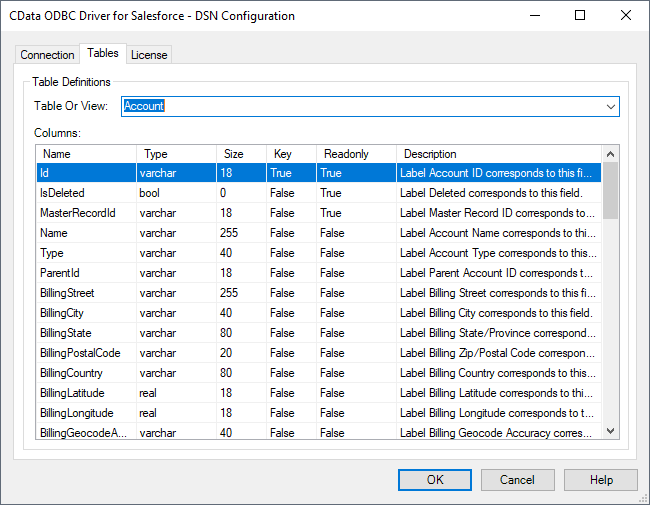
Click "Test Connection" to ensure that the DSN is connected to Outlook properly. Navigate to the Tables tab to review the table definitions for Outlook.
Create an External Data Source for Outlook Data
After configuring the connection, you need to create a master encryption key and a credential database for the external data source.
Creating a Master Encryption Key
Execute the following SQL command to create a new master key, 'ENCRYPTION,' to encrypt the credentials for the external data source.
CREATE MASTER KEY ENCRYPTION BY PASSWORD = 'password';
Creating a Credential Database
Execute the following SQL command to create credentials for the external data source connected to Outlook data.
NOTE: Since Outlook does not require a User or Password to authenticate, you may use whatever values you wish for IDENTITY and SECRET.
CREATE DATABASE SCOPED CREDENTIAL api_creds
WITH IDENTITY = 'username', SECRET = 'password';
Create an External Data Source for Outlook
Execute a CREATE EXTERNAL DATA SOURCE SQL command to create an external data source for Outlook with PolyBase:
- Set the LOCATION parameter , using the DSN and credentials configured earlier.
For Outlook, set SERVERNAME to the URL or address for your server (e.g. 'localhost' or '127.0.0.1' for local servers; the remote URL for remote servers). Leave PORT empty. PUSHDOWN is set to ON by default, meaning the ODBC Driver can leverage server-side processing for complex queries.
CREATE EXTERNAL DATA SOURCE cdata_api_source
WITH (
  LOCATION = 'odbc://SERVER_URL',
  CONNECTION_OPTIONS = 'DSN=CData Outlook Sys',
  -- PUSHDOWN = ON | OFF,
  CREDENTIAL = api_creds
);
Create External Tables for Outlook
After creating the external data source, use CREATE EXTERNAL TABLE statements to link to Outlook data from your SQL Server instance. The table column definitions must match those exposed by the CData API Driver for ODBC. You can refer to the Tables tab of the DSN Configuration Wizard to see the table definition.
Sample CREATE TABLE Statement
The statement to create an external table based on a Outlook CalendarGroupCalendars would look similar to the following:
CREATE EXTERNAL TABLE CalendarGroupCalendars(
   [nvarchar](255) NULL,
   [nvarchar](255) NULL,
  ...
) WITH (
  LOCATION='CalendarGroupCalendars',
  DATA_SOURCE=cdata_api_source
);
Having created external tables for Outlook in your SQL Server instance, you are now able to query local and remote data simultaneously. Thanks to built-in query processing in the CData ODBC Driver, you know that as much query processing as possible is being pushed to Outlook, freeing up local resources and computing power. Download a free, 30-day trial of the ODBC Driver for Outlook and start working with live Outlook data alongside your SQL Server data today.