How to Connect DBeaver to Paddle via a JDBC Driver

The CData API Driver for JDBC implements JDBC standards that enable third-party tools to interoperate, from wizards in IDEs to business intelligence tools. This article shows how to connect to Paddle data with wizards in DBeaver and browse data in the DBeaver GUI.
Create a JDBC Data Source for Paddle Data
Follow the steps below to load the driver JAR in DBeaver.
- Open the DBeaver application and, in the "Database" menu, select the "Driver Manager" option. Click "New" to open the "Create new driver" form.
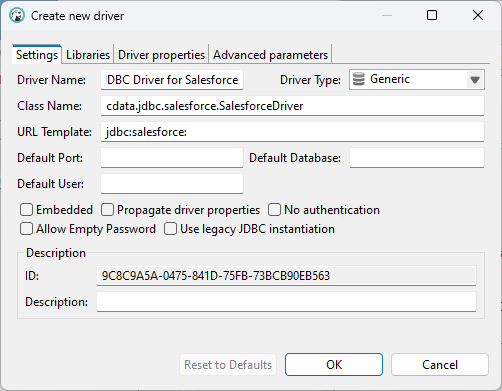
- In the Settings tab:
- Set Driver Name to a user-friendly name for the driver (e.g. CData API Driver for JDBC).
- Set Class Name to the class name for the JDBC driver: cdata.jdbc.api.APIDriver.
- Set URL Template to jdbc:api:.
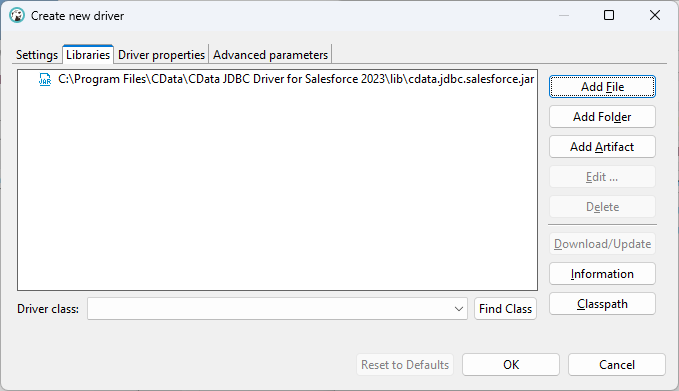
- In the Libraries tab, click "Add File," navigate to the "lib" folder in the installation directory (C:\Program Files\CData[product_name] XXXX\) and select the JAR file (cdata.jdbc.API.jar).
Create a Connection to Paddle Data
Follow the steps below to add credentials and other required connection properties.
- In the "Database" menu, click "New Database Connection."
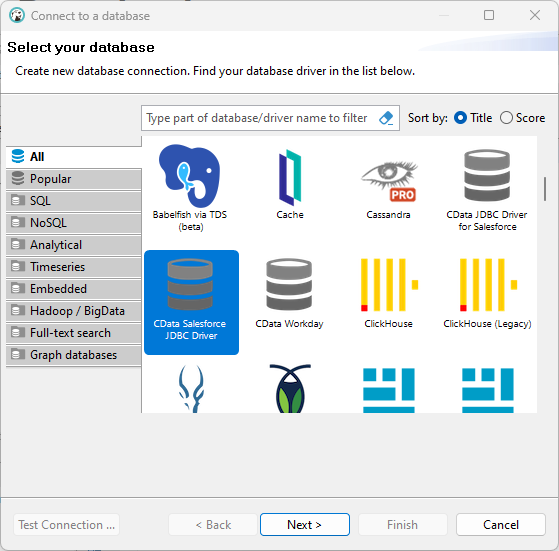
- In the "Connect to a database" wizard that results, select the driver you just created (e.g. CData API Driver for JDBC) and click "Next >."
- On the Main tab of the configuration wizard, set the JDBC URL, using the required connection properties:
Using API Key Authentication
Paddle uses API key authentication. To obtain an API key:
- Sign in to your Paddle account at https://vendors.paddle.com
- Navigate to Developer Tools > Authentication
- Click "Generate API Key"
- Assign the appropriate permissions for the data you wish to access
- Copy the generated key (sandbox keys begin with pdl_sdbx_apikey_; production keys begin with pdl_live_apikey_)
After obtaining your API key, set the following connection properties:
- AuthScheme: Set this to APIKey.
- APIKey: Set this to your Paddle API key.
Example Connection String
Profile=C:\profiles\Paddle.apip;AuthScheme=APIKey;ProfileSettings="APIKey=your_api_key";
Connecting to Paddle
Once the authentication is configured, you can connect to Paddle and query data from any of the available tables such as Products, Customers, Subscriptions, and Transactions.
Built-in Connection String Designer
For assistance in constructing the JDBC URL, use the connection string designer built into the Paddle JDBC Driver. Either double-click the JAR file or execute the jar file from the command-line.
java -jar cdata.jdbc.api.jar
Fill in the connection properties and copy the connection string to the clipboard.

Below is a typical connection string:
jdbc:api:Profile=C:\profiles\Paddle.apip;AuthScheme=APIKey;ProfileSettings="APIKey=your_api_key";
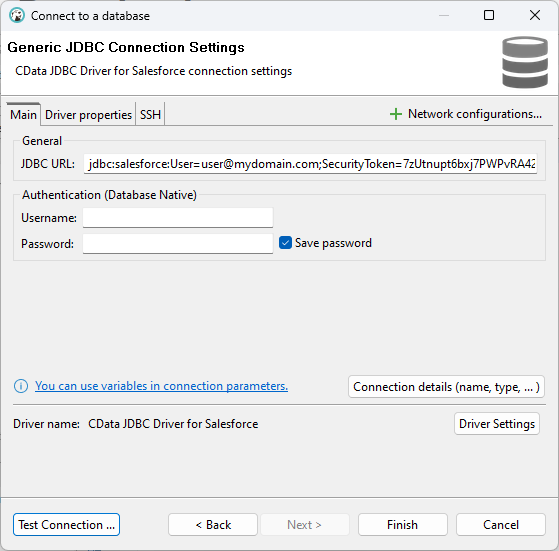
- Click "Test Connection ..." to ensure you have configured the connection properly.

- Click "Finish."
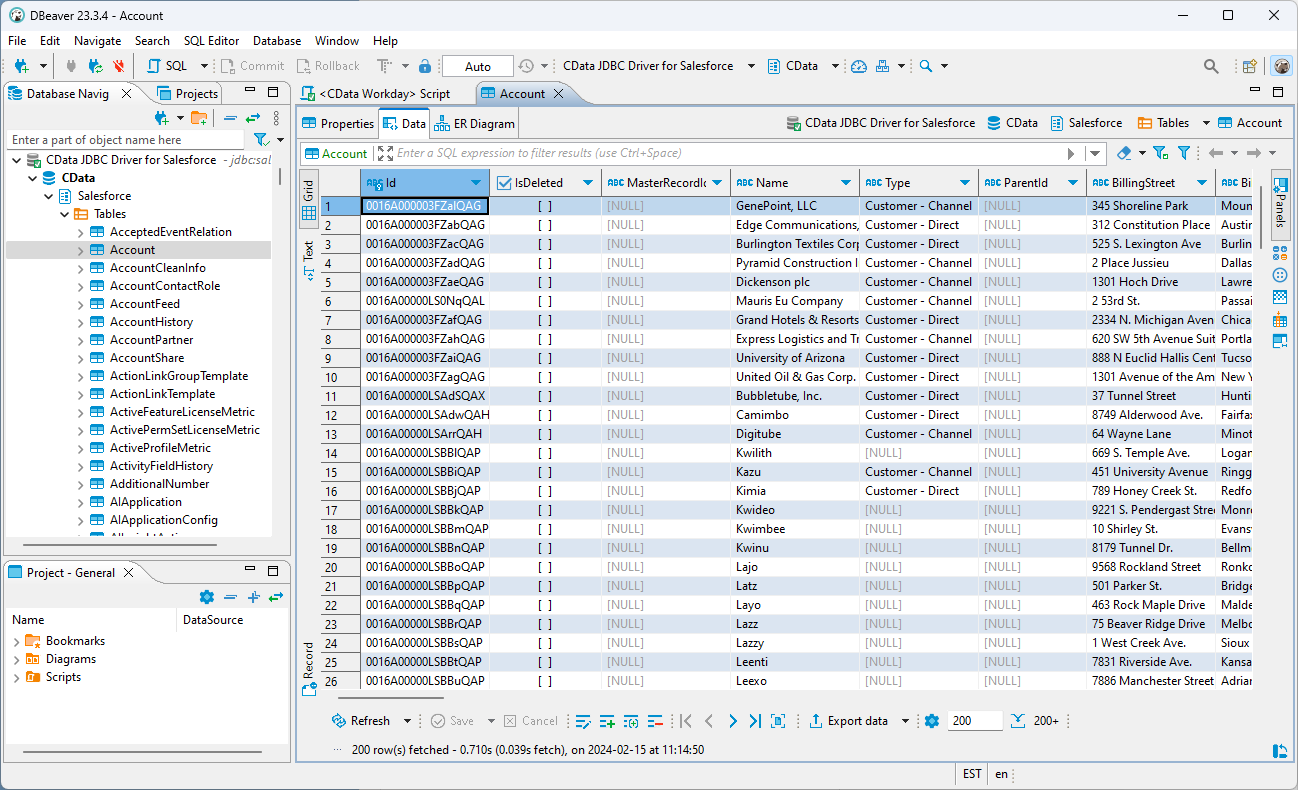
Query Paddle Data
You can now query information from the tables exposed by the connection: Right-click a Table and then click View Table. The data is available on the Data tab.