Import and Visualize Paddle Data in Power View

NOTE: For Excel for the web (Excel 365) and Excel 2019 or higher, Power View is no longer supported. Microsoft encourages the use of Power BI for those users. Please read our article on working with Paddle in Power BI using our Power BI connector for more information.
You can use the built-in ODBC support in Excel to rapidly create Power View reports featuring Paddle data. This article shows how to use the Data Connection Wizard, accessible from the Data ribbon, to import Paddle data into a Power View report.
Connect to Paddle as an ODBC Data Source
If you have not already, first specify connection properties in an ODBC DSN (data source name). This is the last step of the driver installation. You can use the Microsoft ODBC Data Source Administrator to create and configure ODBC DSNs.
Using API Key Authentication
Paddle uses API key authentication. To obtain an API key:
- Sign in to your Paddle account at https://vendors.paddle.com
- Navigate to Developer Tools > Authentication
- Click "Generate API Key"
- Assign the appropriate permissions for the data you wish to access
- Copy the generated key (sandbox keys begin with pdl_sdbx_apikey_; production keys begin with pdl_live_apikey_)
After obtaining your API key, set the following connection properties:
- AuthScheme: Set this to APIKey.
- APIKey: Set this to your Paddle API key.
Example Connection String
Profile=C:\profiles\Paddle.apip;AuthScheme=APIKey;ProfileSettings="APIKey=your_api_key";
Connecting to Paddle
Once the authentication is configured, you can connect to Paddle and query data from any of the available tables such as Products, Customers, Subscriptions, and Transactions.
When you configure the DSN, you may also want to set the Max Rows connection property. This will limit the number of rows returned, which is especially helpful for improving performance when designing reports and visualizations.
Connect with the Data Connection Wizard
Follow the steps below to connect to the DSN from the Data Connection Wizard in Excel.
- In recent versions of Excel the Data Connection Wizard is not visible by default. To enable the Data Connection Wizard in Excel, go to File -> Options -> Data and under Show legacy data import wizards check the From Data Connection Wizard (Legacy).
- After enabling the Data Connection Wizard, on the Data tab you can click Get Data -> Legacy Wizards -> From Data Connection Wizard (Legacy).
- In the Data Connection Wizard, select the ODBC DSN option.
- Select the ODBC DSN for Paddle from the list.
Select the tables you want to work with.
If you want to import multiple tables, deselect the "Connect to a specific table" option. After you connect to the data source, you can select multiple tables: After you click Finish to close the Data Connection Wizard, select the "Enable selection of multiple tables" option in the Select Table dialog.
- In the Import Data dialog, select the destination for your data. For example, select the Table option and the Existing worksheet option. Then click the cell in your worksheet where results should be output.
- Click Insert -> Power View to create a new Power View report.
Create a Table
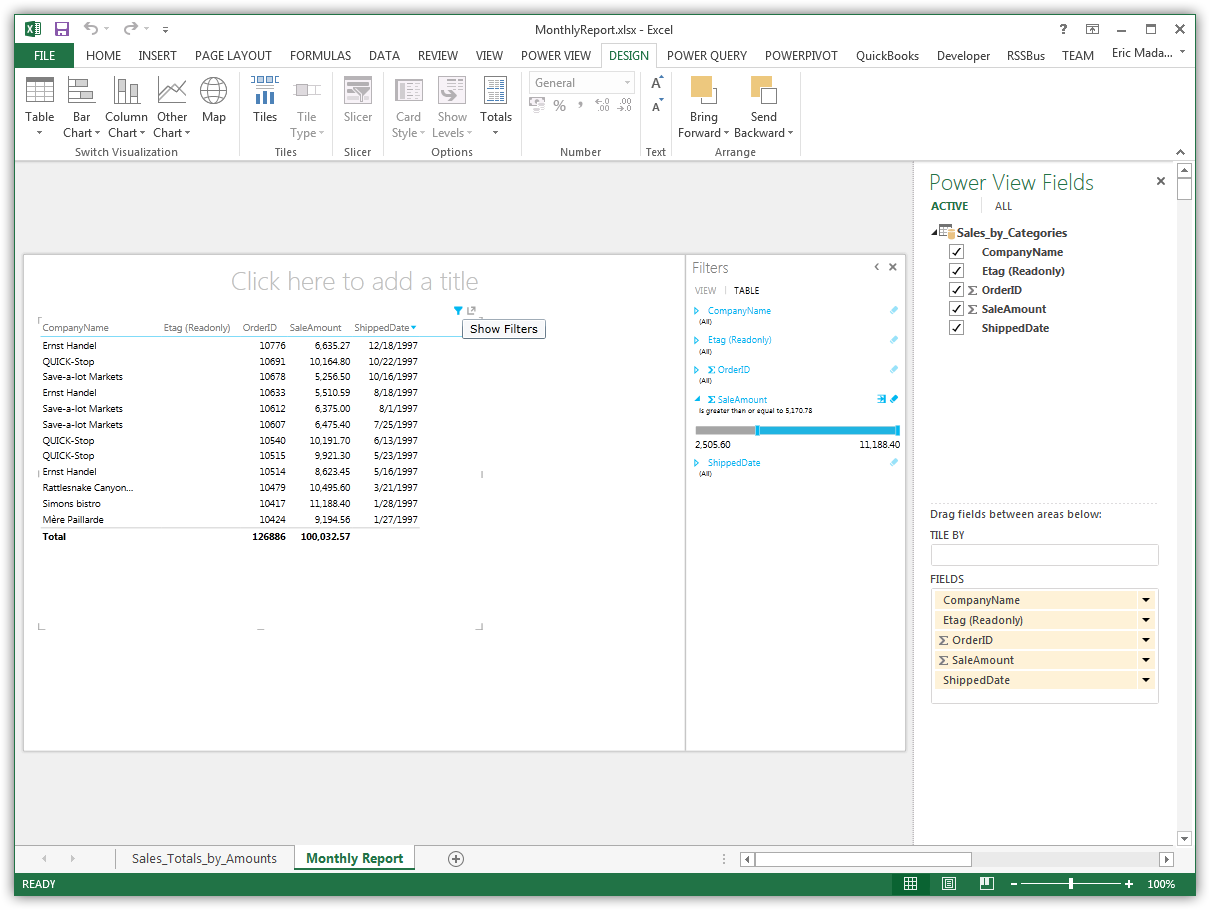
Tables are the starting point for charts and other representations of your data. To create a table, select a column in the field list. You can also drag and drop table names and column names onto the view.
Create Data Visualizations
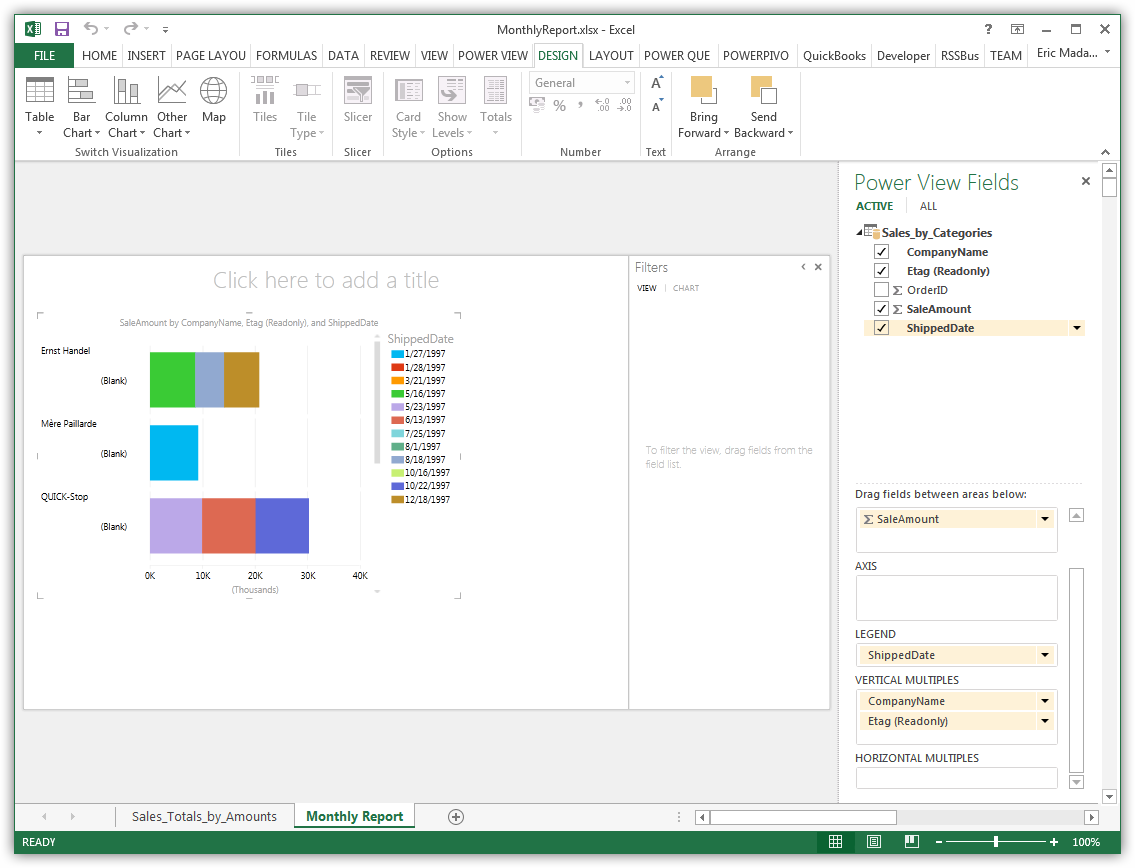
On the Design tab, you can change tables into charts and other visualizations.