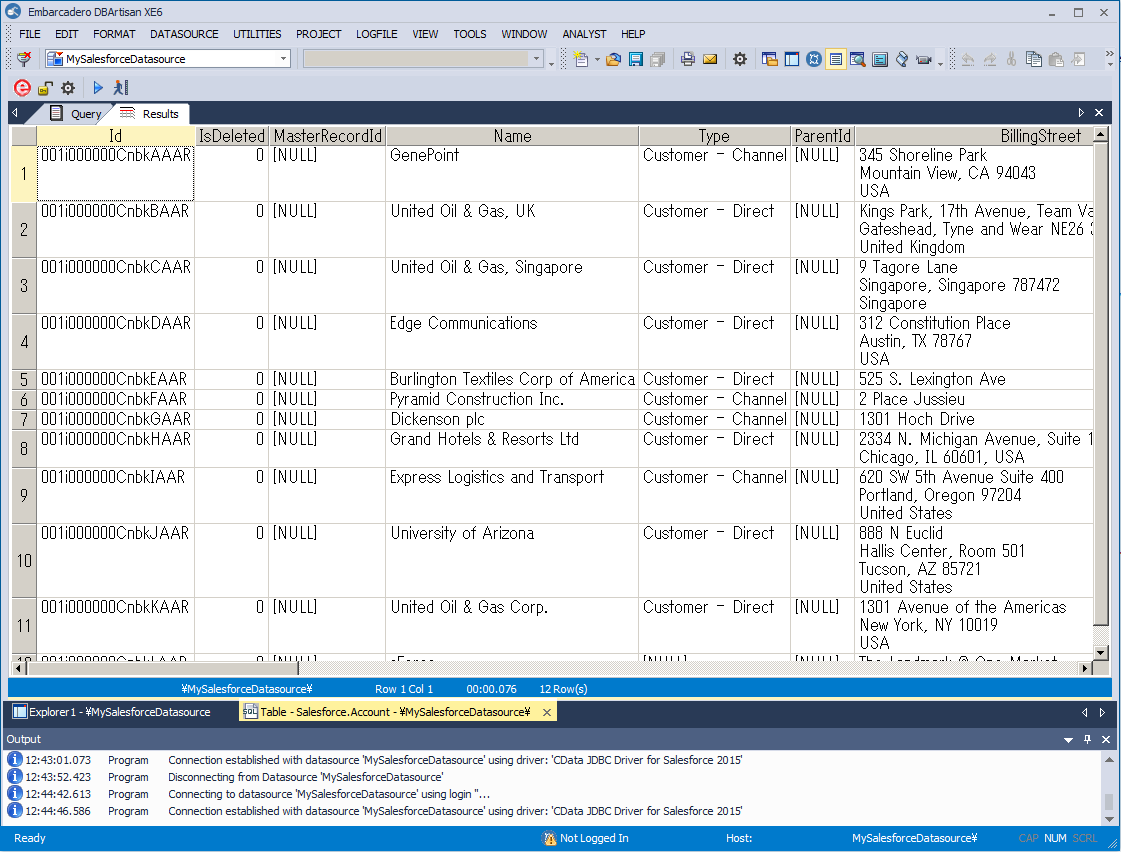
Manage PagerDuty Data in DBArtisan as a JDBC Source

The CData JDBC Driver for PagerDuty seamlessly integrates PagerDuty data into database management tools like DBArtisan by enabling you to access PagerDuty data as a database. This article shows how to create a JDBC source for PagerDuty in DBArtisan. You can then edit data visually and execute standard SQL.
Integrate PagerDuty Data into DBArtisan Projects
Follow the steps below to register PagerDuty data as a database instance in your project:
- In DBArtisan, click Data Source -> Register Datasource.
- Select Generic JDBC.
- Click Manage.
- In the resulting dialog, click New. Enter a name for the driver and click Add. In the resulting dialog, navigate to the driver JAR. The driver JAR is located in the lib subfolder of the installation directory.
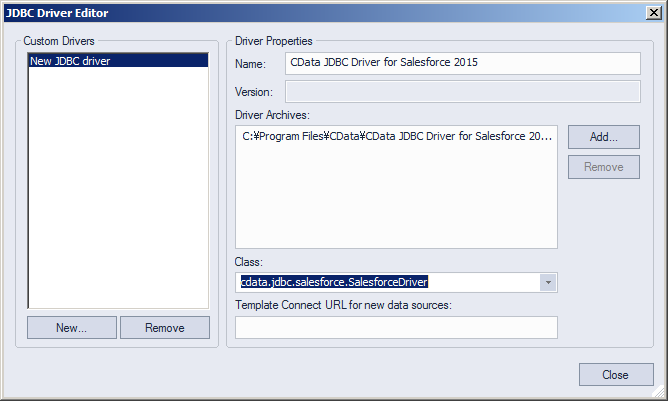
-
In the Connection URL box, enter credentials and other required connection properties in the JDBC URL.
Start by setting the Profile connection property to the location of the PagerDuty Profile on disk (e.g. C:\profiles\PagerDuty.apip). Next, set the ProfileSettings connection property to the connection string for PagerDuty (see below).
PagerDuty API Profile Settings
Register an OAuth application via PagerDuty's Developer Mode to obtain a Client ID and Client Secret. The callback URL must match the redirect URI configured in your app settings.
Built-in Connection String Designer
For assistance in constructing the JDBC URL, use the connection string designer built into the PagerDuty JDBC Driver. Either double-click the JAR file or execute the jar file from the command-line.
java -jar cdata.jdbc.api.jar
Fill in the connection properties and copy the connection string to the clipboard.
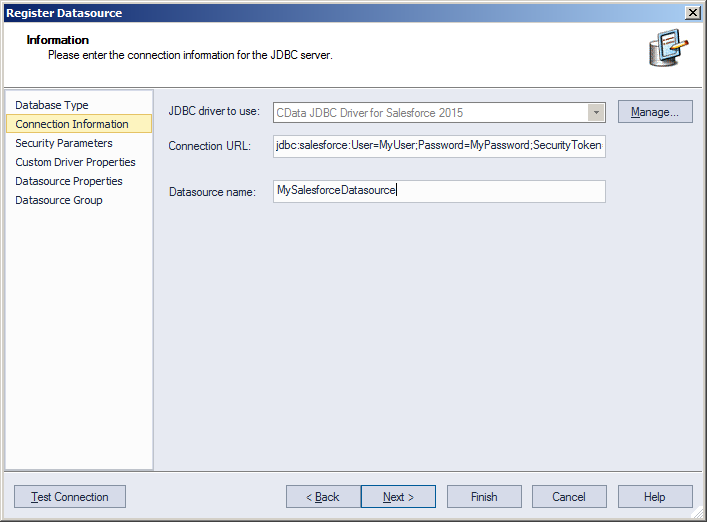
Below is a typical connection string:
jdbc:api:Profile=C:\profiles\PagerDuty.apip;Authscheme=OAuth;OAuthClientId=your_client_id;OAuthClientSecret=your_client_secret;CallbackUrl=your_callback_url;
- Finish the wizard to connect to PagerDuty data. PagerDuty entities are displayed in the Datasource Explorer.
You can now work with PagerDuty data as you work with any other database. See the driver help documentation for more information on the queries supported by the PagerDuty API.