How to connect to Parallel Data with Squirrel SQL client

The CData JDBC Driver for Parallel enables you to execute queries to Parallel data in tools like Squirrel SQL Client. In this article, you will create a JDBC data source for Parallel data and execute queries.
Add the JDBC Driver for Parallel
Follow the steps below to add the driver JAR.
- In Squirrel SQL, click Windows -> View Drivers.
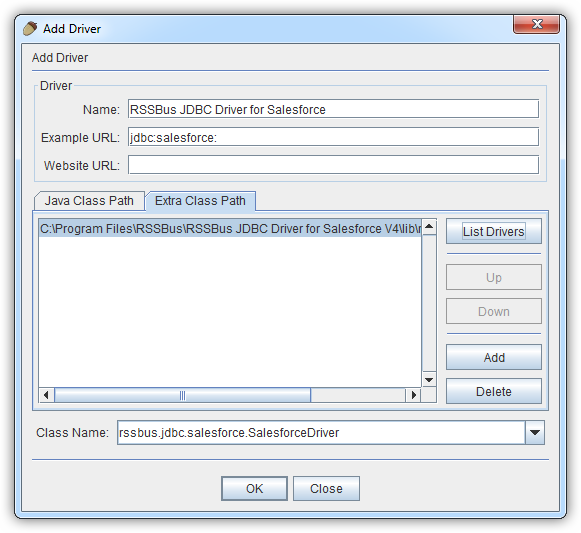
- Click the plus icon to open the Add Driver wizard.
- In the Name box, enter a user-friendly name for the driver; for example, CData JDBC Driver for Parallel.
- In the Example URL box, enter jdbc:api:
- In the Extra Class Path tab, click Add.
- In the file explorer dialog that opens, select the JAR file for the driver, located in the lib subfolder of the installation directory.
- Click List Drivers to populate the Class Name menu with the class name for the driver, cdata.jdbc.api.APIDriver.
Define Connection Properties
Follow the steps below to save connection properties in the driver alias.
- Click Windows -> View Aliases.
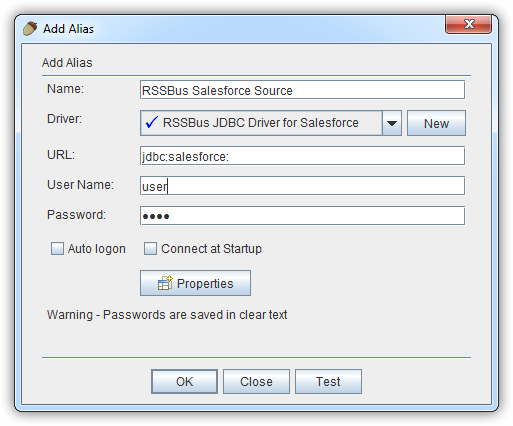
- In the pane that lists the aliases, click the plus icon.
In the Add Alias wizard that opens, the following fields are required for the JDBC driver:
- Name: Enter a name for the alias; for example, CData Parallel Source.
- Driver: Select the CData JDBC Driver for Parallel.
- URL: Enter jdbc:api:
- If you want to define any additional properties, click Properties.
- In the Driver properties tab of the dialog that appears, select the Use driver properties checkbox.
- In the Specify column, select the checkboxes for the required connection properties.
The Parallel API uses API Key authentication via the x-api-key request header.
Using API Key Authentication
Your Parallel API key is required to create a connection. To obtain your API key:
- Log into your Parallel account at app.parallel.ai.
- Navigate to Settings or API Keys in your account dashboard.
- Generate or copy your API key.
After obtaining your API key, set the following connection properties:
- AuthScheme: Set this to APIKey.
- APIKey: Set this to your Parallel API key.
Example connection string:
Profile=C:\profiles\Parallel.apip;AuthScheme=APIKey;ProfileSettings='APIKey=your_api_key';
Below is a typical connection string:
jdbc:api:Profile=C:\profiles\Parallel.apip;AuthScheme=APIKey;ProfileSettings='APIKey=your_api_key';
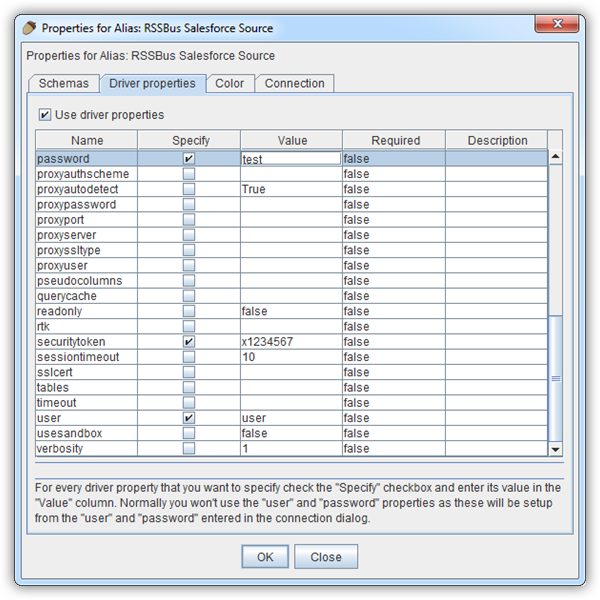
- In the dialog that appears after you click OK, click connect to test the connection.
Discover Schemas and Query Parallel Data
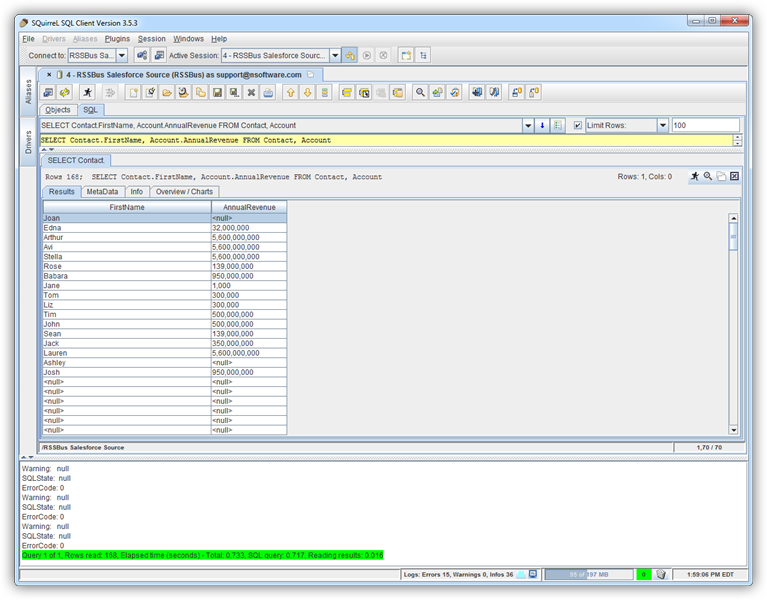
After the metadata has loaded, a new tab for the Parallel data source is displayed. On the Objects subtab, you can discover schema information, such as the available tables and views.
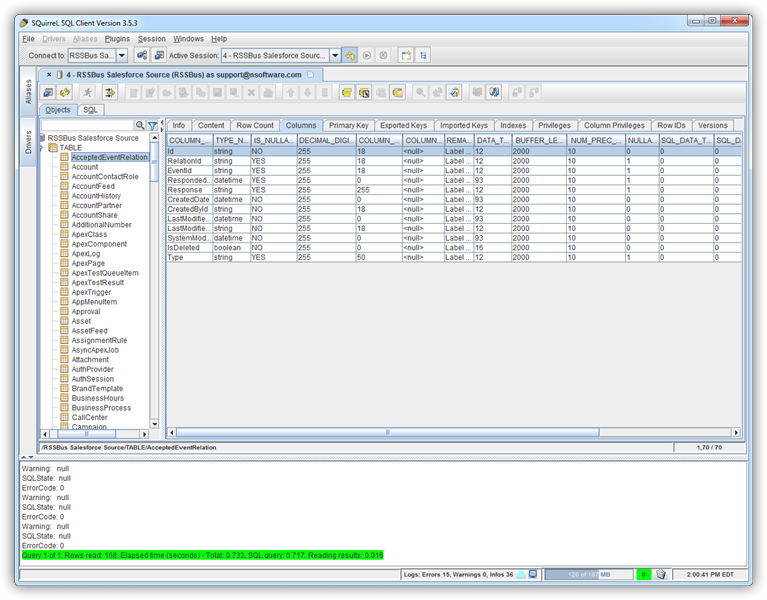
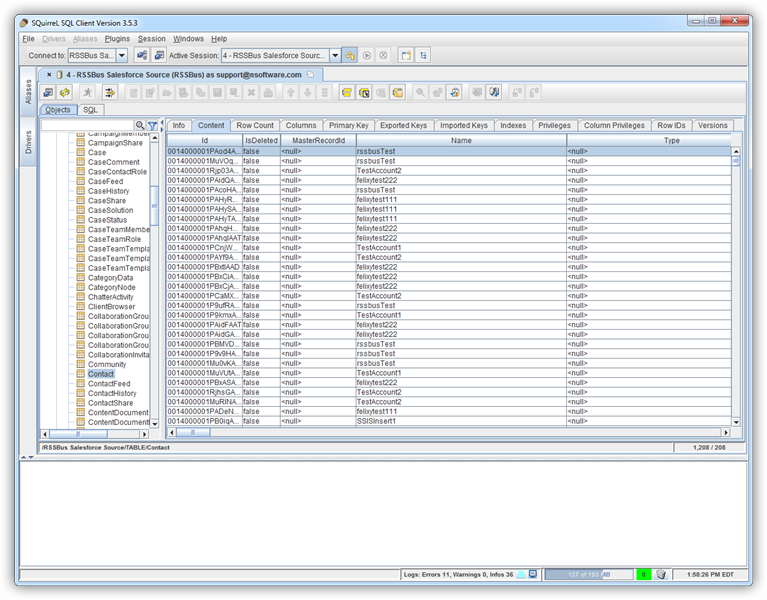
To view table data, select the table on the Objects tab. The table data is then loaded in a grid on the Content tab.
To execute an SQL query, enter the query on the SQL tab and then click Run SQL (the runner icon). For example:
SELECT , FROM MonitorEvents WHERE MonitorId = 'mon_abc123'