






Integrate Google's Antigravity Agent with Live Paylocity Data via CData Connect AI

Antigravity is an AI-native development environment designed around autonomous and semi-autonomous agents. It allows developers to run agent-driven workflows directly inside the editor, combining planning, execution, and tool usage in a single interface.
By integrating Antigravity with CData Connect AI through the built-in MCP (Model Context Protocol) Server, agents gain governed, real-time access to live Paylocity data. This enables Antigravity agents to explore schemas, query data, and perform actions without manual data movement or custom API wiring.
This article walks through configuring Paylocity connectivity in Connect AI, generating required access token, registering the CData MCP Server in Antigravity, and validating the integration by querying live Paylocity data from an agent-driven workflow.
Step 1: Configure Paylocity connectivity for Antigravity
Connectivity to Paylocity from Antigravity is made possible through CData Connect AI's Remote MCP Server. To interact with Paylocity data from Antigravity, start by creating and configuring a Paylocity connection in CData Connect AI.
- Log into Connect AI, click Sources, and then click Add Connection
- Select Paylocity from the Add Connection panel
-
Enter the necessary authentication properties to connect to Paylocity.
Set the following to establish a connection to Paylocity:
- RSAPublicKey: Set this to the RSA Key associated with your Paylocity, if the RSA Encryption is enabled in the Paylocity account.
This property is required for executing Insert and Update statements, and it is not required if the feature is disabled.
- UseSandbox: Set to true if you are using sandbox account.
- CustomFieldsCategory: Set this to the Customfields category. This is required when IncludeCustomFields is set to true. The default value for this property is PayrollAndHR.
- Key: The AES symmetric key(base 64 encoded) encrypted with the Paylocity Public Key. It is the key used to encrypt the content.
Paylocity will decrypt the AES key using RSA decryption.
It is an optional property if the IV value not provided, The driver will generate a key internally. - IV: The AES IV (base 64 encoded) used when encrypting the content. It is an optional property if the Key value not provided, The driver will generate an IV internally.
Connect Using OAuth Authentication
You must use OAuth to authenticate with Paylocity. OAuth requires the authenticating user to interact with Paylocity using the browser. For more information, refer to the OAuth section in the Help documentation.
The Pay Entry API
The Pay Entry API is completely separate from the rest of the Paylocity API. It uses a separate Client ID and Secret, and must be explicitly requested from Paylocity for access to be granted for an account. The Pay Entry API allows you to automatically submit payroll information for individual employees, and little else. Due to the extremely limited nature of what is offered by the Pay Entry API, we have elected not to give it a separate schema, but it may be enabled via the UsePayEntryAPI connection property.
Please be aware that when setting UsePayEntryAPI to true, you may only use the CreatePayEntryImportBatch & MergePayEntryImportBatchgtable stored procedures, the InputTimeEntry table, and the OAuth stored procedures. Attempts to use other features of the product will result in an error. You must also store your OAuthAccessToken separately, which often means setting a different OAuthSettingsLocation when using this connection property.

- RSAPublicKey: Set this to the RSA Key associated with your Paylocity, if the RSA Encryption is enabled in the Paylocity account.
- Click Save & Test
- Navigate to the Permissions tab and update user-based permissions



Add a Personal Access Token
A Personal Access Token (PAT) is used to authenticate the connection to Connect AI from Antigravity. It is best practice to create a separate PAT for each integration to maintain granular access control.
- Click the gear icon () at the top right of the Connect AI app to open Settings
- On the Settings page, go to the Access Tokens section and click Create PAT
- Give the PAT a descriptive name and click Create
- Copy the token when displayed and store it securely. It will not be shown again

With the Paylocity connection configured and a PAT generated, Antigravity can now connect to Paylocity data through the CData MCP Server.
Step 2: Configure the CData MCP Server in Antigravity
Next, register the CData MCP Server in Antigravity. Antigravity reads MCP server definitions from a raw configuration file, allowing agents to dynamically discover and invoke the sources exposed by Connect AI.
- Download the Antigravity desktop application and sign in using your Google account
-
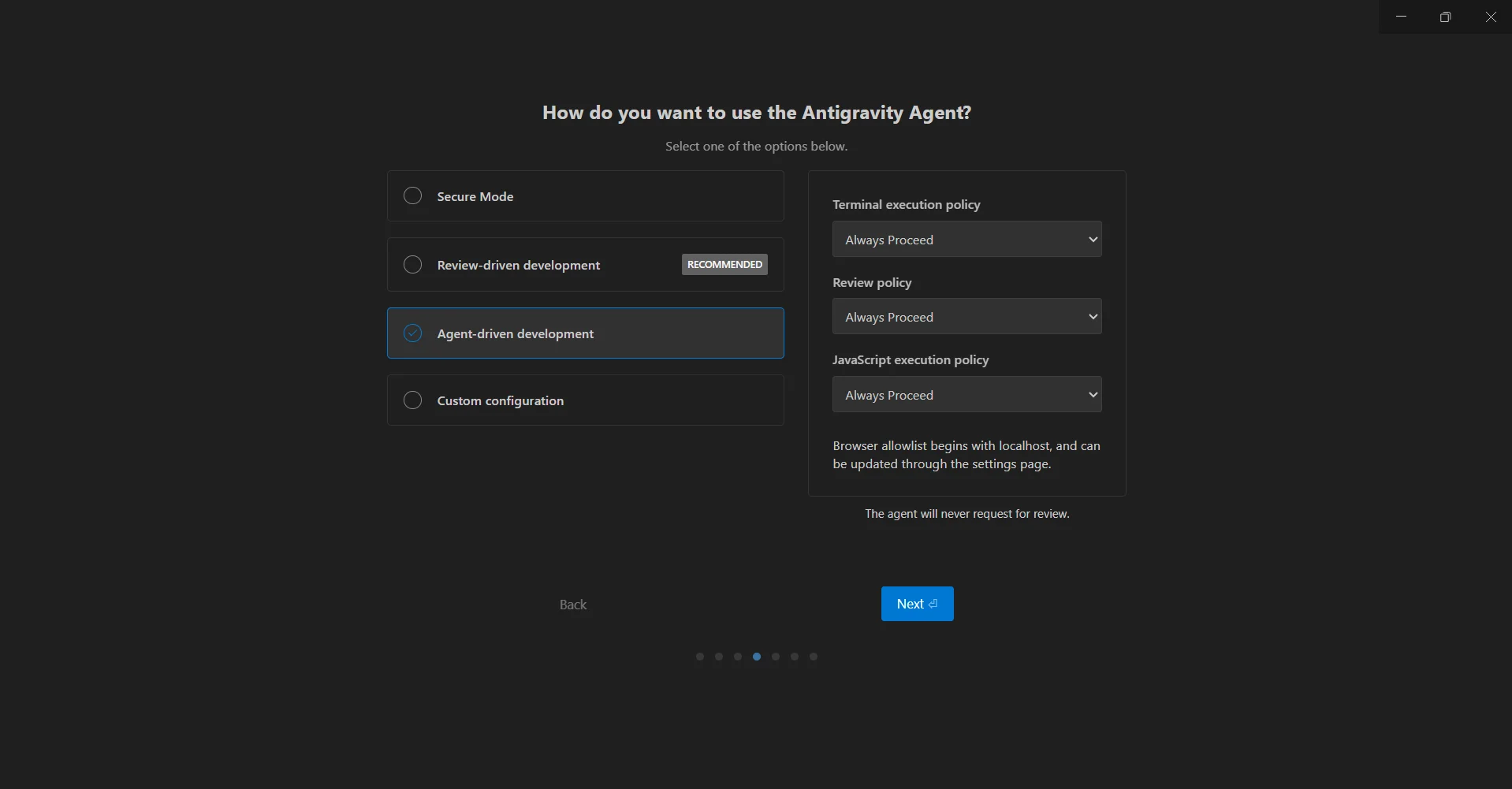
During the initial setup flow, select Agent-driven development when prompted. This mode enables autonomous agents with tool execution capabilities
- Once you have completed the Antigravity setup and the IDE is open, you can access the built-in agent interface to manage MCP servers. From the top menu, click Toggle Agent or press Ctrl + Alt + B to open the agent panel
-
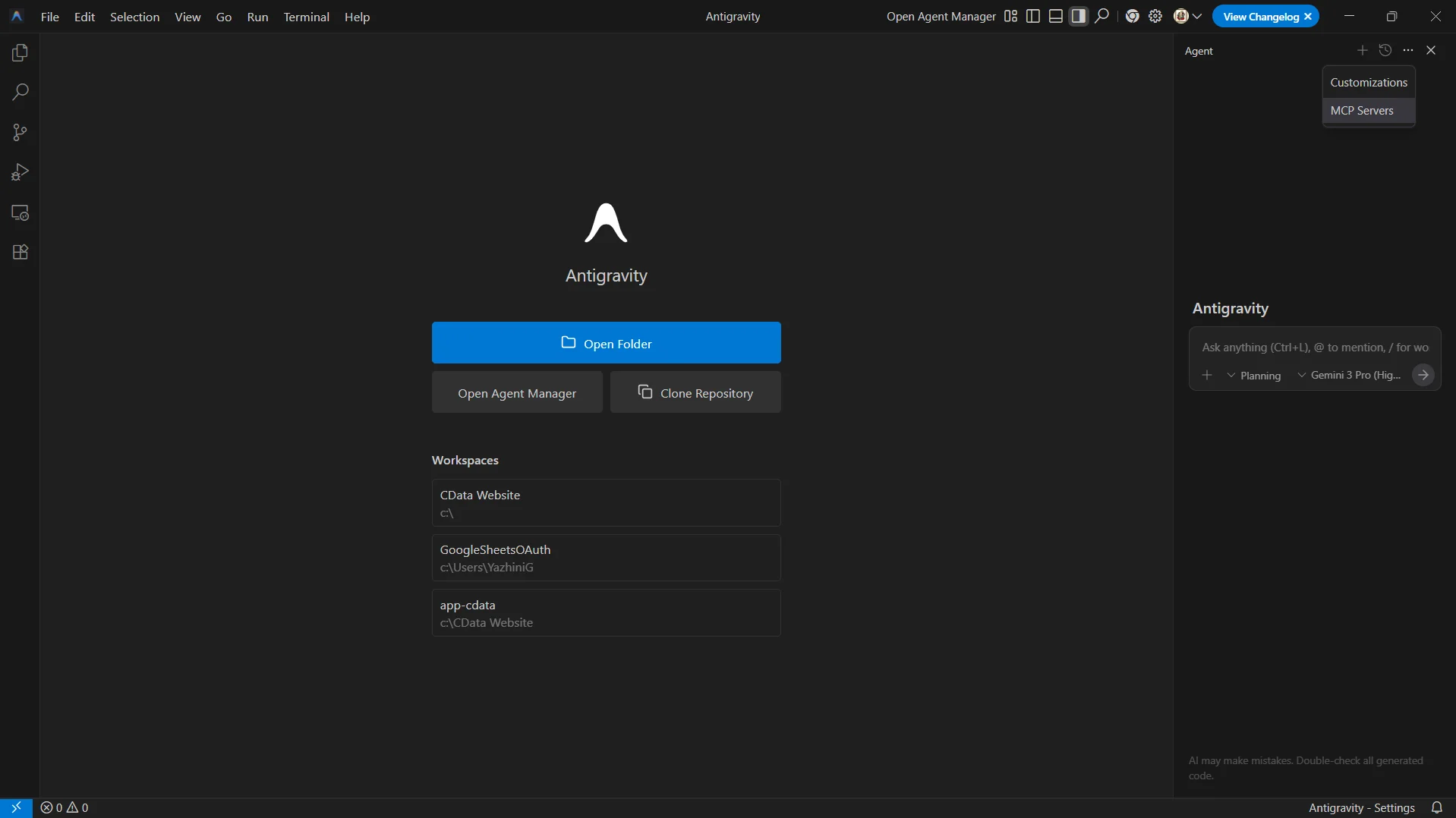
Once the agent panel opens, click the "..." and select MCP Servers from the dropdown
-
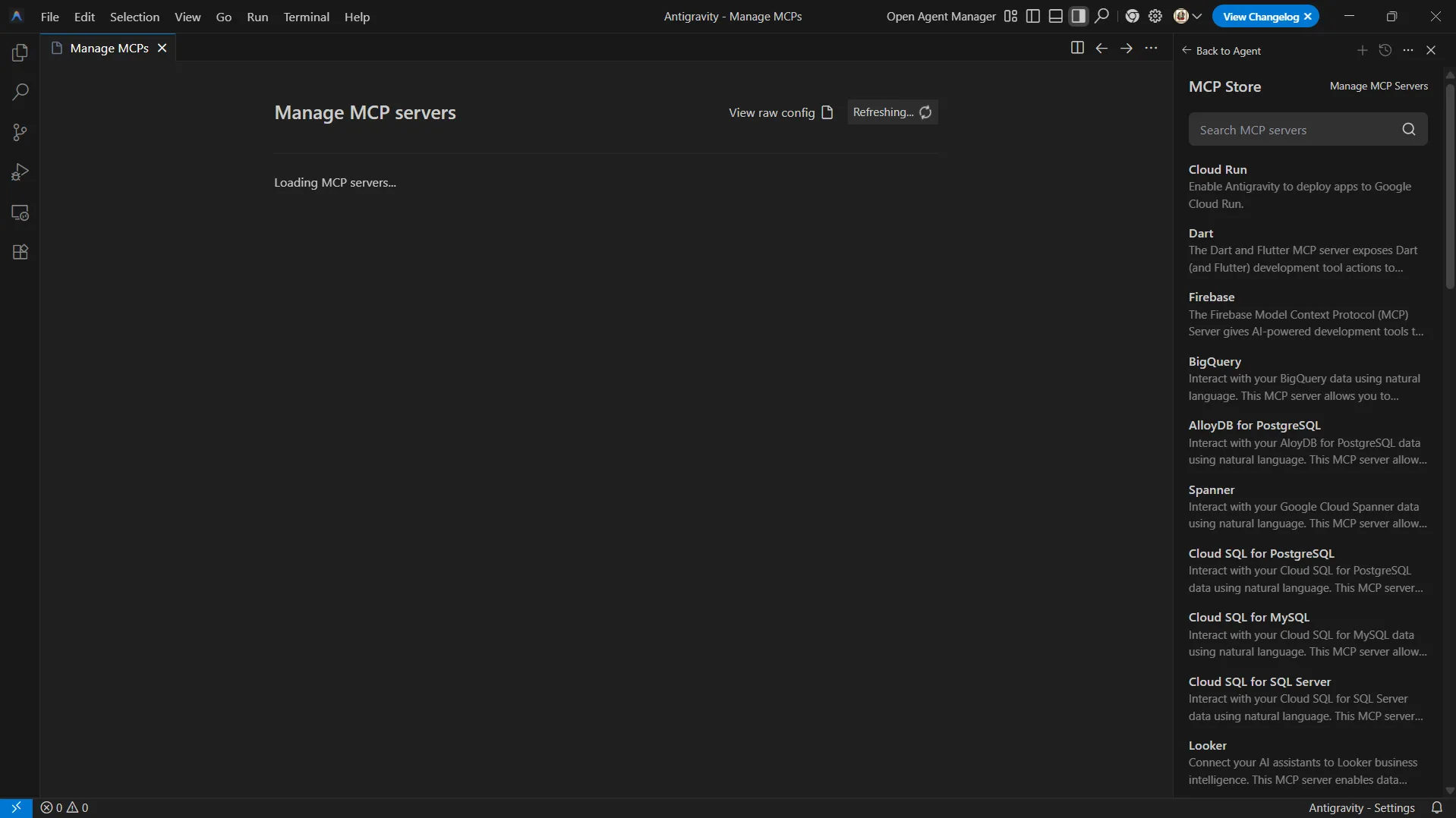
Select Manage MCP Servers from the MCP Store, and click View raw config to open the MCP configuration file
-
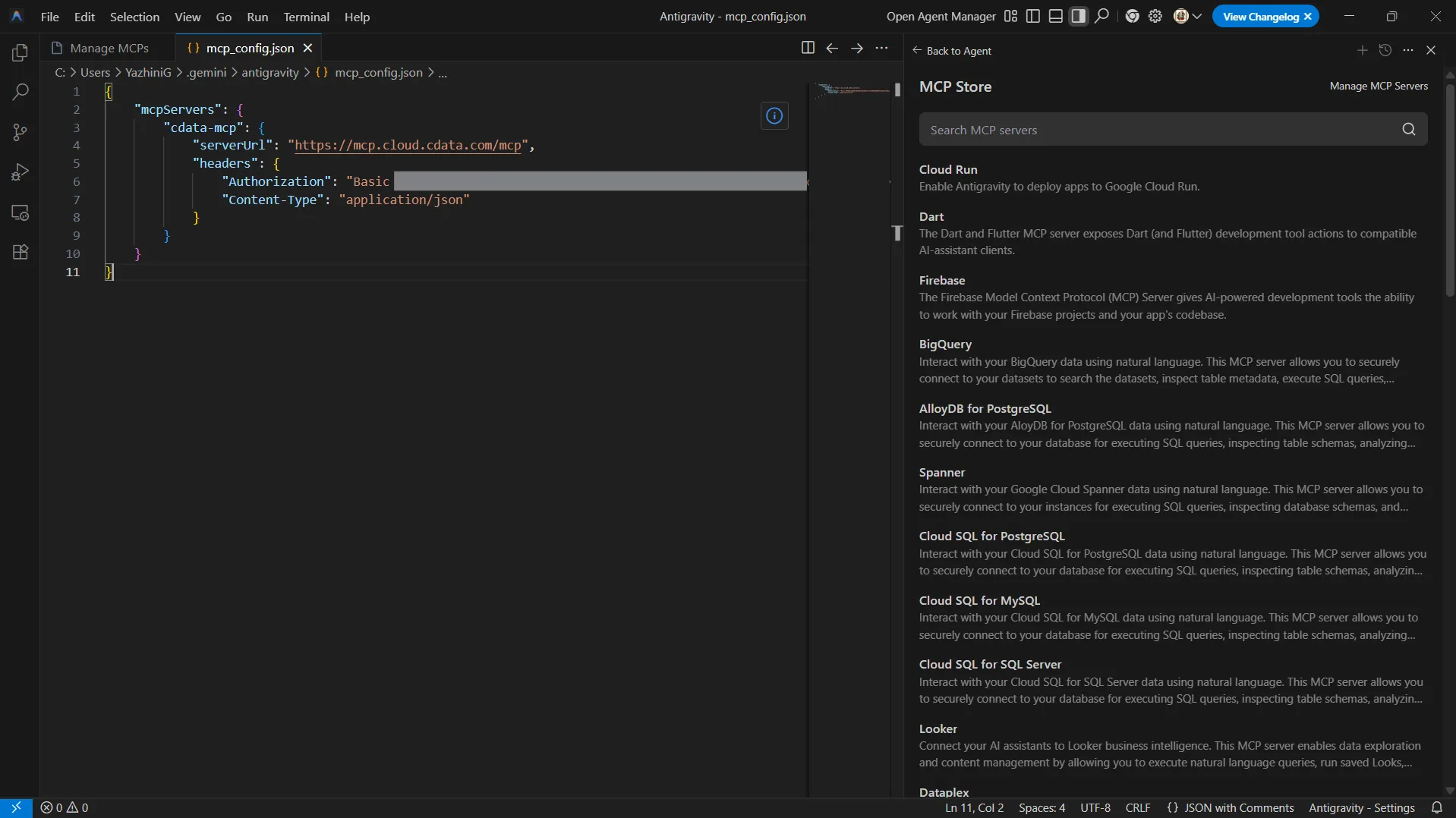
Paste the following json into the file:
{
    "mcpServers": {
        "cdata-mcp": {
            "serverUrl": "https://mcp.cloud.cdata.com/mcp",
            "headers": {
                "Authorization": "Basic your_base64_encoded_email_PAT",
                "Content-Type": "application/json"
            }
        }
    }
}
Note: Antigravity will use Basic authentication with Connect AI. Combine your Connect AI user email and the PAT you created earlier and base64 encode the value. For example, given username and PAT like [email protected]:ABC123...XYZ789, the value for the Authorization header is something like: Basic dXNlckBteWRvbWFpbjphSzkvbVB4Mi9Rcjd2TjQvTHc4Qi96WTZqQzMvRnQ1SGcxL0RzMFVlL01iWHdKdg==
- Save the configuration file
-
Return to the Manage MCP Servers view and click Refresh to load the new MCP server
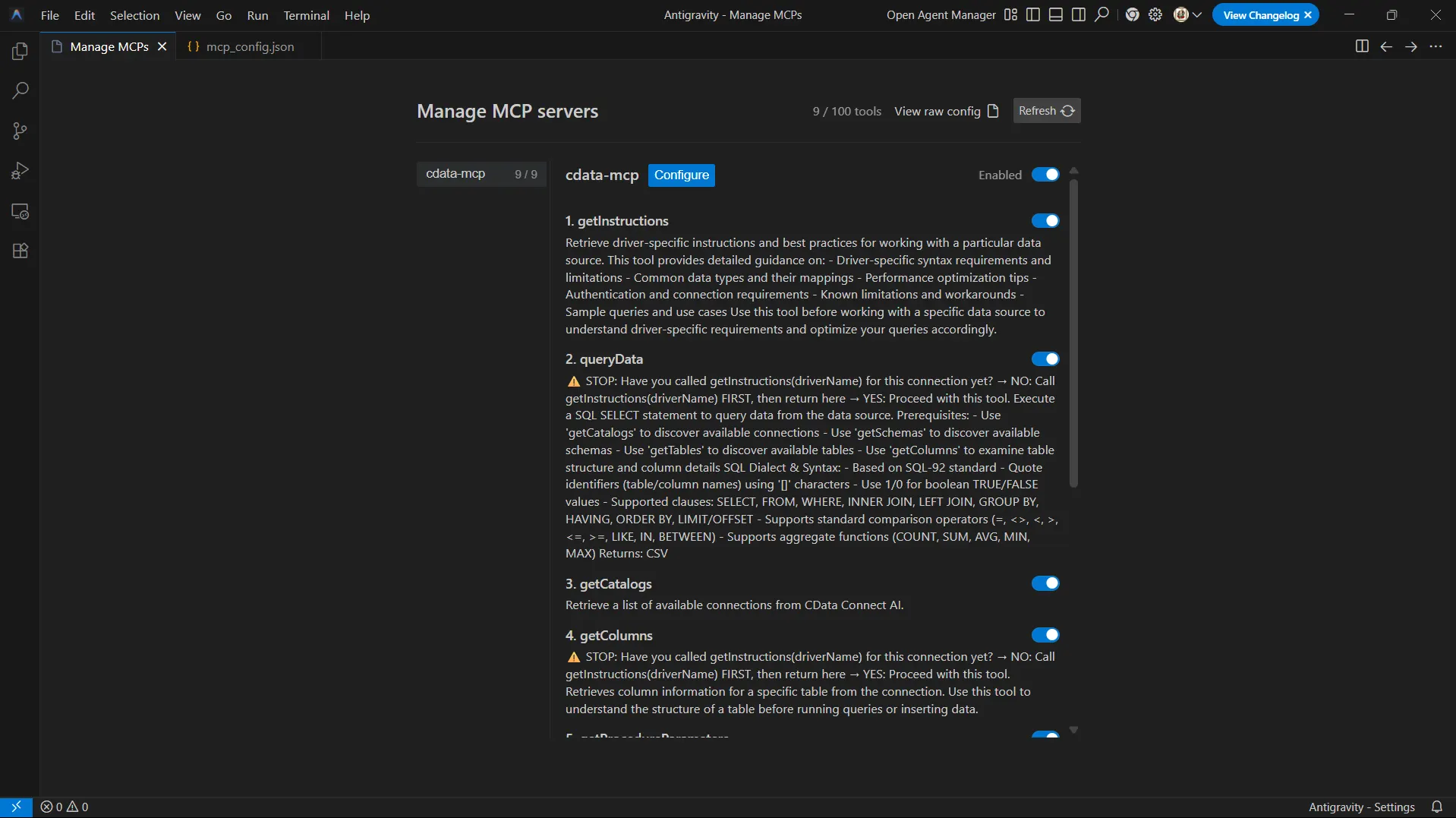
Step 3: Query live Paylocity data from Antigravity agent
With the MCP server registered, Antigravity agents can now interact with your live data sources exposed by Connect AI to explore schemas and run queries.
- Open the agent panel again using Toggle Agent
- Start a new conversation in the agent chat
-
Start interacting with the agent by entering prompts such as:
- List all catalogs in my cdata-mcp connection.
- Show schemas and tables available for Paylocity.
- Query the top 3 records from a table in Paylocity data.
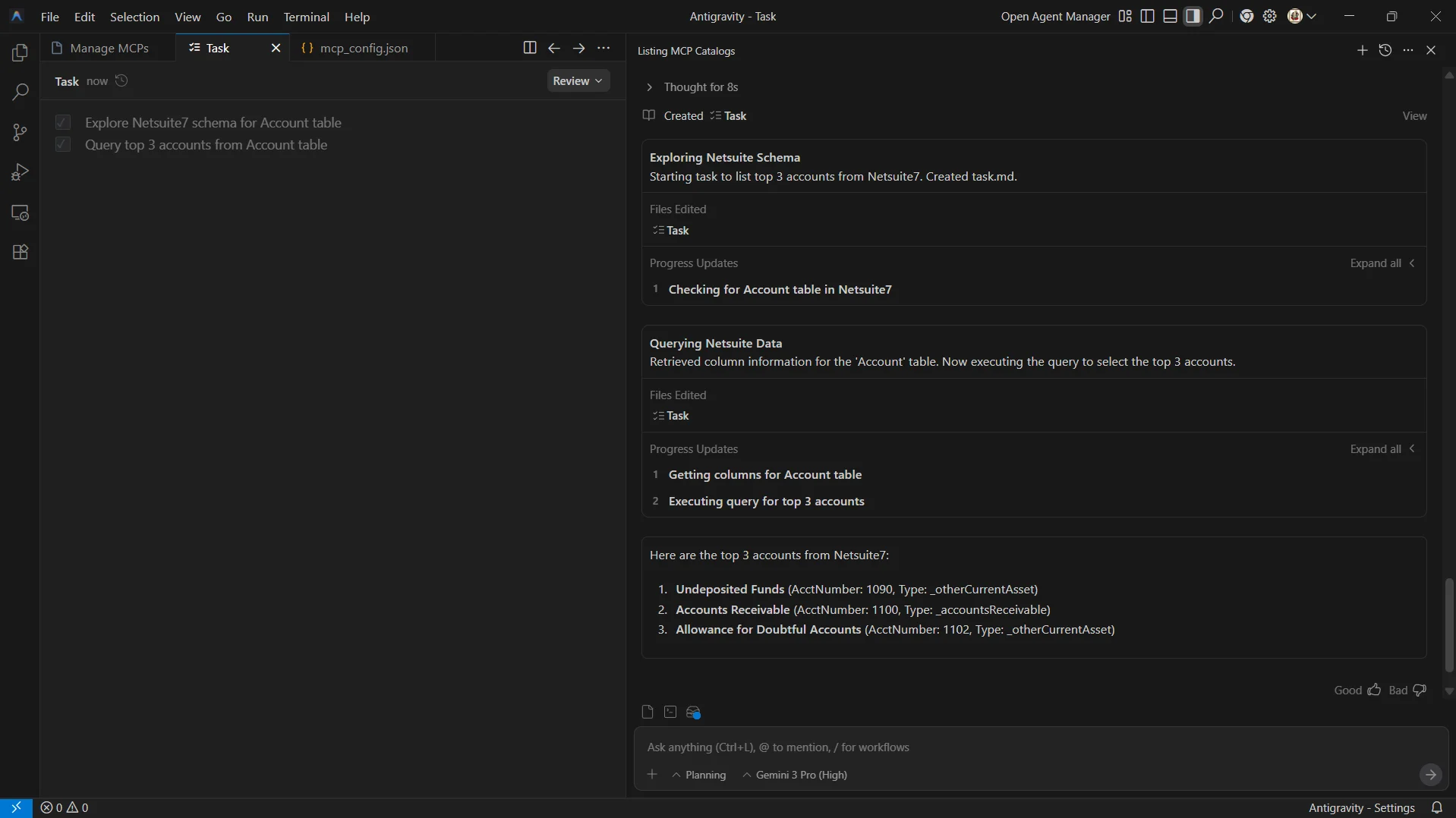
At this point, your Antigravity agent communicates with the CData Connect AI MCP Server and retrieves live Paylocity data through remote MCP tools.
Get CData Connect AI
To access 300+ SaaS, Big Data, and NoSQL sources directly from your cloud applications, try CData Connect AI today!
