






Use Claude to Talk to Your Paylocity Data via CData Connect AI

Claude is a family of advanced large language models (LLMs) built by Anthropic, an AI research company founded in 2021. These models power the Claude conversational assistant and developer tools.
CData Connect AI offers a dedicated cloud-to-cloud interface for connecting to Paylocity data. The CData Connect AI Remote MCP Server enables secure communication between Claude and Paylocity. This allows you to ask questions and take actions on your Paylocity data using Claude, all without the need for data replication to a natively supported database. With its inherent optimized data processing capabilities, CData Connect AI efficiently channels all supported SQL operations, including filters and JOINs, directly to Paylocity. This leverages server-side processing to swiftly deliver the requested Paylocity data.
Step 1: Configure Paylocity Connectivity for Claude
Connectivity to Paylocity from Claude is made possible through CData Connect AI Remote MCP. To interact with Paylocity data from Claude, we start by creating and configuring a Paylocity connection in CData Connect AI.
- Log into Connect AI, click Sources, and then click Add Connection
- Select "Paylocity" from the Add Connection panel
-
Enter the necessary authentication properties to connect to Paylocity.
Set the following to establish a connection to Paylocity:
- RSAPublicKey: Set this to the RSA Key associated with your Paylocity, if the RSA Encryption is enabled in the Paylocity account.
This property is required for executing Insert and Update statements, and it is not required if the feature is disabled.
- UseSandbox: Set to true if you are using sandbox account.
- CustomFieldsCategory: Set this to the Customfields category. This is required when IncludeCustomFields is set to true. The default value for this property is PayrollAndHR.
- Key: The AES symmetric key(base 64 encoded) encrypted with the Paylocity Public Key. It is the key used to encrypt the content.
Paylocity will decrypt the AES key using RSA decryption.
It is an optional property if the IV value not provided, The driver will generate a key internally. - IV: The AES IV (base 64 encoded) used when encrypting the content. It is an optional property if the Key value not provided, The driver will generate an IV internally.
Connect Using OAuth Authentication
You must use OAuth to authenticate with Paylocity. OAuth requires the authenticating user to interact with Paylocity using the browser. For more information, refer to the OAuth section in the Help documentation.
The Pay Entry API
The Pay Entry API is completely separate from the rest of the Paylocity API. It uses a separate Client ID and Secret, and must be explicitly requested from Paylocity for access to be granted for an account. The Pay Entry API allows you to automatically submit payroll information for individual employees, and little else. Due to the extremely limited nature of what is offered by the Pay Entry API, we have elected not to give it a separate schema, but it may be enabled via the UsePayEntryAPI connection property.
Please be aware that when setting UsePayEntryAPI to true, you may only use the CreatePayEntryImportBatch & MergePayEntryImportBatchgtable stored procedures, the InputTimeEntry table, and the OAuth stored procedures. Attempts to use other features of the product will result in an error. You must also store your OAuthAccessToken separately, which often means setting a different OAuthSettingsLocation when using this connection property.

- RSAPublicKey: Set this to the RSA Key associated with your Paylocity, if the RSA Encryption is enabled in the Paylocity account.
- Click Save & Test


Step 2: Connect Claude to CData Connect AI
Follow these steps to add a CData Connect AI connector in Claude:
- Sign in to Claude.ai or create a new account.
- Expand the left navigation menu.
- In the bottom-left corner, click your user name and select Settings from the menu. The Settings screen appears.
- In the Settings screen, click Connectors.
- Click the button to Browse Connectors.
- Search for "CData Connect AI" and click the listing.
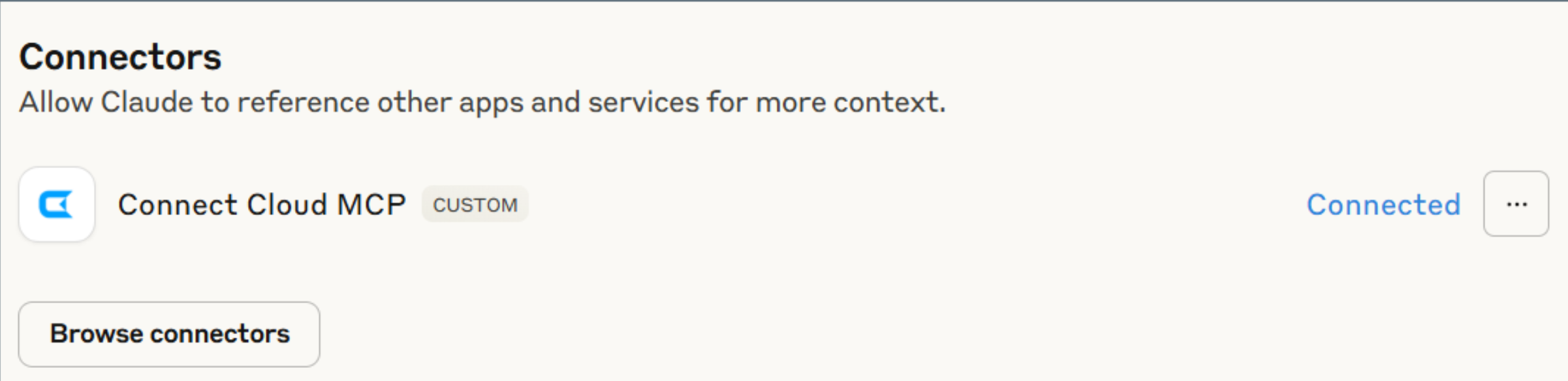
- Click "Connect" and sign into your Connect AI account.
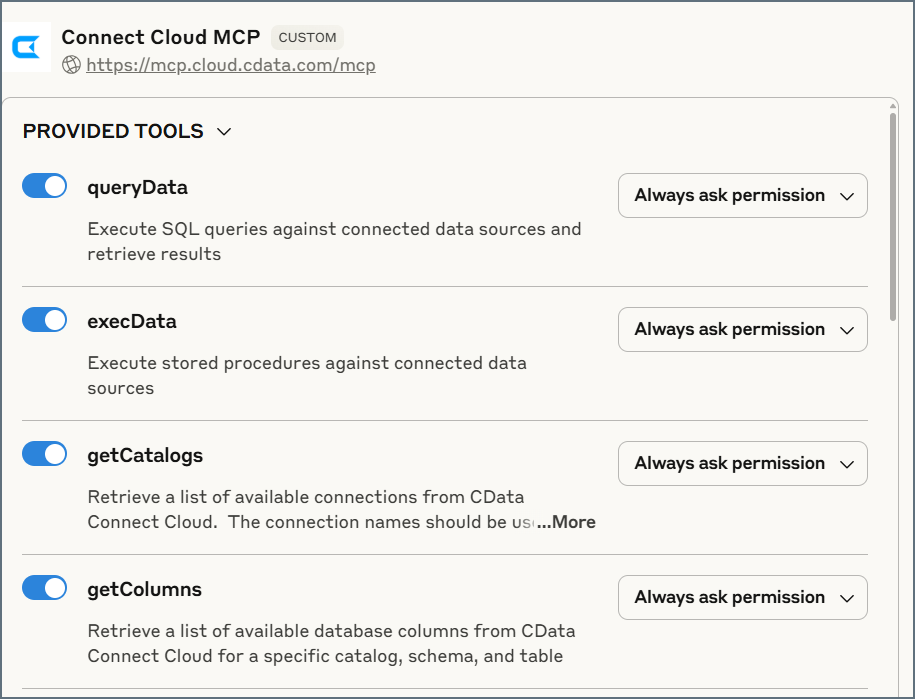
- After connecting, Claude opens a new chat.
Step 3: Explore Live Paylocity Data with Claude
- You can now start exploring your data with natural language prompts. Claude outlines the steps it uses to retrieve data from the source in CData Connect AI. Refer to CData's prompt library for prompt ideas.
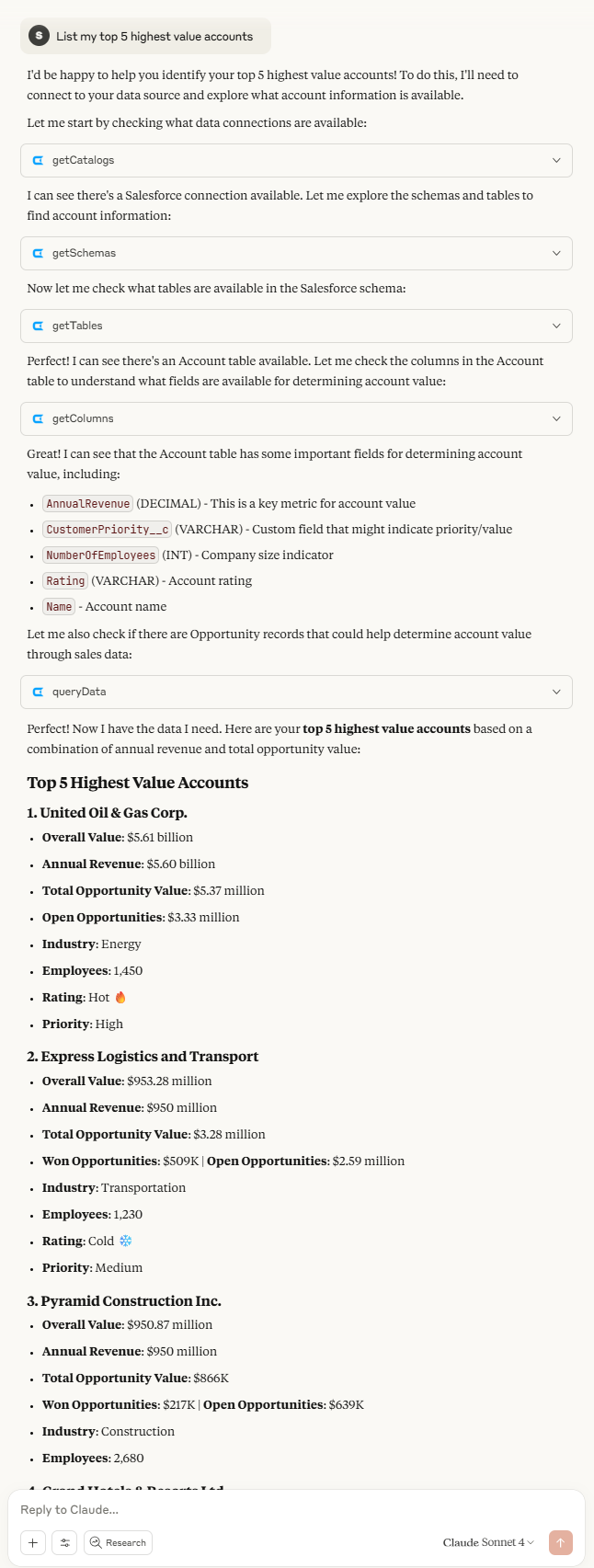
NOTE: Claude's setup process is subject to change. Refer to Claude's documentation for the latest setup information.
Get CData Connect AI
To get live data access to 300+ SaaS, Big Data, and NoSQL sources directly from your cloud applications, try CData Connect AI today!
