DataBind PDFMonkey Data to the DevExpress Data Grid

The CData API Driver for ADO.NET incorporates conventional ADO.NET data access components compatible with third-party controls. You can adhere to the standard ADO.NET data binding procedures to establish two-way access to real-time data through UI controls. This article will demonstrate the utilization of CData components for data binding with DevExpress UI Controls (Windows Forms and Web controls), specifically binding to a chart that visualizes live data.
Using API Key Authentication
PdfMonkey uses API key authentication. To obtain an API key:
- Log in to your PdfMonkey account at https://app.pdfmonkey.io
- Navigate to your account settings
- Open the API Key page
- Copy your API key
After obtaining your API key, set the following connection properties:
- AuthScheme: Set this to APIKey.
- APIKey: Set this to your PdfMonkey API key.
Example Connection String
Profile=C:\profiles\PdfMonkey.apip;AuthScheme=APIKey;ProfileSettings="APIKey=your_api_key"
Connecting to PdfMonkey
Once the authentication is configured, you can connect to PdfMonkey and query data from any of the available tables such as CurrentUser, DocumentCards, Documents, DocumentTemplateCards, and DocumentTemplates.
Windows Forms Controls
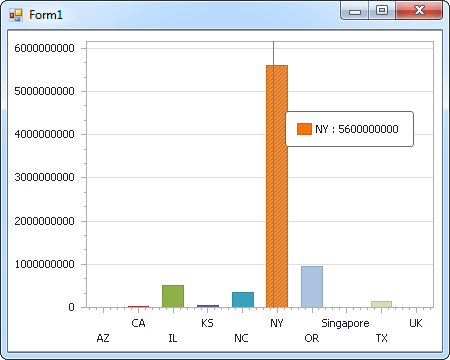
The code below shows how to populate a DevExpress chart with PDFMonkey data. The APIDataAdapter binds to the Series property of the chart control. The Diagram property of the control defines the x- and y-axes as the column names.
using (APIConnection connection = new APIConnection(
"Profile=C:\profiles\PdfMonkey.apip;AuthScheme=APIKey;ProfileSettings="APIKey=your_api_key"")) {
  APIDataAdapter dataAdapter = new APIDataAdapter(
  "SELECT ,  FROM CurrentUser WHERE  = ''", connection);

  DataTable table = new DataTable();
  dataAdapter.Fill(table);
  DevExpress.XtraCharts.Series series = new DevExpress.XtraCharts.Series();
  chartControl1.Series.Add(series);
  series.DataSource = table;
  series.ValueDataMembers.AddRange(new string[] { "" });
  series.ArgumentScaleType = DevExpress.XtraCharts.ScaleType.Qualitative;
  series.ArgumentDataMember = "";
  series.ValueScaleType = DevExpress.XtraCharts.ScaleType.Numerical;
  chartControl1.Legend.Visibility = DevExpress.Utils.DefaultBoolean.False;
  ((DevExpress.XtraCharts.SideBySideBarSeriesView)series.View).ColorEach = true;
}
Web Controls
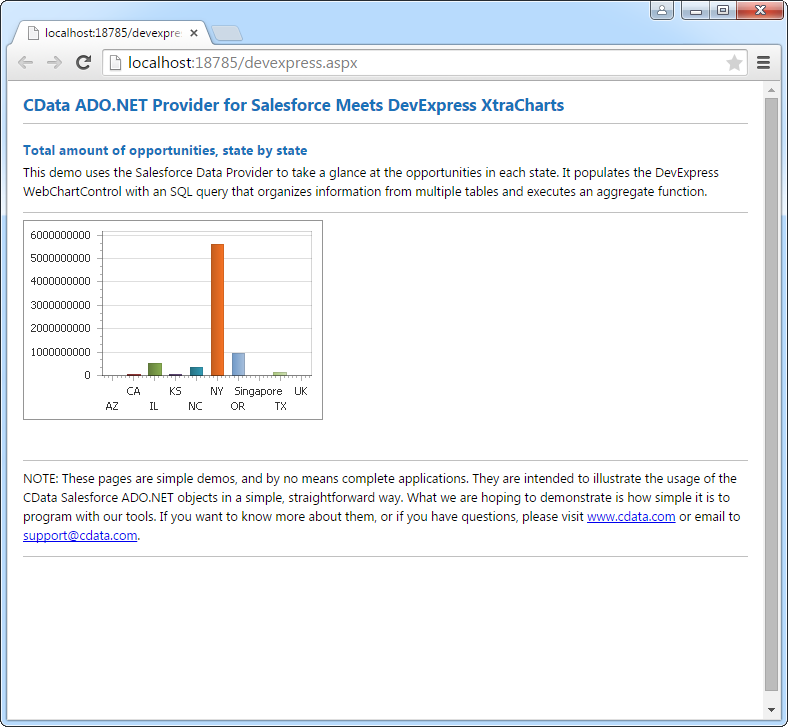
The code below shows how to populate a DevExpress Web control with PDFMonkey data. The APIDataAdapter binds to the Series property of the chart; the Diagram property defines the x- and y-axes as the column names.
using DevExpress.XtraCharts;

using (APIConnection connection = new APIConnection(
"Profile=C:\profiles\PdfMonkey.apip;AuthScheme=APIKey;ProfileSettings="APIKey=your_api_key""))
{
  APIDataAdapter APIDataAdapter1 = new APIDataAdapter("SELECT ,  FROM CurrentUser WHERE  = ''", connection);
  DataTable table = new DataTable();
  APIDataAdapter1.Fill(table);
  DevExpress.XtraCharts.Series series = new Series("Series1", ViewType.Bar);
  WebChartControl1.Series.Add(series);
  series.DataSource = table;
  series.ValueDataMembers.AddRange(new string[] { "" });
  series.ArgumentScaleType = ScaleType.Qualitative;
  series.ArgumentDataMember = "";
  series.ValueScaleType = ScaleType.Numerical;
  ((DevExpress.XtraCharts.SideBySideBarSeriesView)series.View).ColorEach = true;
}