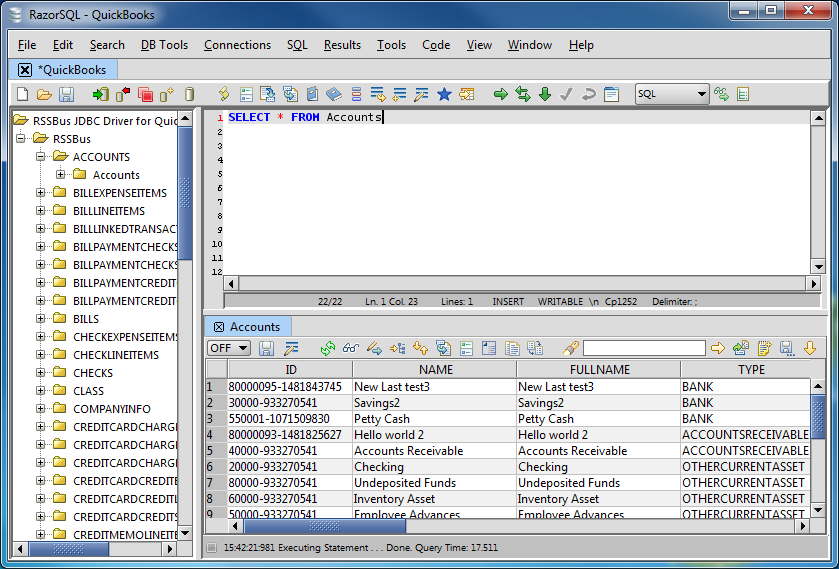
Connect to PDFMonkey Data in RazorSQL

The CData JDBC Driver for PDFMonkey enables standards-based access from third-party tools, from wizards in IDEs to data management and analysis tools. This article shows how to connect to PDFMonkey using wizards in RazorSQL.
Create a JDBC Data Source for PDFMonkey Data
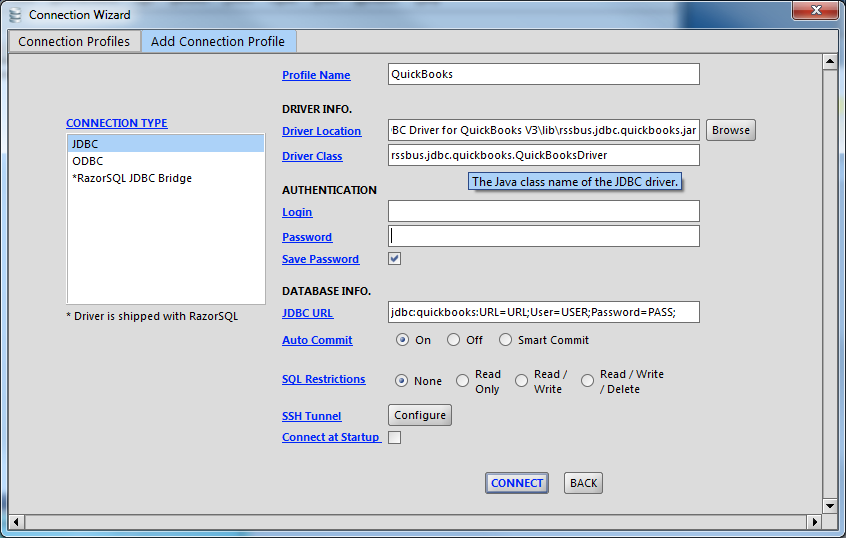
- Open the RazorSQL application and, in the Connections menu, select Add Connection Profile -> Other -> JDBC.
- In the Connection Wizard that appears, set the following properties:
- Driver Location: Set this property to the path to the lib subfolder in the installation directory.
- Driver Class: Set the driver class to cdata.jdbc.api.APIDriver.
- Username: Enter the username. (This property can also be set in the JDBC URL.)
- Password: Enter the password. (This property can also be set in the JDBC URL.)
JDBC URL: Enter connection parameters. The JDBC URL begins with jdbc:api: and is followed by a semicolon-separated list of connection properties.
Using API Key Authentication
PdfMonkey uses API key authentication. To obtain an API key:
- Log in to your PdfMonkey account at https://app.pdfmonkey.io
- Navigate to your account settings
- Open the API Key page
- Copy your API key
After obtaining your API key, set the following connection properties:
- AuthScheme: Set this to APIKey.
- APIKey: Set this to your PdfMonkey API key.
Example Connection String
Profile=C:\profiles\PdfMonkey.apip;AuthScheme=APIKey;ProfileSettings="APIKey=your_api_key"
Connecting to PdfMonkey
Once the authentication is configured, you can connect to PdfMonkey and query data from any of the available tables such as CurrentUser, DocumentCards, Documents, DocumentTemplateCards, and DocumentTemplates.
Built-in Connection String Designer
For assistance in constructing the JDBC URL, use the connection string designer built into the PDFMonkey JDBC Driver. Either double-click the JAR file or execute the jar file from the command-line.
java -jar cdata.jdbc.api.jar
Fill in the connection properties and copy the connection string to the clipboard.

A typical JDBC URL is the following:
jdbc:api:Profile=C:\profiles\PdfMonkey.apip;AuthScheme=APIKey;ProfileSettings="APIKey=your_api_key"
Query PDFMonkey Data and Select Tables
After establishing a connection, the wizard will close and the connection will be available in the connections panel. You can then query the tables.