






How to Connect to Live Power BI XMLA Data from Sourcegraph Amp (via CData Connect AI)

Sourcegraph Amp is a modern AI agent environment designed for building intelligent, production-ready assistants capable of stateful reasoning, automatic context management, and native MCP (Model Context Protocol) integration. When combined with CData Connect AI, you can leverage Amp to create agents that interact with your Power BI XMLA data in real time using natural language or SQL-based queries.
CData Connect AI provides a secure, cloud-to-cloud interface for accessing Power BI XMLA data. Through the Connect AI Remote MCP Server, Amp connects directly to Power BI XMLA, enabling live data queries and operations without replication. With optimized pushdown capabilities, CData Connect AI executes SQL operations including filters, aggregations, and joins directly in Power BI XMLA for fast, real-time performance.
In this article, we demonstrate how to configure the Amp agent to conversationally explore your Power BI XMLA data using natural language or SQL. With Connect AI, you can easily build agents that have secure, live access to Power BI XMLA along with hundreds of other enterprise data sources.
Prerequisites
- An active CData Connect AI
- The Sourcegraph Amp VS Code extension or Amp CLI installed
- Node.js v20 or higher installed
- Access to Power BI XMLA
Step 1: Configure Power BI XMLA Connectivity for Sourcegraph Amp
Connectivity to Power BI XMLA from Amp is made possible through CData Connect AI Remote MCP. To interact with Power BI XMLA data from Amp, we start by creating and configuring a Power BI XMLA connection in CData Connect AI.
- Log into Connect AI, click Sources, and then click Add Connection
- Select "Power BI XMLA" from the Add Connection panel
-
Enter the necessary authentication properties to connect to Power BI XMLA.
By default, use Entra ID (formerly Azure AD) to connect to Microsoft Power BI XMLA. Entra ID (formerly Azure AD) is Microsoft's multi-tenant, cloud-based directory and identity management service. It is user-based authentication that requires that you set AuthScheme to EntraID (formerly AzureAD).
For more information on other authentication schemes, refer to the Help documentation.

- Click Save & Test


Step 2: Set Up Amp for CData Connect AI
Copy the MCP Endpoint
Amp communicates with Connect AI through the hosted MCP endpoint:
https://mcp.cloud.cdata.com/mcp
This endpoint provides secure, cloud-to-cloud communication between Amp and your Connect AI workspace.
Generate Base64 Credentials
To authenticate Amp with Connect AI, generate your Base64-encoded credentials. For example, in PowerShell:
{Convert}::ToBase64String{(Text.Encoding)}::ASCII.GetBytes("[email protected]:yourPAT")
Replace [email protected] with your Connect AI email and yourPAT with your Personal Access Token.
Register the MCP Server in Amp
Once you have your Base64 string, register the CData Connect AI MCP server with Amp using the following command:
amp mcp add cdata-connect-ai -- npx -y mcp-remote@latest https://mcp.cloud.cdata.com/mcp --header "Authorization: Basic "
This adds your Connect AI configuration to Amp's settings file, enabling communication with CData Connect AI.
Verify Your Connection and Explore Data
- Create a New Thread
- Enter the Interactive Chat
- Verify MCP Servers
- Confirm Your Data Source
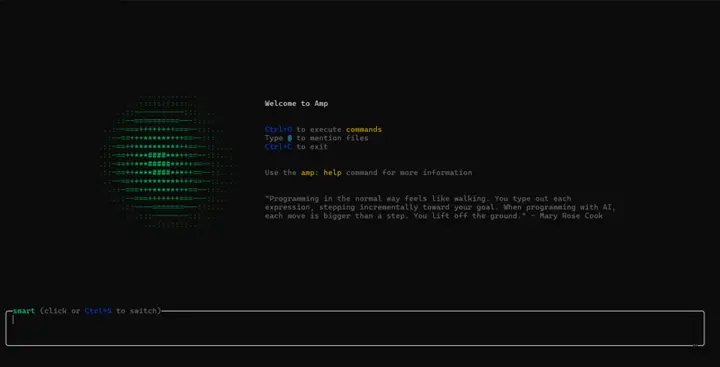
Start a new Amp session to begin interacting with your data:
amp thread new

Connect to the new thread using:
amp.
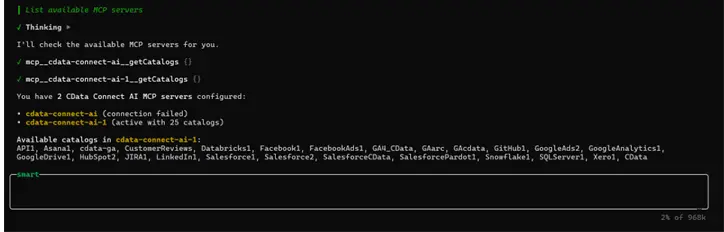
Inside the Amp shell, check your registered MCP servers:
list mcp.
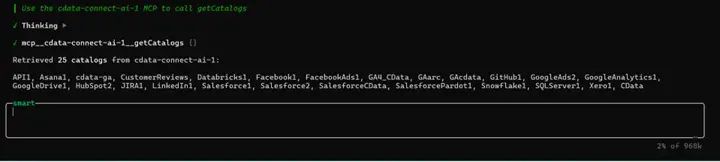
Confirm that your connected Power BI XMLA data appears as a catalog by running
getCatalogs.
Step 3: Build Intelligent Agents with Live Power BI XMLA Data Access
With your Amp application configured and connected to CData Connect AI, you can now build sophisticated agents that interact with your Power BI XMLA data using natural language. The MCP integration provides your agents with powerful data access capabilities.
Available MCP Tools for your Agent
Your Amp application has access to the following CData Connect AI MCP tools:
- getCatalogs: Lists all data source catalogs (e.g., PowerBIXMLA1)
- getSchemas: Returns database schemas within the connected catalog
- getTables: Lists all tables and views available under a given schema
- getColumns: Returns column definitions for a specific table or view
- queryData: Executes SQL queries (SELECT, INSERT, UPDATE, DELETE)
- getProcedures: Lists stored procedures or API endpoints
- getProcedureParameters: Returns metadata for stored procedure parameters
- executeProcedure: Invokes stored procedures (e.g., Power BI XMLA actions)
Key Features of Amp
Amp provides several production-ready capabilities that make it ideal for building intelligent, data-aware AI agents:
- Automatic Context Management: Amp maintains and recalls conversational context automatically, enabling seamless multi-turn interactions without manual state tracking.
- Stateful Conversations: Preserve context and memory across multiple queries to create natural, human-like conversations.
- Native MCP Integration: Amp natively supports the Model Context Protocol (MCP), allowing secure, real-time access to live data from CData Connect AI and other MCP-compatible servers.
- Tool-Oriented Architecture: Tools are treated as first-class components with managed invocation, input validation, and error handling.
- Efficient Context Handling: Amp optimizes prompts dynamically, ensuring relevant information is preserved even when approaching model token limits.
- Cross-Source Querying: Combine and query multiple connected data sources within a single conversational workflow.
- Fine-Grained Permission Controls: Define and enforce tool access levels to maintain data governance and secure integrations.
- Developer-Friendly CLI and SDK: Manage MCP connections, configure agents, and test workflows easily from the Amp CLI or VS Code extension.
Example Use Cases
Here are some examples of what your Amp agents can do with live data access through CData Connect AI:
- Data Analysis Agent: Identify trends and anomalies in Power BI XMLA data.
- Report Generation Agent: Generate reports from natural language prompts.
- Interactive Chatbot: Explain insights conversationally using live data.
- Data Quality Agent: Monitor and flag real-time data inconsistencies.
- Automated Workflow Agent: Trigger alerts based on defined data conditions.
Testing Your Agent
Once your agent is running, you can interact with it through natural language queries. For example:
- "Show me all new leads from the past 30 days."
- "What are the top-performing campaigns this quarter?"
- "Analyze revenue growth and highlight anomalies."
- "Generate a summary report of current opportunities."
- "Find all records where status is pending approval."
Get CData Connect AI
To get live data access to 300+ SaaS, Big Data, and NoSQL sources directly from your Amp agent environment, try CData Connect AI today!
