






Connect to Productboard Data from Blazor Apps

Blazor is a framework for developing modern, client-side web UIs using .NET technology. Instead of coding in JavaScript, developers can use the familiar C# language and .NET libraries to build app UIs.
The CData API Driver for ADO.NET can be used with standard ADO.NET interfaces, such as LINQ and Entity Framework, to interact with live Productboard data. Since Blazor supports .NET Core, developers can use CData ADO.NET Providers in Blazor apps. In this article, we will guide you to build a simple Blazor app that talks to Productboard using standard SQL queries.
Install the CData API Driver for ADO.NET
CData ADO.NET Providers allow users to access Productboard just like they would access SQL Server, using simple SQL queries.
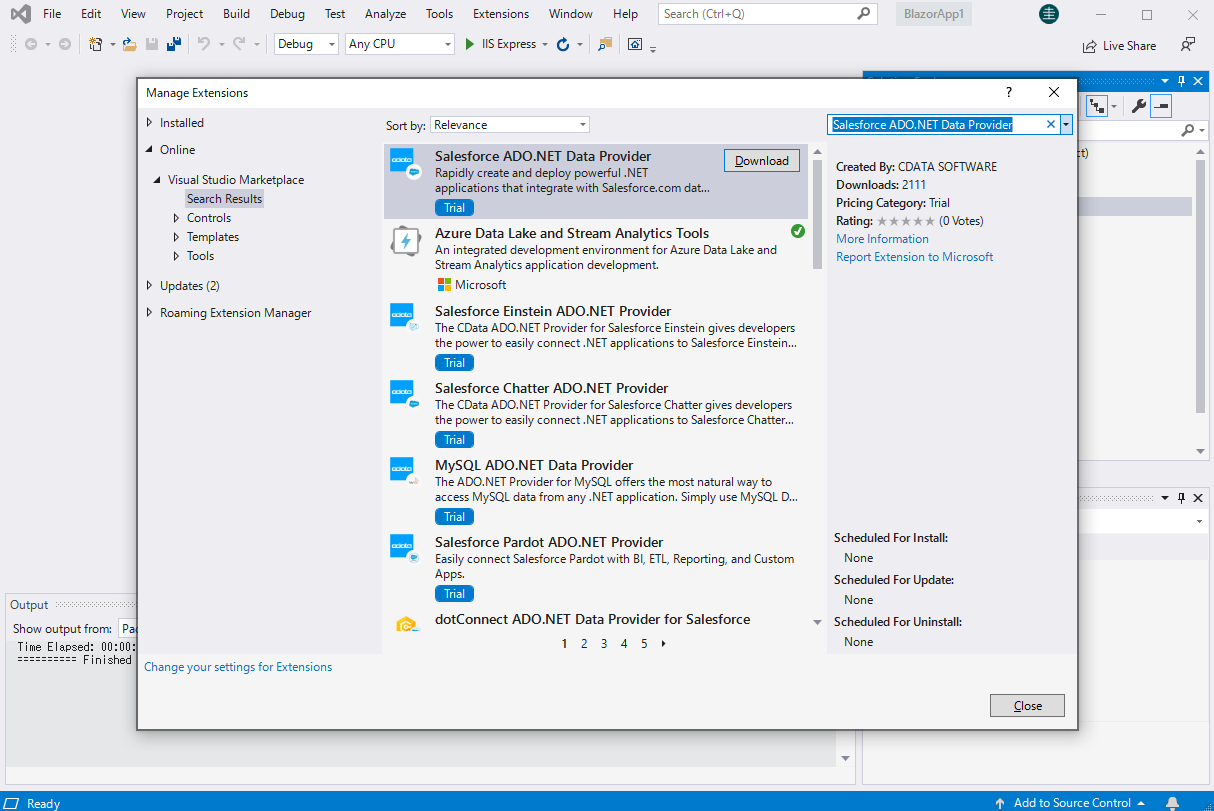
Install the Productboard ADO.NET Data Provider from the CData website or from NuGet. Search NuGet for "Productboard ADO.NET Data Provider."
Create a Productboard-Connected Blazor App
Start by creating a Blazor project that references the CData API Driver for ADO.NET
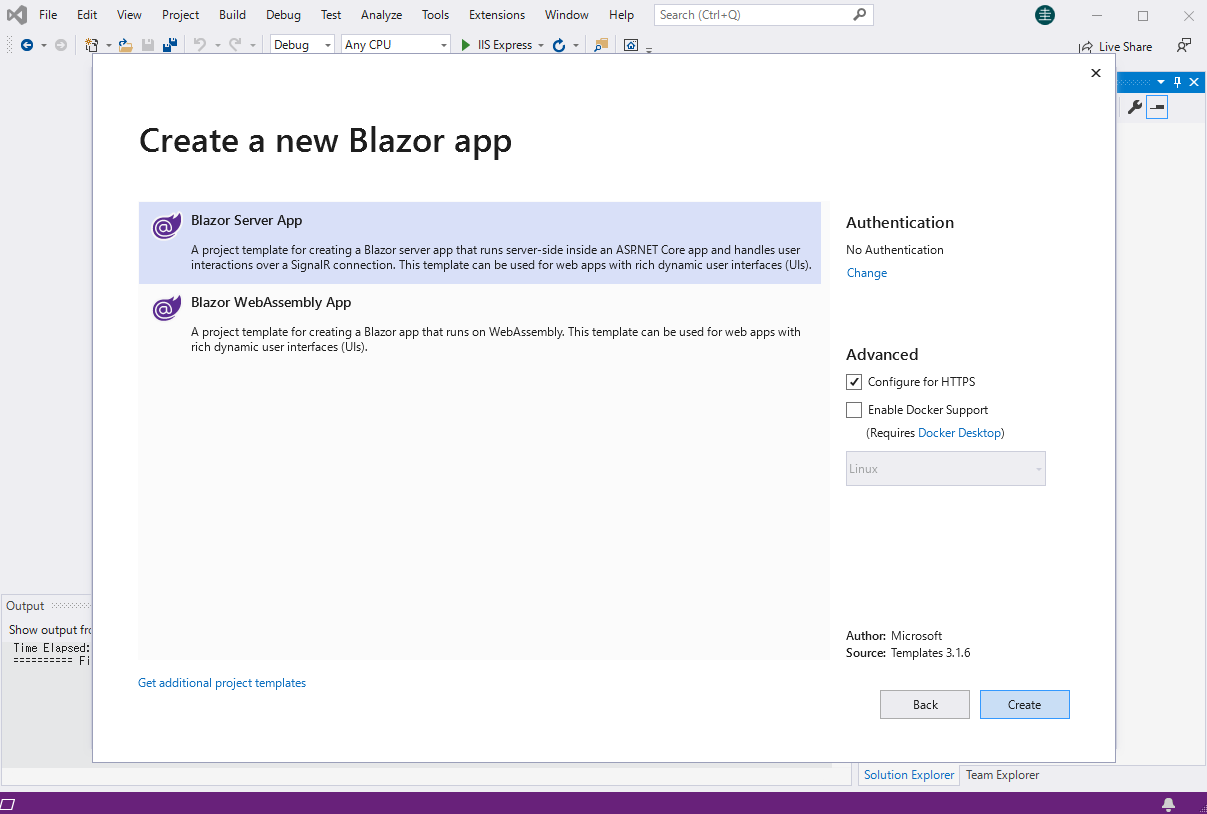
- Create a Blazor project on Visual Studio.
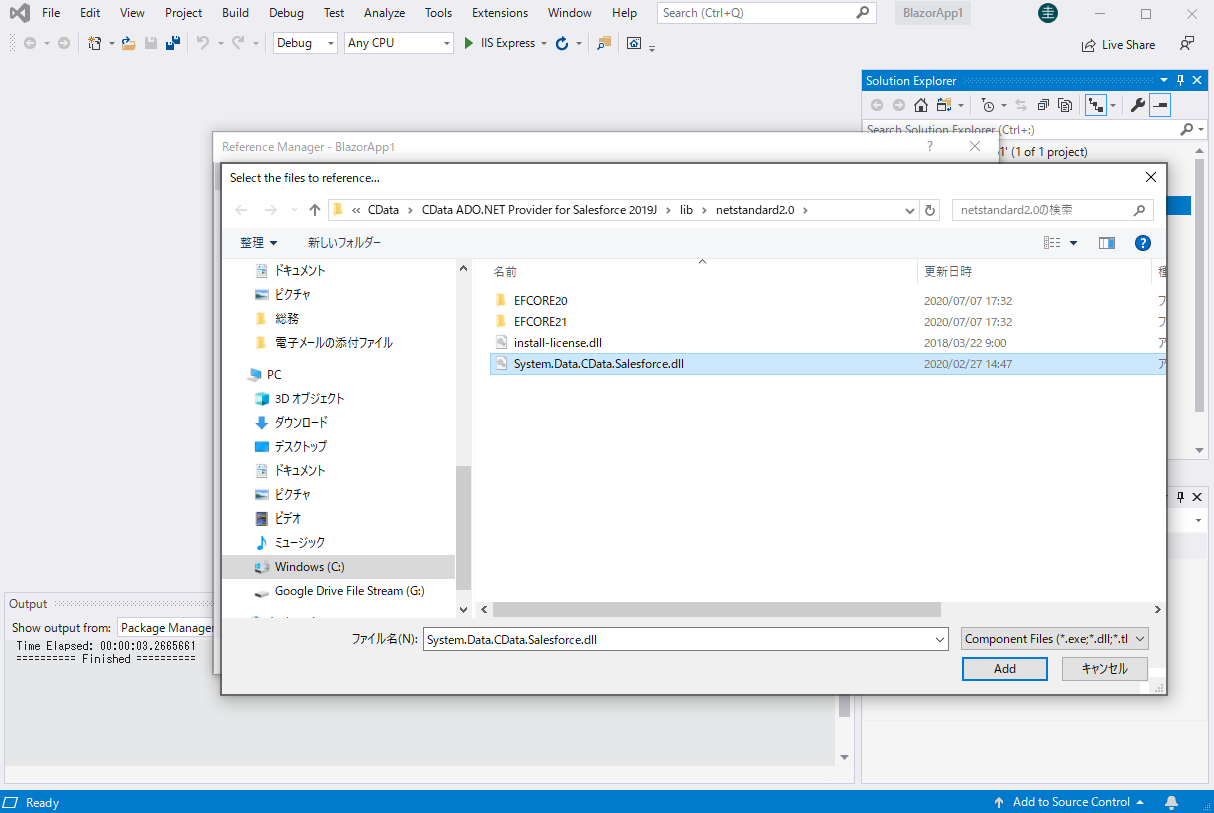
- From the Solution Explorer, right click Dependencies, then click Add Project Reference.
- In the Reference Manager, click the Browse button, and choose the .dll file of the installed ADO.NET Provider (e.g. System.Data.CData.API.dll, typically located at C:\Program Files\CData\CData API Driver for ADO.NET\lib etstandard2.0).
SELECT Productboard Data from the Blazor App
- Open the Index.razor file from the Project page.
- In a APIConnection object, set the connection string:
Authentication
To authenticate to ProductBoard, and connect to your own data or to allow other users to connect to their data, you can use API Key authentication.
Using API Key Authentication
To authenticate using an API Key, you need to obtain your API Key from your ProductBoard workspace settings.
You can then connect by setting the AuthScheme to APIKey and providing your API key:
- AuthScheme: Set this to APIKey.
- APIKey: Set this to your API key from ProductBoard.
For example: Profile=C:\profiles\Productboard.apip;AuthScheme=APIKey;ProfileSettings='APIKey=your_api_key';
- The code below creates a simple Blazor app for displaying Productboard data, using standard SQL to query Productboard just like SQL Server.
@page "/" @using System.Data; @using System.Data.CData.API; <h1>Hello, world!</h1> Welcome to your Data app. <div class="row"> <div class="col-12"> @using (APIConnection connection = new APIConnection( "Profile=C:\profiles\Productboard.apip;AuthScheme=APIKey;ProfileSettings='APIKey=your_api_key';")) { var sql = "SELECT , FROM Features WHERE IsArchived = 'false'"; var results = new DataTable(); APIDataAdapter dataAdapter = new APIDataAdapter(sql, connection); dataAdapter.Fill(results); <table class="table table-bordered"> <thead class="thead-light"> <tr> @foreach (DataColumn item in results.Rows[0].Table.Columns) { <th scope="col">@item.ColumnName</th> } </tr> </thead> <tbody> @foreach (DataRow row in results.Rows) { <tr> @foreach (var column in row.ItemArray) { <td>@column.ToString()</td> } </tr> } </tbody> </table> } </div> </div> - Rebuild and run the project. The ADO.NET Provider renders Productboard data as an HTML table in the Blazor app.
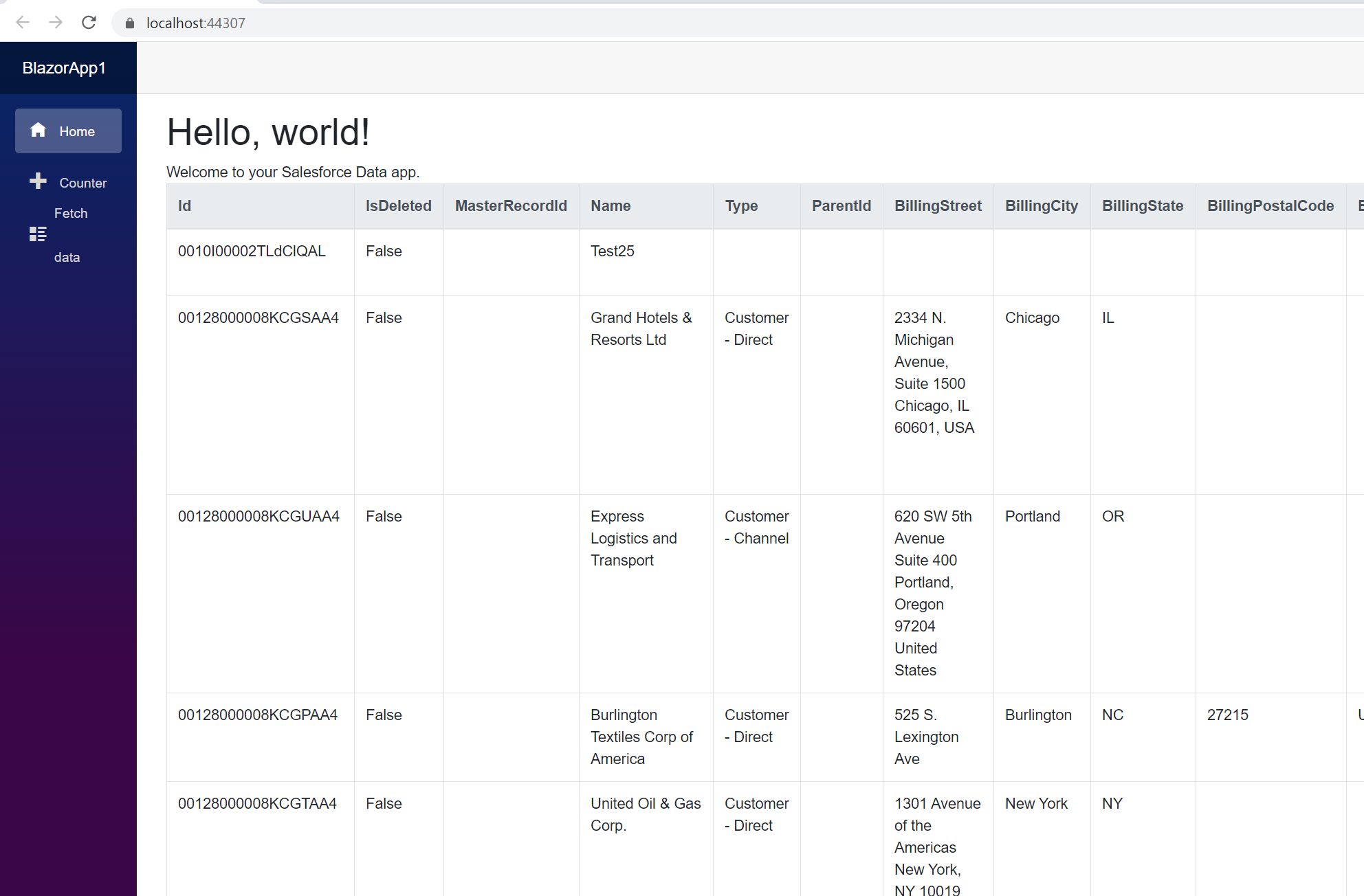
At this point, you have a Productboard-connected Blazor app, capable of working with live Productboard data just like you would work with a SQL Server instance. Download a free, 30-day trial and start working with live Productboard data in your Blazor apps today.