




Stream Pushover Data into Apache Kafka Topics

Apache Kafka is an open-source stream processing platform that is primarily used for building real-time data pipelines and event-driven applications. When paired with the CData API Driver for JDBC, Kafka can work with live Pushover data. This article describes how to connect, access and stream Pushover data into Apache Kafka Topics and to start Confluent Control Center to help users secure, manage, and monitor the Pushover data received using Kafka infrastructure in the Confluent Platform.
With built-in optimized data processing, the CData JDBC Driver offers unmatched performance for interacting with live Pushover data. When you issue complex SQL queries to Pushover, the driver pushes supported SQL operations, like filters and aggregations, directly to Pushover and utilizes the embedded SQL engine to process unsupported operations client-side (often SQL functions and JOIN operations). Its built-in dynamic metadata querying allows you to work with and analyze Pushover data using native data types.
Prerequisites
Before connecting the CData JDBC Driver for streaming Pushover data in Apache Kafka Topics, install and configure the following in the client Linux-based system.
- Confluent Platform for Apache Kafka
- Confluent Hub CLI Installation
- Self-Managed Kafka JDBC Source Connector for Confluent Platform
Define a New JDBC Connection to Pushover data
- Download CData API Driver for JDBC on a Linux-based system
- Follow the given instructions to create a new directory extract all the driver contents into it:
- Create a new directory named Pushover
mkdir API - Move the downloaded driver file (.zip) into this new directory
mv APIJDBCDriver.zip API/ - Unzip the CData APIJDBCDriver contents into this new directory
unzip APIJDBCDriver.zip
- Create a new directory named Pushover
- Open the Pushover directory and navigate to the lib folder
ls cd lib/ - Copy the contents of the lib folder of the CData API Driver for JDBC into the lib folder of Kafka Connect JDBC. Check the Kafka Connect JDBC folder contents to confirm that the cdata.jdbc.api.jar file is successfully copied into the lib folder
cp -r /path/to/CData API Driver for JDBC/lib/* /usr/share/confluent-hub-components/confluentinc-kafka-connect-jdbc/lib/ cd /usr/share/confluent-hub-components/confluentinc-kafka-connect-jdbc/lib/ - Install the CData Pushover JDBC driver license using the given command, followed by your Name and Email ID
java -jar cdata.jdbc.api.jar -l - Enter the product key or "TRIAL" (In the scenarios of license expiry, please contact our CData Support team)
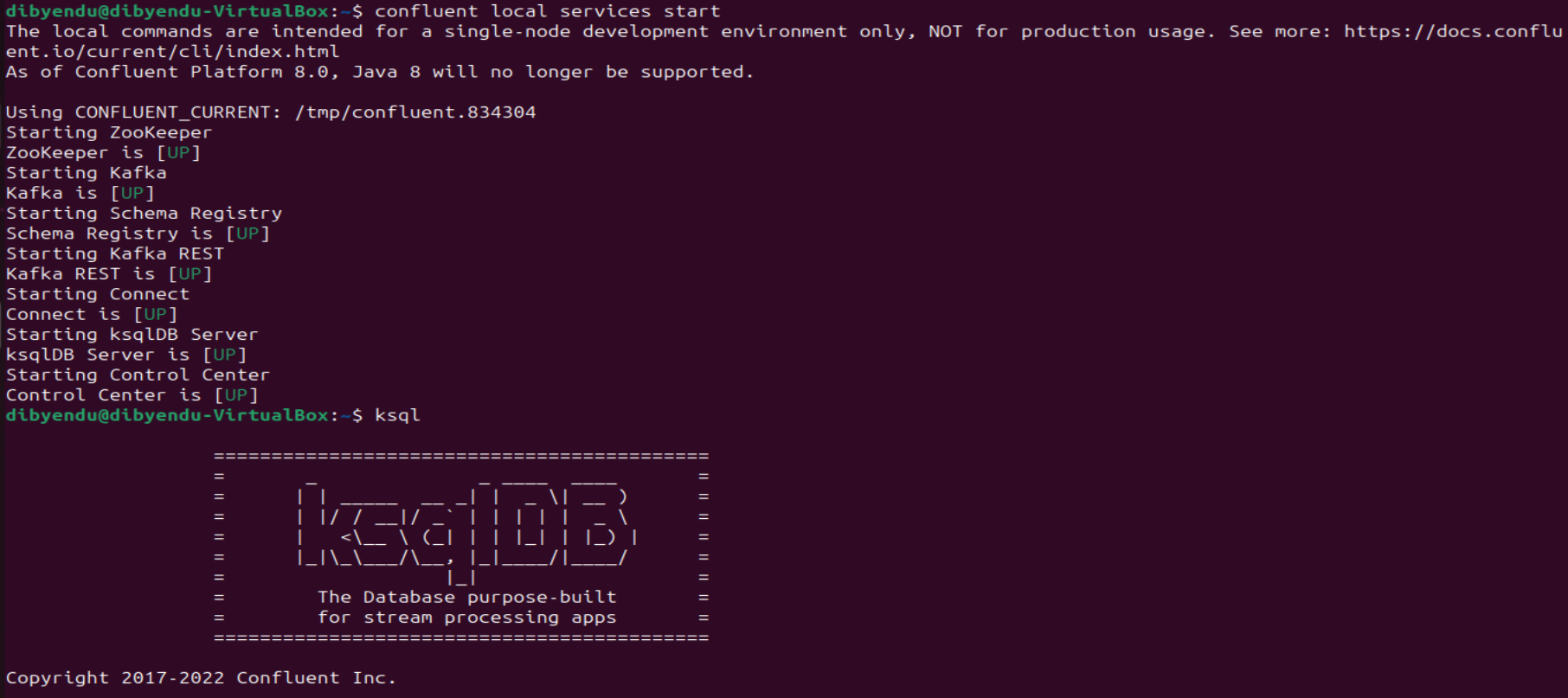
- Start the Confluent local services using the command:
confluent local services startThis starts all the Confluent Services like Zookeeper, Kafka, Schema Registry, Kafka REST, Kafka CONNECT, ksqlDB and Control Center. You are now ready to use the CData JDBC driver for Pushover to stream messages using Kafka Connect Driver into Kafka Topics on ksqlDB.
- Create the Kafka topics manually using a POST HTTP API Request:
 curl --location 'server_address:8083/connectors'
	--header 'Content-Type: application/json'
	--data '{
		"name": "jdbc_source_cdata_api_01",
		"config": {
			"connector.class": "io.confluent.connect.jdbc.JdbcSourceConnector",
			"connection.url": "jdbc:api:Profile=C:\profiles\Pushover.apip;AuthScheme=APIKey;ProfileSettings='APIKey=your_application_token';",
		"topic.prefix": "api-01-",
		"mode": "bulk"
		}
	}'
Let us understand the fields used in the HTTP POST body (shown above):
- connector.class: Specifies the Java class of the Kafka Connect connector to be used.
- connection.url: The JDBC connection URL to connect with Pushover data.
Built-in Connection String Designer
For assistance in constructing the JDBC URL, use the connection string designer built into the CData API Driver for JDBC. Either double-click the JAR file or execute the jar file from the command-line.
java -jar cdata.jdbc.api.jarFill in the connection properties and copy the connection string to the clipboard.
Start by setting the Profile connection property to the location of the Pushover Profile on disk (e.g. C:\profiles\Pushover.apip). Next, set the ProfileSettings connection property to the connection string for Pushover (see below).
Pushover API Profile Settings
Pushover uses API Key authentication. Your Pushover Application API Token is used to authenticate all requests. You can create and manage API tokens in the Pushover dashboard at pushover.net by registering an application under Settings > Your Applications.
After setting the following connection properties, you are ready to connect:
- AuthScheme: Set this to APIKey.
- APIKey: Set this to your 30-character Pushover Application API Token.

- topic.prefix: A prefix that will be added to the Kafka topics created by the connector. It's set to "api-01-".
- mode: Specifies the mode in which the connector operates. In this case, it's set to "bulk", which suggests that the connector is configured to perform bulk data transfer.
This request adds all the tables/contents from Pushover as Kafka Topics.
Note: The IP Address (server) to POST the request (shown above) is the Linux Network IP Address.
- Run ksqlDB and list the topics. Use the commands:
ksql
list topics;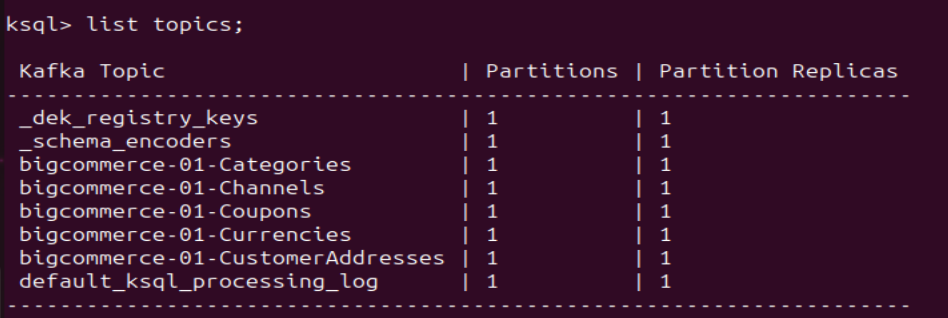
- To view the data inside the topics, type the SQL Statement:
PRINT topic FROM BEGINNING;
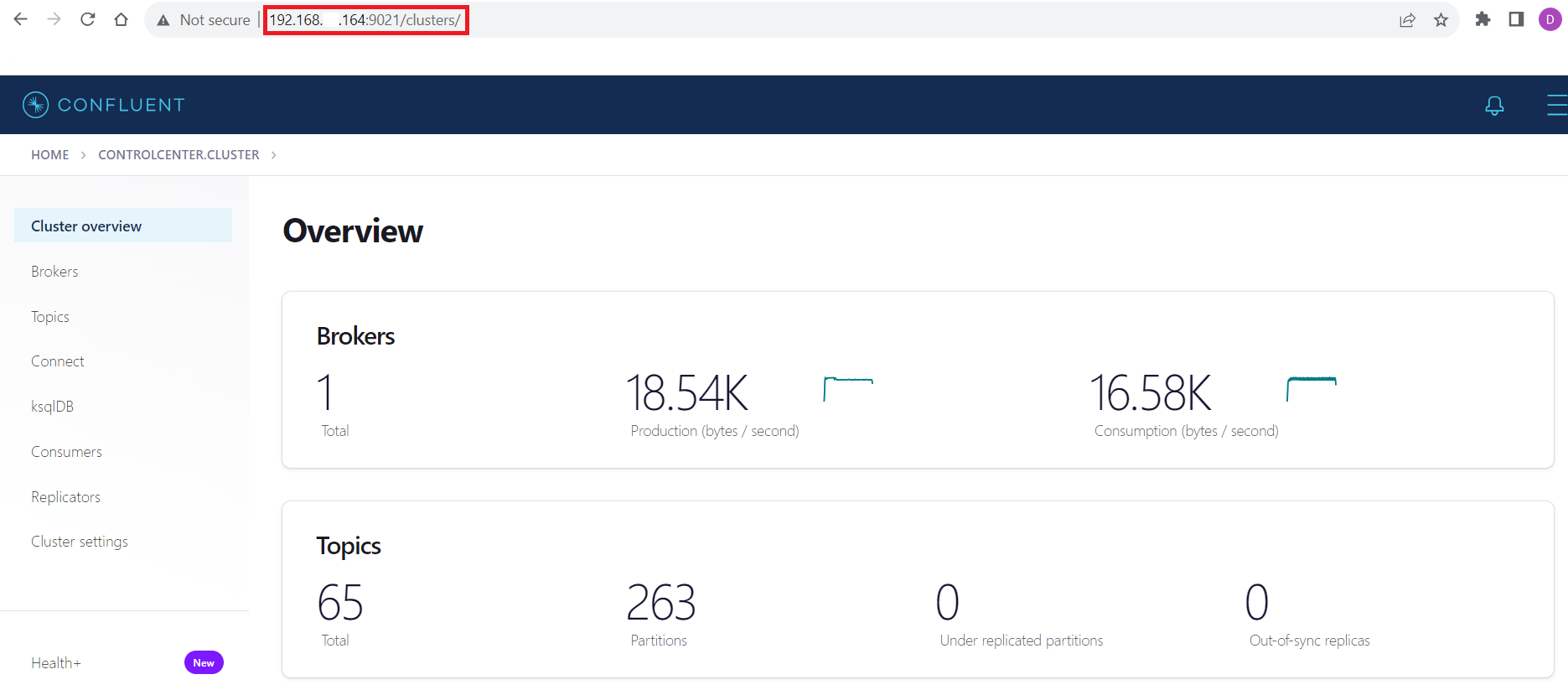
Connecting with the Confluent Control Center
To access the Confluent Control Center user interface, ensure to run the "confluent local services" as described in the above section and type http://<server address>:9021/clusters/ on your local browser.
Get Started Today
Download a free, 30-day trial of the CData API Driver for JDBC and start streaming Pushover data into Apache Kafka. Reach out to our Support Team if you have any questions.