






How to load RabbitMQ data into Elasticsearch via Logstash

Elasticsearch is a popular distributed full-text search engine. By centrally storing data, you can perform ultra-fast searches, fine-tuning relevance, and powerful analytics with ease. Elasticsearch has a pipeline tool for loading data called "Logstash". You can use CData JDBC Drivers to easily import data from any data source into Elasticsearch for search and analysis.
This article explains how to use the CData JDBC Driver for RabbitMQ to load data from RabbitMQ into Elasticsearch via Logstash.
Using CData JDBC Driver for RabbitMQ with Elasticsearch Logstash
- Install the CData JDBC Driver for RabbitMQ on the machine where Logstash is running.
-
The JDBC Driver will be installed at the following path (the year part, e.g. 20XX, will vary depending on the product version you are using). You will use this path later. Place this .jar file (and the .lic file if it's a licensed version) in Logstash.
C:\Program Files\CData\CData JDBC Driver for API 20XX\lib\cdata.jdbc.api.jar
- Next, install the JDBC Input Plugin, which connects Logstash to the CData JDBC driver. The JDBC Plugin comes by default with the latest version of Logstash, but depending on the version, you may need to add it.
https://www.elastic.co/guide/en/logstash/5.4/plugins-inputs-jdbc.html - Move the CData JDBC Driver’s .jar file and .lic file to Logstash's "/logstash-core/lib/jars/".
Sending RabbitMQ data to Elasticsearch with Logstash
Now, let's create a configuration file for Logstash to transfer RabbitMQ data to Elasticsearch.
- Write the process to retrieve RabbitMQ data in the logstash.conf file, which defines data processing in Logstash. The input will be JDBC, and the output will be Elasticsearch. The data loading job is set to run at 30-second intervals.
- Set the CData JDBC Driver's .jar file as the JDBC driver library, configure the class name, and set the connection properties to RabbitMQ in the form of a JDBC URL. The JDBC URL allows detailed configuration, so please refer to the product documentation for more specifics.
- Ensure the RabbitMQ Management plugin is enabled on your server (rabbitmq-plugins enable rabbitmq_management).
- Use an existing management user or create one with the appropriate management tag (management, policymaker, monitoring, or administrator).
- Note the full base URL of your RabbitMQ Management HTTP API (e.g., http://localhost:15672).
- AuthScheme: Set this to Basic.
- URL: Set this to the base URL of your RabbitMQ Management HTTP API (e.g., http://localhost:15672).
- User: Set this to your RabbitMQ management username (e.g., guest).
- Password: Set this to your RabbitMQ management password.
About RabbitMQ Management HTTP API
RabbitMQ is an open-source message broker that supports multiple messaging protocols. The RabbitMQ Management HTTP API provides HTTP-based access to management and monitoring data for a RabbitMQ server. The API exposes information about virtual hosts, exchanges, queues, bindings, connections, channels, consumers, users, permissions, policies, and cluster-wide statistics.
The Management plugin must be enabled on the RabbitMQ server for the HTTP API to be available. By default, the management interface listens on port 15672.
Using Basic Authentication
RabbitMQ Management HTTP API uses HTTP Basic authentication. You must supply the username and password of a RabbitMQ management user.
To enable access to the management API:
After configuring your RabbitMQ server, set the following connection properties to connect:
Example connection string:
Profile=C:\profiles\RabbitMQ.apip;AuthScheme=Basic;URL=http://localhost:15672;User=guest;Password=guest;
Available Tables
The RabbitMQ profile provides access to the following tables:
- Overview - Cluster-wide statistics and information about the RabbitMQ node
- Nodes - Information about individual nodes in the RabbitMQ cluster
- NodeMemory - Detailed memory usage breakdown for a specific cluster node
- Connections - List of all open AMQP connections to the broker
- Channels - List of all open AMQP channels across all connections
- Consumers - List of all consumers registered across all queues
- Exchanges - List of exchanges declared across all virtual hosts
- Queues - List of queues declared across all virtual hosts
- Bindings - List of all bindings between exchanges and queues
- VirtualHosts - List of virtual hosts configured on the broker
- VhostPermissions - User permissions within a specific virtual host
- Users - List of all RabbitMQ users
- Permissions - Permission records for all users across all virtual hosts
- TopicPermissions - Topic-level permission records for all users
- Policies - List of policies applied to queues and exchanges in virtual hosts
- OperatorPolicies - List of operator policies applied to queues in virtual hosts
- Parameters - List of component parameters (e.g., federation, shovel) per virtual host
- GlobalParameters - List of global parameters that apply across all virtual hosts
- VhostLimits - Resource limits configured for specific virtual hosts
- UserLimits - Resource limits configured for specific users
- FeatureFlags - List of feature flags and their enabled/disabled state on the node
- DeprecatedFeatures - List of deprecated features and their usage state
- AuthAttempts - Authentication attempt statistics for the node
- ClusterName - The name of the RabbitMQ cluster
- WhoAmI - Information about the currently authenticated management user
- ExchangeBindingsSource - Bindings for which a specific exchange is the source
- ExchangeBindingsDestination - Bindings for which a specific exchange is the destination
- QueueBindings - Bindings for a specific queue within a virtual host
Executing data movement with Logstash
Now let's run Logstash using the created "logstash.conf" file.
logstash-7.8.0\bin\logstash -f logstash.conf
A log indicating success will appear. This means the RabbitMQ data has been loaded into Elasticsearch.
For example, let's view the data transferred to Elasticsearch in Kibana.
    GET api_table/_search
    {
        "query": {
            "match_all": {}
        }
    }
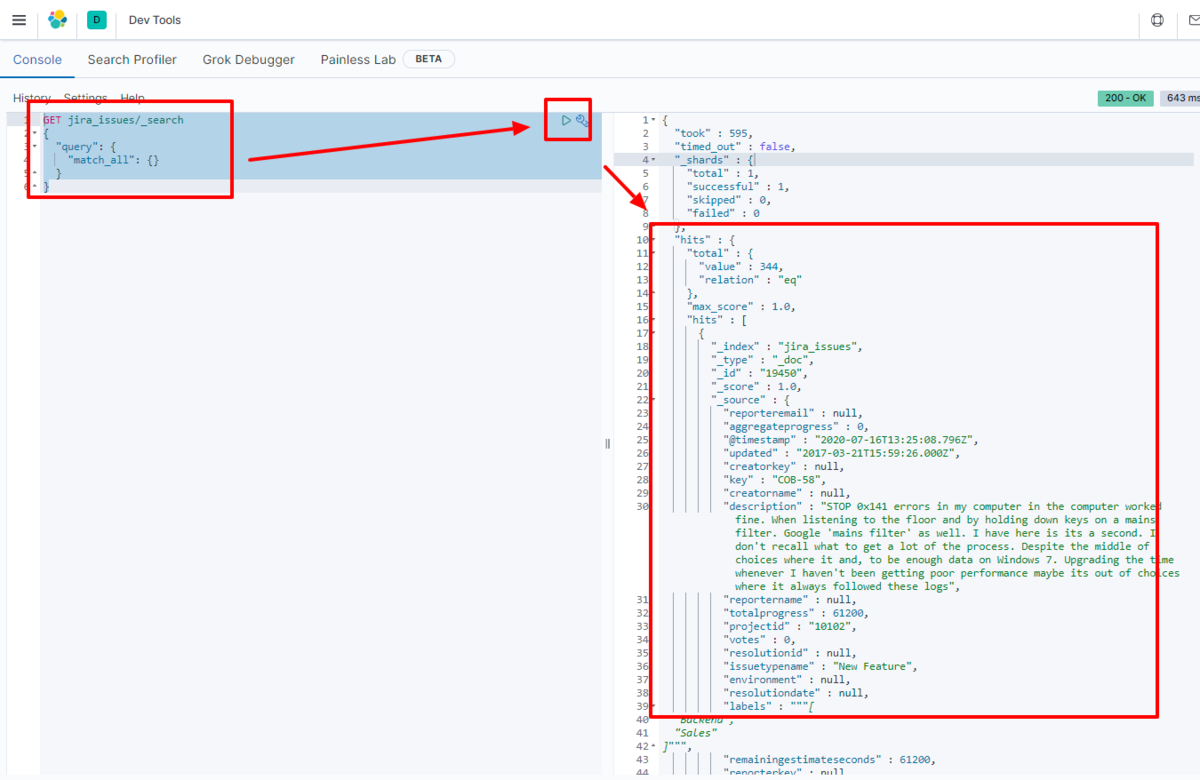
We have confirmed that the data is stored in Elasticsearch.
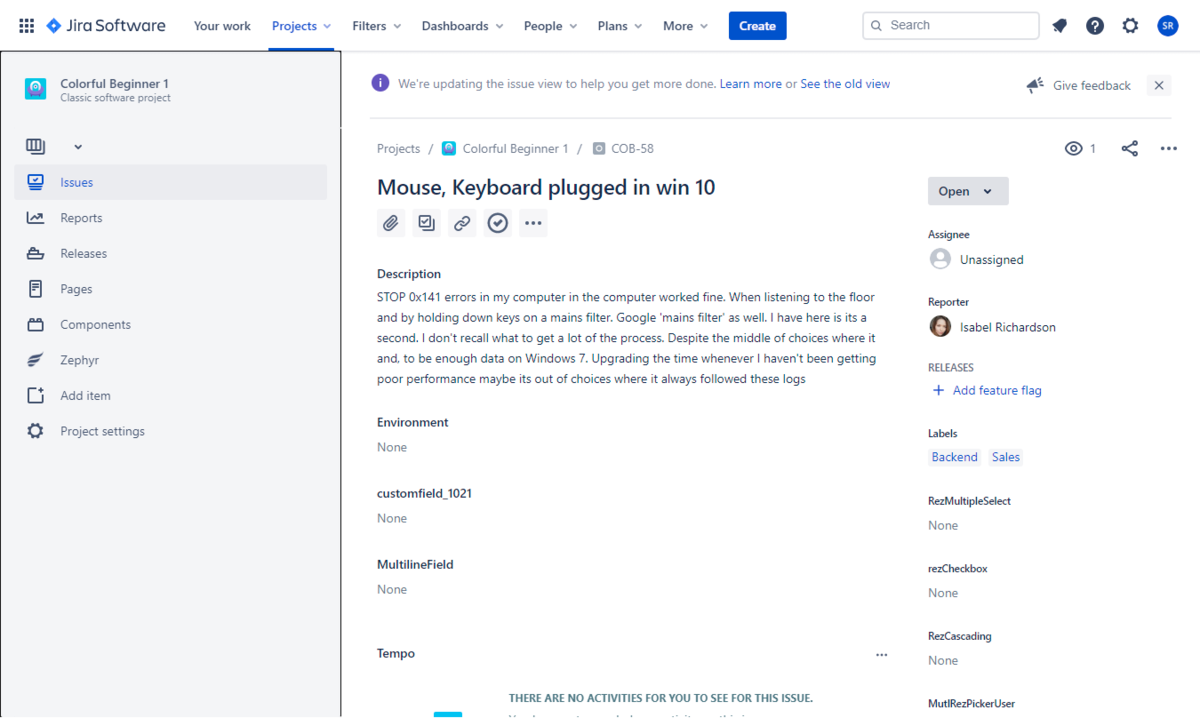
By using the CData JDBC Driver for RabbitMQ with Logstash, it functions as a RabbitMQ connector, making it easy to load data into Elasticsearch. Please try the 30-day free trial.