Add RabbitMQ Data to Informatica Enterprise Data Catalog

Informatica provides a powerful, elegant means of transporting and transforming your data. By utilizing the CData JDBC driver for RabbitMQ, you are gaining access to a driver based on industry-proven standards that integrates seamlessly with Informatica's Enterprise Data Catalog. This tutorial shows how to classify and organize RabbitMQ data across any environment.
Load the JDBC Driver
To load the JDBC Driver:
- Install the JDBC Driver on the host running Informatica. For this article, it is assumed that the driver was installed into cdata.jdbc.api.APIDriver.
- Navigate to the JDBC install directory and create a zip file called genericJDBC.zip containing the driver and its license file.
- Move the genericJDBC.zip file into the Catalog Service directory within Informatica. For this article, it is assumed that Informatica is installed into /opt/informatica. Working in this folder will probably require root permissions, so make sure to su or sudo to root before continuing.
- Edit the custom deployment configuration to unpack the zip file.
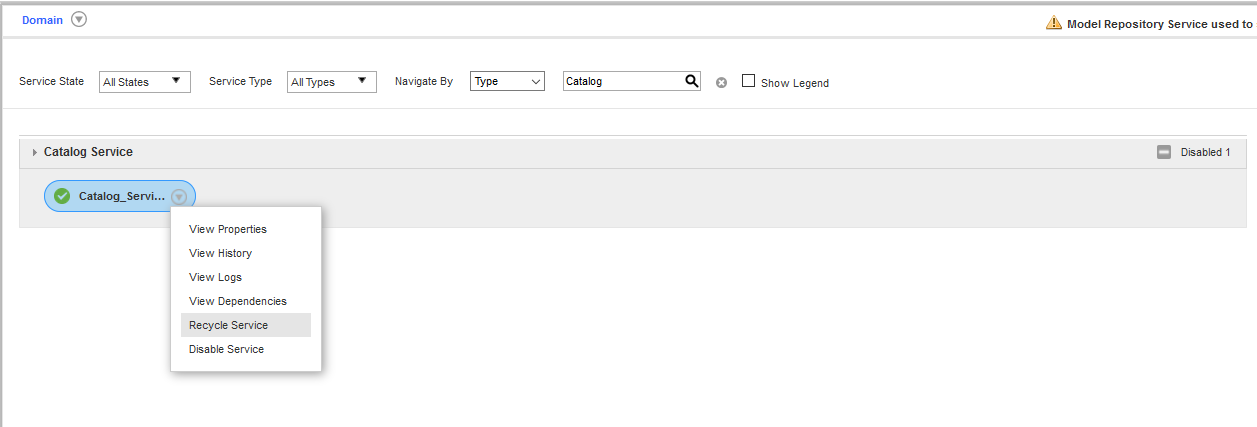
- Refresh the Catalog Service from the Admin console.
$ java -jar setup.jar
$ cd ~/cdata-jdbc-driver-for-api/lib
$ zip genericJDBC.zip cdata.jdbc.api.jar cdata.jdbc.api.lic
# mv genericJDBC.zip /opt/informatica/services/CatalogService/ScannerBinaries
# cd /opt/informatica/services/CatalogService/ScannerBinaries/CustomDeployer/
# nano scannerDeployer.xml
After unpacking the existing ExecutionContextProperty nodes, add a new ExecutionContextProperty node with this content.
<ExecutionContextProperty
    isLocationProperty="true"
    dependencyToUnpack="genericJDBC.zip">
<PropertyName>JDBCScanner_DriverLocation</PropertyName>
<PropertyValue>scanner_miti/genericJDBC/Drivers</PropertyValue>
</ExecutionContextProperty>
Configure the JDBC Resource
To configure the JDBC resource:
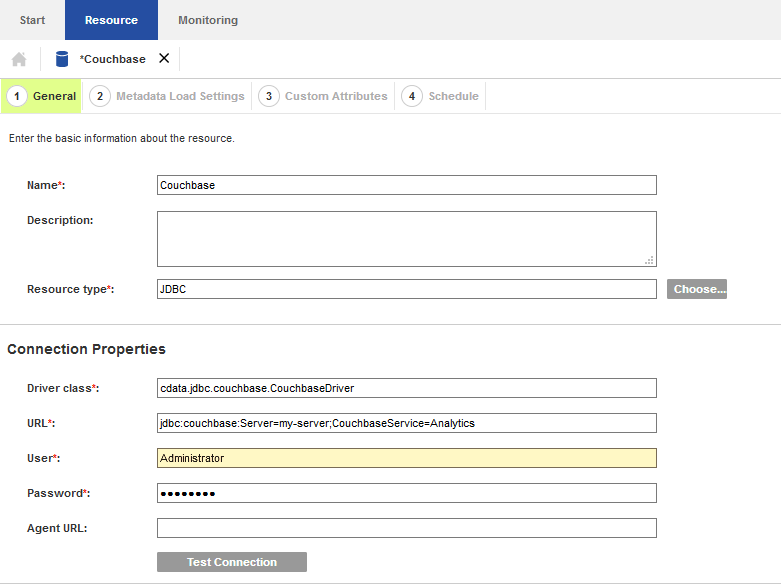
- Open the Catalog administrator and add a new JDBC resource with the following properties:
- Driver Class: cdata.jdbc.api.APIDriver
- URL: jdbc.api:Profile=C:\profiles\\RabbitMQ.apip;AuthScheme=Basic;URL=http://localhost:15672;User=guest;Password=guest;
- Ensure the RabbitMQ Management plugin is enabled on your server (rabbitmq-plugins enable rabbitmq_management).
- Use an existing management user or create one with the appropriate management tag (management, policymaker, monitoring, or administrator).
- Note the full base URL of your RabbitMQ Management HTTP API (e.g., http://localhost:15672).
- AuthScheme: Set this to Basic.
- URL: Set this to the base URL of your RabbitMQ Management HTTP API (e.g., http://localhost:15672).
- User: Set this to your RabbitMQ management username (e.g., guest).
- Password: Set this to your RabbitMQ management password.
- Overview - Cluster-wide statistics and information about the RabbitMQ node
- Nodes - Information about individual nodes in the RabbitMQ cluster
- NodeMemory - Detailed memory usage breakdown for a specific cluster node
- Connections - List of all open AMQP connections to the broker
- Channels - List of all open AMQP channels across all connections
- Consumers - List of all consumers registered across all queues
- Exchanges - List of exchanges declared across all virtual hosts
- Queues - List of queues declared across all virtual hosts
- Bindings - List of all bindings between exchanges and queues
- VirtualHosts - List of virtual hosts configured on the broker
- VhostPermissions - User permissions within a specific virtual host
- Users - List of all RabbitMQ users
- Permissions - Permission records for all users across all virtual hosts
- TopicPermissions - Topic-level permission records for all users
- Policies - List of policies applied to queues and exchanges in virtual hosts
- OperatorPolicies - List of operator policies applied to queues in virtual hosts
- Parameters - List of component parameters (e.g., federation, shovel) per virtual host
- GlobalParameters - List of global parameters that apply across all virtual hosts
- VhostLimits - Resource limits configured for specific virtual hosts
- UserLimits - Resource limits configured for specific users
- FeatureFlags - List of feature flags and their enabled/disabled state on the node
- DeprecatedFeatures - List of deprecated features and their usage state
- AuthAttempts - Authentication attempt statistics for the node
- ClusterName - The name of the RabbitMQ cluster
- WhoAmI - Information about the currently authenticated management user
- ExchangeBindingsSource - Bindings for which a specific exchange is the source
- ExchangeBindingsDestination - Bindings for which a specific exchange is the destination
- QueueBindings - Bindings for a specific queue within a virtual host
- Username: user
- Password: password
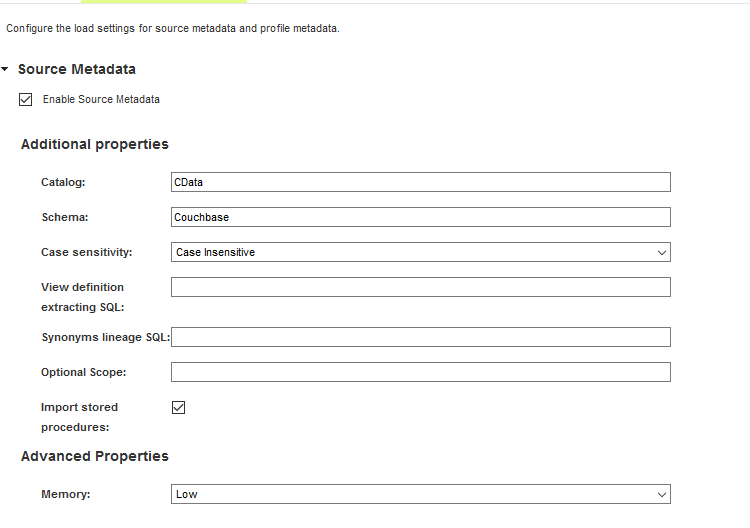
- Configure the metadata options to perform at least one source metadata scan. This scan uses the driver to determine what tables, views, and stored procedures are available through the service.
- Source Metadata: Enable this option.
- Catalog: Set this to the appropriate catalog for multi-catalog data sources. Otherwise, set this to CData.
- Schema: Set this to the appropriate schema for multi-schema data sources. Otherwise, set this to the name of the service (for example, Couchbase).
- Case-sensitivity: Generally this option should be disabled. Enable it only for data sources which are case-sensitive.
- Import stored procedures: Enable this if you want to import stored procedure definitions in addition to tables and views.
- Complete the driver configuration, optionally configuring custom attributes and a scanner schedule.
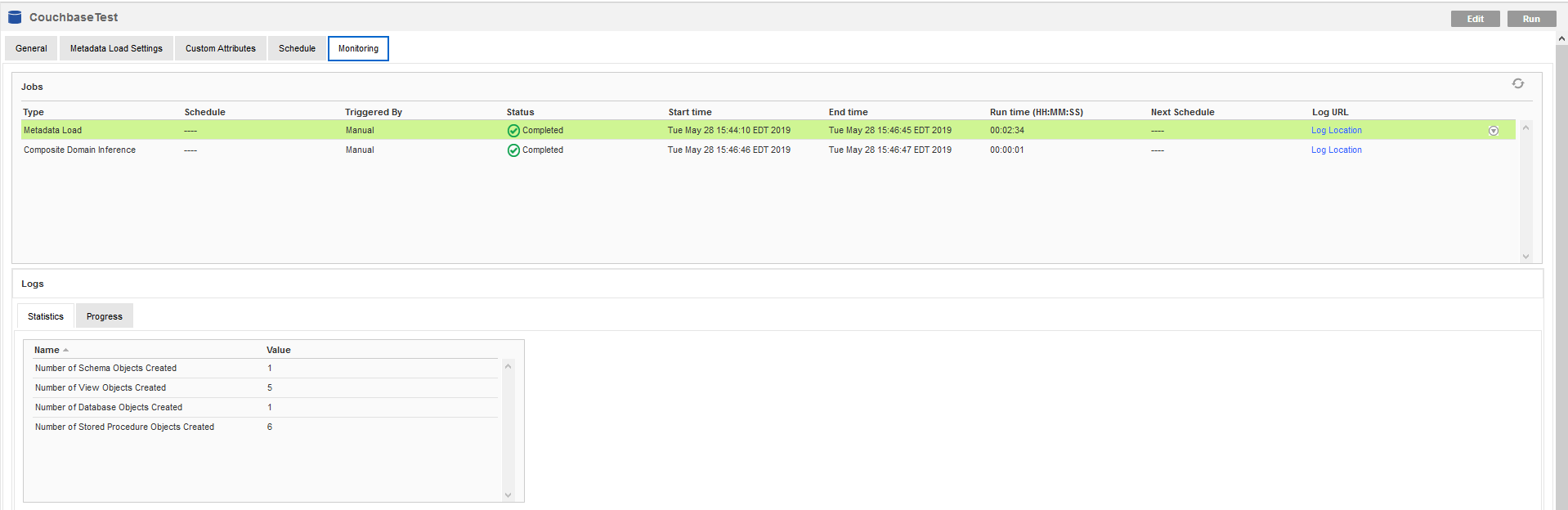
- Perform the metadata scan by navigating to the Monitoring tab and clicking Run. Depending upon the data source, this may takes a few minutes.
About RabbitMQ Management HTTP API
RabbitMQ is an open-source message broker that supports multiple messaging protocols. The RabbitMQ Management HTTP API provides HTTP-based access to management and monitoring data for a RabbitMQ server. The API exposes information about virtual hosts, exchanges, queues, bindings, connections, channels, consumers, users, permissions, policies, and cluster-wide statistics.
The Management plugin must be enabled on the RabbitMQ server for the HTTP API to be available. By default, the management interface listens on port 15672.
Using Basic Authentication
RabbitMQ Management HTTP API uses HTTP Basic authentication. You must supply the username and password of a RabbitMQ management user.
To enable access to the management API:
After configuring your RabbitMQ server, set the following connection properties to connect:
Example connection string:
Profile=C:\profiles\RabbitMQ.apip;AuthScheme=Basic;URL=http://localhost:15672;User=guest;Password=guest;
Available Tables
The RabbitMQ profile provides access to the following tables:
Built-In Connection String Designer
For assistance in constructing the JDBC URL, use the connection string designer built into the RabbitMQ JDBC Driver. Either double-click the .jar file or execute the .jar file from the command-line.
java -jar cdata.jdbc.api.jar
Fill in the connection properties and copy the connection string to the clipboard.

When you configure the JDBC URL, you may also want to set the Max Rows connection property. This will limit the number of rows returned, which is especially helpful for improving performance when designing reports and visualizations.
Typical additional connection string properties follow:
JDBC;MSTR_JDBC_JAR_FOLDER=PATH\TO\JAR\;DRIVER=cdata.jdbc.api.APIDriver;URL={jdbc:api:Profile=C:\profiles\\RabbitMQ.apip;AuthScheme=Basic;URL=http://localhost:15672;User=guest;Password=guest;};
Note that the Username and Password properties are required, even if the driver you are using does not require them. In those cases, you can enter a placeholder value instead.
Other metadata scanners may be enabled as desired.
When the scan is complete, a summary of all of the metadata objects is displayed along with the status of the Metadata Load job. If any errors occur, you can open the Log Location link for the job to see the errors reported by Informatica or the driver.
Validate the Discovered Metadata
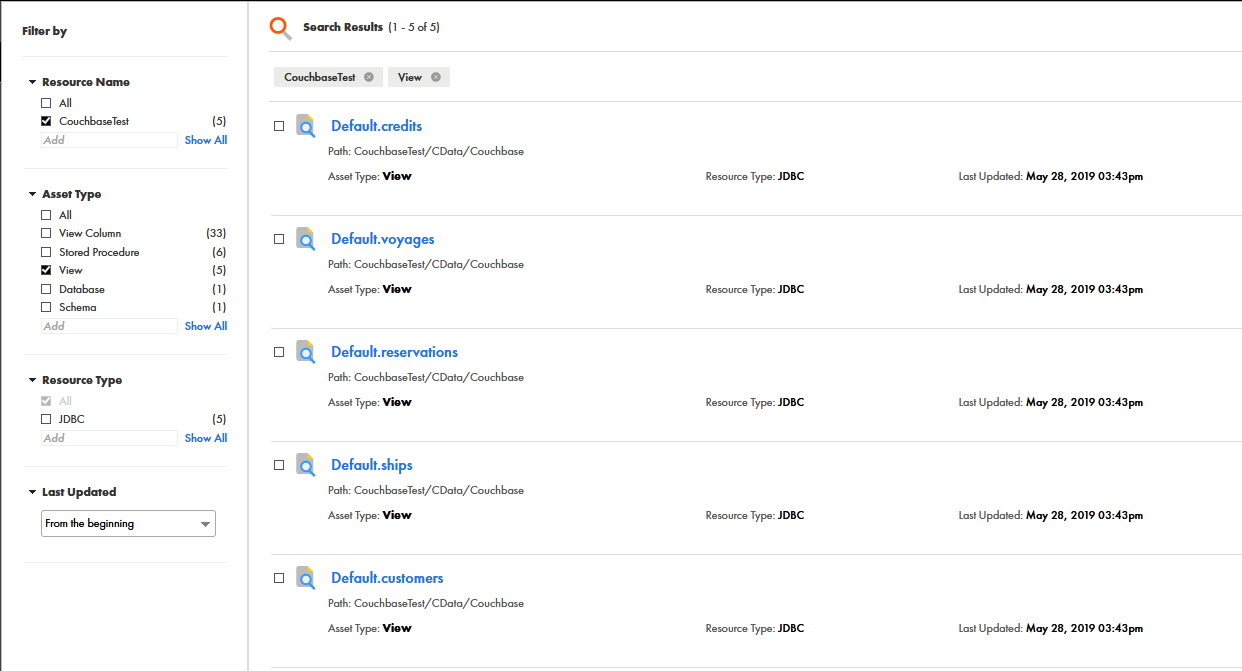
Open the Catalog Service browser to view the metadata extracted from the data source. Depending upon the options you selected when configuring the metadata scanner, you may see any combination of tables, views, and stored procedures for the resource you defined.