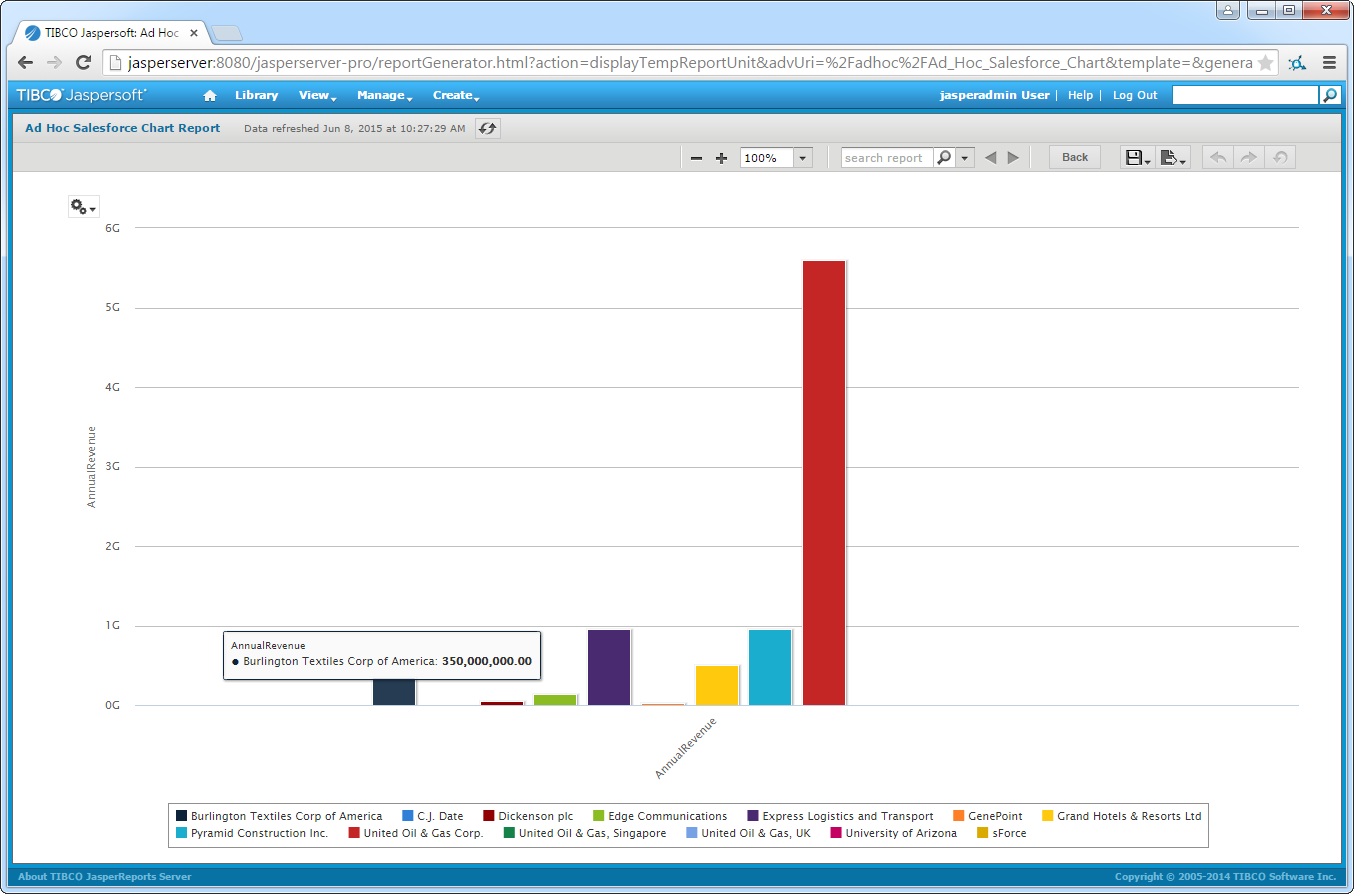
Create RabbitMQ Reports on JasperReports Server

The CData JDBC driver for RabbitMQ enables you to provide access to RabbitMQ data across the enterprise. This article shows how to deploy the driver on JasperReports server and create a simple report based on a reporting domain, a business view of RabbitMQ data.
Deploy the Driver JAR
Follow the steps below to deploy the driver JAR on JasperReports Server. The instructions below contain specifics for RabbitMQ and the Tomcat server bundled with JasperReports Server. If you are using JBoss AS 7 instead of Tomcat, you can follow the standard process to deploy the RabbitMQ JDBC Driver on JBoss.
- Copy the driver JAR and .lic file, located in the lib subfolder of the installation directory, to the lib subfolder of the apache-tomcat folder, located in the JasperReports Server installation directory.
-
Navigate to apache-tomcat -> webapps -> jasperserver-pro -> META-INF and add the following resource entry to the context.xml file:
<Resource name="jdbc/api" auth="Container" type="javax.sql.DataSource" driverClassName="cdata.jdbc.api.APIDriver" url="jdbc:api:Profile=C:\profiles\\RabbitMQ.apip;AuthScheme=Basic;URL=http://localhost:15672;User=guest;Password=guest;" maxActive="20" maxIdle="10" maxWait="-1" factory="com.jaspersoft.jasperserver.tomcat.jndi.JSCommonsBasicDataSourceFactory"/>
Specify the required connection properties in the JDBC URL -- the url attribute.
About RabbitMQ Management HTTP API
RabbitMQ is an open-source message broker that supports multiple messaging protocols. The RabbitMQ Management HTTP API provides HTTP-based access to management and monitoring data for a RabbitMQ server. The API exposes information about virtual hosts, exchanges, queues, bindings, connections, channels, consumers, users, permissions, policies, and cluster-wide statistics.
The Management plugin must be enabled on the RabbitMQ server for the HTTP API to be available. By default, the management interface listens on port 15672.
Using Basic Authentication
RabbitMQ Management HTTP API uses HTTP Basic authentication. You must supply the username and password of a RabbitMQ management user.
To enable access to the management API:
- Ensure the RabbitMQ Management plugin is enabled on your server (rabbitmq-plugins enable rabbitmq_management).
- Use an existing management user or create one with the appropriate management tag (management, policymaker, monitoring, or administrator).
- Note the full base URL of your RabbitMQ Management HTTP API (e.g., http://localhost:15672).
After configuring your RabbitMQ server, set the following connection properties to connect:
- AuthScheme: Set this to Basic.
- URL: Set this to the base URL of your RabbitMQ Management HTTP API (e.g., http://localhost:15672).
- User: Set this to your RabbitMQ management username (e.g., guest).
- Password: Set this to your RabbitMQ management password.
Example connection string:
Profile=C:\profiles\RabbitMQ.apip;AuthScheme=Basic;URL=http://localhost:15672;User=guest;Password=guest;
Available Tables
The RabbitMQ profile provides access to the following tables:
- Overview - Cluster-wide statistics and information about the RabbitMQ node
- Nodes - Information about individual nodes in the RabbitMQ cluster
- NodeMemory - Detailed memory usage breakdown for a specific cluster node
- Connections - List of all open AMQP connections to the broker
- Channels - List of all open AMQP channels across all connections
- Consumers - List of all consumers registered across all queues
- Exchanges - List of exchanges declared across all virtual hosts
- Queues - List of queues declared across all virtual hosts
- Bindings - List of all bindings between exchanges and queues
- VirtualHosts - List of virtual hosts configured on the broker
- VhostPermissions - User permissions within a specific virtual host
- Users - List of all RabbitMQ users
- Permissions - Permission records for all users across all virtual hosts
- TopicPermissions - Topic-level permission records for all users
- Policies - List of policies applied to queues and exchanges in virtual hosts
- OperatorPolicies - List of operator policies applied to queues in virtual hosts
- Parameters - List of component parameters (e.g., federation, shovel) per virtual host
- GlobalParameters - List of global parameters that apply across all virtual hosts
- VhostLimits - Resource limits configured for specific virtual hosts
- UserLimits - Resource limits configured for specific users
- FeatureFlags - List of feature flags and their enabled/disabled state on the node
- DeprecatedFeatures - List of deprecated features and their usage state
- AuthAttempts - Authentication attempt statistics for the node
- ClusterName - The name of the RabbitMQ cluster
- WhoAmI - Information about the currently authenticated management user
- ExchangeBindingsSource - Bindings for which a specific exchange is the source
- ExchangeBindingsDestination - Bindings for which a specific exchange is the destination
- QueueBindings - Bindings for a specific queue within a virtual host
Built-in Connection String Designer
For assistance in constructing the JDBC URL, use the connection string designer built into the RabbitMQ JDBC Driver. Either double-click the JAR file or execute the jar file from the command-line.
java -jar cdata.jdbc.api.jar
Fill in the connection properties and copy the connection string to the clipboard.

When you configure the JDBC URL, you may also want to set the Max Rows connection property. This will limit the number of rows returned, which is especially helpful for improving performance when designing reports and visualizations.
-
Navigate to jasperserver-pro -> WEB-INF and add the following reference to the web.xml file:
  RabbitMQ data JSP
  jdbc/api
  javax.sql.DataSource
  Container
- Restart the server.
Create the RabbitMQ JDBC Data Source
Follow the steps below to map the RabbitMQ JDBC driver to a JDBC data source:
- Log into JasperReports Server and click Create -> Data Source.
- In the Type menu, select JNDI Data Source.
- In the Service Name box, enter the JDNI lookup defined in the resource definition in the web.xml file. In the example, the lookup is "jdbc/api".
- Click Save to create the Data Source.
Create a Domain
A domain is a metadata and access-control layer that surfaces a relevant business view to report creators. Follow the steps below to select RabbitMQ columns, apply filters, and execute SQL to create a domain.
- Click Create -> Domain. Enter an Id for the domain and select a save location.
- Click Browse in the Data Source section and select the RabbitMQ data source you created.
- In the Domain Design section, click Create with Domain Designer.
- Select the schema containing your tables.
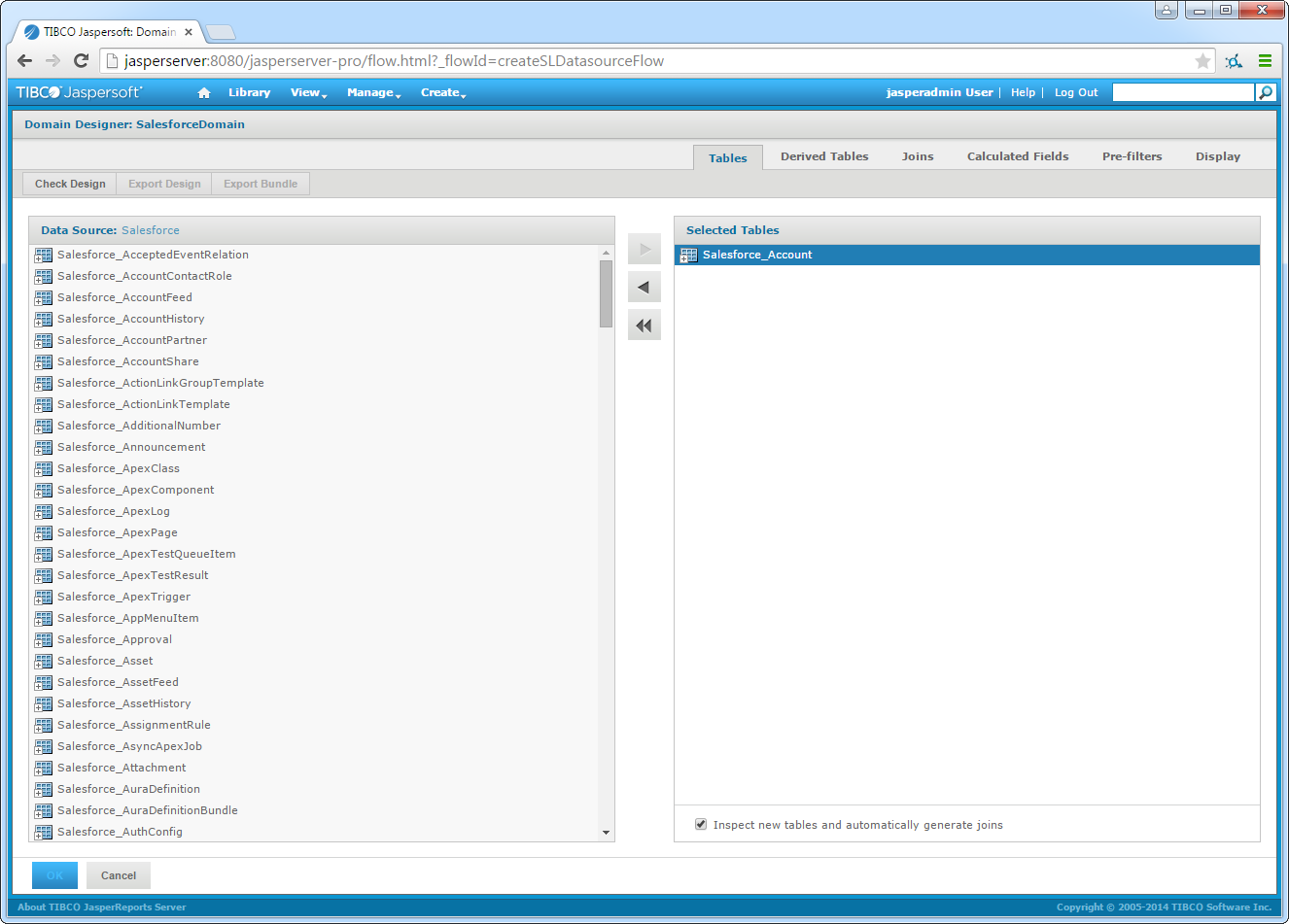
- On the Tables tab, select a table in the Data Source pane and then click the arrow to add them to the Selected Tables pane.
- On the Derived Tables tab, you can define domains based on SQL queries. For example,
SELECT , FROM AuthAttempts WHERE NodeName = 'rabbit@hostname'
- On the Joins tab, you can join tables by selecting the columns you want to build the join condition and selecting the join type.
- On the Pre-Filters tab, drag and drop columns to define search criteria that filters the data exposed through the domain.
- On the Display tab, select RabbitMQ data into the data sets presented to the user.
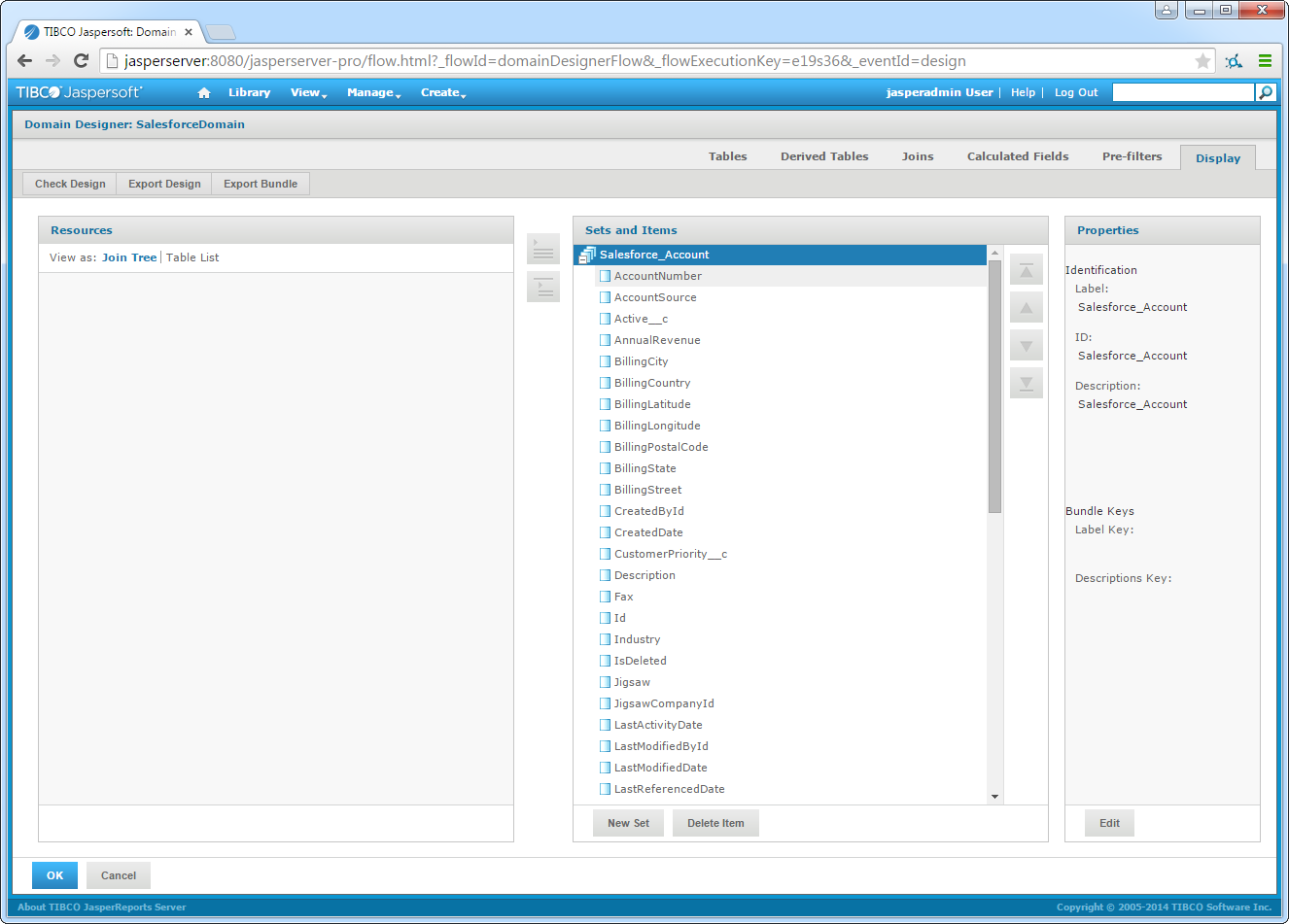
- Click OK to accept your changes and click Submit to create the domain.
Explore Data in Real Time
After you have created a domain, you are ready to connect to data. Follow the steps below to create an Ad Hoc View in the Ad Hoc Editor.
- Click Create -> Ad Hoc View.
-
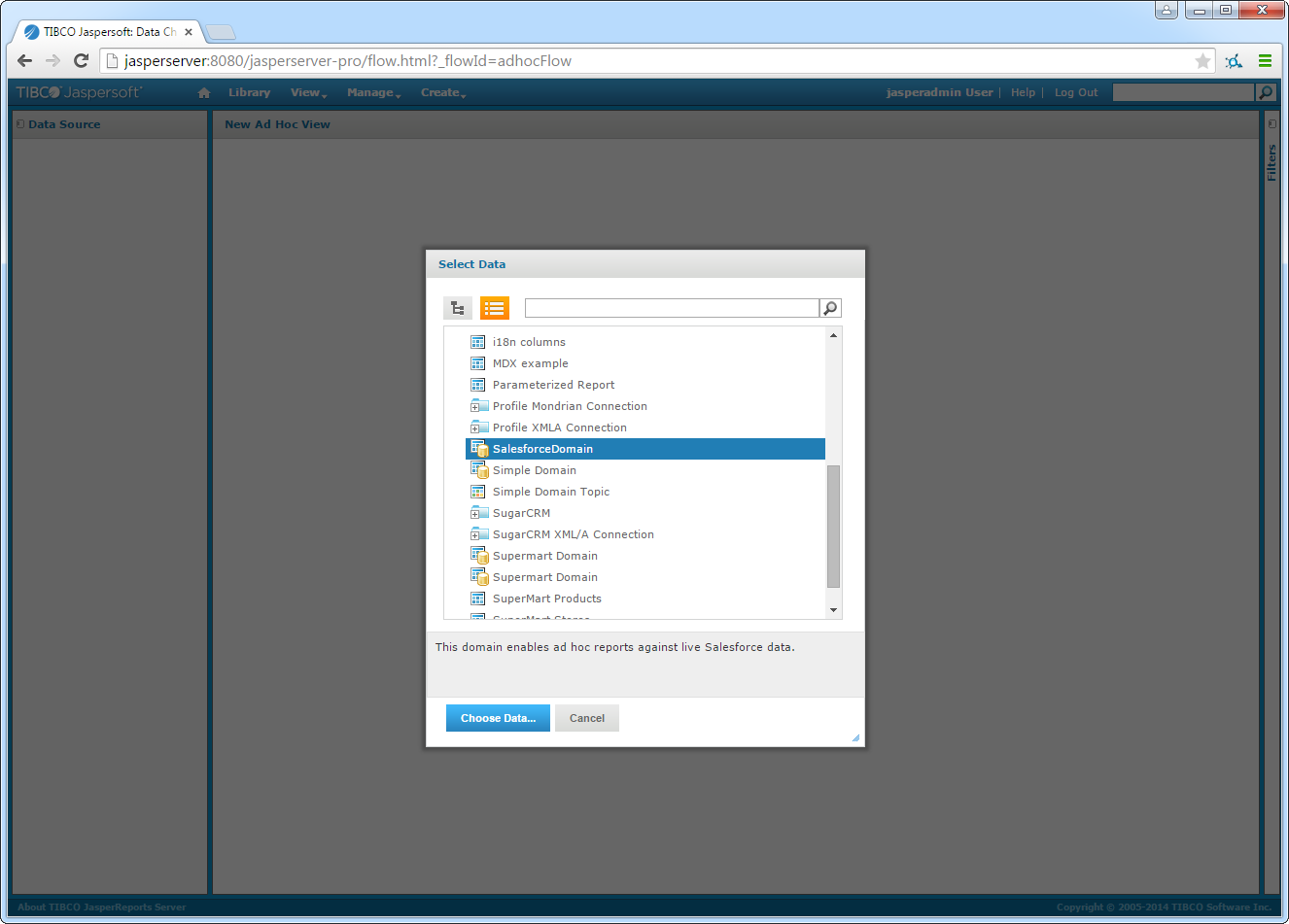
In the resulting dialog, select the RabbitMQ domain you created.
-
On the Choose Data page, select columns that you want to use in the view. In the Pre-Filters section, you can create filters based on the selected fields. In the Display section, you can modify column information as presented by the domain.
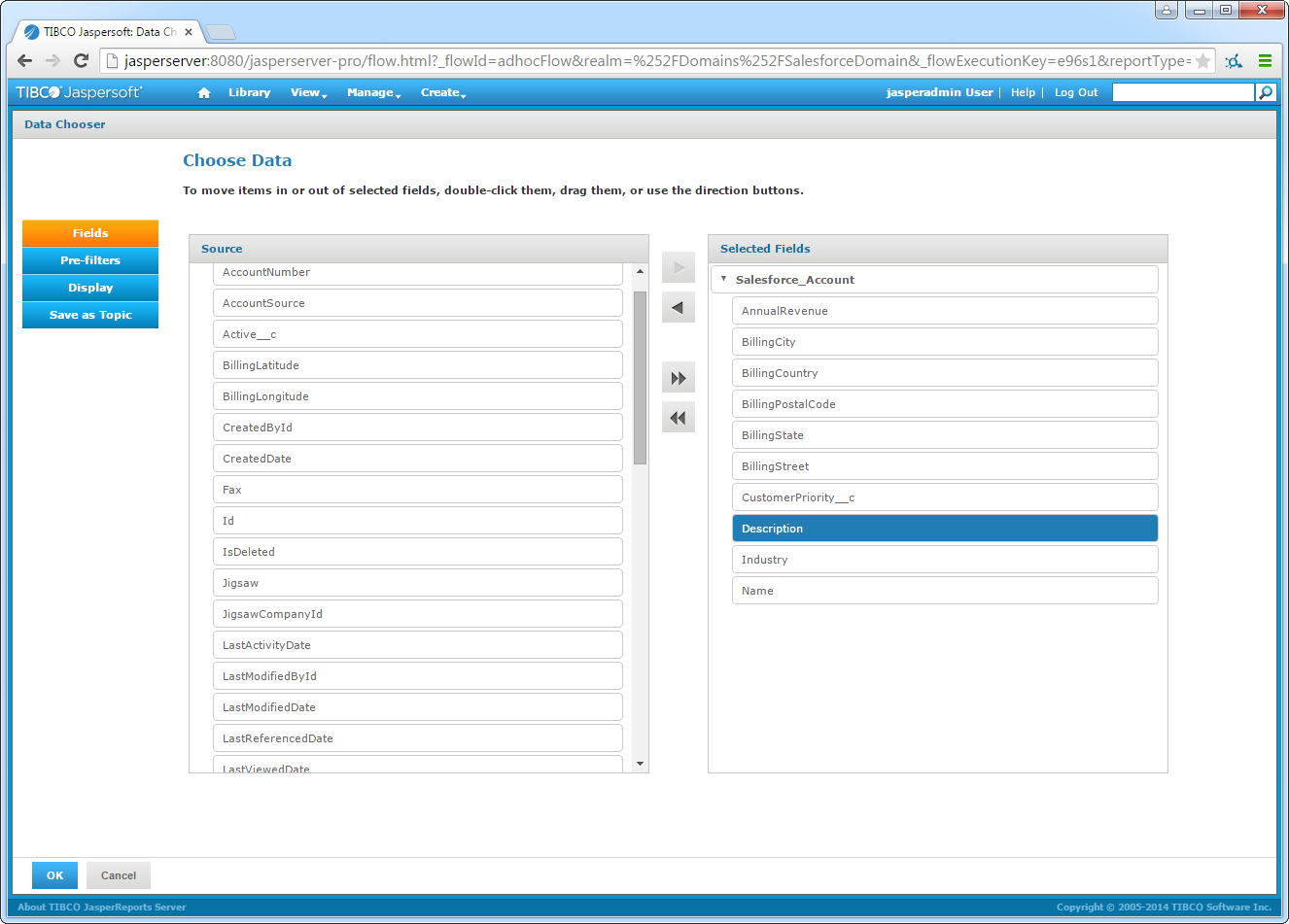
- After completing the wizard, select the view type and add columns to the view. JasperSoft uses the metadata of the driver to detect the available dimensions and measures, based on the data type. Drag dimensions and measures onto the Columns and Rows boxes. Right-click a measure to change the summary calculation. Drag the Columns slider to the the desired data level in the Filters section.
- To access updates to the data as you design the view, change the menu selection from Sample Data to Full Data in the design mode toolbar. As you make changes, JasperSoft Server executes the underlying SQL queries to the driver.
- Save the view.
Create a Real-Time Report
You can now create reports hosted on JasperSoft Server. To do so from the Ad Hoc Editor, click Save Ad Hoc View and click Create Report.