






Extend Google Sheets with RabbitMQ Data

Interact with RabbitMQ data from Google Sheets through macros, custom functions, and add-ons. The CData API Server enables connectivity to RabbitMQ data from cloud-based and mobile applications like Google Sheets. The API Server is a lightweight Web application that produces OData services for RabbitMQ.
Google Apps Script can consume these OData services in the JSON format. This article shows how to create a simple add-on that populates a Google Spreadsheet with AuthAttempts data.
Set Up the API Server
If you have not already done so, download the CData API Server. Once you have installed the API Server, follow the steps below to begin producing secure RabbitMQ OData services:
Connect to RabbitMQ
To work with RabbitMQ data from Google Sheets, we start by creating and configuring a RabbitMQ connection. Follow the steps below to configure the API Server to connect to RabbitMQ data:
- First, navigate to the Connections page.
-
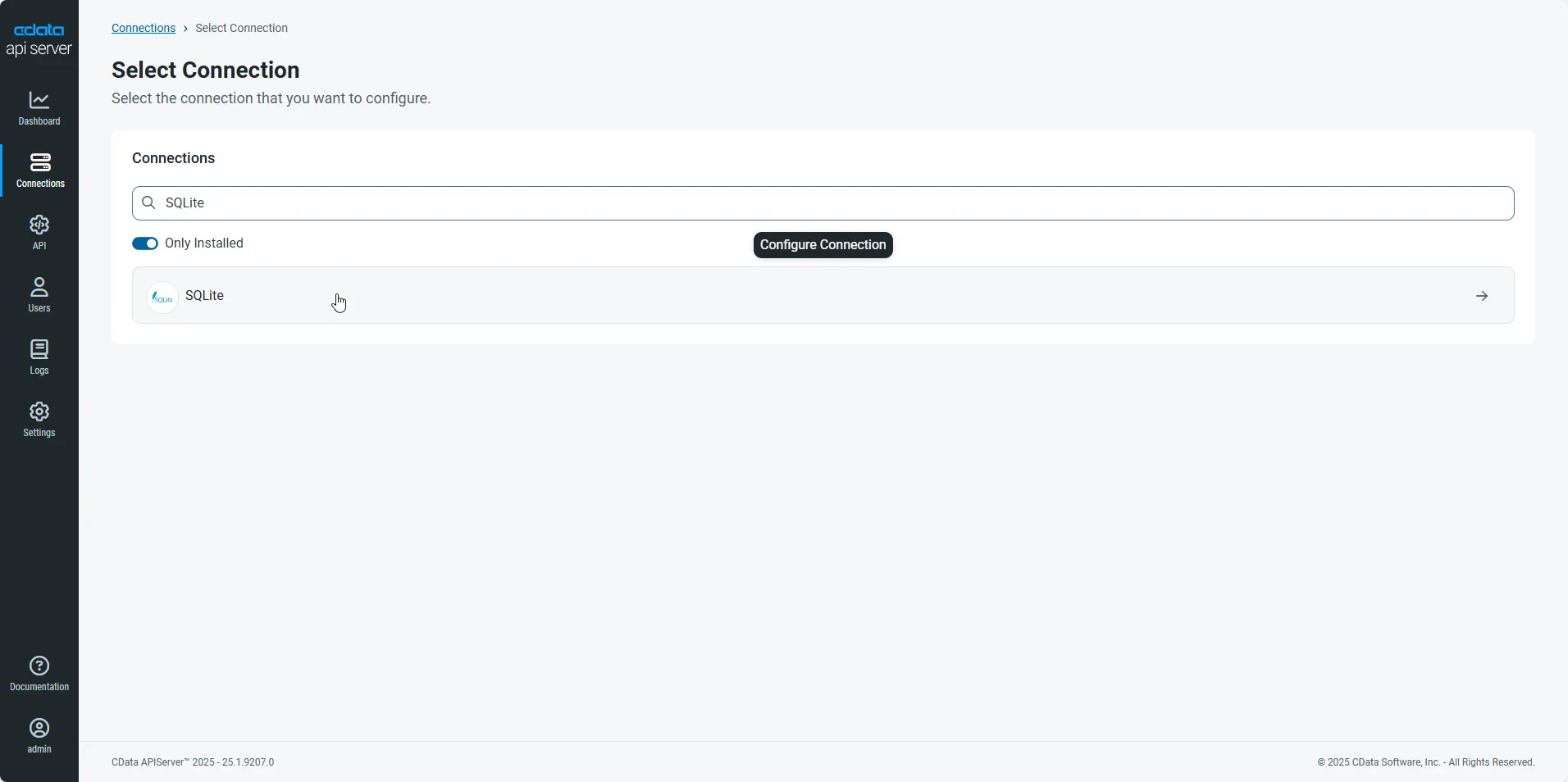
Click Add Connection and then search for and select the RabbitMQ connection.
-
Enter the necessary authentication properties to connect to RabbitMQ.
About RabbitMQ Management HTTP API
RabbitMQ is an open-source message broker that supports multiple messaging protocols. The RabbitMQ Management HTTP API provides HTTP-based access to management and monitoring data for a RabbitMQ server. The API exposes information about virtual hosts, exchanges, queues, bindings, connections, channels, consumers, users, permissions, policies, and cluster-wide statistics.
The Management plugin must be enabled on the RabbitMQ server for the HTTP API to be available. By default, the management interface listens on port 15672.
Using Basic Authentication
RabbitMQ Management HTTP API uses HTTP Basic authentication. You must supply the username and password of a RabbitMQ management user.
To enable access to the management API:
- Ensure the RabbitMQ Management plugin is enabled on your server (rabbitmq-plugins enable rabbitmq_management).
- Use an existing management user or create one with the appropriate management tag (management, policymaker, monitoring, or administrator).
- Note the full base URL of your RabbitMQ Management HTTP API (e.g., http://localhost:15672).
After configuring your RabbitMQ server, set the following connection properties to connect:
- AuthScheme: Set this to Basic.
- URL: Set this to the base URL of your RabbitMQ Management HTTP API (e.g., http://localhost:15672).
- User: Set this to your RabbitMQ management username (e.g., guest).
- Password: Set this to your RabbitMQ management password.
Example connection string:
Profile=C:\profiles\RabbitMQ.apip;AuthScheme=Basic;URL=http://localhost:15672;User=guest;Password=guest;
Available Tables
The RabbitMQ profile provides access to the following tables:
- Overview - Cluster-wide statistics and information about the RabbitMQ node
- Nodes - Information about individual nodes in the RabbitMQ cluster
- NodeMemory - Detailed memory usage breakdown for a specific cluster node
- Connections - List of all open AMQP connections to the broker
- Channels - List of all open AMQP channels across all connections
- Consumers - List of all consumers registered across all queues
- Exchanges - List of exchanges declared across all virtual hosts
- Queues - List of queues declared across all virtual hosts
- Bindings - List of all bindings between exchanges and queues
- VirtualHosts - List of virtual hosts configured on the broker
- VhostPermissions - User permissions within a specific virtual host
- Users - List of all RabbitMQ users
- Permissions - Permission records for all users across all virtual hosts
- TopicPermissions - Topic-level permission records for all users
- Policies - List of policies applied to queues and exchanges in virtual hosts
- OperatorPolicies - List of operator policies applied to queues in virtual hosts
- Parameters - List of component parameters (e.g., federation, shovel) per virtual host
- GlobalParameters - List of global parameters that apply across all virtual hosts
- VhostLimits - Resource limits configured for specific virtual hosts
- UserLimits - Resource limits configured for specific users
- FeatureFlags - List of feature flags and their enabled/disabled state on the node
- DeprecatedFeatures - List of deprecated features and their usage state
- AuthAttempts - Authentication attempt statistics for the node
- ClusterName - The name of the RabbitMQ cluster
- WhoAmI - Information about the currently authenticated management user
- ExchangeBindingsSource - Bindings for which a specific exchange is the source
- ExchangeBindingsDestination - Bindings for which a specific exchange is the destination
- QueueBindings - Bindings for a specific queue within a virtual host
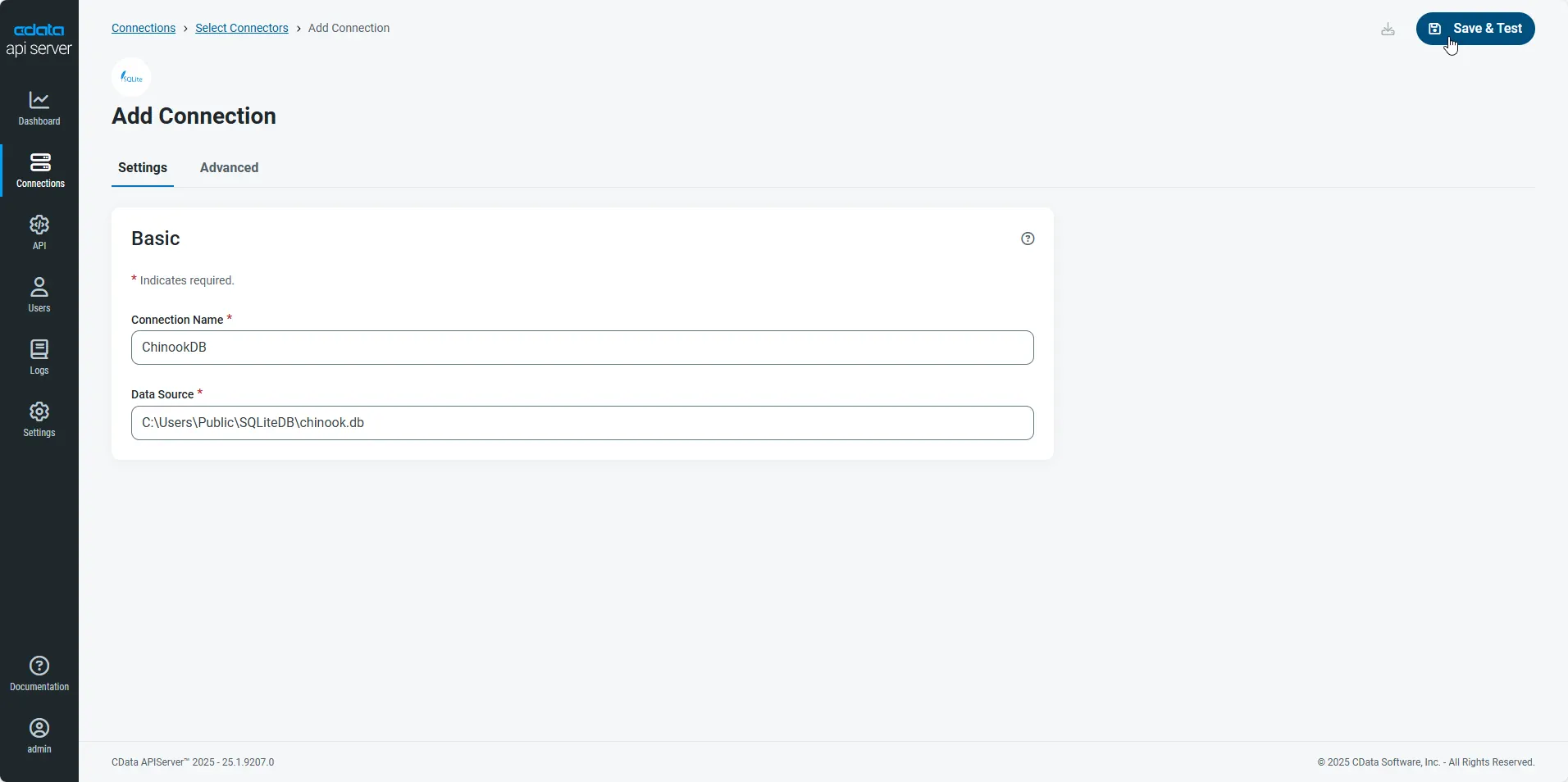
- After configuring the connection, click Save & Test to confirm a successful connection.
Configure API Server Users
Next, create a user to access your RabbitMQ data through the API Server. You can add and configure users on the Users page. Follow the steps below to configure and create a user:
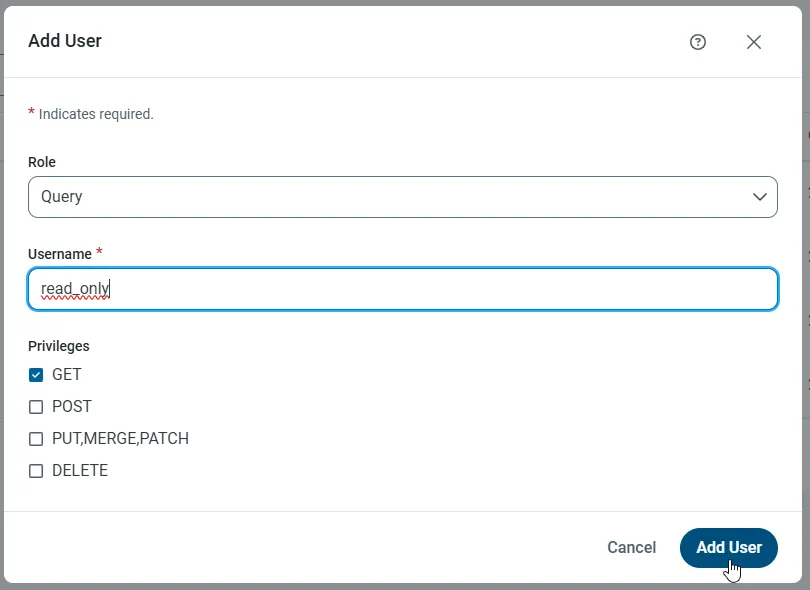
- On the Users page, click Add User to open the Add User dialog.
-
Next, set the Role, Username, and Privileges properties and then click Add User.
-
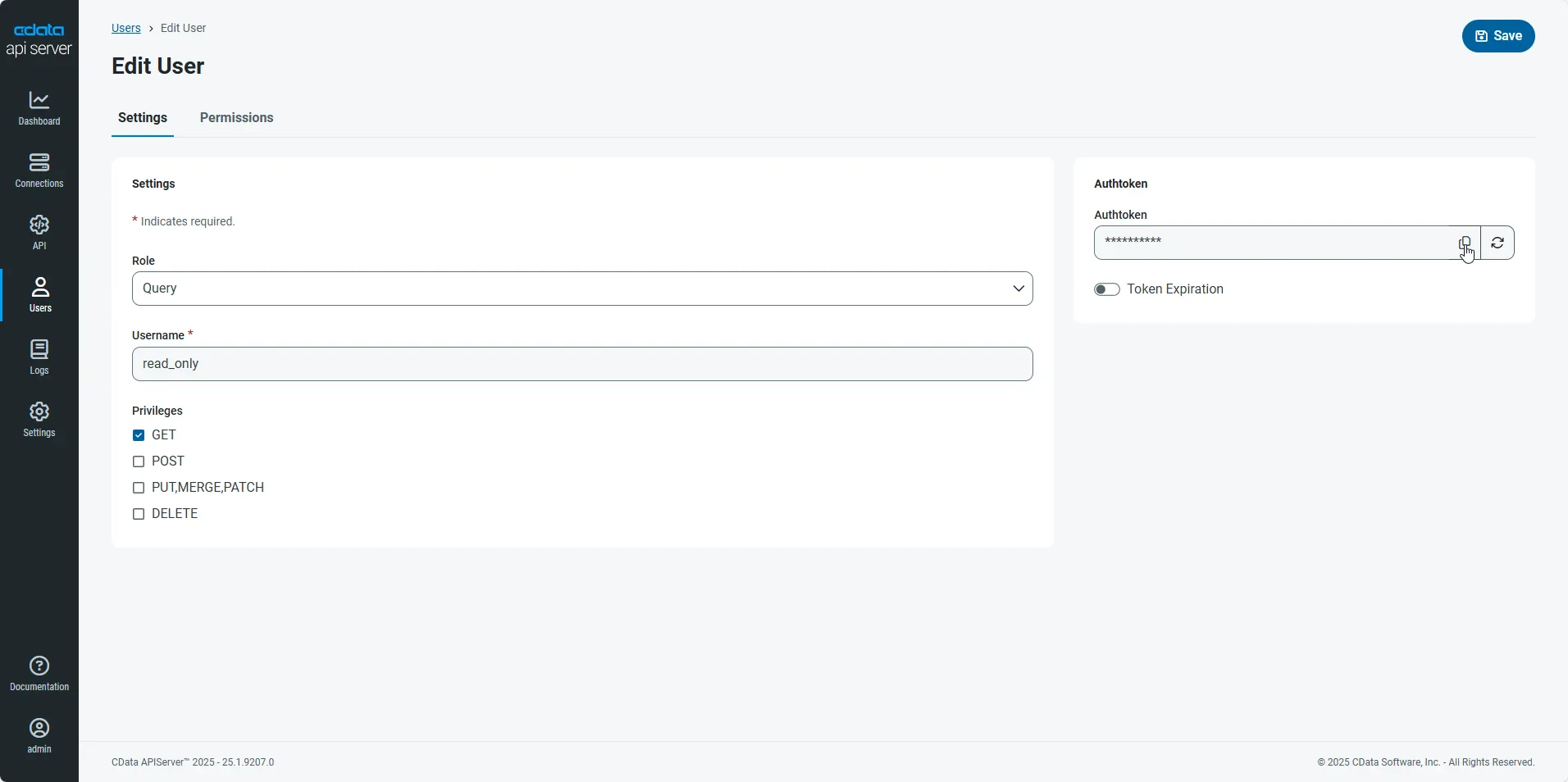
An Authtoken is then generated for the user. You can find the Authtoken and other information for each user on the Users page:
Creating API Endpoints for RabbitMQ
Having created a user, you are ready to create API endpoints for the RabbitMQ tables:
-
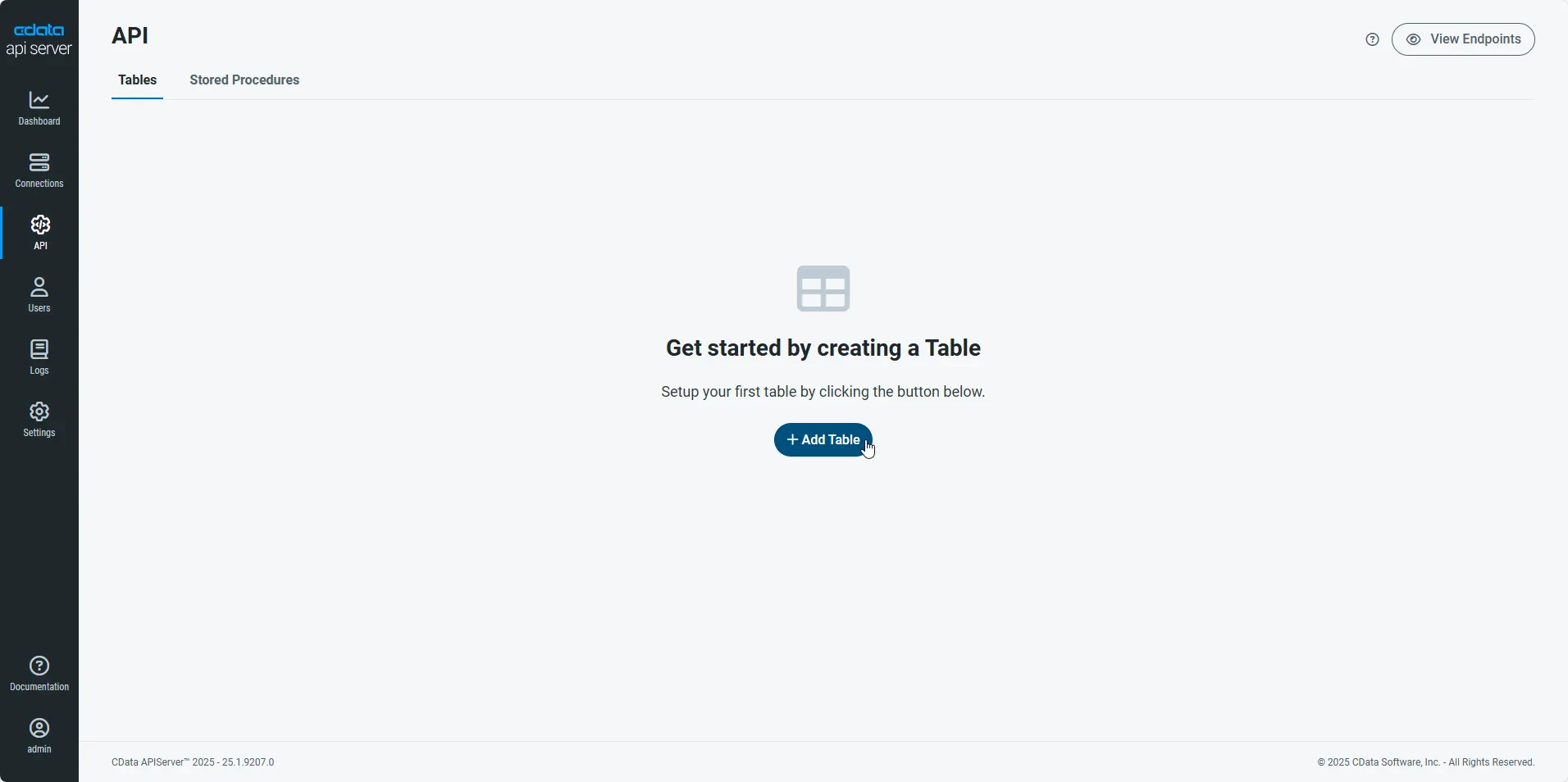
First, navigate to the API page and then click
Add Table
.
-
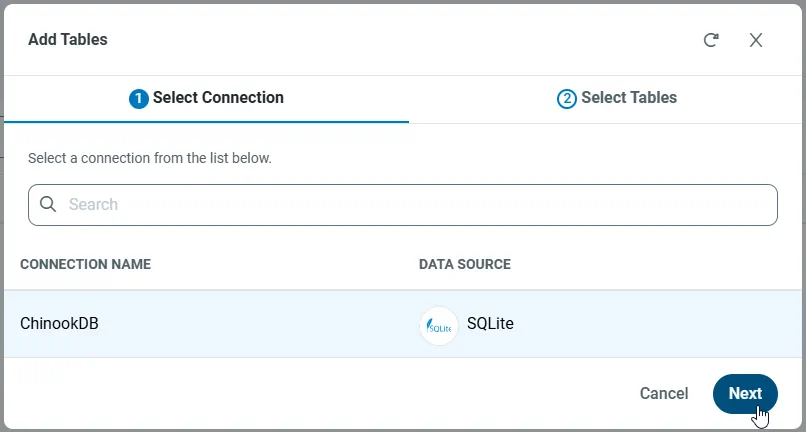
Select the connection you wish to access and click Next.
-
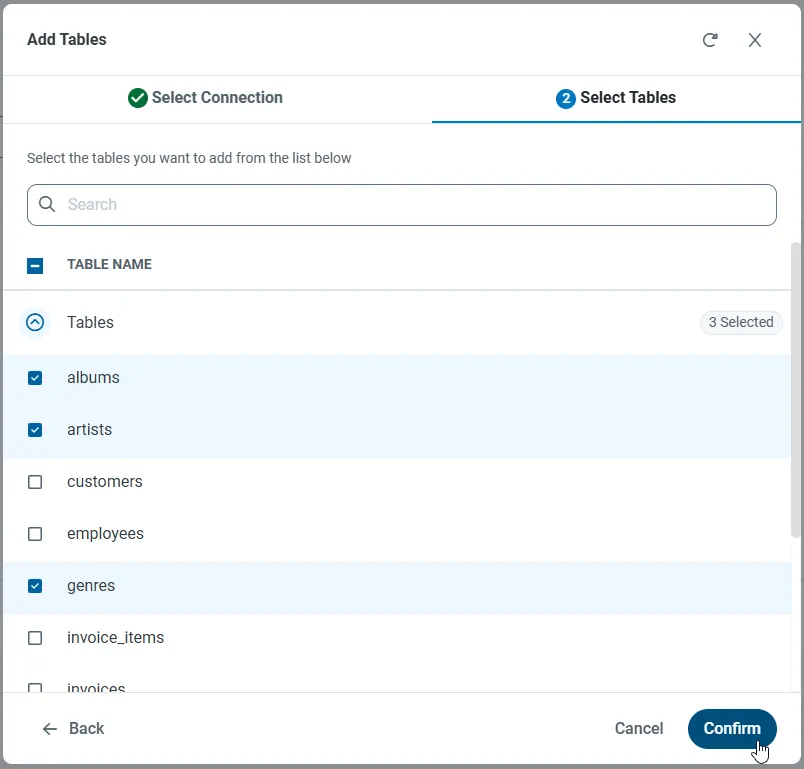
With the connection selected, create endpoints by selecting each table and then clicking Confirm.
Gather the OData Url
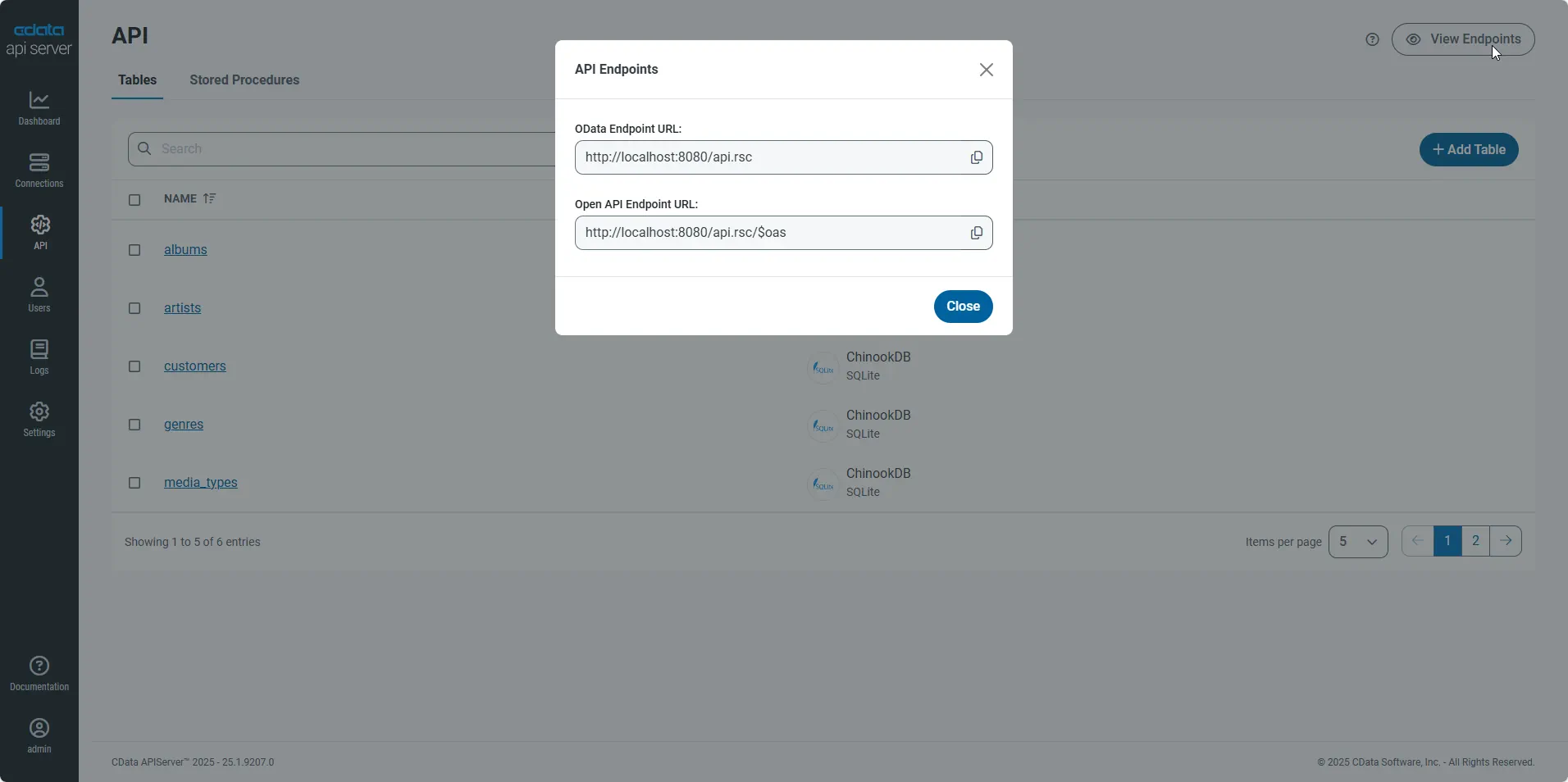
Having configured a connection to RabbitMQ data, created a user, and added resources to the API Server, you now have an easily accessible REST API based on the OData protocol for those resources. From the API page in API Server, you can view and copy the API Endpoints for the API:
Retrieve RabbitMQ Data
Open the Script Editor from your spreadsheet by clicking Tools -> Script Editor. In the Script Editor, add the following function to populate a spreadsheet with the results of an OData query:
function retrieve(){
  var url = "https://MyUrl/api.rsc/AuthAttempts?select=Id,,,NodeName";
  var response = UrlFetchApp.fetch(url,{
    headers: {"Authorization": "Basic " + Utilities.base64Encode("MyUser:MyAuthtoken")}
  });
  var json = response.getContentText();
  var sheet = SpreadsheetApp.getActiveSheet();
  var a1 = sheet.getRange('a1');
  var index=1;
  var authattempts = JSON.parse(json).value;

  var cols = [["Id","","","NodeName"]];
  sheet.getRange(1,1,1,4).setValues(cols);

  row=2;
  for(var i in authattempts){
    for (var j in authattempts[i]) {
      switch (j) {
        case "Id":
          a1.offset(row,0).setValue(account[i][j]);
          break;
        case "":
          a1.offset(row,1).setValue(account[i][j]);
          break;
        case "":
          a1.offset(row,2).setValue(account[i][j]);
          break;
        case "NodeName":
          a1.offset(row,3).setValue(account[i][j]);
          break;
      }
    }
    row++;
  }
}
Follow the steps below to add an installable trigger to populate the spreadsheet when opened:
- Click Resources -> Current Project's Triggers -> Add a New Trigger.
- Select retrieve in the Run menu.
- Select From Spreadsheet.
- Select On open.
After closing the dialog, you are prompted to allow access to the application.
You can test the script by clicking Publish -> Test as Add-On. Select the version, installation type, and spreadsheet to create a test configuration. You can then select and run the test configuration.