






Bind Live RabbitMQ Data in Wijmo FlexGrid with CData API Server

Wijmo FlexGrid is a lightweight, high-performance JavaScript datagrid for creating responsive, interactive data applications.
With the CData API Server and the RabbitMQ Connector (or any of the hundreds of available connectors), you can quickly create APIs that expose live data from multiple sources, using industry standards like OData and Swagger for seamless integration with client-side and server-side controls in Wijmo's FlexGrid.
In this article, we'll use the Wijmo FlexGrid JavaScript components to build a simple HTML page that lets you select tables and columns from RabbitMQ and display the data.
Let's get started!
Prerequisites
- CData API Server: Download a free trial here.
- Wijmo FlexGrid: No downloads are required for this example, but you can sign up for a free trial here.
- An active RabbitMQ account with access to your data.
Overview
Here's a quick overview of the steps we'll follow:
- Install the CData API Server, configure a connection to RabbitMQ, and expose OData endpoints.
- Bind Wijmo Grid to the live OData feed for real-time data access and interaction.
Step 1: Install the CData API Server and Add a Connection to RabbitMQ
1.1 Install the API Server
If you haven't already, download an installer for your machine from the CData API Server page. Follow the installation instructions to complete the setup.
Once installed, you can start the server in the following ways:
- Windows: CData API Server runs as a service by default. Make sure the service is running, then open http://hostname:port (e.g., http://localhost:8080/) in your browser to access the API Server admin console.
- Linux/Mac: You can run the server manually or as a service. To start it manually, navigate to the installation directory and run java -jar apiserver.jar.
- Alternatively, run service.sh with root privileges to set up API Server as a Linux system service.
1.2 Enable CORS
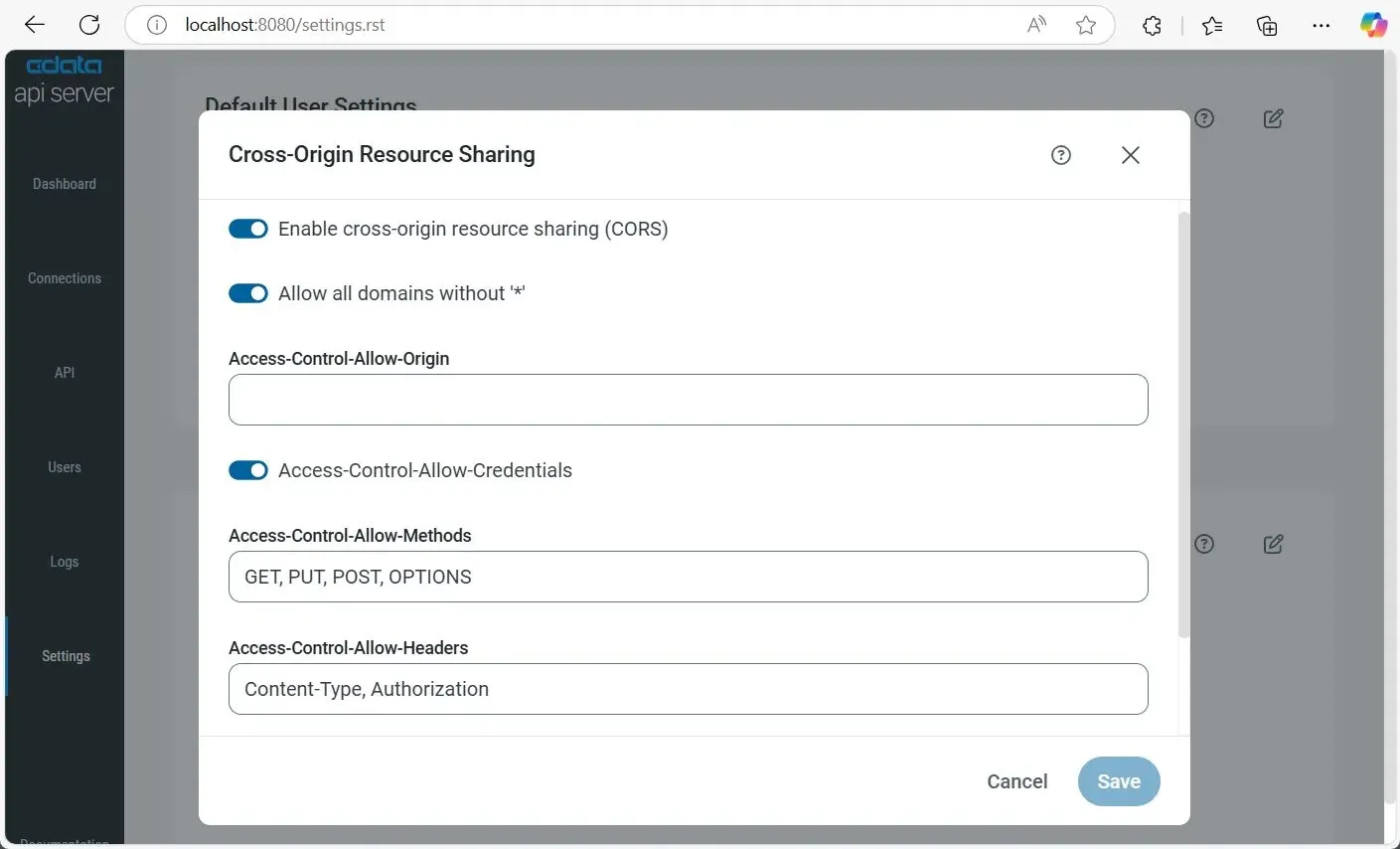
When your Wijmo Grid application and the CData API Server are hosted on different domains, CORS (Cross-Origin Resource Sharing) must be enabled. To enable CORS in the API Server:
- Go to Settings and click the icon to edit CORS settings.
- Enable Cross-Origin Resource Sharing (CORS).
- Enable Allow all domains without '*' to accept any origin.
- In Access-Control-Allow-Origin, enter your RabbitMQ origin domain, or use * to allow all domains (suitable for public APIs).
- Enable Access-Control-Allow-Credentials to allow cookies and auth headers.
- In Access-Control-Allow-Methods, enter GET, PUT, POST, OPTIONS.
- In Access-Control-Allow-Headers, enter Authorization, Content-Type.
- Set Access-Control-Max-Age (default: 3600 seconds).
- Click Save.
1.3 Add a RabbitMQ Connection in the API Server
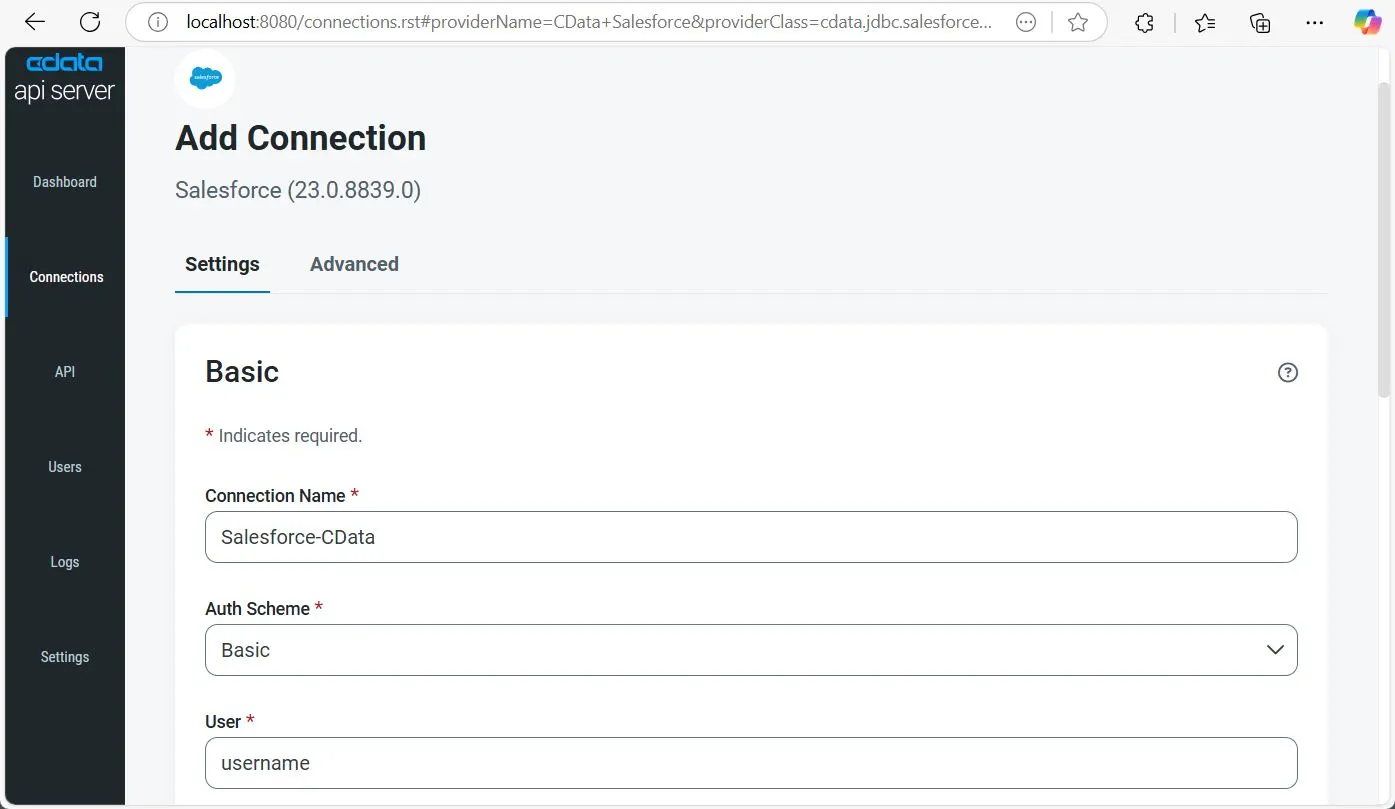
- Go to Settings and click Add Connection in the top-right.
- Select RabbitMQ. If it's not visible, toggle off Only Installed to view all connectors.
- Click Install Connector to auto-install. For a manual setup, choose Manual Install and upload the obtained ZIP file.
- Once installed, click RabbitMQ to configure connection settings.
- Ensure the RabbitMQ Management plugin is enabled on your server (rabbitmq-plugins enable rabbitmq_management).
- Use an existing management user or create one with the appropriate management tag (management, policymaker, monitoring, or administrator).
- Note the full base URL of your RabbitMQ Management HTTP API (e.g., http://localhost:15672).
- AuthScheme: Set this to Basic.
- URL: Set this to the base URL of your RabbitMQ Management HTTP API (e.g., http://localhost:15672).
- User: Set this to your RabbitMQ management username (e.g., guest).
- Password: Set this to your RabbitMQ management password.
- Overview - Cluster-wide statistics and information about the RabbitMQ node
- Nodes - Information about individual nodes in the RabbitMQ cluster
- NodeMemory - Detailed memory usage breakdown for a specific cluster node
- Connections - List of all open AMQP connections to the broker
- Channels - List of all open AMQP channels across all connections
- Consumers - List of all consumers registered across all queues
- Exchanges - List of exchanges declared across all virtual hosts
- Queues - List of queues declared across all virtual hosts
- Bindings - List of all bindings between exchanges and queues
- VirtualHosts - List of virtual hosts configured on the broker
- VhostPermissions - User permissions within a specific virtual host
- Users - List of all RabbitMQ users
- Permissions - Permission records for all users across all virtual hosts
- TopicPermissions - Topic-level permission records for all users
- Policies - List of policies applied to queues and exchanges in virtual hosts
- OperatorPolicies - List of operator policies applied to queues in virtual hosts
- Parameters - List of component parameters (e.g., federation, shovel) per virtual host
- GlobalParameters - List of global parameters that apply across all virtual hosts
- VhostLimits - Resource limits configured for specific virtual hosts
- UserLimits - Resource limits configured for specific users
- FeatureFlags - List of feature flags and their enabled/disabled state on the node
- DeprecatedFeatures - List of deprecated features and their usage state
- AuthAttempts - Authentication attempt statistics for the node
- ClusterName - The name of the RabbitMQ cluster
- WhoAmI - Information about the currently authenticated management user
- ExchangeBindingsSource - Bindings for which a specific exchange is the source
- ExchangeBindingsDestination - Bindings for which a specific exchange is the destination
- QueueBindings - Bindings for a specific queue within a virtual host
- Click Save & Test to validate and complete the connection setup.
About RabbitMQ Management HTTP API
RabbitMQ is an open-source message broker that supports multiple messaging protocols. The RabbitMQ Management HTTP API provides HTTP-based access to management and monitoring data for a RabbitMQ server. The API exposes information about virtual hosts, exchanges, queues, bindings, connections, channels, consumers, users, permissions, policies, and cluster-wide statistics.
The Management plugin must be enabled on the RabbitMQ server for the HTTP API to be available. By default, the management interface listens on port 15672.
Using Basic Authentication
RabbitMQ Management HTTP API uses HTTP Basic authentication. You must supply the username and password of a RabbitMQ management user.
To enable access to the management API:
After configuring your RabbitMQ server, set the following connection properties to connect:
Example connection string:
Profile=C:\profiles\RabbitMQ.apip;AuthScheme=Basic;URL=http://localhost:15672;User=guest;Password=guest;
Available Tables
The RabbitMQ profile provides access to the following tables:
1.4 Add and Configure Users
To allow secure access to the created OData endpoints, create and configure Users in the API Server.
- Go to Users from the navigation pane, then click Add User.
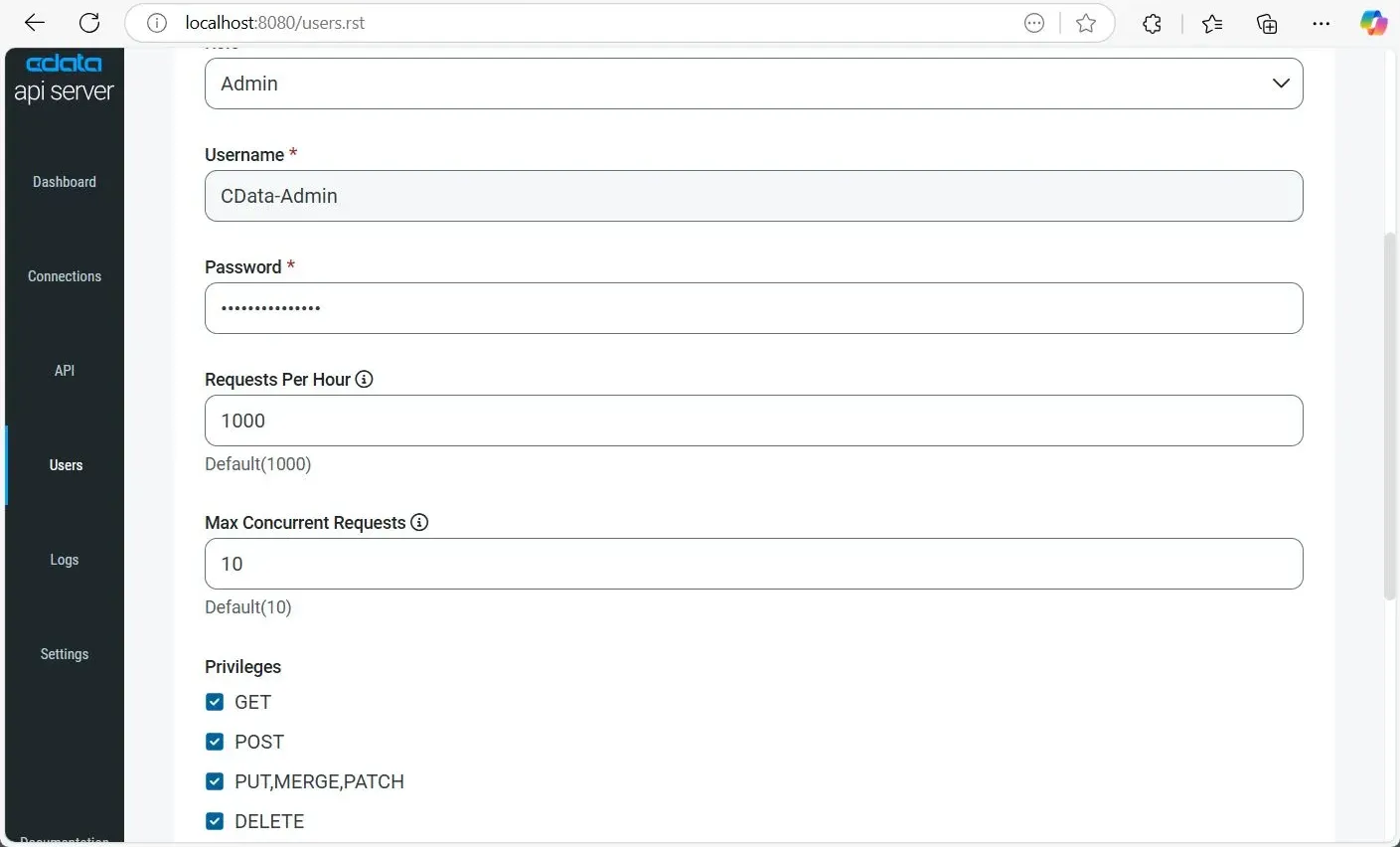
- Set a Username and Password.
- Select a Role: Select Admin for full access and Query for limited access.
- Define user Privileges (GET, POST, PUT, DELETE, etc.).
- Click Add User to save.
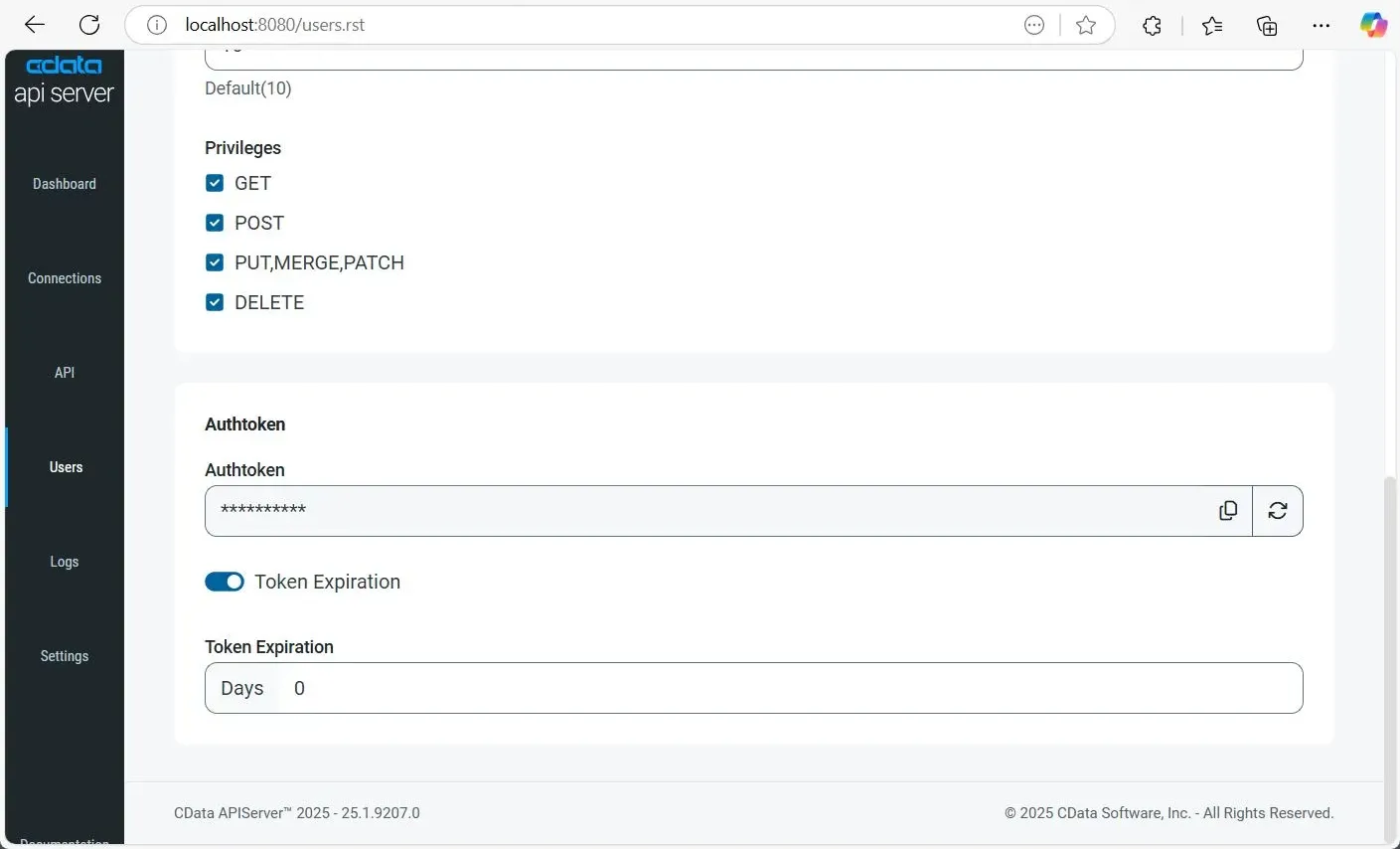
Once a user is added, an Authtoken is automatically generated. This token can be used in API requests as a secure authentication method instead of a password.
You can also refresh the Authtoken, disable it, or set expiration rules (e.g., number of days until expiry) by enabling the Token Expiration option in the user settings.
1.5 Add Tables for the Endpoint
To make data from RabbitMQ accessible in Wijmo Grid via OData, you need to expose your desired tables through the API Server. Here's how:
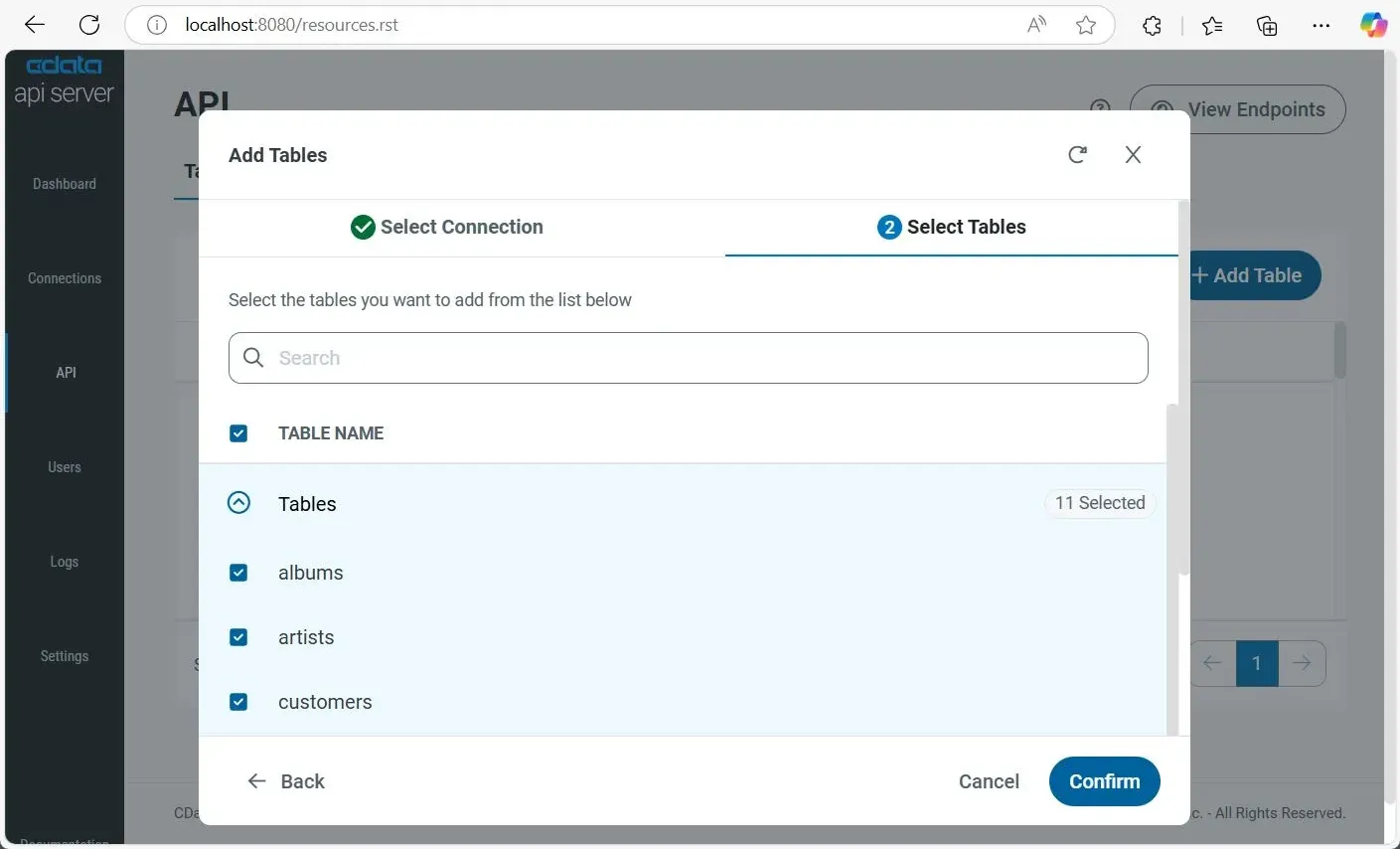
- In the API Server, go to API and click Add Table.
- Select the RabbitMQ connection and click Next.
- Choose the tables you want to expose and click Confirm.
1.6 Access the Endpoints in Wijmo FlexGrid
Now that your API is configured, Wijmo FlexGrid can connect to the OData endpoints to display live data. Below are the URL formats for OData endpoints that you can use:
| Endpoint | URL | |
|---|---|---|
| Entity List | http://address:port/api.rsc/ | |
| Table Metadata (e.g., albums) | http://address:port/api.rsc/albums/$metadata?@json | |
| Table Data (e.g., albums) | http://address:port/api.rsc/albums |
These OData endpoints are now ready to be directly consumed in Wijmo FlexGrid using the URL. Since Wijmo FlexGrid supports OData, you can easily bind live data from RabbitMQ and create dynamic, interactive grids.
The CData API Server supports full OData filtering capabilities. For custom queries and filtered visualizations, you can append standard OData query parameters like $select, $filter, $orderby, $top, and $skip to your requests.
Step 2: Build the Simple Wijmo Grid
You've got the CData API Server up and running now with consumable OData endpoints from your RabbitMQ data. Now let's build a simple Wijmo FlexGrid that lets you select tables and columns and view your data.
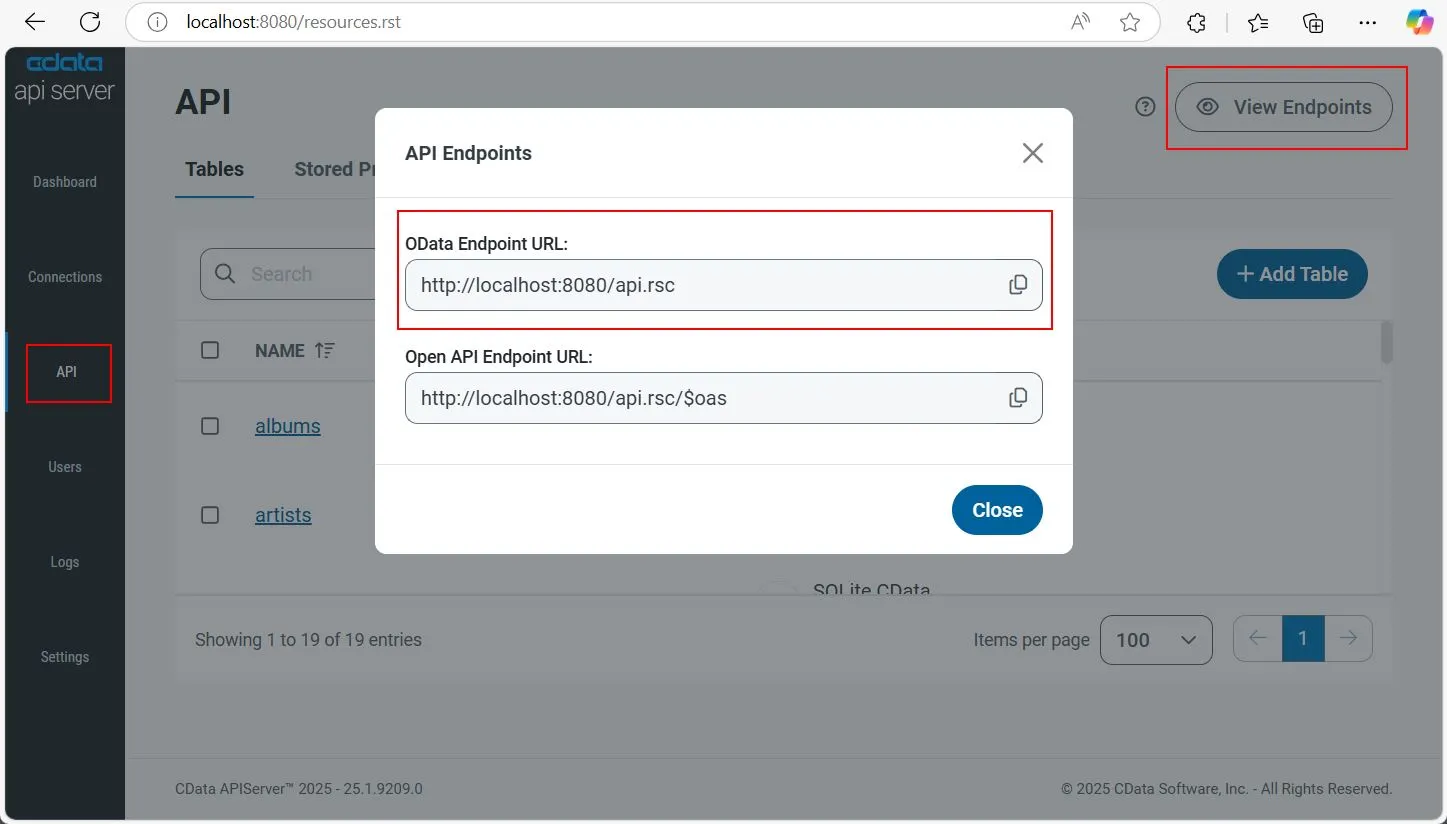
- Get the CData API Endpoint URL by logging into your CData API Server. Go to API from the left navigation, then click View Endpoints at the top-right.
- Copy the URL (e.g., http://localhost:8080/api.rsc).
- Create a new HTML file and give it a name (e.g., Wijmo-Grid.html).
- Paste the following code into your HTML file.
- Update the following placeholder values at the start of the script section:
- yourUsername: Replace with your CData API Server username.
- yourPassword: Replace with your CData API Server password.
- Your_CData_API_Server_URL: Replace with the full API endpoint URL you copied earlier.
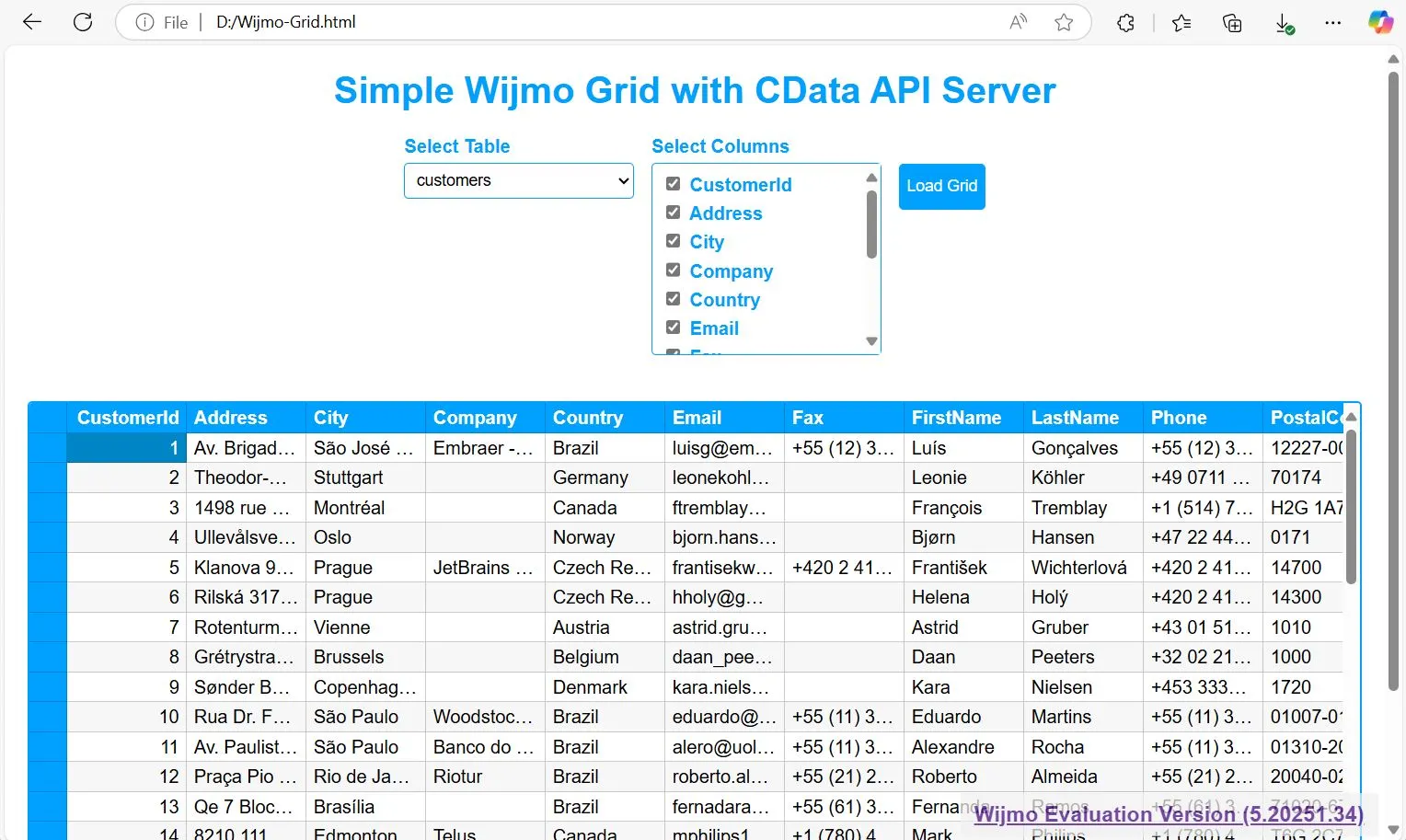
- Open the HTML file in your browser.
- Your browser should display the Wijmo FlexGrid. You can select a table and columns to display your data.
<!DOCTYPE html>
<html lang="en">
<head>

  <meta charset="UTF-8">
  <title>Wijmo Grid with CData API Server</title>

  <!-- Wijmo styles -->
  <link href="https://cdn.mescius.com/wijmo/5.latest/styles/wijmo.min.css" rel="stylesheet" />

  <!-- Wijmo core and controls -->
  <script src="https://cdn.mescius.com/wijmo/5.latest/controls/wijmo.min.js"></script>
  <script src="https://cdn.mescius.com/wijmo/5.latest/controls/wijmo.grid.min.js"></script>
  <script src="https://cdn.mescius.com/wijmo/5.latest/controls/wijmo.input.min.js"></script>
  <script src="https://cdn.mescius.com/wijmo/5.latest/controls/wijmo.odata.min.js"></script>

<style>
    body {
      font-family: Arial, sans-serif;
      margin: 20px;
    }
    h1 {
      color: #00A0FF;
      text-align: center;
    }
    #selectors {
      display: flex;
      flex-wrap: wrap;
      gap: 15px;
      justify-content: center;
      align-items: flex-start;
      margin-bottom: 20px;
    }
    .select-group {
      display: flex;
      flex-direction: column;
      min-width: 200px;
    }
    label {
      font-weight: bold;
      margin-bottom: 5px;
      color: #00A0FF;
    }
    select, button {
      padding: 6px;
      font-size: 14px;
      border: 1px solid #00A0FF;
      border-radius: 4px;
    }
    button {
      background: #00A0FF;
      color: white;
      cursor: pointer;
      height: 40px;
      margin-top: 24px;
    }
    #columnsContainer {
      display: flex;
      flex-direction: column;
      gap: 5px;
      max-height: 150px;
      overflow-y: auto;
      border: 1px solid #00A0FF;
      padding: 8px;
      border-radius: 4px;
    }
    #theGrid {
      margin-top: 20px;
      border: 2px solid #00A0FF;
      height: 500px;
    }
    .wj-header {
      background: #00A0FF !important;
      color: white !important;
      font-weight: bold;
    }
  </style>

</head>
<body>

<h1>Simple Wijmo Grid with CData API Server</h1>

  <div id="selectors">
    <div class="select-group">
      <label for="tableSelect">Select Table</label>
      <select id="tableSelect"></select>
    </div>

    <div class="select-group">
      <label>Select Columns</label>
      <div id="columnsContainer"></div>
    </div>

    <div>
      <button onclick="loadGrid()">Load Grid</button>
    </div>
  </div>

  <div id="theGrid"></div>

<script>
    const username = 'yourUsername';
    const password = 'yourPassword';
    const authHeader = 'Basic ' + btoa(username + ':' + password);
    const serviceUrl = 'Your_CData_API_Server_URL';

    fetch(serviceUrl + '/$metadata', { headers: { Authorization: authHeader } })
      .then(res => res.text())
      .then(text => {
        const parser = new DOMParser();
        const xml = parser.parseFromString(text, 'application/xml');
        const tables = [...xml.getElementsByTagName('EntityType')];
        const select = document.getElementById('tableSelect');
        tables.forEach(t => {
          const name = t.getAttribute('Name');
          const option = document.createElement('option');
          option.value = name;
          option.textContent = name;
          select.appendChild(option);
        });
        loadColumns(); // load columns for the first table
      });

    document.getElementById('tableSelect').addEventListener('change', loadColumns);

    function loadColumns() {
      const table = document.getElementById('tableSelect').value;
      fetch(serviceUrl + '/$metadata', { headers: { Authorization: authHeader } })
        .then(res => res.text())
        .then(text => {
          const parser = new DOMParser();
          const xml = parser.parseFromString(text, 'application/xml');
          const entity = [...xml.getElementsByTagName('EntityType')].find(t => t.getAttribute('Name') === table);
          const columns = [...entity.getElementsByTagName('Property')];
          const container = document.getElementById('columnsContainer');
          container.innerHTML = '';
          columns.forEach(col => {
            const name = col.getAttribute('Name');
            const div = document.createElement('div');
            div.innerHTML = `<label><input type="checkbox" value="${name}" checked> ${name}</label>`;
            container.appendChild(div);
          });
        });
    }

    function loadGrid() {
      const table = document.getElementById('tableSelect').value;
      const selectedCols = [...document.querySelectorAll('#columnsContainer input:checked')].map(i => i.value);

      const odata = new wijmo.odata.ODataCollectionView(serviceUrl, table, {
        requestHeaders: { Authorization: authHeader }
      });

      const grid = new wijmo.grid.FlexGrid('#theGrid', {
        itemsSource: odata,
        autoGenerateColumns: false,
        columns: selectedCols.map(col => ({ binding: col, header: col })),
        selectionMode: 'CellRange',
        allowSorting: true
      });
    }
</script>

</body>
</html>
It's that simple. You can build even more complex applications and grids with Wijmo FlexGrid and the CData API Server by connecting to live data from RabbitMQ.
Check out the various frameworks supported by Wijmo at https://developer.mescius.com/wijmo.
Start Your Free 30-Day Trial of CData API Server
Experience how easy it is to create live, flexible OData APIs for your Wijmo FlexGrid applications with a free 30-day trial of the CData API Server. Quickly connect to live data from RabbitMQ and hundreds of other sources, enabling dynamic, real-time grids without manual data movement.