






Create Datasets from RabbitMQ in Domo Workbench and Build Visualizations of RabbitMQ Data in Domo

Domo helps you manage, analyze, and share data across your entire organization, enabling decision makers to identify and act on strategic opportunities. Domo Workbench provides a secure, client-side solution for uploading your on-premise data to Domo. The CData ODBC Driver for RabbitMQ links Domo Workbench to operational RabbitMQ data. You can build datasets from RabbitMQ data using standard SQL queries in Workbench and then create real-time visualizations of RabbitMQ data in the Domo service.
The CData ODBC Drivers offer unmatched performance for interacting with live RabbitMQ data in Domo due to optimized data processing built into the driver. When you issue complex SQL queries from Domo to RabbitMQ, the driver pushes supported SQL operations, like filters and aggregations, directly to RabbitMQ and utilizes the embedded SQL Engine to process unsupported operations (often SQL functions and JOIN operations) client-side. With built-in dynamic metadata querying, you can visualize and analyze RabbitMQ data using native Domo data types.
Connect to RabbitMQ as an ODBC Data Source
If you have not already, first specify connection properties in an ODBC DSN (data source name). This is the last step of the driver installation. You can use the Microsoft ODBC Data Source Administrator to create and configure ODBC DSNs.
About RabbitMQ Management HTTP API
RabbitMQ is an open-source message broker that supports multiple messaging protocols. The RabbitMQ Management HTTP API provides HTTP-based access to management and monitoring data for a RabbitMQ server. The API exposes information about virtual hosts, exchanges, queues, bindings, connections, channels, consumers, users, permissions, policies, and cluster-wide statistics.
The Management plugin must be enabled on the RabbitMQ server for the HTTP API to be available. By default, the management interface listens on port 15672.
Using Basic Authentication
RabbitMQ Management HTTP API uses HTTP Basic authentication. You must supply the username and password of a RabbitMQ management user.
To enable access to the management API:
- Ensure the RabbitMQ Management plugin is enabled on your server (rabbitmq-plugins enable rabbitmq_management).
- Use an existing management user or create one with the appropriate management tag (management, policymaker, monitoring, or administrator).
- Note the full base URL of your RabbitMQ Management HTTP API (e.g., http://localhost:15672).
After configuring your RabbitMQ server, set the following connection properties to connect:
- AuthScheme: Set this to Basic.
- URL: Set this to the base URL of your RabbitMQ Management HTTP API (e.g., http://localhost:15672).
- User: Set this to your RabbitMQ management username (e.g., guest).
- Password: Set this to your RabbitMQ management password.
Example connection string:
Profile=C:\profiles\RabbitMQ.apip;AuthScheme=Basic;URL=http://localhost:15672;User=guest;Password=guest;
Available Tables
The RabbitMQ profile provides access to the following tables:
- Overview - Cluster-wide statistics and information about the RabbitMQ node
- Nodes - Information about individual nodes in the RabbitMQ cluster
- NodeMemory - Detailed memory usage breakdown for a specific cluster node
- Connections - List of all open AMQP connections to the broker
- Channels - List of all open AMQP channels across all connections
- Consumers - List of all consumers registered across all queues
- Exchanges - List of exchanges declared across all virtual hosts
- Queues - List of queues declared across all virtual hosts
- Bindings - List of all bindings between exchanges and queues
- VirtualHosts - List of virtual hosts configured on the broker
- VhostPermissions - User permissions within a specific virtual host
- Users - List of all RabbitMQ users
- Permissions - Permission records for all users across all virtual hosts
- TopicPermissions - Topic-level permission records for all users
- Policies - List of policies applied to queues and exchanges in virtual hosts
- OperatorPolicies - List of operator policies applied to queues in virtual hosts
- Parameters - List of component parameters (e.g., federation, shovel) per virtual host
- GlobalParameters - List of global parameters that apply across all virtual hosts
- VhostLimits - Resource limits configured for specific virtual hosts
- UserLimits - Resource limits configured for specific users
- FeatureFlags - List of feature flags and their enabled/disabled state on the node
- DeprecatedFeatures - List of deprecated features and their usage state
- AuthAttempts - Authentication attempt statistics for the node
- ClusterName - The name of the RabbitMQ cluster
- WhoAmI - Information about the currently authenticated management user
- ExchangeBindingsSource - Bindings for which a specific exchange is the source
- ExchangeBindingsDestination - Bindings for which a specific exchange is the destination
- QueueBindings - Bindings for a specific queue within a virtual host
When you configure the DSN, you may also want to set the Max Rows connection property. This will limit the number of rows returned, which is especially helpful for improving performance when designing reports and visualizations.
After creating a DSN, you will need to create a dataset for RabbitMQ in Domo Workbench using the RabbitMQ DSN and build a visualization in the Domo service based on the dataset.
Build a Dataset for RabbitMQ Data
You can follow the steps below to build a dataset based on a table in RabbitMQ in Domo Workbench using the CData ODBC Driver for RabbitMQ.
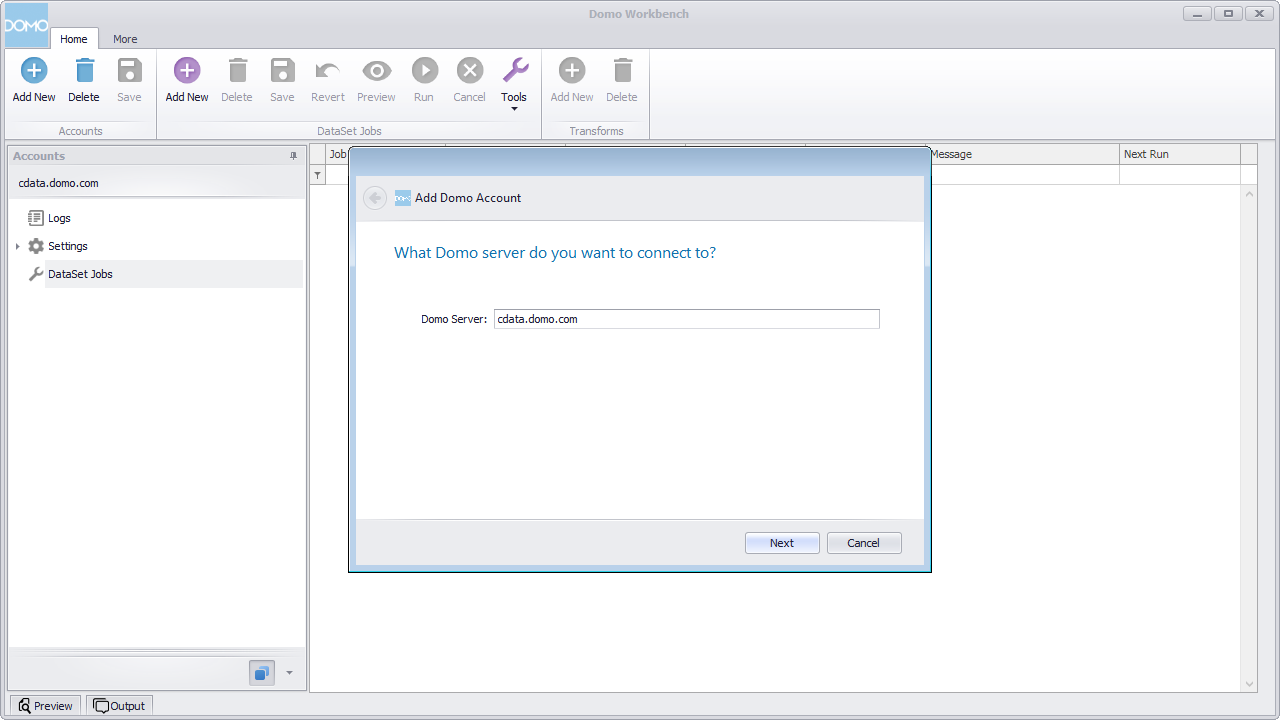
- Open Domo Workbench and, if you have not already, add your Domo service server to Workbench. In the Accounts submenu, click Add New, type in the server address (i.e., domain.domo.com) and click through the wizard to authenticate.
- In the DataSet Jobs submenu, click Add New.
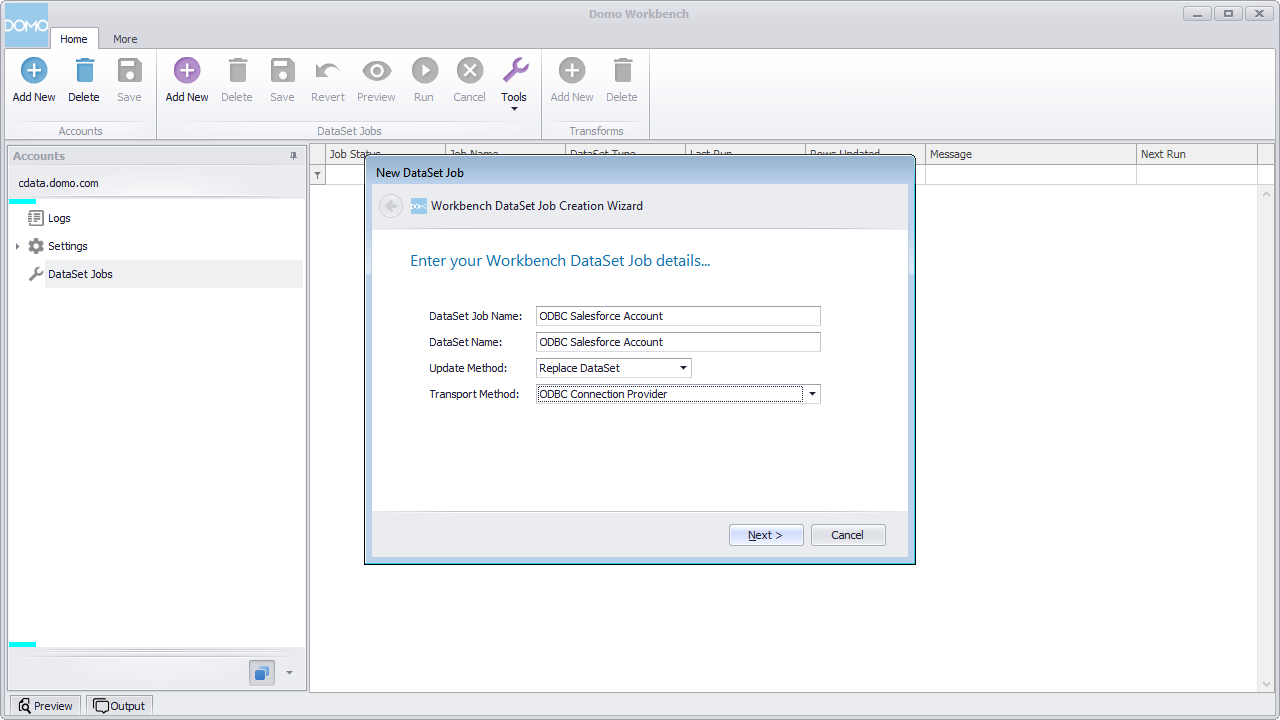
- Name the dataset job (i.e., ODBC RabbitMQ AuthAttempts), select ODBC Connection Provider as the transport method, and click through the wizard.
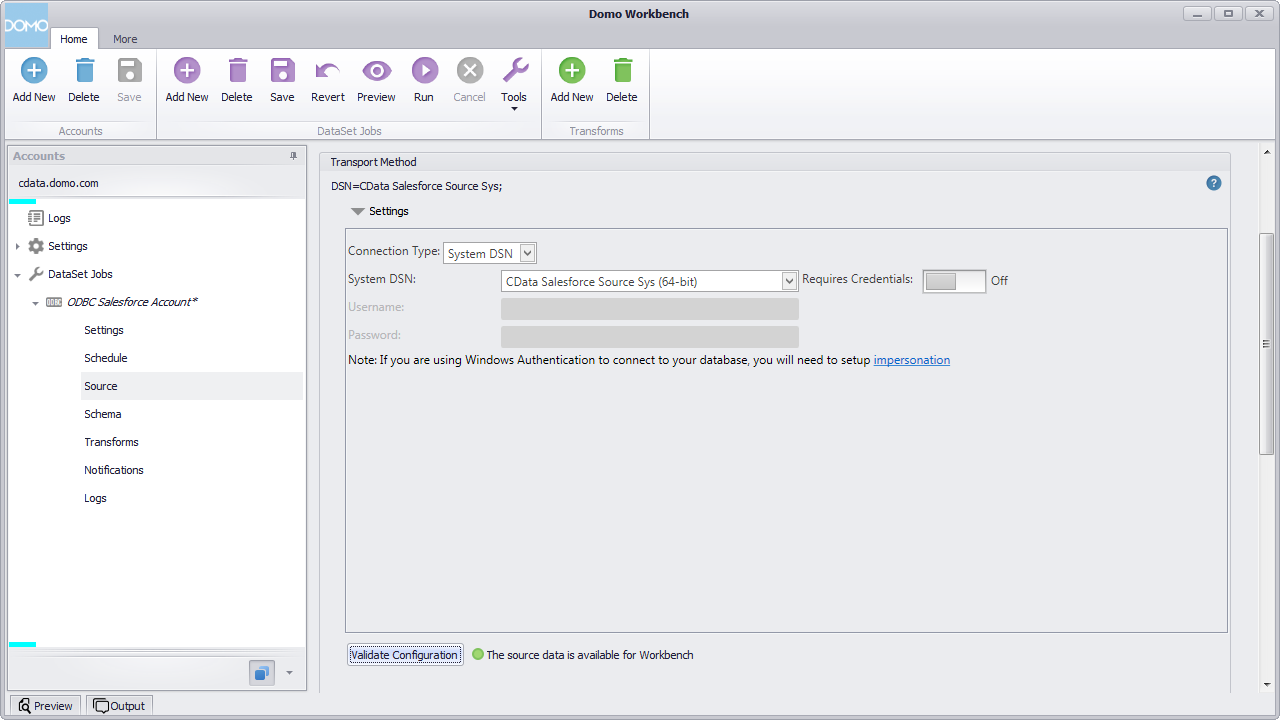
- In the newly created DataSet Job, navigate to Source and click to configure the settings.
- Select System DSN for the Connection Type.
- Select the previously configured DSN (CData API Sys) for the System DSN.
- Click to validate the configuration.
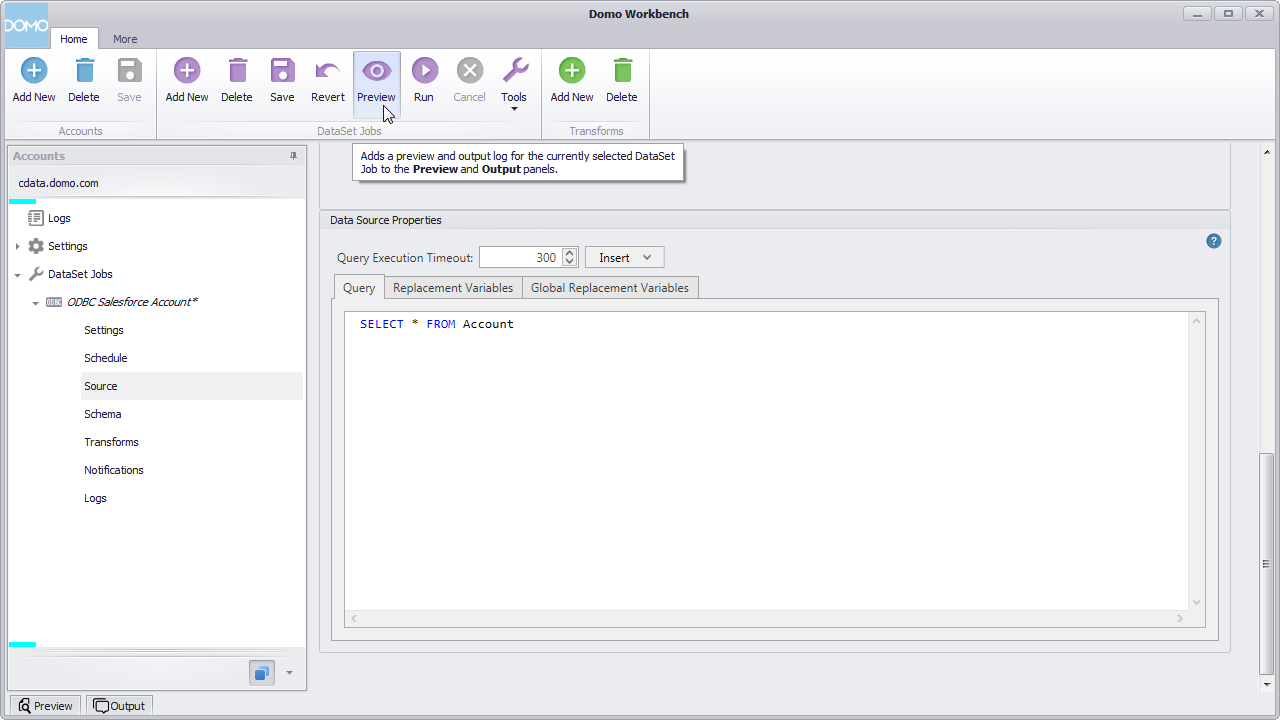
- Below the settings, set the Query to a SQL query:
SELECT * FROM AuthAttempts
NOTE: By connecting to RabbitMQ data using an ODBC driver, you simply need to know SQL in order to get your data, circumventing the need to know RabbitMQ-specific APIs or protocols. - Click preview.
- Check over the generated schema, add any transformations, then save and run the dataset job.
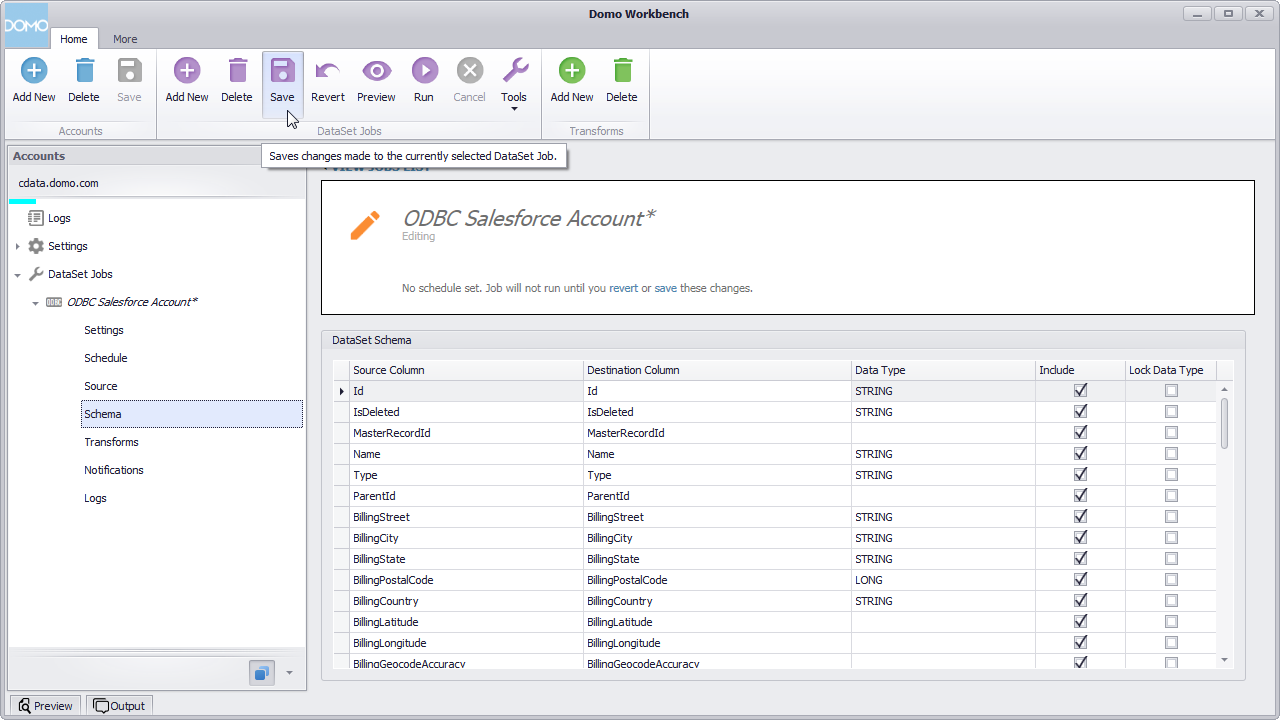
With the dataset job run, the dataset will be accessible from the Domo service, allowing you to build visualizations, reports, and more based on RabbitMQ data.
Create Data Visualizations
With the DataSet Job saved and run in Domo Workbench, we are ready to build visualizations of the RabbitMQ data in the Domo service.
- Navigate to the Data Center.
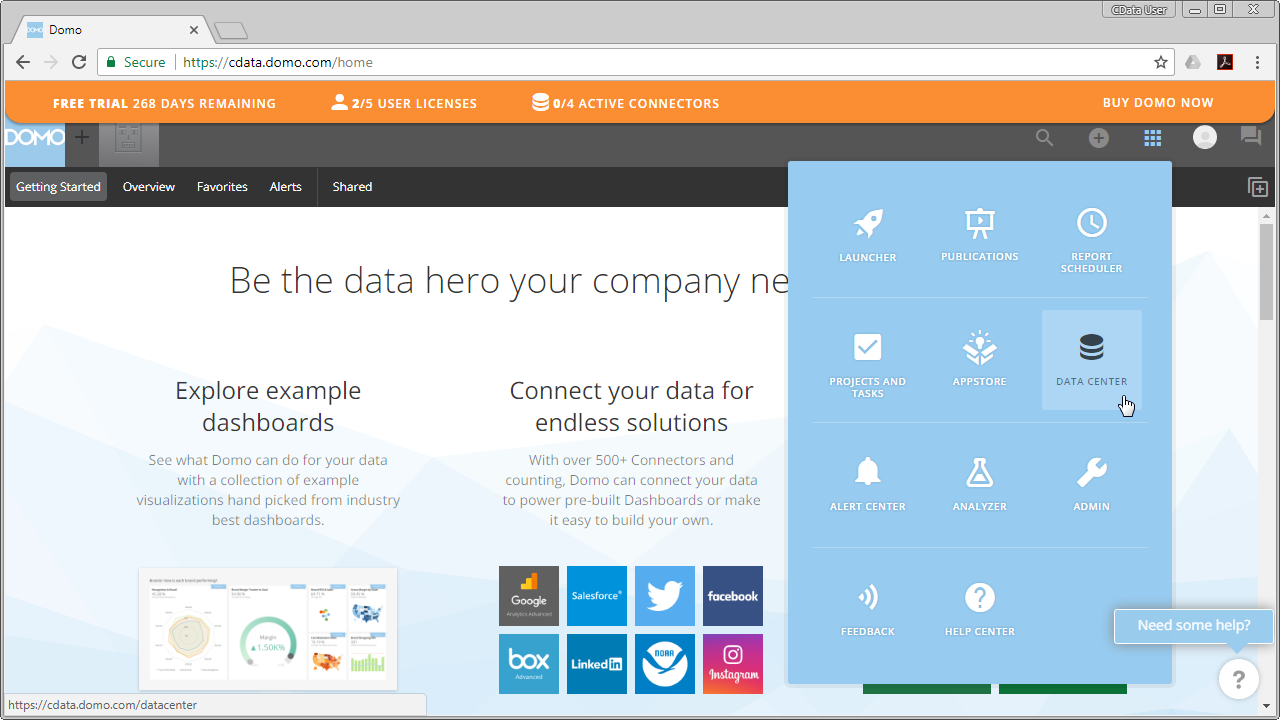
- In the data warehouse, select the ODBC data source and drill down to our new dataset.
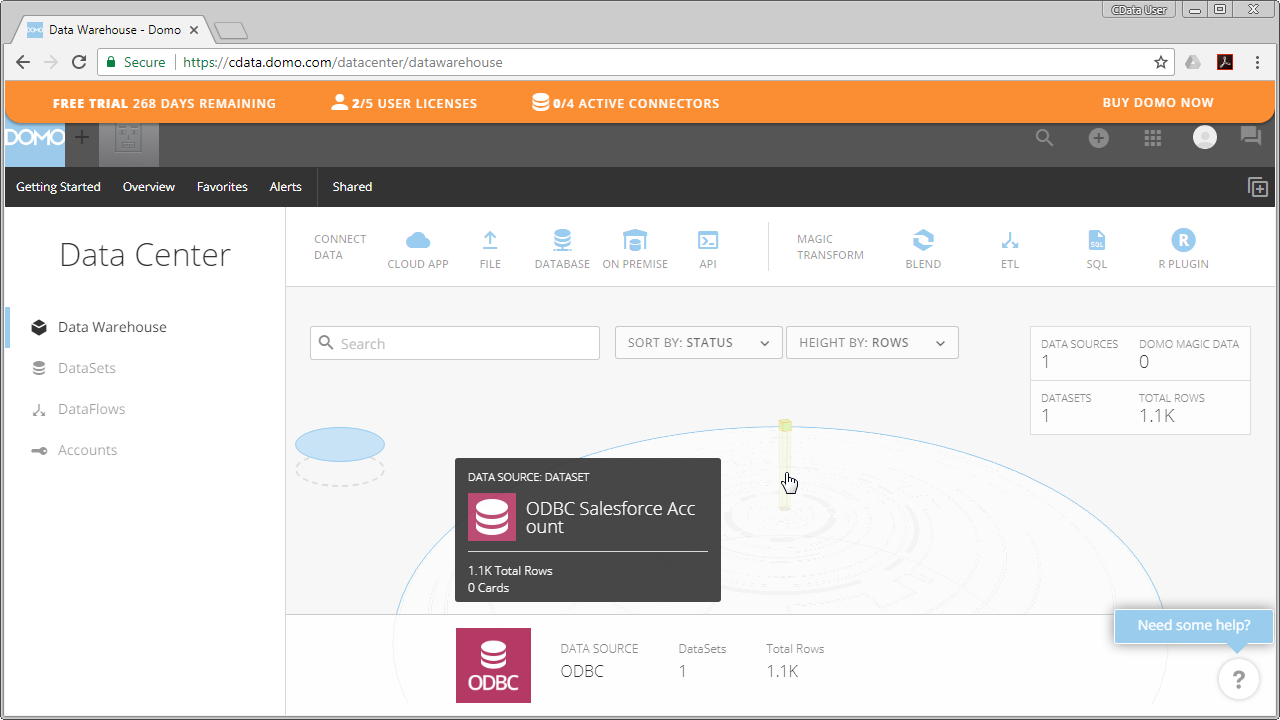
- With the dataset selected, choose to create a visualization.
- In the new card:
- Drag a Dimension to the X Value.
- Drag a Measure to the Y Value.
- Choose a Visualization.
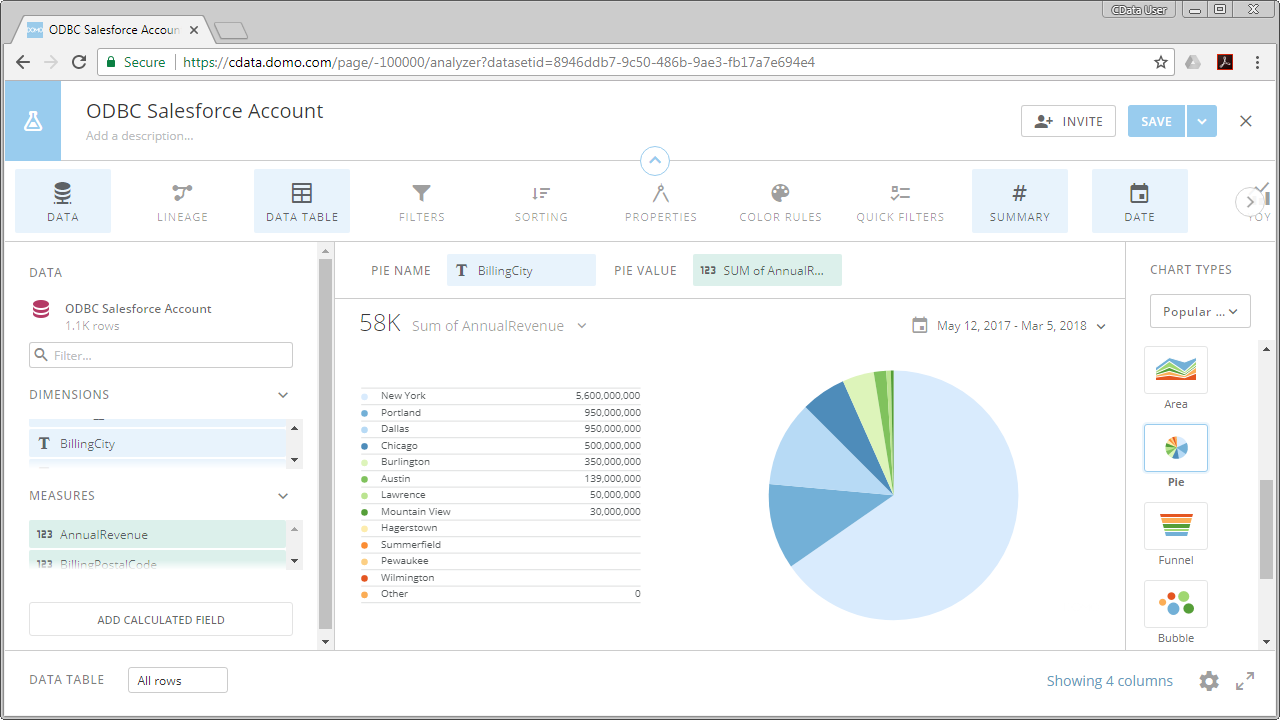
With the CData ODBC Driver for RabbitMQ, you can build custom datasets based on RabbitMQ data using only SQL in Domo Workbench and then build and share visualizations and reports through the Domo service.