How to Connect the Power BI Service to RabbitMQ: Complete Guide

The CData Power BI Connector for RabbitMQ seamlessly integrates with the tools and wizards in Power BI, including the real-time data workflows on PowerBI.com. Follow the steps below to publish reports to PowerBI.com and use the Power BI Gateway to configure automatic refresh.
1. Create a DSN
Installing the Power BI Connector creates a DSN (data source name) called CData Power BI RabbitMQ. This the name of the DSN that Power BI uses to request a connection to the data source. Configure the DSN by filling in the required connection properties.
You can use the Microsoft ODBC Data Source Administrator to create a new DSN or configure (and rename) an existing DSN: From the Start menu, enter "ODBC Data Sources." Ensure that you run the version of the ODBC Administrator that corresponds to the bitness of your Power BI Desktop installation (32-bit or 64-bit).
About RabbitMQ Management HTTP API
RabbitMQ is an open-source message broker that supports multiple messaging protocols. The RabbitMQ Management HTTP API provides HTTP-based access to management and monitoring data for a RabbitMQ server. The API exposes information about virtual hosts, exchanges, queues, bindings, connections, channels, consumers, users, permissions, policies, and cluster-wide statistics.
The Management plugin must be enabled on the RabbitMQ server for the HTTP API to be available. By default, the management interface listens on port 15672.
Using Basic Authentication
RabbitMQ Management HTTP API uses HTTP Basic authentication. You must supply the username and password of a RabbitMQ management user.
To enable access to the management API:
- Ensure the RabbitMQ Management plugin is enabled on your server (rabbitmq-plugins enable rabbitmq_management).
- Use an existing management user or create one with the appropriate management tag (management, policymaker, monitoring, or administrator).
- Note the full base URL of your RabbitMQ Management HTTP API (e.g., http://localhost:15672).
After configuring your RabbitMQ server, set the following connection properties to connect:
- AuthScheme: Set this to Basic.
- URL: Set this to the base URL of your RabbitMQ Management HTTP API (e.g., http://localhost:15672).
- User: Set this to your RabbitMQ management username (e.g., guest).
- Password: Set this to your RabbitMQ management password.
Example connection string:
Profile=C:\profiles\RabbitMQ.apip;AuthScheme=Basic;URL=http://localhost:15672;User=guest;Password=guest;
Available Tables
The RabbitMQ profile provides access to the following tables:
- Overview - Cluster-wide statistics and information about the RabbitMQ node
- Nodes - Information about individual nodes in the RabbitMQ cluster
- NodeMemory - Detailed memory usage breakdown for a specific cluster node
- Connections - List of all open AMQP connections to the broker
- Channels - List of all open AMQP channels across all connections
- Consumers - List of all consumers registered across all queues
- Exchanges - List of exchanges declared across all virtual hosts
- Queues - List of queues declared across all virtual hosts
- Bindings - List of all bindings between exchanges and queues
- VirtualHosts - List of virtual hosts configured on the broker
- VhostPermissions - User permissions within a specific virtual host
- Users - List of all RabbitMQ users
- Permissions - Permission records for all users across all virtual hosts
- TopicPermissions - Topic-level permission records for all users
- Policies - List of policies applied to queues and exchanges in virtual hosts
- OperatorPolicies - List of operator policies applied to queues in virtual hosts
- Parameters - List of component parameters (e.g., federation, shovel) per virtual host
- GlobalParameters - List of global parameters that apply across all virtual hosts
- VhostLimits - Resource limits configured for specific virtual hosts
- UserLimits - Resource limits configured for specific users
- FeatureFlags - List of feature flags and their enabled/disabled state on the node
- DeprecatedFeatures - List of deprecated features and their usage state
- AuthAttempts - Authentication attempt statistics for the node
- ClusterName - The name of the RabbitMQ cluster
- WhoAmI - Information about the currently authenticated management user
- ExchangeBindingsSource - Bindings for which a specific exchange is the source
- ExchangeBindingsDestination - Bindings for which a specific exchange is the destination
- QueueBindings - Bindings for a specific queue within a virtual host
2. Get RabbitMQ Data
With the data source configured, follow the steps below to load data from RabbitMQ tables into a dataset.
Select Views to Load
- Open Power BI Desktop and click Get Data -> CData RabbitMQ.
- Select CData Power BI RabbitMQ in the Data Source Name menu and select the Import data connectivity mode.
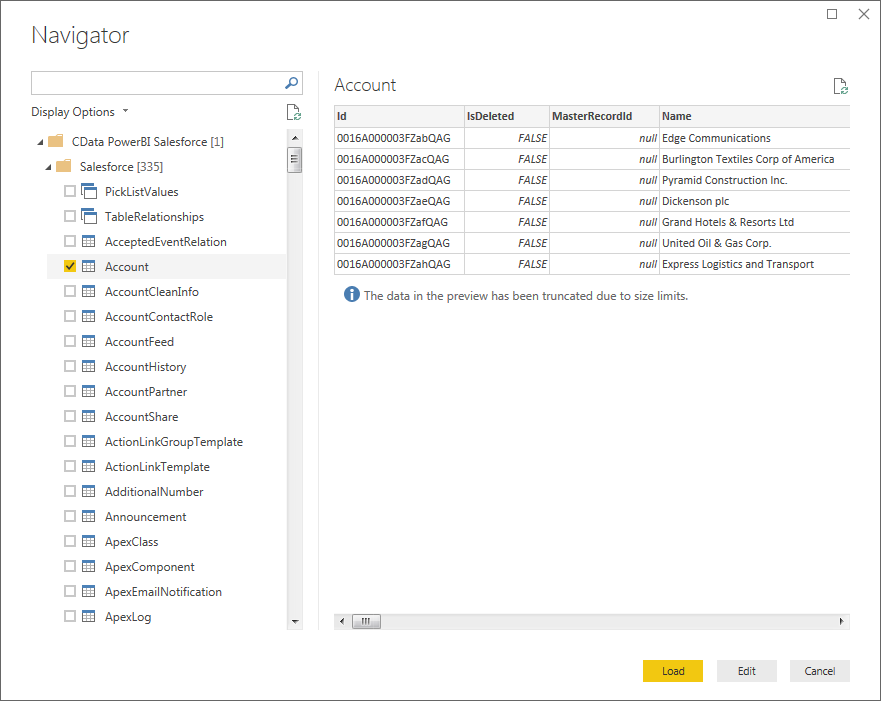
- Expand the CData Power BI RabbitMQ folder, expand an associated schema folder, and select tables.
Shaping Data
Use the Query Editor if you need more control over the query and query results before you load the data. Power BI detects the column behavior from the RabbitMQ metadata retrieved by the CData connector. In the Query Editor, you can perform actions like filtering, summarizing, and sorting on columns.
To open the Query Editor, click Edit in the Navigator window. Right-click a row to filter the rows. Right-click a column header to perform actions like the following:
- Change column data types
- Remove a column
- Group by columns
Power BI records your query modifications in the Applied Steps section, adjusting the underlying data retrieval query that is executed to the remote RabbitMQ data.
Load Data
When you click Load, the connector executes the underlying query to RabbitMQ.
3. Create Data Visualizations
After loading RabbitMQ data into Power BI, you can create data visualizations in the Report view by dragging fields from the Fields pane onto the canvas. Follow the steps below to create a pie chart:
- Select the pie chart icon in the Visualizations pane.
- Select a dimension in the Fields pane: for example, .
- Select a measure in the Fields pane: for example, .
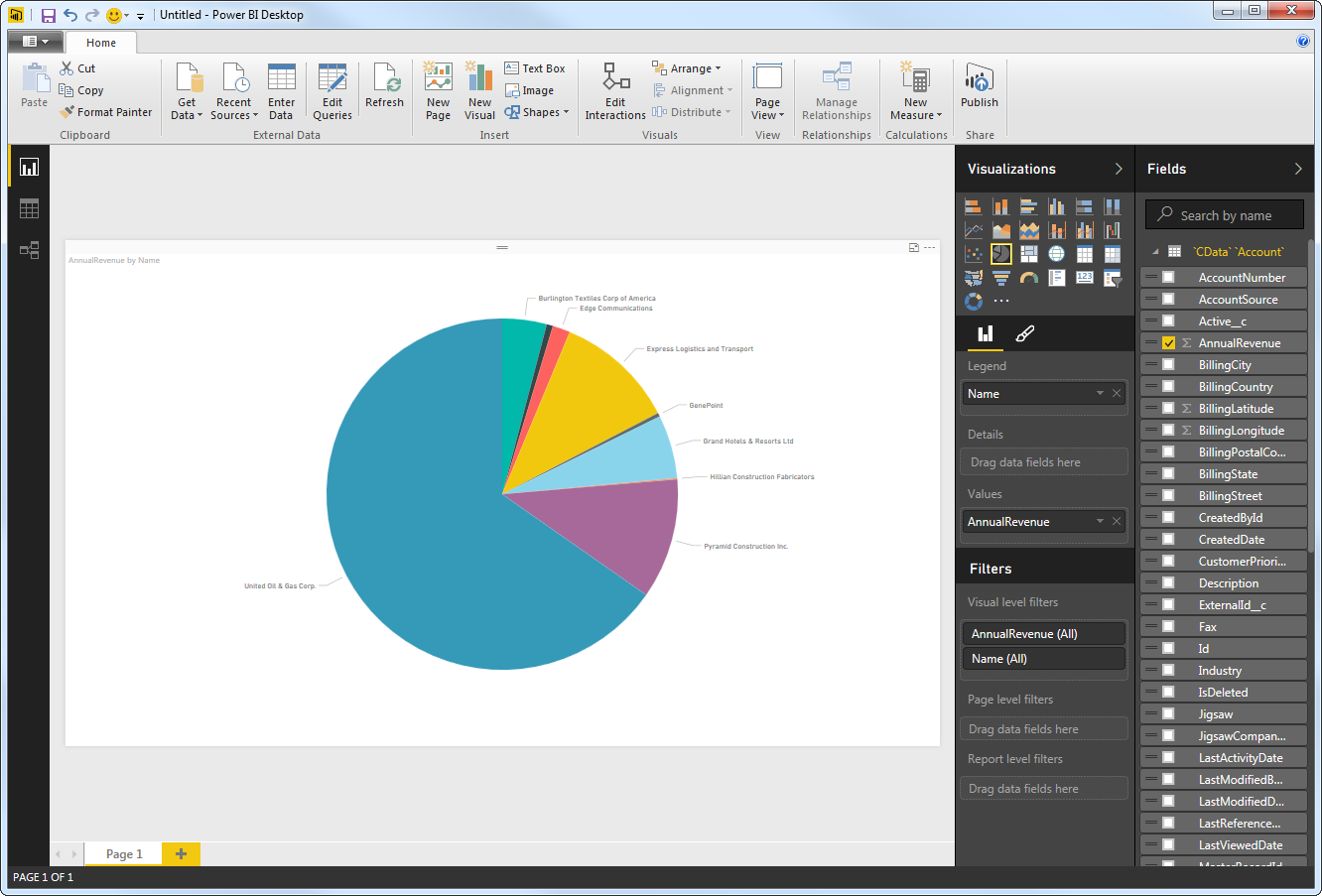
You can change sort options by clicking the ellipsis (...) button for the chart. Options to select the sort column and change the sort order are displayed.
You can use both highlighting and filtering to focus on data. Filtering removes unfocused data from visualizations; highlighting dims unfocused data. You can highlight fields by clicking them:
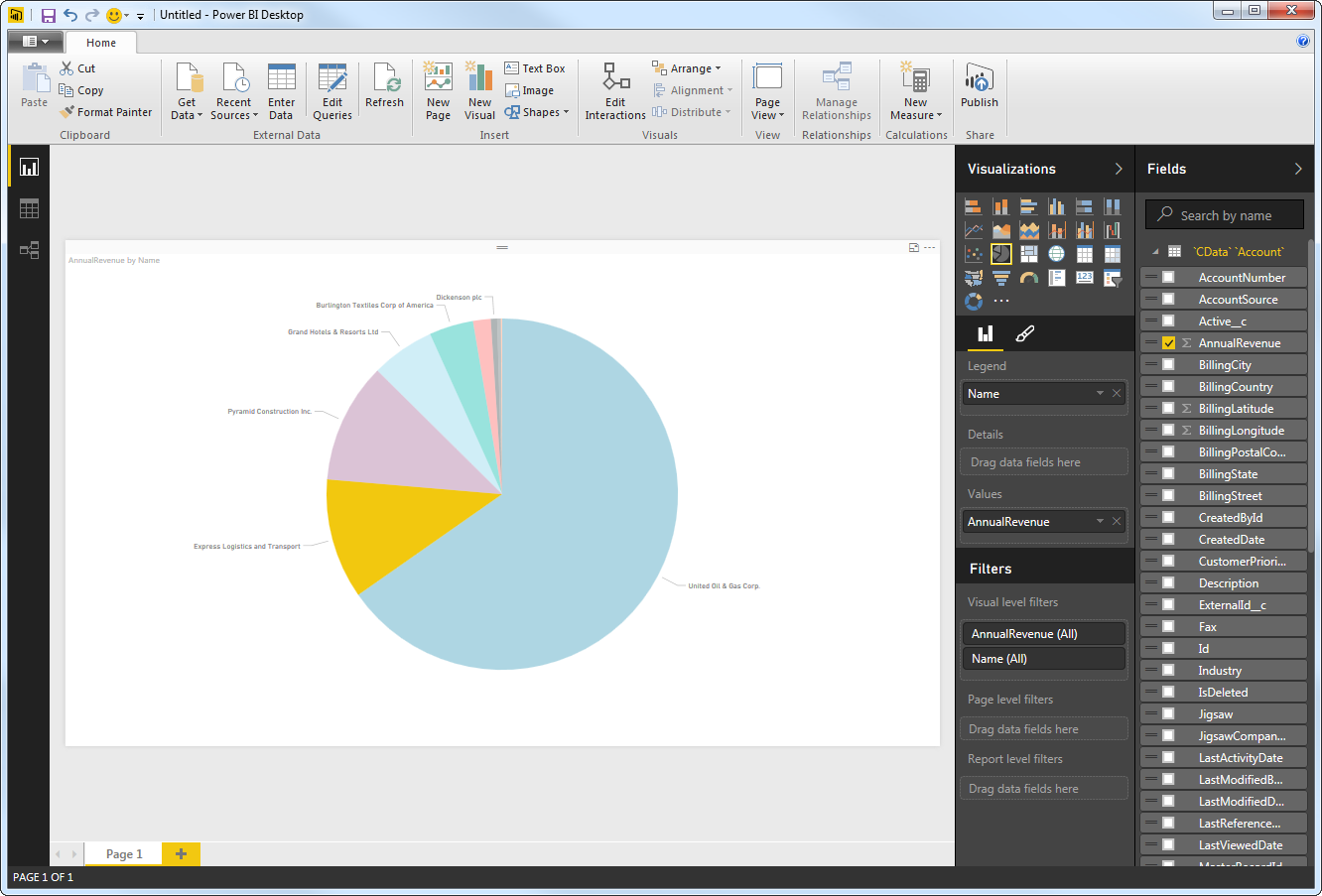
You can apply filters at the page level, at the report level, or to a single visualization by dragging fields onto the Filters pane. To filter on the field value, select one of the values that are displayed in the Filters pane.
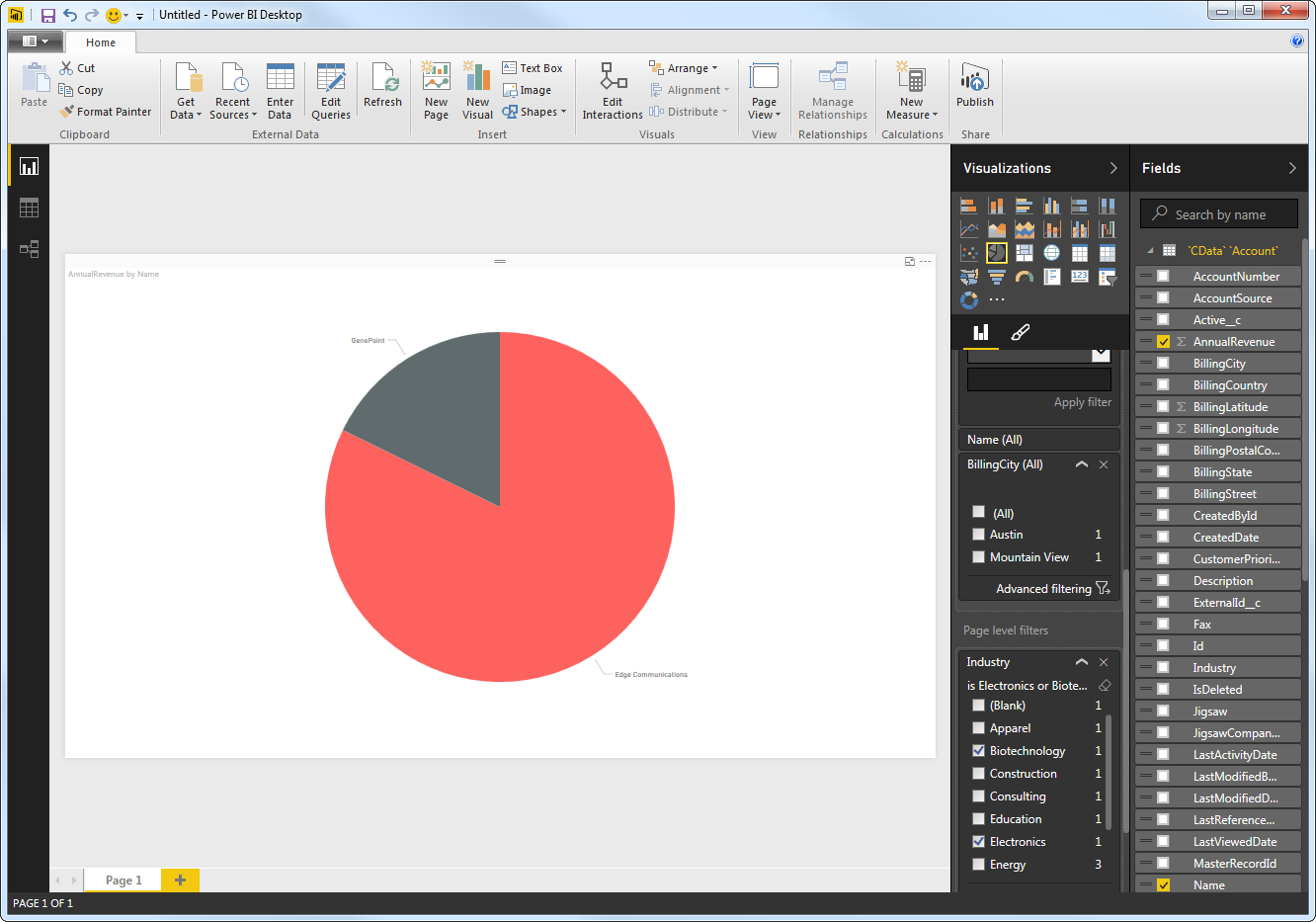
Click Refresh to synchronize your report with any changes to the data.
4. Configure Data Refresh on PowerBI.com
Follow the steps below to configure automatic data refresh through the Power BI Gateway. The gateway enables the Power BI cloud service to connect to the DSN on your machine.
Selecting a Gateway Mode
You need to select a gateway mode when you install the gateway:
- Gateway (personal mode): Use the gateway in personal mode if you only need to publish to PowerBI.com and refresh reports. The gateway runs under your Windows user account.
- (Recommended) Gateway (Standard mode - formerly Enterprise): Use the gateway in standard mode if you are using other Azure services that require a gateway. You also need the default gateway if multiple users need to access the gateway.
You need a system DSN to connect through the default gateway. (System DSNs can be accessed system-wide, while user DSNs can only be used by a specific user account.) You can use the CData Power BI API system DSN configured as the last step of the connector installation.
Configuring the Gateway (Personal Mode)
Publishing through the gateway in personal mode simply requires an installed gateway with access to custom connectors.
- Run the CData Power BI Connector installer. If you have not already done so, download the Power BI Gateway.
- Select the on-premises data gateway (personal mode) option.
- Sign into the gateway.
- Name the gateway and specify a recovery key.
- In the Connectors section of the gateway settings, enable the custom data connectors option. You can also specify an alternate path to the custom data connector .pqx files here.
Note: The CData Power BI Connectors install the .pqx files to the default folder, Your User Home\Documents\Power BI Desktop\Custom Connectors.
Configuring the Gateway (Standard Mode)
Publishing through the gateway requires an installed gateway with access to customer connectors and a configured connection to the DSN for RabbitMQ from PowerBI.com
1. Set Up the Gateway
Follow the steps below to configure the gateway on your machine:
- Run the CData Power BI Connector installer. If you have not already done so, download the Power BI Gateway.
- Select the on-premises data gateway (recommended) option.
- Sign into the gateway.
- Name the gateway and specify a recovery key.
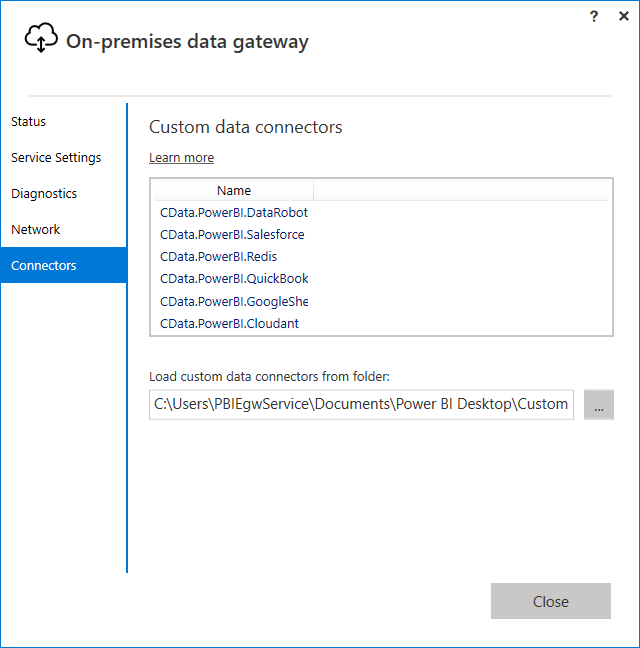
In the Connectors step, choose a folder where the gateway will look for the CData Power BI Connector. This article uses C:\Users\PBIEgwService\Documents\Power BI Desktop\Custom Connectors\. Copy the .pqx files for the CData Connector (found in C:\Users\USERNAME\Documents\Power BI Desktop\Custom Connectors\) to the folder you configured.
NOTE: The account configured for the service (NT SERVICE\PBIEgwService) needs to be able to access the folder chosen for the gateway. If needed, you can change the service account in the Service Settings section of the gateway installer.
- Confirm that the entry CData.PowerBI.API is displayed in the list in the Connectors section.
2. Connect to RabbitMQ Data from PowerBI.com
- Add a data source to the gateway: Log into PowerBI.com and from the Settings menu, select Manage Gateways and select your gateway.
- Select the option to "Allow user's custom data connectors to refresh through this gateway cluster."
- Click Apply to save your changes.
- Click the option to add a data source to the gateway.
- In the Data Source Settings section, enter a name for the data source and in the Data Source Type menu select CData Power BI Connector for RabbitMQ.
- In the Data Source Name box that is displayed, enter the system DSN: CData Power BI API.
5. Publish to PowerBI.com
You can now publish refreshable reports and their underlying datasets. Follow the steps below to publish and complete the data refresh configuration for a dataset.
- In Power BI Desktop, click Publish on the Home ribbon to publish the report.
- On PowerBI.com, select the workspace where you uploaded the report.
- In the Datasets section, click the options menu for the RabbitMQ dataset you created, then click Settings.
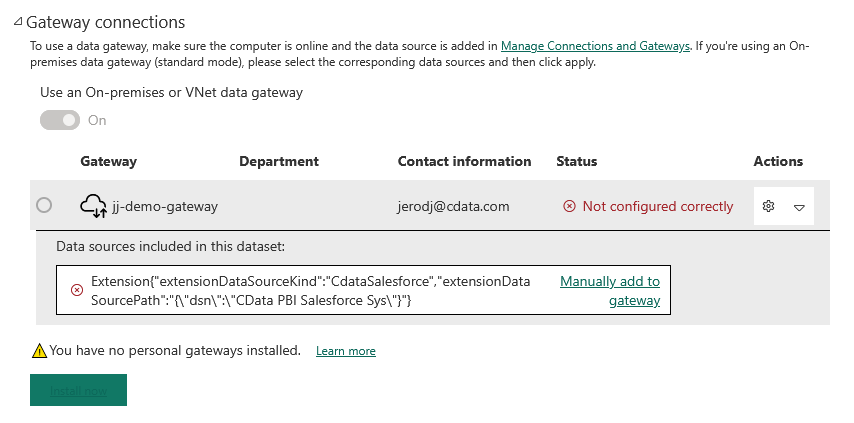
- In the Gateway Connection section, enable the option to use a gateway and select your gateway. You may need to manually add the data source to the gateway:
- Expand the Gateway under the Actions column
- Click the link to "Manually add to gateway"
- In the "New connection" form, set the Connection name, set Data Source Name to the same data source name as above (e.g. "CData PBI RabbitMQ"), and set Authentication Method to "Anonymous"
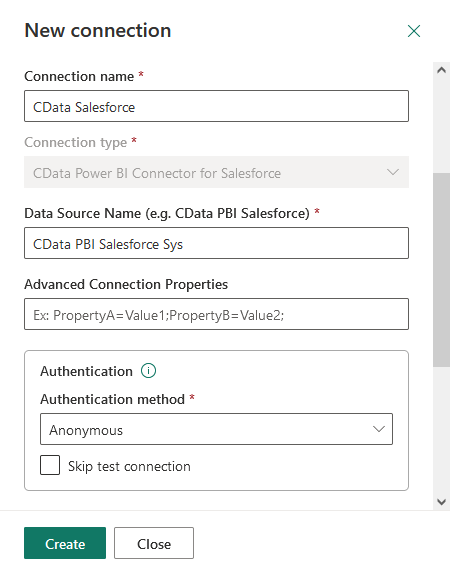
- Set Privacy Level as needed and click "Create"
- If you are using the gateway in personal mode, expand the Data Source Credentials node and click Edit Credentials -> Sign In. (This step is not necessary if you are using the default gateway.)
6. Refresh a Dataset
Refresh the dataset to provide the current data to your reports.
- To refresh manually, open the dataset options menu from your workspace -> Datasets and click Refresh Now.
- To schedule refreshes, open the dataset options menu from your workspace -> Datasets and click Schedule Refresh. Enable the option to keep your data up to date. Specify the refresh frequency in the menus.
- In Report view, click Refresh to sync the report with the dataset as you work.