Excel Spreadsheet Automation on Reply.io Data with the QUERY Formula

The CData Excel Add-In for Reply.io provides formulas that can query Reply.io data. The following three steps show how you can automate the following task: Search Reply.io data for a user-specified value and then organize the results into an Excel spreadsheet.
The syntax of the CDATAQUERY formula is the following:
=CDATAQUERY(Query, [Connection], [Parameters], [ResultLocation]);
This formula requires three inputs:
- Query: The declaration of the Reply.io data records you want to retrieve, written in standard SQL.
Connection: Either the connection name, such as APIConnection1, or a connection string. The connection string consists of the required properties for connecting to Reply.io data, separated by semicolons.
The Reply.io API uses API Key authentication via the x-api-key request header.
Using API Key Authentication
Your Reply.io API key is required to create a connection. To obtain your API key:
- Log into your Reply.io account.
- Click your profile icon and select Settings.
- Navigate to the API section.
- Copy your API Key.
After obtaining your API key, set the following connection properties:
- AuthScheme: Set this to APIKey.
- APIKey: Set this to your Reply.io API key.
- UserEmail (optional): Set this to the email address of the Reply.io user on whose behalf requests are made.
Example connection string:
Profile=C:\profiles\ReplyIO.apip;AuthScheme=APIKey;ProfileSettings='APIKey=your_api_key';
- ResultLocation: The cell that the output of results should start from.
Pass Spreadsheet Cells as Inputs to the Query
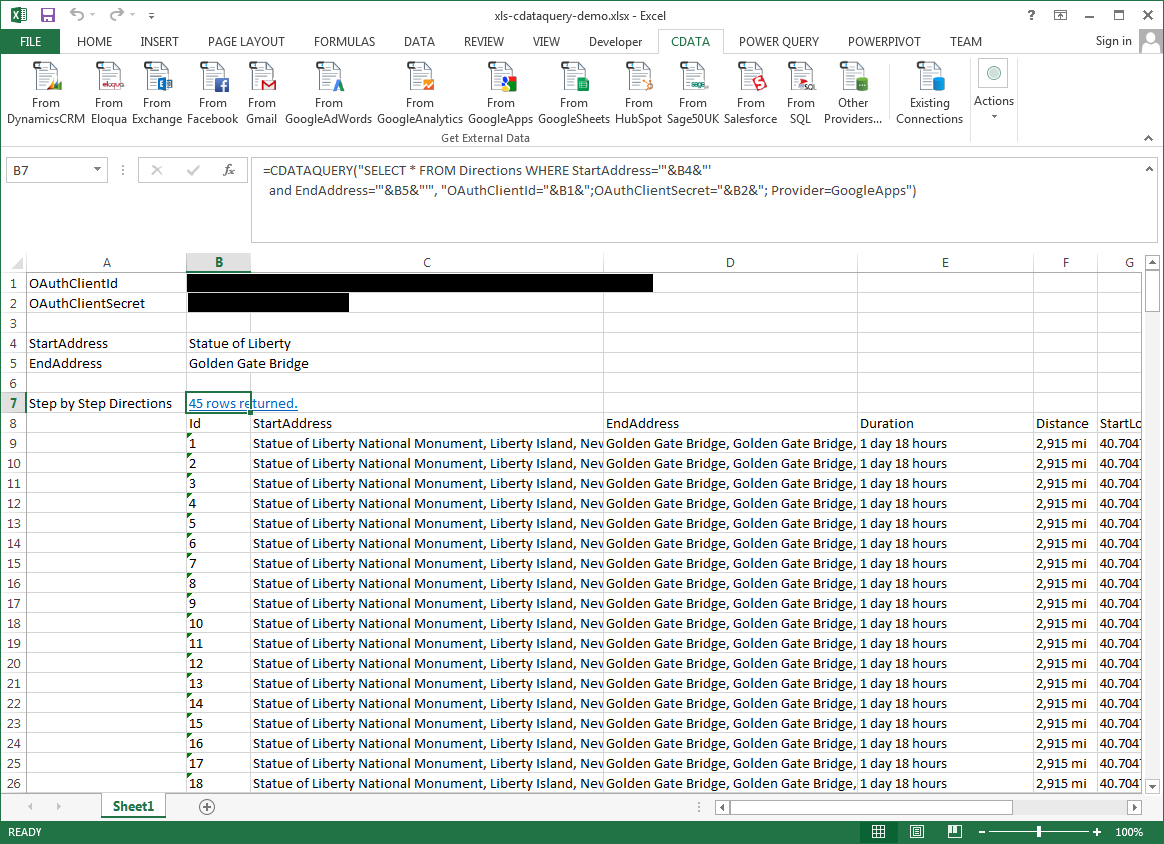
The procedure below results in a spreadsheet that organizes all the formula inputs in the first column.
- Define cells for the formula inputs. In addition to the connection inputs, add another input to define a criterion for a filter to be used to search Reply.io data, such as .
- In another cell, write the formula, referencing the cell values from the user input cells defined above. Single quotes are used to enclose values such as addresses that may contain spaces.
- Change the filter to change the data.
=CDATAQUERY("SELECT * FROM BillingInfo WHERE = '"&B5&"'","Profile="&B1&";AuthScheme="&B2&";ProfileSettings="&B3&";Provider=API",B6)