




LINQ to Sage X3 Cloud Data

This article illustrates using LINQ to access tables within the Sage X3 Cloud via the CData ADO.NET Data Provider for Sage X3 Cloud. To achieve this, we will use LINQ to Entity Framework, which facilitates the generation of connections and can be seamlessly employed with any CData ADO.NET Data Providers to access data through LINQ.
See the help documentation for a guide to setting up an EF 6 project to use the provider.
- In a new project in Visual Studio, right-click on the project and choose to add a new item. Add an ADO.NET Entity Data Model.
- Choose EF Designer from Database and click Next.
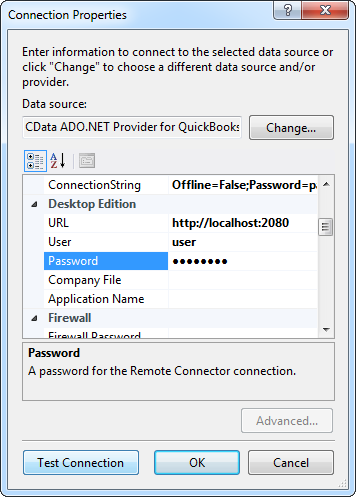
- Add a new Data Connection, and change your data source type to "CData Sage X3 Cloud Data Source".
Enter your data source connection information.
Sage X3 Cloud uses the OAuth 2.0 Client Credentials flow, and an X-API-Key is also required for API access. Set AuthScheme to OAuth and specify the following connection properties:
- URL: The base URL of your Sage X3 Cloud instance.
- OAuthAccessTokenUrl: The OAuth token endpoint (e.g., https://your-auth-domain/oauth/token).
- OAuthClientId: Your OAuth application client ID.
- OAuthClientSecret: Your OAuth application client secret.
- Audience: The API audience value for the token request.
- XAPIKey: The X-API-Key provided by your Sage X3 Cloud administrator.
- Folder: The Sage X3 folder name (e.g., SEED). This folder is used as the default schema.
- Folders (optional): A comma-separated list of Sage X3 folders (e.g., SEED,PERF). Each folder is exposed as a separate schema, so you can query across folders with the Schema.Table syntax.
The driver obtains an access token with the Client Credentials flow and sends it with the X-API-Key on every API request. With InitiateOAuth set to GETANDREFRESH (the default), the driver acquires and refreshes the token automatically.
Below is a typical connection string:
AuthScheme=OAuth;URL=https://x3server/;OAuthAccessTokenUrl=https://auth-domain/oauth/token;OAuthClientId=your_client_id;OAuthClientSecret=your_client_secret;Audience=https://api-audience;XAPIKey=your_api_key;Folder=SEED;- If saving your entity connection to App.Config, set an entity name. In this example we are setting SageX3CloudEntities as our entity connection in App.Config.
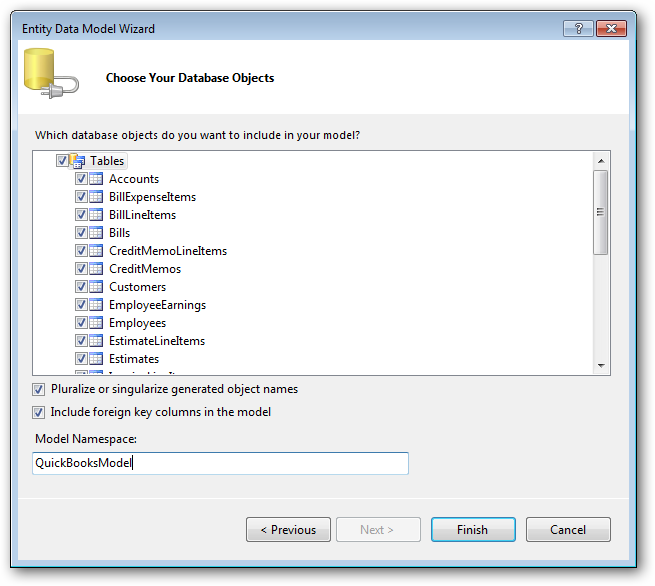
- Enter a model name and select any tables or views you would like to include in the model.
Using the entity you created, you can now perform select commands. For example:
SageX3CloudEntities context = new SageX3CloudEntities();

var bpcustomerQuery = from bpcustomer in context.BPCUSTOMER
  select bpcustomer;

foreach (var result in bpcustomerQuery) {
  Console.WriteLine("{0} {1} ", result.Id, result.BPCNUM);
}
See "LINQ and Entity Framework" chapter in the help documentation for example queries of the supported LINQ.
Ready to get started?
Download a free trial of the Sage X3 Cloud Data Provider to get started:
Download NowLearn more:
 Sage X3 Cloud ADO.NET Provider
Rapidly create and deploy powerful .NET applications that integrate with Sage X3 Cloud.