




How to load Sage X3 Cloud data into Elasticsearch via Logstash

Elasticsearch is a popular distributed full-text search engine. By centrally storing data, you can perform ultra-fast searches, fine-tuning relevance, and powerful analytics with ease. Elasticsearch has a pipeline tool for loading data called "Logstash". You can use CData JDBC Drivers to easily import data from any data source into Elasticsearch for search and analysis.
This article explains how to use the CData JDBC Driver for Sage X3 Cloud to load data from Sage X3 Cloud into Elasticsearch via Logstash.
Using CData JDBC Driver for Sage X3 Cloud with Elasticsearch Logstash
- Install the CData JDBC Driver for Sage X3 Cloud on the machine where Logstash is running.
-
The JDBC Driver will be installed at the following path (the year part, e.g. 20XX, will vary depending on the product version you are using). You will use this path later. Place this .jar file (and the .lic file if it's a licensed version) in Logstash.
C:\Program Files\CData\CData JDBC Driver for SageX3Cloud 20XX\lib\cdata.jdbc.sagex3cloud.jar
- Next, install the JDBC Input Plugin, which connects Logstash to the CData JDBC driver. The JDBC Plugin comes by default with the latest version of Logstash, but depending on the version, you may need to add it.
https://www.elastic.co/guide/en/logstash/5.4/plugins-inputs-jdbc.html - Move the CData JDBC Driver’s .jar file and .lic file to Logstash's "/logstash-core/lib/jars/".
Sending Sage X3 Cloud data to Elasticsearch with Logstash
Now, let's create a configuration file for Logstash to transfer Sage X3 Cloud data to Elasticsearch.
- Write the process to retrieve Sage X3 Cloud data in the logstash.conf file, which defines data processing in Logstash. The input will be JDBC, and the output will be Elasticsearch. The data loading job is set to run at 30-second intervals.
- Set the CData JDBC Driver's .jar file as the JDBC driver library, configure the class name, and set the connection properties to Sage X3 Cloud in the form of a JDBC URL. The JDBC URL allows detailed configuration, so please refer to the product documentation for more specifics.
- URL: The base URL of your Sage X3 Cloud instance.
- OAuthAccessTokenUrl: The OAuth token endpoint (e.g., https://your-auth-domain/oauth/token).
- OAuthClientId: Your OAuth application client ID.
- OAuthClientSecret: Your OAuth application client secret.
- Audience: The API audience value for the token request.
- XAPIKey: The X-API-Key provided by your Sage X3 Cloud administrator.
- Folder: The Sage X3 folder name (e.g., SEED). This folder is used as the default schema.
- Folders (optional): A comma-separated list of Sage X3 folders (e.g., SEED,PERF). Each folder is exposed as a separate schema, so you can query across folders with the Schema.Table syntax.
Sage X3 Cloud uses the OAuth 2.0 Client Credentials flow, and an X-API-Key is also required for API access. Set AuthScheme to OAuth and specify the following connection properties:
The driver obtains an access token with the Client Credentials flow and sends it with the X-API-Key on every API request. With InitiateOAuth set to GETANDREFRESH (the default), the driver acquires and refreshes the token automatically.
Executing data movement with Logstash
Now let's run Logstash using the created "logstash.conf" file.
logstash-7.8.0\bin\logstash -f logstash.conf
A log indicating success will appear. This means the Sage X3 Cloud data has been loaded into Elasticsearch.
For example, let's view the data transferred to Elasticsearch in Kibana.
    GET sagex3cloud_table/_search
    {
        "query": {
            "match_all": {}
        }
    }
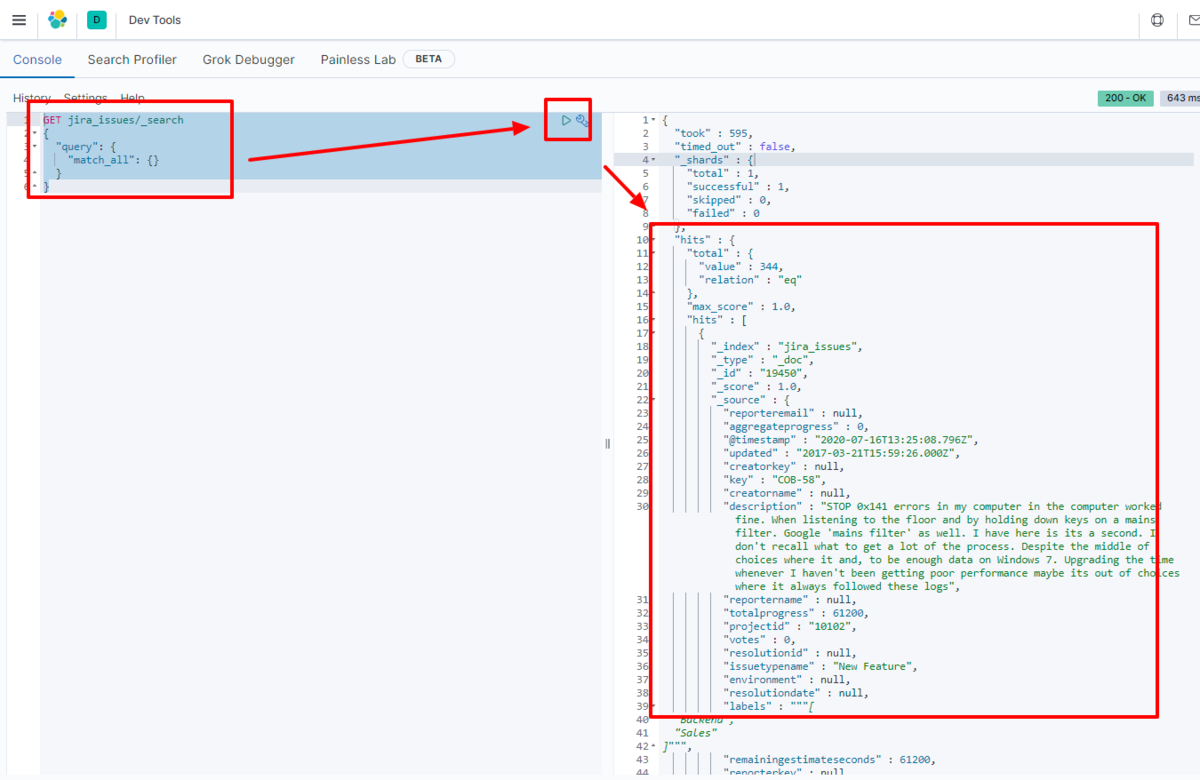
We have confirmed that the data is stored in Elasticsearch.
By using the CData JDBC Driver for Sage X3 Cloud with Logstash, it functions as a Sage X3 Cloud connector, making it easy to load data into Elasticsearch. Please try the 30-day free trial.
Ready to get started?
Download a free trial of the Sage X3 Cloud Driver to get started:
Download NowLearn more:
 Sage X3 Cloud JDBC Driver
Rapidly create and deploy powerful Java applications that integrate with Sage X3 Cloud.