




Feed Sage X3 Cloud Data into FineReport

The CData JDBC Driver for Sage X3 Cloud fully implements the JDBC standard and can provide Sage X3 Cloud data connectivity to a wide variety of BI, reporting, and ETL tools and custom applications. In this article, we explain how to set Sage X3 Cloud data as JDBC data source in FineReport and view Sage X3 Cloud data as a table in the Report Designer.
Set Up a JDBC Data Source of Sage X3 Cloud Data
Follow the instruction below to set Sage X3 Cloud data as a FineReport database connection.
- Copy the cdata.jdbc.sagex3cloud.jar file from the lib folder in the CData JDBC Driver for Sage X3 Cloud installation directory to the lib folder of the FineReport installation directory. You will need to copy the cdata.jdbc.sagex3cloud.lic file as well.
- From the Server tab, select Define Data Connection, click to add a new connection, and click JDBC.
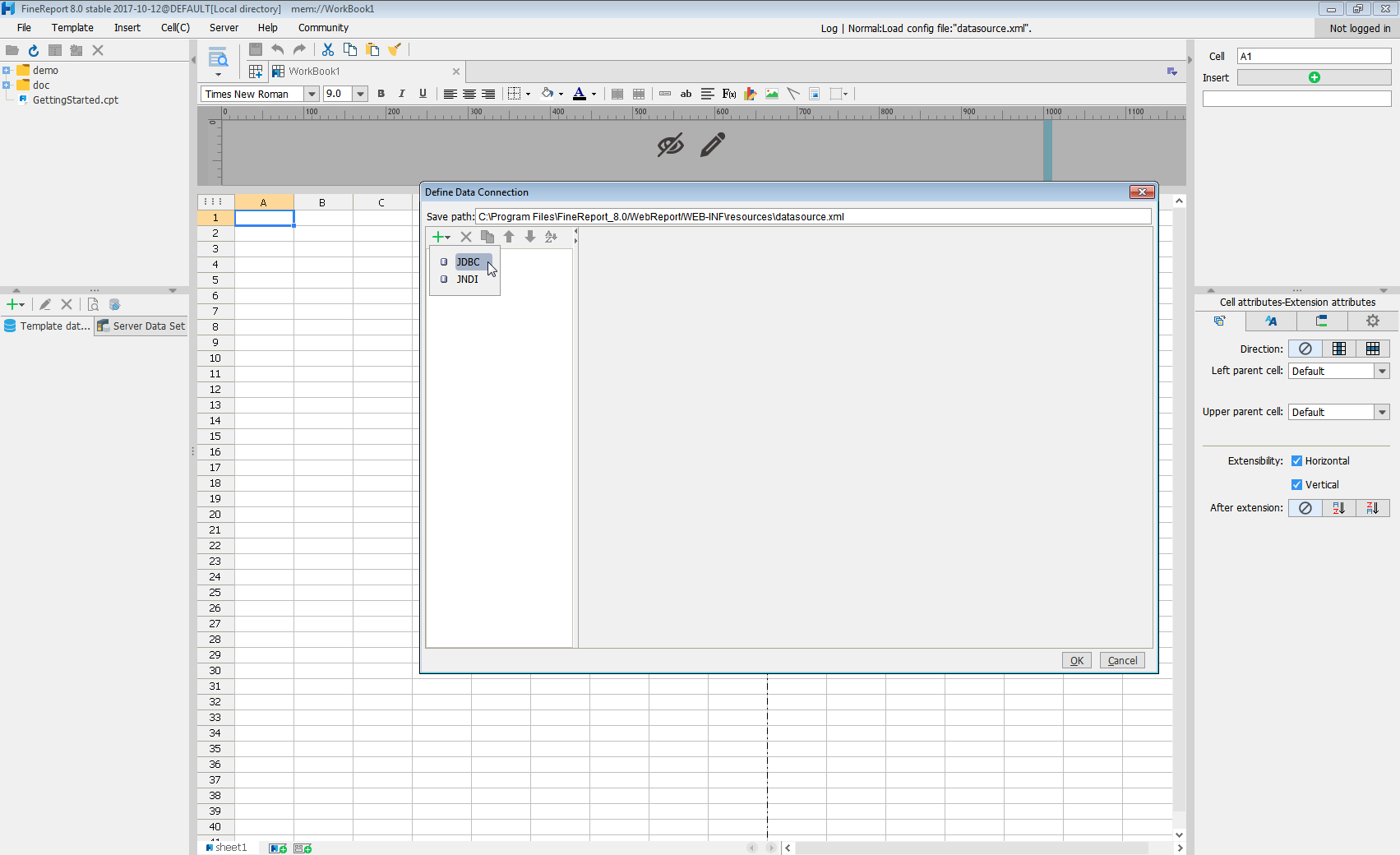
Next we will set up the data connection definition in the window.
- Database: Others
- JDBC Driver: cdata.jdbc.sagex3cloud.SageX3CloudDriver
-
URL: A standard JDBC connection string using semicolon-separated connection properties.
Sage X3 Cloud uses the OAuth 2.0 Client Credentials flow, and an X-API-Key is also required for API access. Set AuthScheme to OAuth and specify the following connection properties:
- URL: The base URL of your Sage X3 Cloud instance.
- OAuthAccessTokenUrl: The OAuth token endpoint (e.g., https://your-auth-domain/oauth/token).
- OAuthClientId: Your OAuth application client ID.
- OAuthClientSecret: Your OAuth application client secret.
- Audience: The API audience value for the token request.
- XAPIKey: The X-API-Key provided by your Sage X3 Cloud administrator.
- Folder: The Sage X3 folder name (e.g., SEED). This folder is used as the default schema.
- Folders (optional): A comma-separated list of Sage X3 folders (e.g., SEED,PERF). Each folder is exposed as a separate schema, so you can query across folders with the Schema.Table syntax.
The driver obtains an access token with the Client Credentials flow and sends it with the X-API-Key on every API request. With InitiateOAuth set to GETANDREFRESH (the default), the driver acquires and refreshes the token automatically.
Built-in Connection String Designer
For assistance in constructing the JDBC URL, use the connection string designer built into the Sage X3 Cloud JDBC Driver. Either double-click the JAR file or execute the jar file from the command-line.
java -jar cdata.jdbc.sagex3cloud.jarFill in the connection properties and copy the connection string to the clipboard.

When you configure the JDBC URL, you may also want to set the Max Rows connection property. This will limit the number of rows returned, which is especially helpful for improving performance when designing reports and visualizations.
A typical JDBC URL is below:
jdbc:sagex3cloud:AuthScheme=OAuth;URL=https://x3server/;OAuthAccessTokenUrl=https://auth-domain/oauth/token;OAuthClientId=your_client_id;OAuthClientSecret=your_client_secret;Audience=https://api-audience;XAPIKey=your_api_key;Folder=SEED; - Click Connection pool attributes and set Test before getting connections to No.
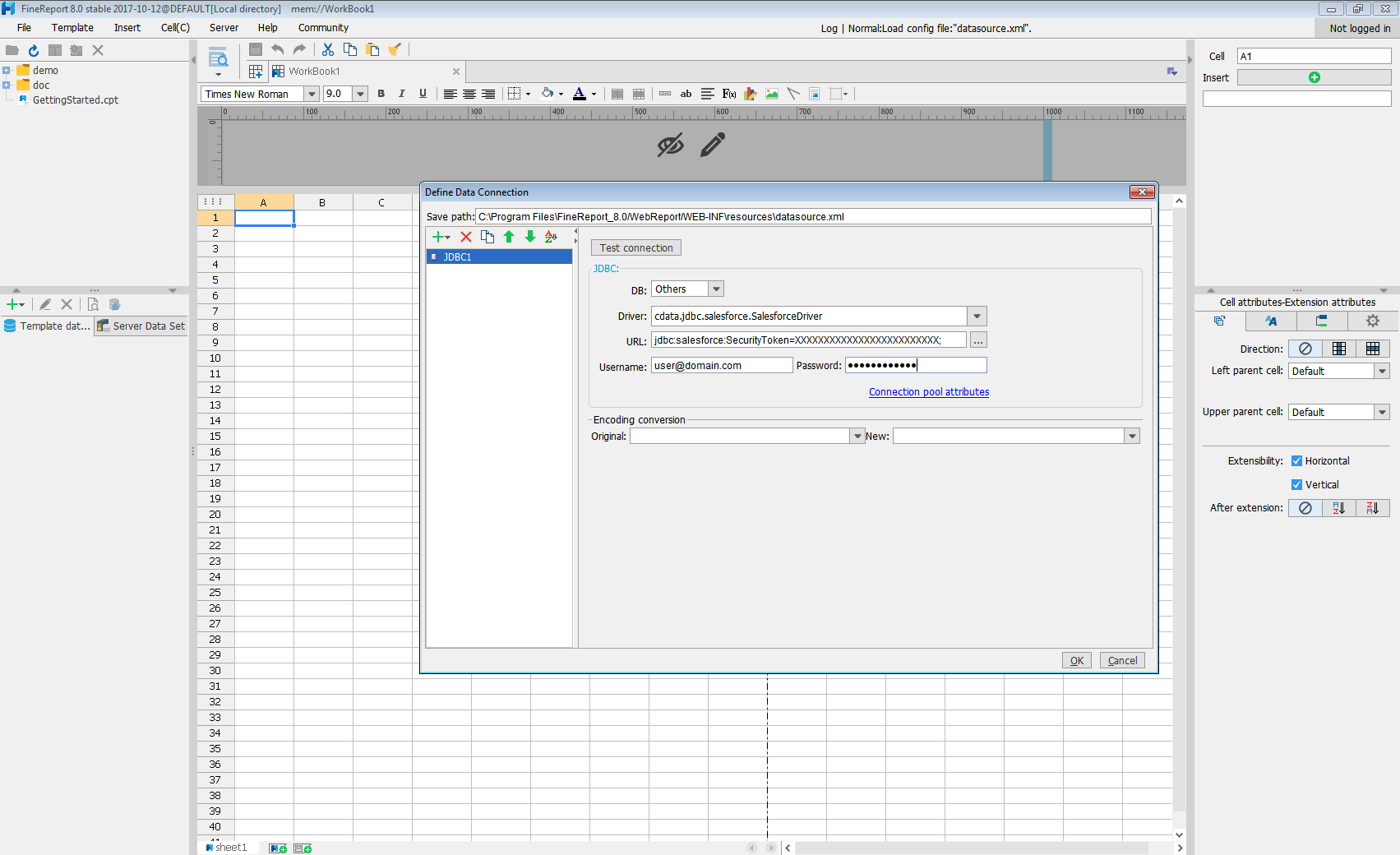
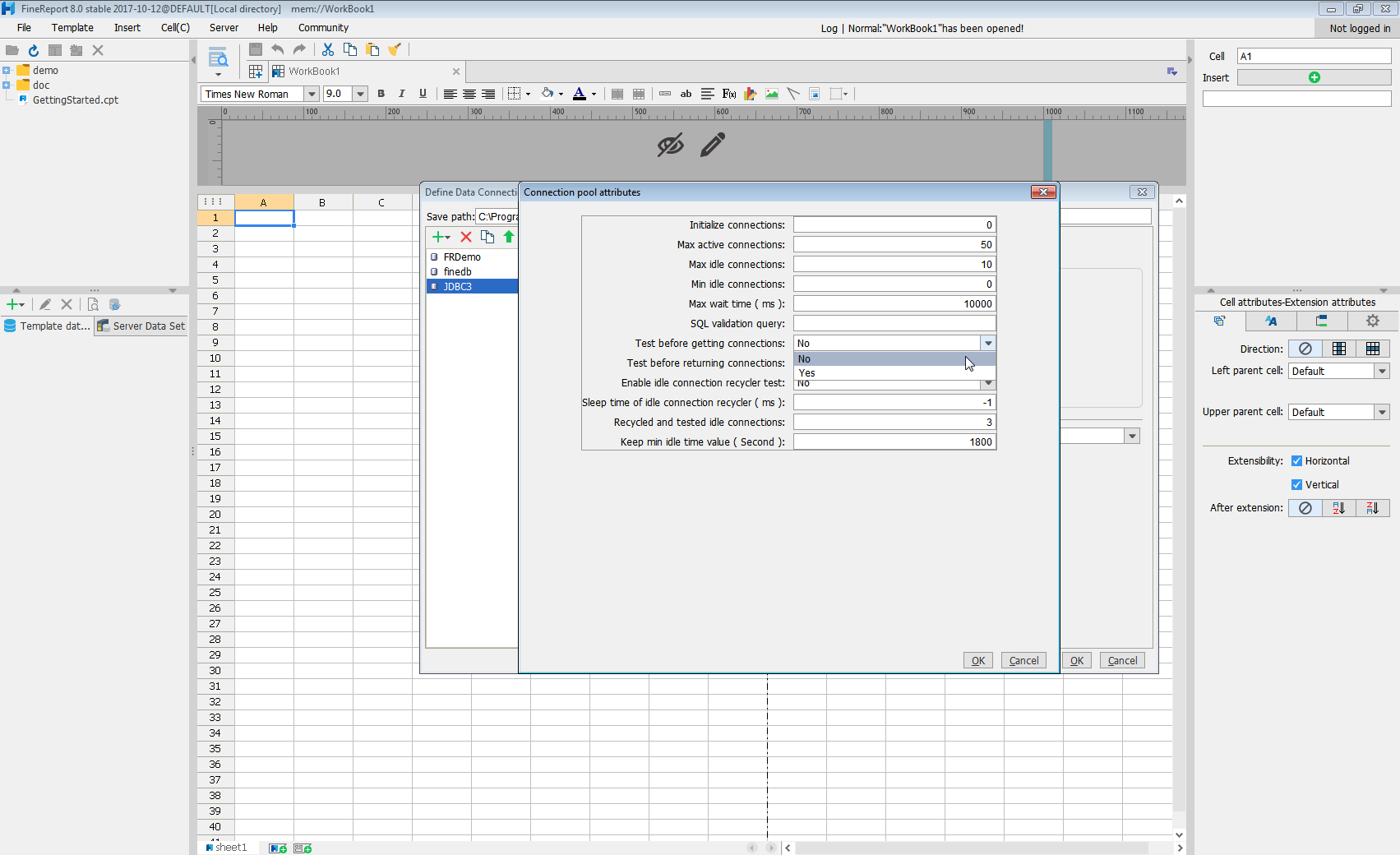
Click Test connection to ensure you have configured the connection properly. With the connection to Sage X3 Cloud set up, you can use it as FineReport data source.
Select Sage X3 Cloud Data in the Report Designer.
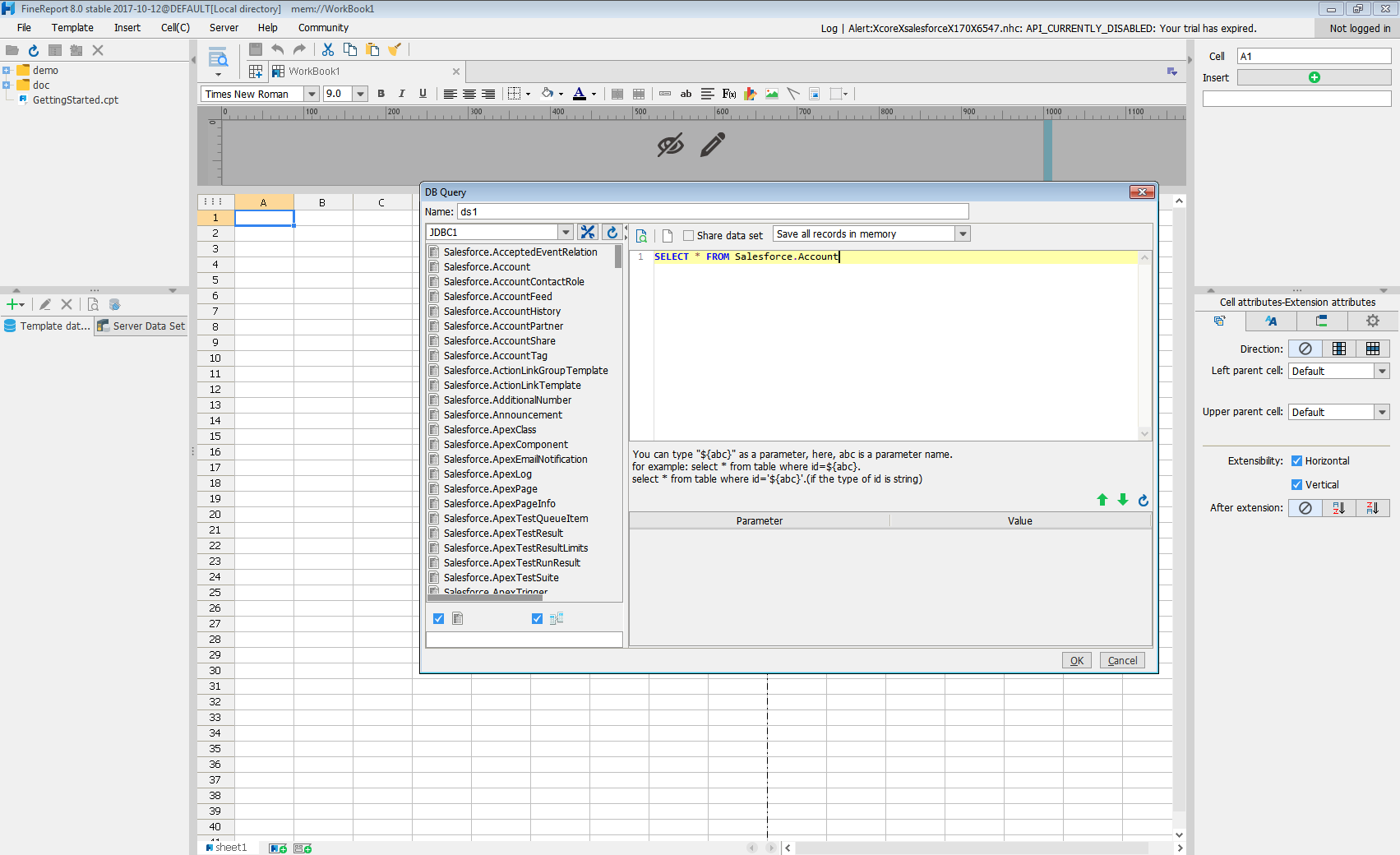
- Click to add a new template data set and select DB query to open the database query window.
- Choose the JDBC connection that you created from the dropdown list.
- The Sage X3 Cloud entities will appear as tables on the left pane.
- Write a SELECT statement for the Sage X3 Cloud data tables and columns that you want to load.
- Click preview and data is shown as table.
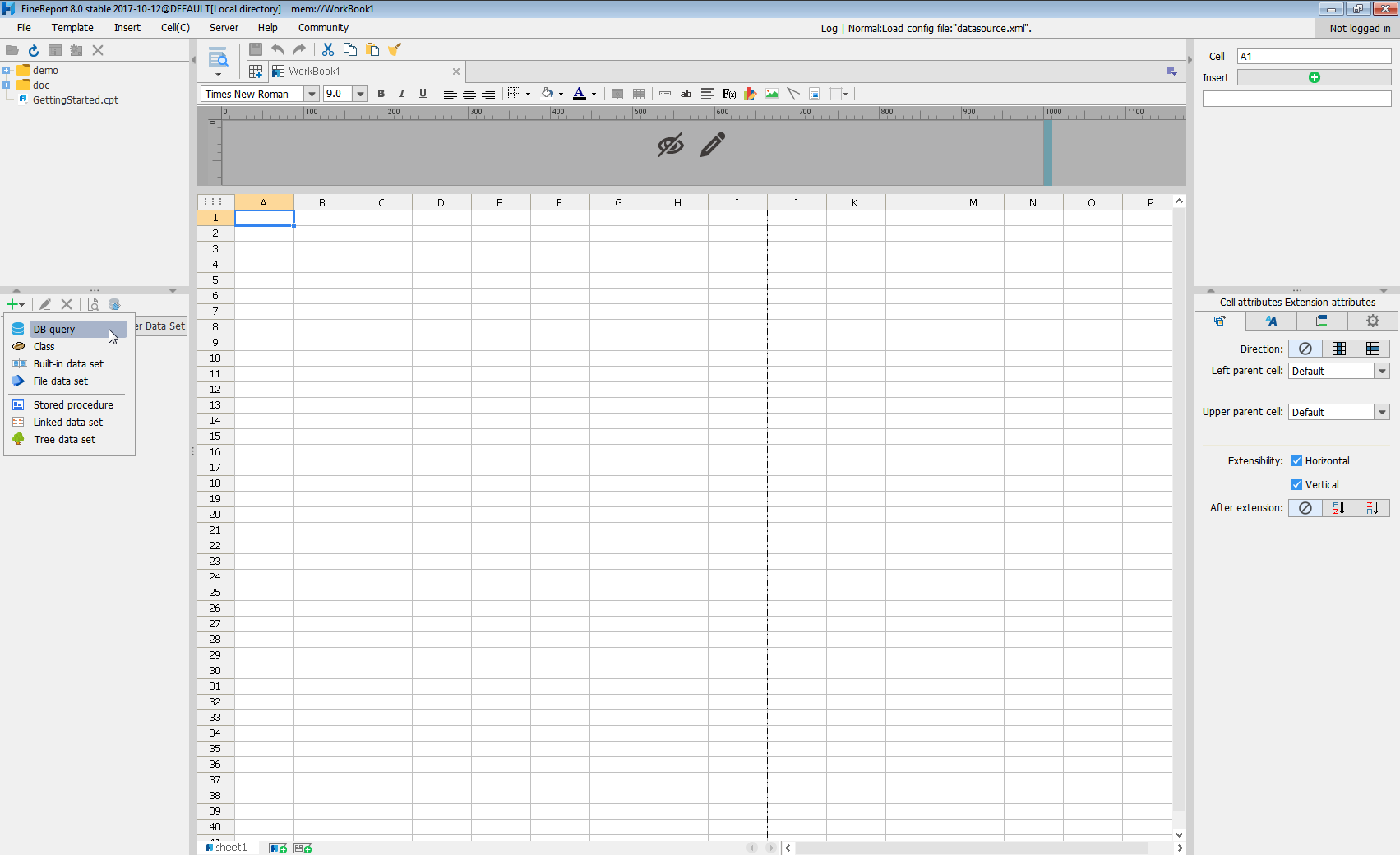
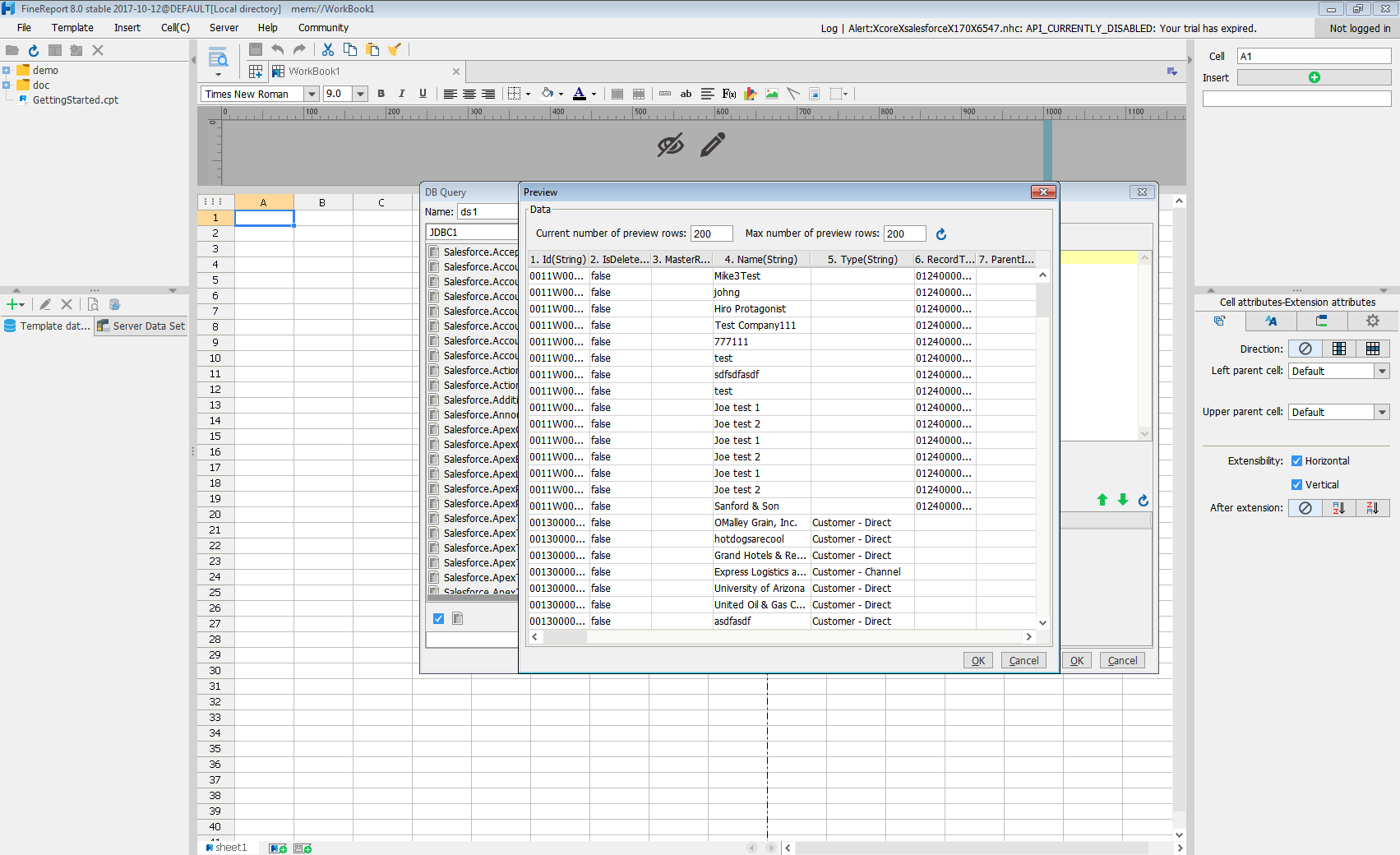
With these simple steps, Sage X3 Cloud can be used as a JDBC data source in FineReport.
Ready to get started?
Download a free trial of the Sage X3 Cloud Driver to get started:
Download NowLearn more:
 Sage X3 Cloud JDBC Driver
Rapidly create and deploy powerful Java applications that integrate with Sage X3 Cloud.