




Integrate Sage X3 Cloud Data in Your Informatica Cloud Instance

Informatica Cloud allows you to perform extract, transform, and load (ETL) tasks in the cloud. With the Cloud Secure Agent and the CData JDBC Driver for Sage X3 Cloud, you get live access to Sage X3 Cloud data, directly within Informatica Cloud. In this article, we will walk through downloading and registering the Cloud Secure Agent, connecting to Sage X3 Cloud through the JDBC Driver and generating a mapping that can be used in any Informatica Cloud process.
Informatica Cloud Secure Agent
To work with the Sage X3 Cloud data through the JDBC Driver, install the Cloud Secure Agent.
- Navigate to the Administrator page in Informatica Cloud
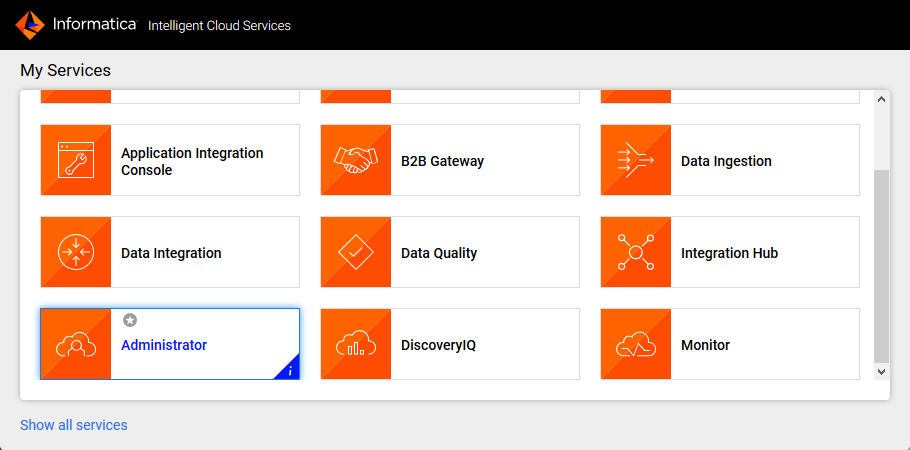
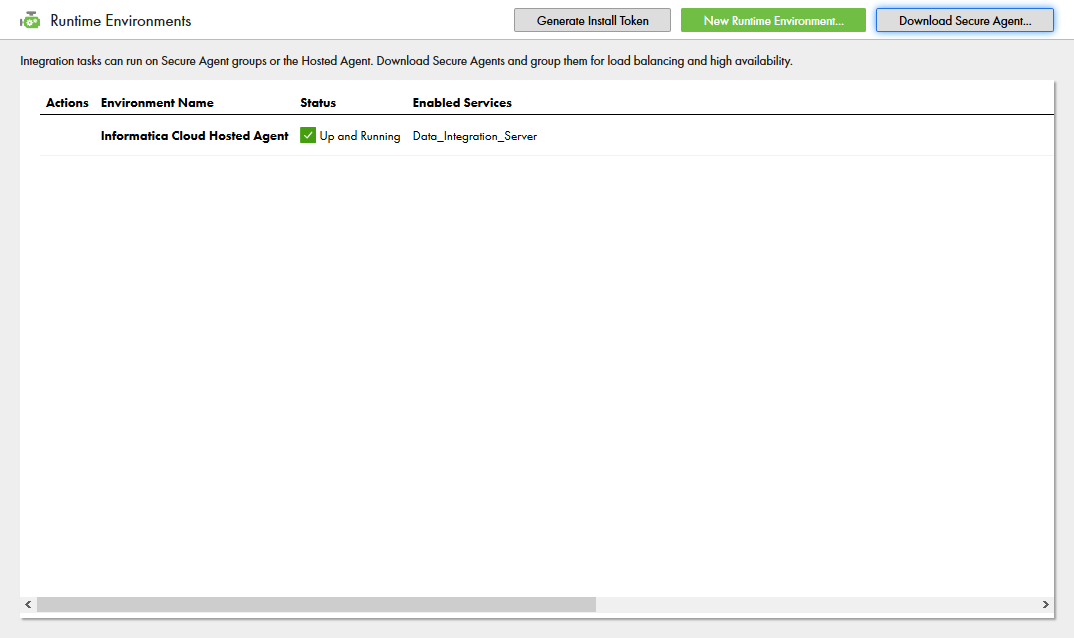
- Select the Runtime Environments tab
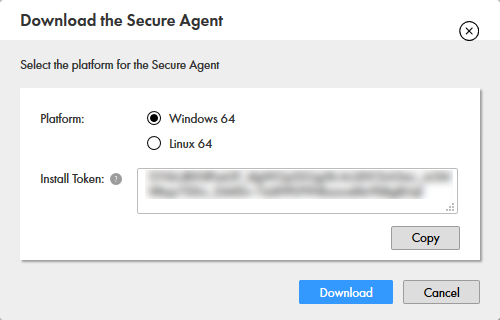
- Click "Download Secure Agent"
- Make note of the Install Token
- Run the installer on the client machine and register the Cloud Secure Agent with your username and install token
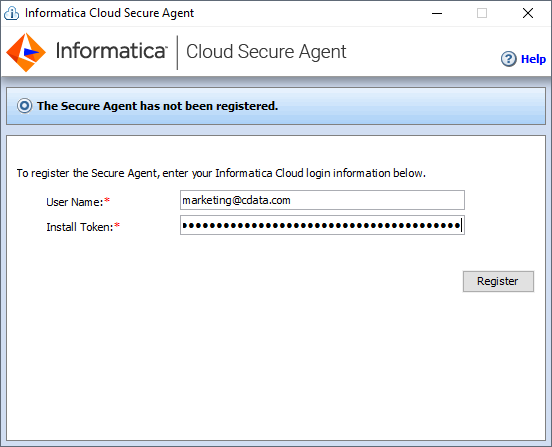
NOTE: It may take some time for all of the Cloud Secure Agent services to get up and running.
Connecting to the Sage X3 Cloud JDBC Driver
With the Cloud Secure Agent installed and running, you are ready to connect to Sage X3 Cloud through the JDBC Driver.
Adding the JDBC Driver to the Secure Agent Machine
- Navigate to the following directory on the Secure Agent machine:
%Secure Agent installation directory%/ext/connectors/thirdparty/ - Create a folder and add the driver JAR file (cdata.jdbc.sagex3cloud.jar) based on the type of mapping that you want to configure.
For mappings, create the following folder and add the driver JAR file:
informatica.jdbc_v2/commonFor mappings in advanced mode, also create the following folder and add the driver JAR file:
informatica.jdbc_v2/spark - Restart the Secure Agent.
Connecting to Sage X3 Cloud in Informatica Cloud
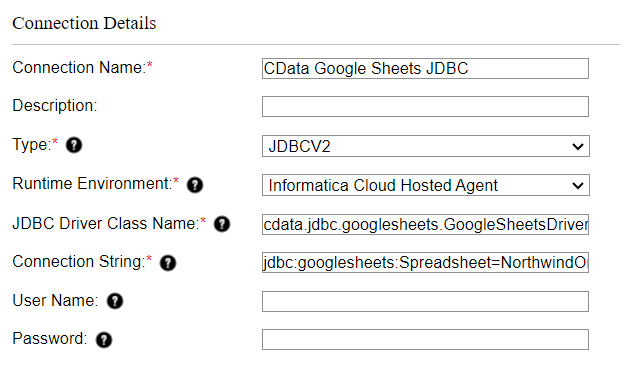
After installing the driver JAR file, you are ready to configure your connection to Sage X3 Cloud in Informatica Cloud. Start by clicking the Connections tab and clicking New Connection. Fill in the following properties for the connection:- Connection Name: Name your connection (i.e.: CData Sage X3 Cloud Connection)
- Type: Select "JDBC_V2"
- Runtime Environment: Select the runtime environment where you installed the Secure Agent
- JDBC Driver Class Name: The name of the JDBC driver class: cdata.jdbc.sagex3cloud.SageX3CloudDriver
- JDBC Connection URL: Set this to the JDBC URL for Sage X3 Cloud. Your URL will look similar to the following:
jdbc:sagex3cloud:AuthScheme=OAuth;URL=https://x3server/;OAuthAccessTokenUrl=https://auth-domain/oauth/token;OAuthClientId=your_client_id;OAuthClientSecret=your_client_secret;Audience=https://api-audience;XAPIKey=your_api_key;Folder=SEED;Sage X3 Cloud uses the OAuth 2.0 Client Credentials flow, and an X-API-Key is also required for API access. Set AuthScheme to OAuth and specify the following connection properties:
- URL: The base URL of your Sage X3 Cloud instance.
- OAuthAccessTokenUrl: The OAuth token endpoint (e.g., https://your-auth-domain/oauth/token).
- OAuthClientId: Your OAuth application client ID.
- OAuthClientSecret: Your OAuth application client secret.
- Audience: The API audience value for the token request.
- XAPIKey: The X-API-Key provided by your Sage X3 Cloud administrator.
- Folder: The Sage X3 folder name (e.g., SEED). This folder is used as the default schema.
- Folders (optional): A comma-separated list of Sage X3 folders (e.g., SEED,PERF). Each folder is exposed as a separate schema, so you can query across folders with the Schema.Table syntax.
The driver obtains an access token with the Client Credentials flow and sends it with the X-API-Key on every API request. With InitiateOAuth set to GETANDREFRESH (the default), the driver acquires and refreshes the token automatically.
Built-In Connection String Designer
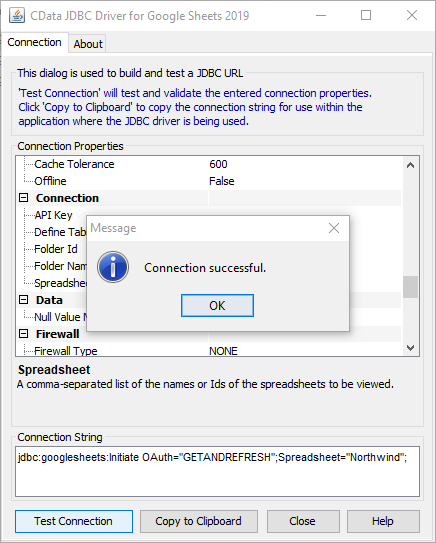
For assistance in constructing the JDBC URL, use the connection string designer built into the Sage X3 Cloud JDBC Driver. Either double-click the .jar file or execute the .jar file from the command-line.
java -jar cdata.jdbc.sagex3cloud.jarFill in the connection properties and copy the connection string to the clipboard.
- Username: Set this to a placeholder value (since Sage X3 Cloud does not require a username)
- Password: Set this to a placeholder value (since Sage X3 Cloud does not require a password)
Create a Mapping for Sage X3 Cloud Data
With the connection to Sage X3 Cloud configured, we can now access Sage X3 Cloud data in any Informatica process. The steps below walk through creating a mapping for Sage X3 Cloud to another data target.
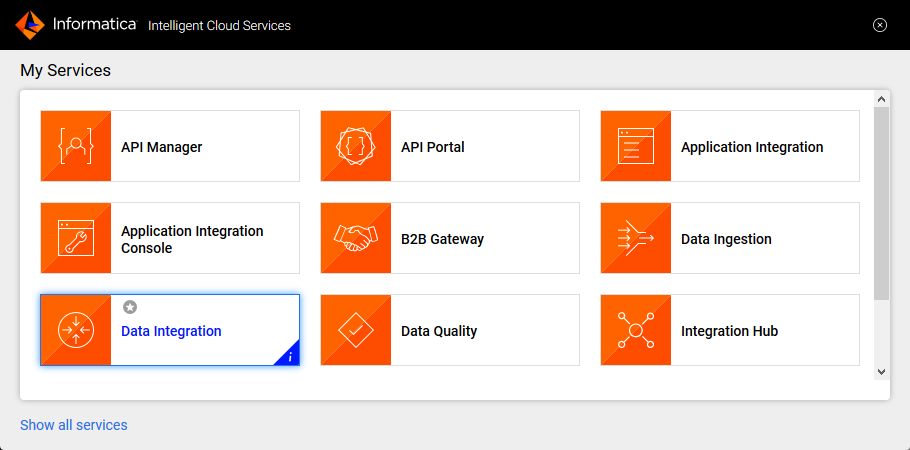
- Navigate to the Data Integration page
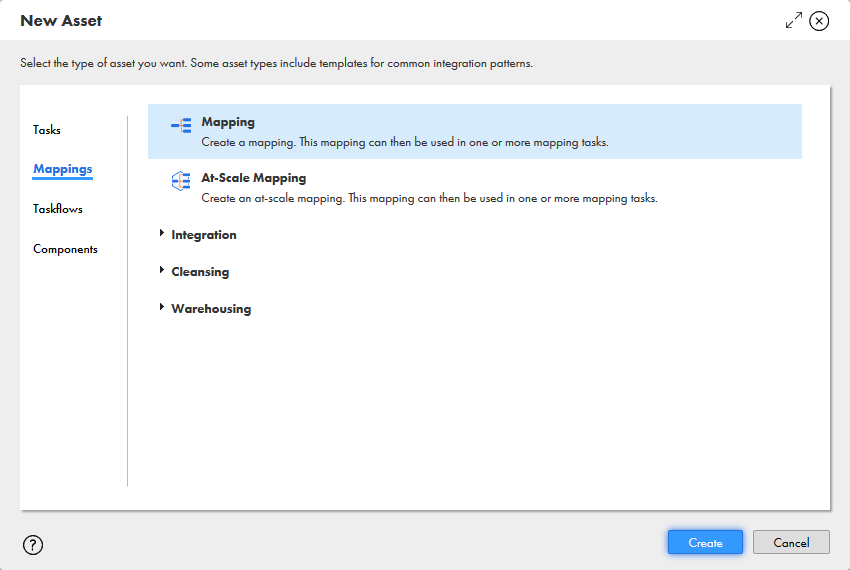
- Click New.. and select Mapping from the Mappings tab
- Click the Source Object and in the Source tab, select the Connection and set the Source Type
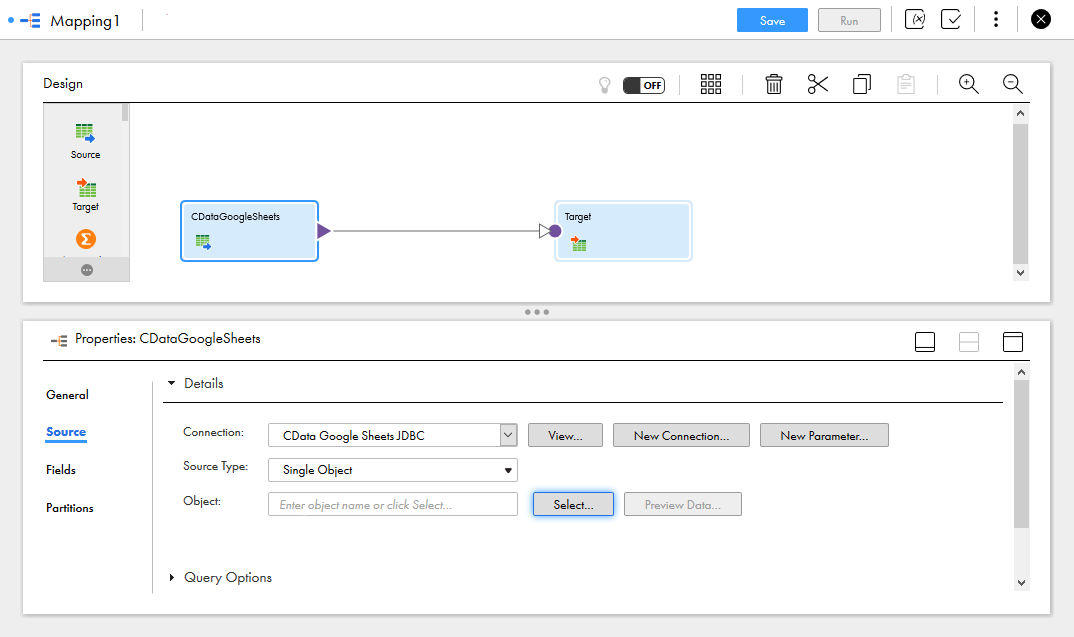
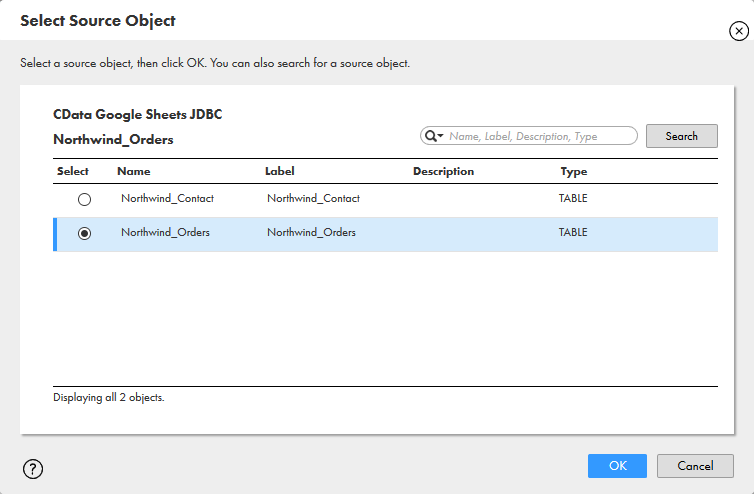
- Click "Select" to choose the table to map
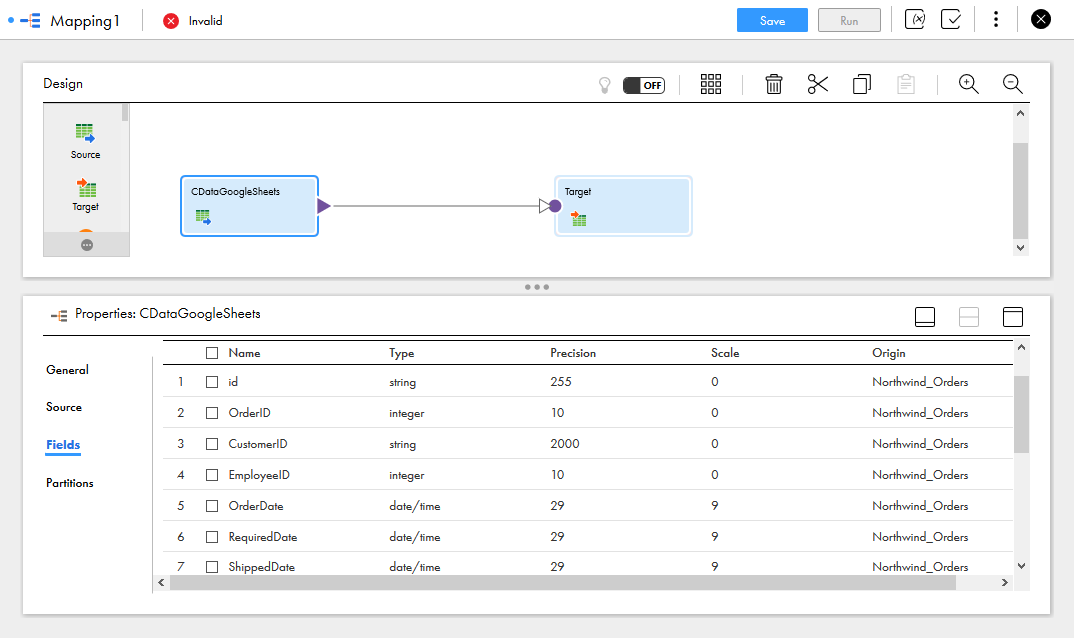
- In the Fields tab, select the fields from the Sage X3 Cloud table to map
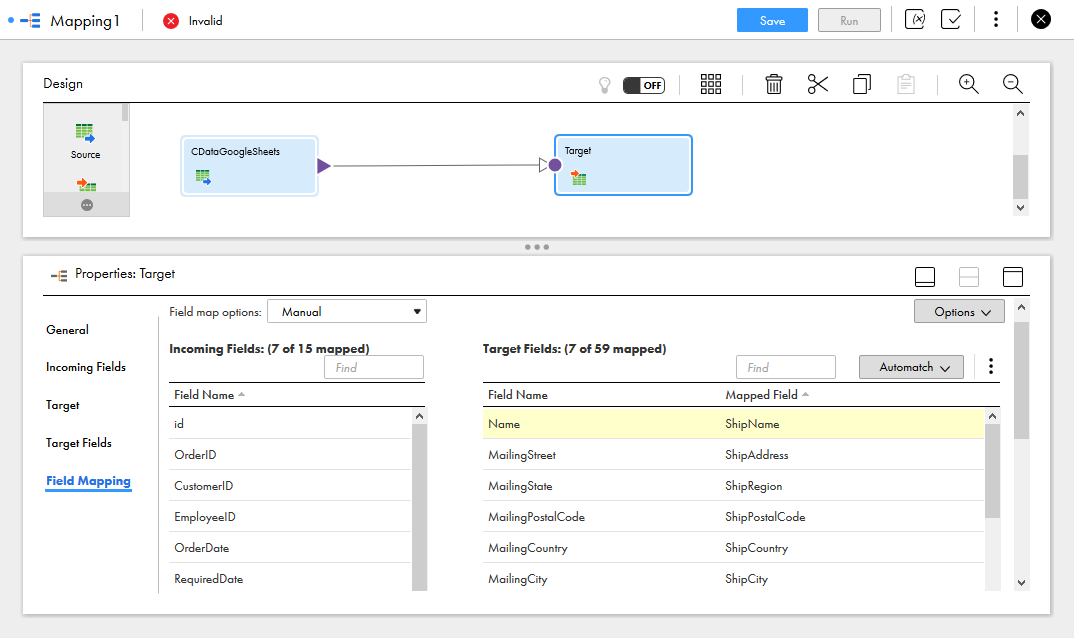
- Click the Target object and configure the Target source, table and fields. In the Field Mapping tab, map the source fields to the target fields.
With the mapping configured, you are ready to start integrating live Sage X3 Cloud data with any of the supported connections in Informatica Cloud. Download a free, 30-day trial of the CData JDBC Driver for Sage X3 Cloud and start working with your live Sage X3 Cloud data in Informatica Cloud today.
Ready to get started?
Download a free trial of the Sage X3 Cloud Driver to get started:
Download NowLearn more:
 Sage X3 Cloud JDBC Driver
Rapidly create and deploy powerful Java applications that integrate with Sage X3 Cloud.