




Add Sage X3 Cloud Data to Informatica Enterprise Data Catalog

Informatica provides a powerful, elegant means of transporting and transforming your data. By utilizing the CData JDBC driver for Sage X3 Cloud, you are gaining access to a driver based on industry-proven standards that integrates seamlessly with Informatica's Enterprise Data Catalog. This tutorial shows how to classify and organize Sage X3 Cloud data across any environment.
Load the JDBC Driver
To load the JDBC Driver:
- Install the JDBC Driver on the host running Informatica. For this article, it is assumed that the driver was installed into cdata.jdbc.sagex3cloud.SageX3CloudDriver.
- Navigate to the JDBC install directory and create a zip file called genericJDBC.zip containing the driver and its license file.
- Move the genericJDBC.zip file into the Catalog Service directory within Informatica. For this article, it is assumed that Informatica is installed into /opt/informatica. Working in this folder will probably require root permissions, so make sure to su or sudo to root before continuing.
- Edit the custom deployment configuration to unpack the zip file.
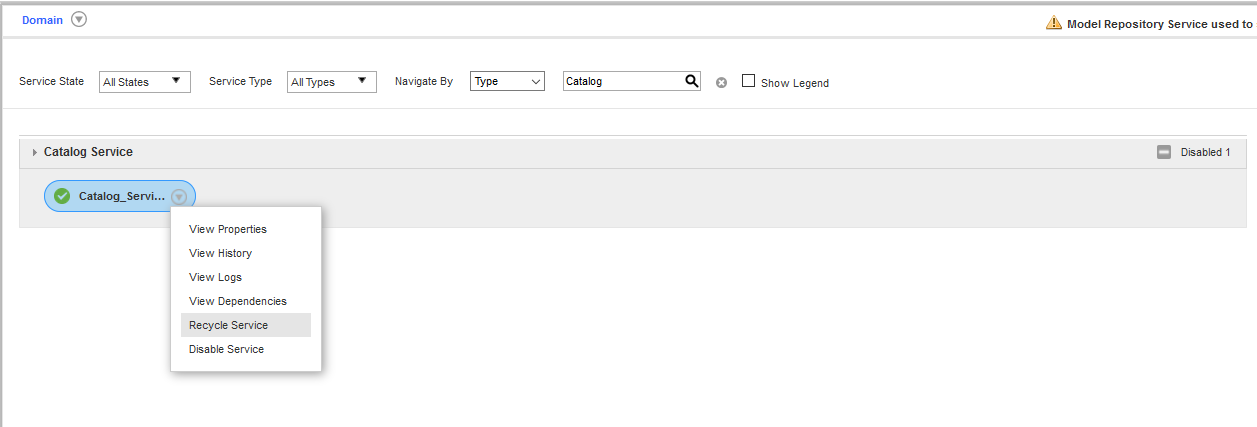
- Refresh the Catalog Service from the Admin console.
$ java -jar setup.jar
$ cd ~/cdata-jdbc-driver-for-sagex3cloud/lib
$ zip genericJDBC.zip cdata.jdbc.sagex3cloud.jar cdata.jdbc.sagex3cloud.lic
# mv genericJDBC.zip /opt/informatica/services/CatalogService/ScannerBinaries
# cd /opt/informatica/services/CatalogService/ScannerBinaries/CustomDeployer/
# nano scannerDeployer.xml
After unpacking the existing ExecutionContextProperty nodes, add a new ExecutionContextProperty node with this content.
<ExecutionContextProperty
    isLocationProperty="true"
    dependencyToUnpack="genericJDBC.zip">
<PropertyName>JDBCScanner_DriverLocation</PropertyName>
<PropertyValue>scanner_miti/genericJDBC/Drivers</PropertyValue>
</ExecutionContextProperty>
Configure the JDBC Resource
To configure the JDBC resource:
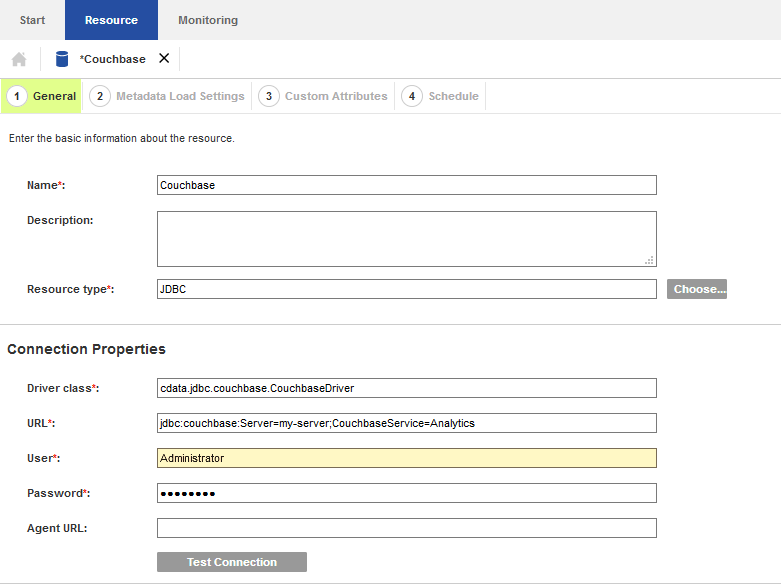
- Open the Catalog administrator and add a new JDBC resource with the following properties:
- Driver Class: cdata.jdbc.sagex3cloud.SageX3CloudDriver
- URL: jdbc.sagex3cloud:AuthScheme=OAuth;URL=https://x3server/;OAuthAccessTokenUrl=https://auth-domain/oauth/token;OAuthClientId=your_client_id;OAuthClientSecret=your_client_secret;Audience=https://api-audience;XAPIKey=your_api_key;Folder=SEED;
- URL: The base URL of your Sage X3 Cloud instance.
- OAuthAccessTokenUrl: The OAuth token endpoint (e.g., https://your-auth-domain/oauth/token).
- OAuthClientId: Your OAuth application client ID.
- OAuthClientSecret: Your OAuth application client secret.
- Audience: The API audience value for the token request.
- XAPIKey: The X-API-Key provided by your Sage X3 Cloud administrator.
- Folder: The Sage X3 folder name (e.g., SEED). This folder is used as the default schema.
- Folders (optional): A comma-separated list of Sage X3 folders (e.g., SEED,PERF). Each folder is exposed as a separate schema, so you can query across folders with the Schema.Table syntax.
- Username: user
- Password: password
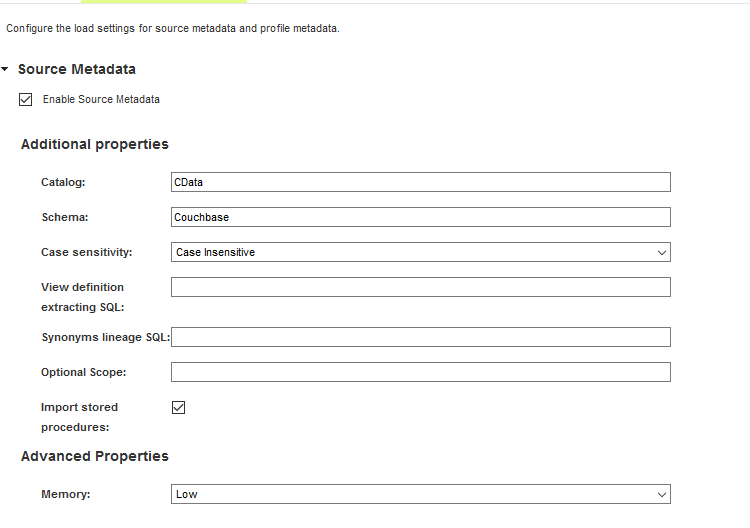
- Configure the metadata options to perform at least one source metadata scan. This scan uses the driver to determine what tables, views, and stored procedures are available through the service.
- Source Metadata: Enable this option.
- Catalog: Set this to the appropriate catalog for multi-catalog data sources. Otherwise, set this to CData.
- Schema: Set this to the appropriate schema for multi-schema data sources. Otherwise, set this to the name of the service (for example, Couchbase).
- Case-sensitivity: Generally this option should be disabled. Enable it only for data sources which are case-sensitive.
- Import stored procedures: Enable this if you want to import stored procedure definitions in addition to tables and views.
- Complete the driver configuration, optionally configuring custom attributes and a scanner schedule.
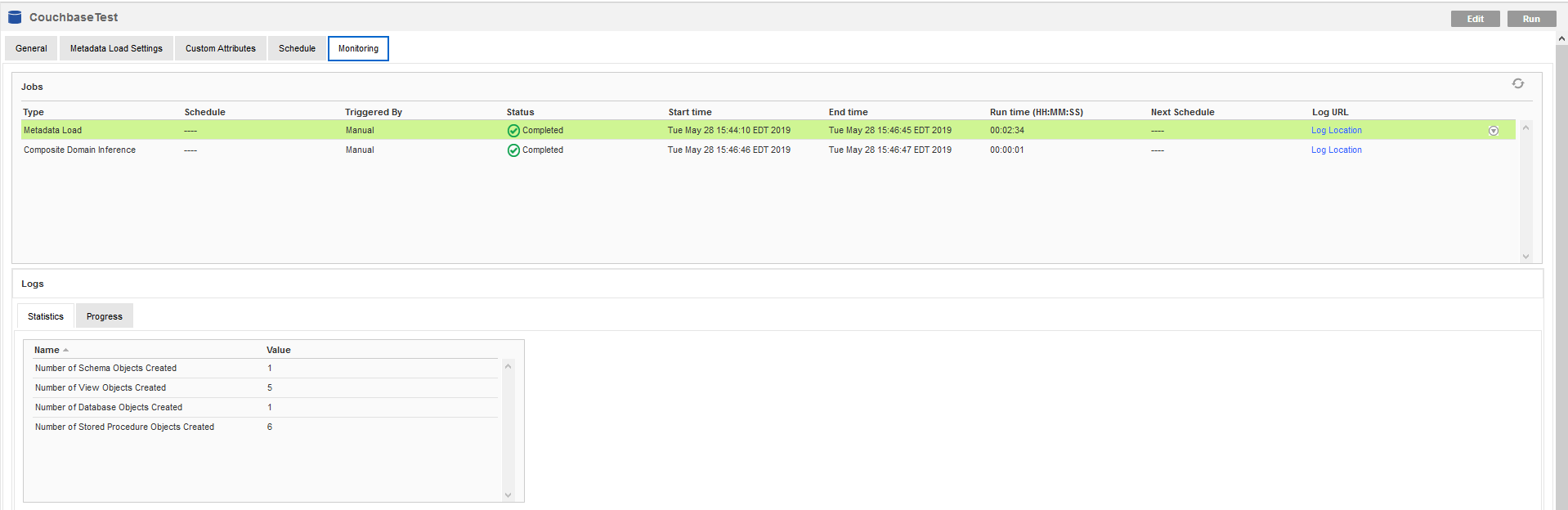
- Perform the metadata scan by navigating to the Monitoring tab and clicking Run. Depending upon the data source, this may takes a few minutes.
Sage X3 Cloud uses the OAuth 2.0 Client Credentials flow, and an X-API-Key is also required for API access. Set AuthScheme to OAuth and specify the following connection properties:
The driver obtains an access token with the Client Credentials flow and sends it with the X-API-Key on every API request. With InitiateOAuth set to GETANDREFRESH (the default), the driver acquires and refreshes the token automatically.
Built-In Connection String Designer
For assistance in constructing the JDBC URL, use the connection string designer built into the Sage X3 Cloud JDBC Driver. Either double-click the .jar file or execute the .jar file from the command-line.
java -jar cdata.jdbc.sagex3cloud.jar
Fill in the connection properties and copy the connection string to the clipboard.

When you configure the JDBC URL, you may also want to set the Max Rows connection property. This will limit the number of rows returned, which is especially helpful for improving performance when designing reports and visualizations.
Typical additional connection string properties follow:
JDBC;MSTR_JDBC_JAR_FOLDER=PATH\TO\JAR\;DRIVER=cdata.jdbc.sagex3cloud.SageX3CloudDriver;URL={jdbc:sagex3cloud:AuthScheme=OAuth;URL=https://x3server/;OAuthAccessTokenUrl=https://auth-domain/oauth/token;OAuthClientId=your_client_id;OAuthClientSecret=your_client_secret;Audience=https://api-audience;XAPIKey=your_api_key;Folder=SEED;};
Note that the Username and Password properties are required, even if the driver you are using does not require them. In those cases, you can enter a placeholder value instead.
Other metadata scanners may be enabled as desired.
When the scan is complete, a summary of all of the metadata objects is displayed along with the status of the Metadata Load job. If any errors occur, you can open the Log Location link for the job to see the errors reported by Informatica or the driver.
Validate the Discovered Metadata
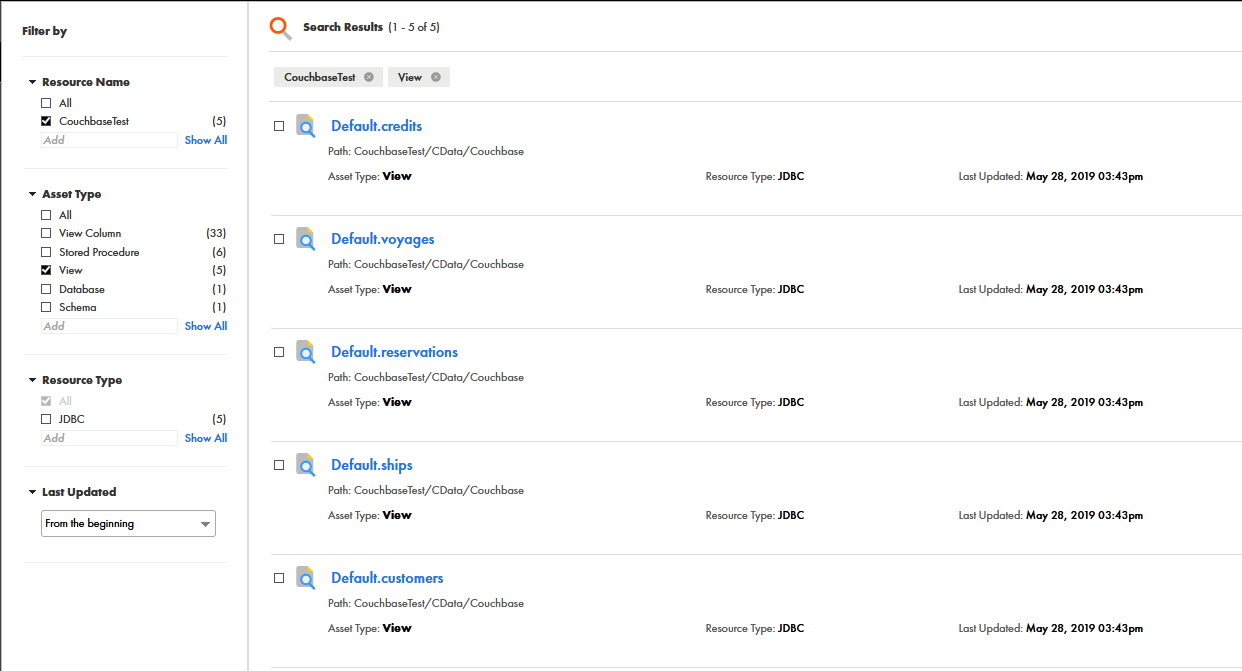
Open the Catalog Service browser to view the metadata extracted from the data source. Depending upon the options you selected when configuring the metadata scanner, you may see any combination of tables, views, and stored procedures for the resource you defined.
Ready to get started?
Download a free trial of the Sage X3 Cloud Driver to get started:
Download NowLearn more:
 Sage X3 Cloud JDBC Driver
Rapidly create and deploy powerful Java applications that integrate with Sage X3 Cloud.