




How to connect to Sage X3 Cloud Data from IntelliJ

The CData JDBC Driver for Sage X3 Cloud enables you to access Sage X3 Cloud as a JDBC data source, providing integration with rapid development tools in IDEs. This article shows how to use the data source configuration wizard to connect to Sage X3 Cloud data in IntelliJ.
Create a JBDC Data Source for Sage X3 Cloud
Follow the steps below to add the driver JAR and define connection properties required to connect to Sage X3 Cloud data.
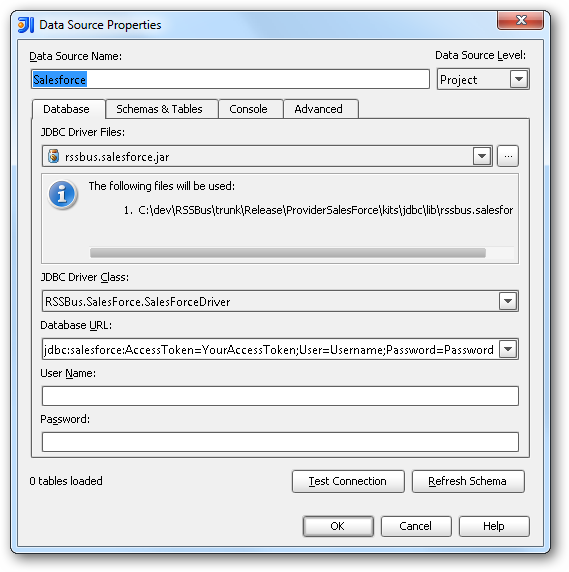
- In the Data Sources window, right-click and then click Add Data Source -> DB Data Source.
In the Data Source Properties dialog that appears, the following properties are required:
- JDBC Driver Files: Click the button next to this menu to add the JDBC Driver file cdata.jdbc.sagex3cloud.jar, located in the installation directory.
- JDBC Driver Class: In this menu, select cdata.jdbc.sagex3cloud.SageX3CloudDriver from the list.
Database URL: Enter the connection URL in the JDBC URL property. The URL must start with jdbc:sagex3cloud: and includes connection properties separated with semicolons.
Sage X3 Cloud uses the OAuth 2.0 Client Credentials flow, and an X-API-Key is also required for API access. Set AuthScheme to OAuth and specify the following connection properties:
- URL: The base URL of your Sage X3 Cloud instance.
- OAuthAccessTokenUrl: The OAuth token endpoint (e.g., https://your-auth-domain/oauth/token).
- OAuthClientId: Your OAuth application client ID.
- OAuthClientSecret: Your OAuth application client secret.
- Audience: The API audience value for the token request.
- XAPIKey: The X-API-Key provided by your Sage X3 Cloud administrator.
- Folder: The Sage X3 folder name (e.g., SEED). This folder is used as the default schema.
- Folders (optional): A comma-separated list of Sage X3 folders (e.g., SEED,PERF). Each folder is exposed as a separate schema, so you can query across folders with the Schema.Table syntax.
The driver obtains an access token with the Client Credentials flow and sends it with the X-API-Key on every API request. With InitiateOAuth set to GETANDREFRESH (the default), the driver acquires and refreshes the token automatically.
Built-in Connection String Designer
For assistance in constructing the JDBC URL, use the connection string designer built into the Sage X3 Cloud JDBC Driver. Either double-click the JAR file or execute the jar file from the command-line.
java -jar cdata.jdbc.sagex3cloud.jarFill in the connection properties and copy the connection string to the clipboard.

A typical JDBC URL is the following:
jdbc:sagex3cloud:AuthScheme=OAuth;URL=https://x3server/;OAuthAccessTokenUrl=https://auth-domain/oauth/token;OAuthClientId=your_client_id;OAuthClientSecret=your_client_secret;Audience=https://api-audience;XAPIKey=your_api_key;Folder=SEED;
Edit and Save Sage X3 Cloud Data
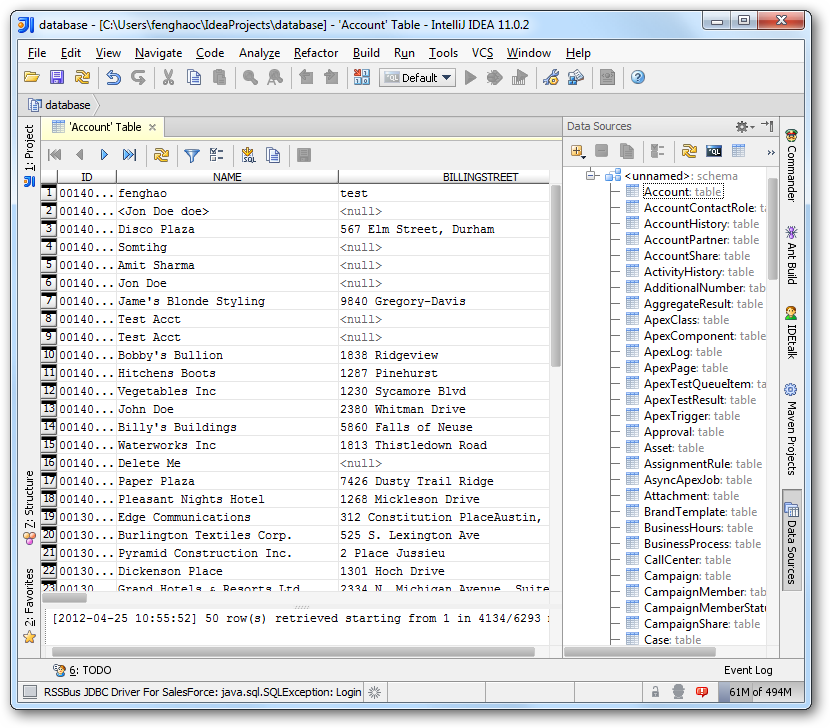
To discover schema information, right-click the data source you just created and click Refresh Tables. To query a table, right-click it and then click Open Tables Editor.
Ready to get started?
Download a free trial of the Sage X3 Cloud Driver to get started:
Download NowLearn more:
 Sage X3 Cloud JDBC Driver
Rapidly create and deploy powerful Java applications that integrate with Sage X3 Cloud.