






Getting Started with the CData SSIS Components for Salesforce
This guide explains everything you need to get started with the CData SSIS Components for Salesforce. You'll learn how to install the components, activate your license, configure your first SSIS connection manager, and build a data flow task to move and transform Salesforce data in your SQL Server Integration Services workflows.
About Salesforce Data Integration
Accessing and integrating live data from Salesforce has never been easier with CData. Customers rely on CData connectivity to:
- Access to custom entities and fields means Salesforce users get access to all of Salesforce.
- Create atomic and batch update operations.
- Read, write, update, and delete their Salesforce data.
- Leverage the latest Salesforce features and functionalities with support for SOAP API versions 30.0.
- See improved performance based on SOQL support to push complex queries down to Salesforce servers.
- Use SQL stored procedures to perform actions like creating, retrieving, aborting, and deleting jobs, uploading and downloading attachments and documents, and more.
Users frequently integrate Salesforce data with:
- other ERPs, marketing automation, HCMs, and more.
- preferred data tools like Power BI, Tableau, Looker, and more.
- databases and data warehouses.
For more information on how CData solutions work with Salesforce, check out our Salesforce integration page.
Getting Started
Installation & Licensing
System Requirements
- Windows: Windows 10/11 or Windows Server 2016+
- Visual Studio: Visual Studio 2015 or later
- SQL Server: SQL Server 2014, 2016, 2017, 2019, or 2022
Installing the SSIS Components
- Download the SSIS Components installer for Salesforce from your CData account or the evaluation download page
- Run the installer and follow the installation wizard
- The installer automatically registers the Connection Manager, Source, and Destination components with Visual Studio
- When prompted, activate your license using the product key sent to you by the CData Orders Team:
XXXX-XXXX-XXXX-XXXX-XXXX- Note: To run a trial, choose the Trial Key option.
Enabling SSIS in Visual Studio 2022
If you are using Visual Studio 2022, the SQL Server Integration Services Projects extension must be installed.
- In Visual Studio, select Extensions > Manage Extensions
- Search for SQL Server Integration Services Projects 2022
- Click Install
- Close Visual Studio and run the downloaded Microsoft.DataTools.IntegrationServices.exe installer
- Reopen Visual Studio. The Integration Services Project template will now appear when creating a new project
Activating Your License
During installation, you are prompted to activate the SSIS Component license. If you need to update or change activation:
License Activation
The installer automatically prompts you to add your license. During installation, you can choose to:
- Use your existing subscription license key, or
- Enter your trial license
To activate a full subscription license, contact the CData Orders Team and request your product key at [email protected].
Enter the license key in the installer when prompted. Once activated, the components will be licensed and ready to use inside Visual Studio without any additional steps.
Runtime Licensing
When deploying SSIS packages, a Runtime Key (RTK) can also be used:
- Set the RTK property in the Connection Manager before deployment
Common Licensing Questions
Can I use my license on multiple machines?
Yes, depending on your subscription tier. Contact [email protected] for details.
I lost my license key. How do I retrieve it?
Email [email protected] with your order number, and we'll resend your license key.
How do I transfer my license to another machine?
Yes. When transferring the license to a different machine, you will need to submit a License Transfer Request on our site linked below:
https://www.cdata.com/lic/transfer/After the License Transfer Request is submitted and successfully processed, an activation will be added to your Product Key and you will be able to activate the full license on the other machine. Once this process is finished, the license on the previous machine will be invalid.
You may also view and upgrade licenses in the self-service portal at portal.cdata.com.
Connection Configuration
Once the components are installed and licensed, you can configure a connection to Salesforce using an SSIS Connection Manager. This Connection Manager stores all authentication and connection properties used by the Source and Destination components.
Creating a Connection Manager
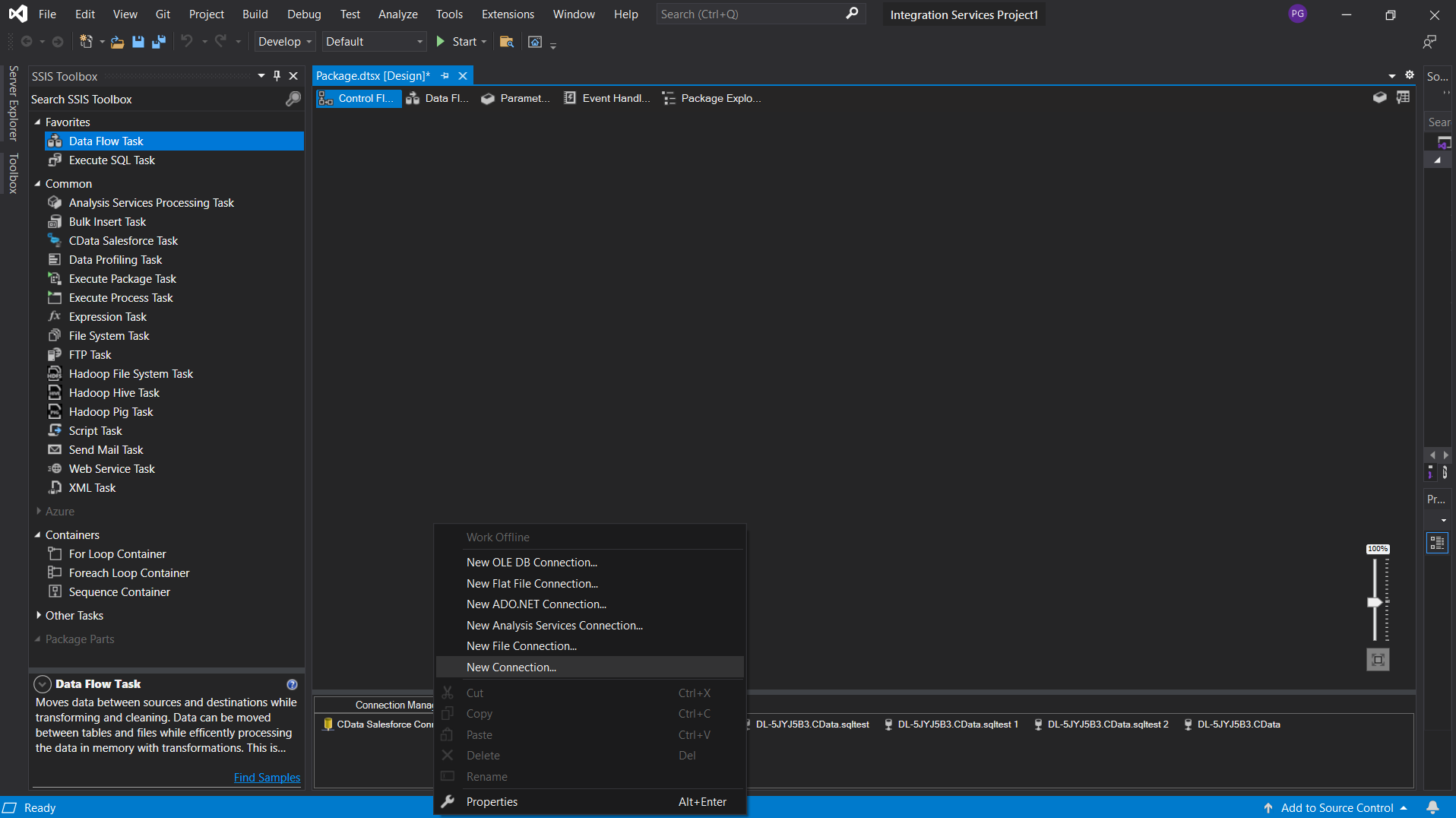
- In the bottom Connection Managers panel of your SSIS package, right-click and select New Connection
- Select CData SSIS Components for Salesforce from the list
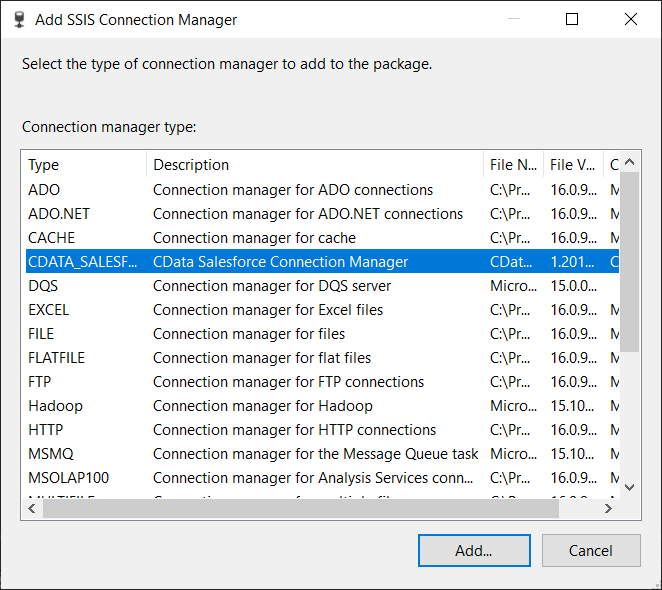
- Click Add to open the Connection Manager UI
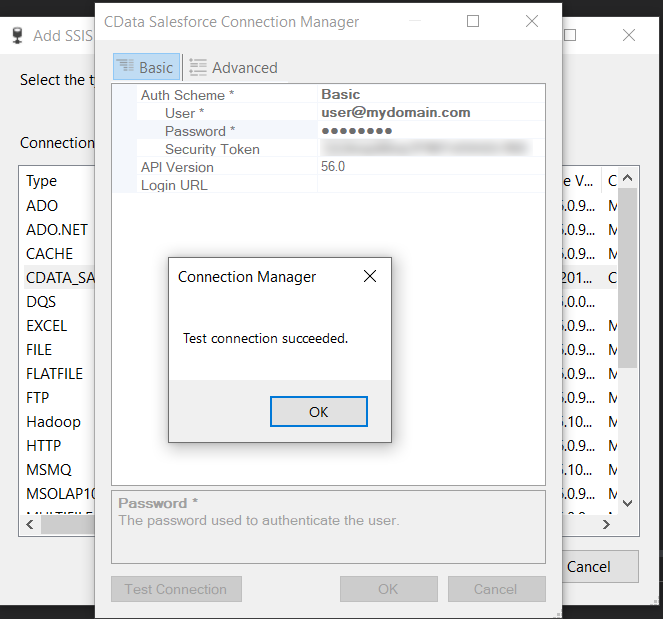
- Enter the required authentication properties (OAuth, API token, client credentials, etc.) depending on your Salesforce
- Click Test Connection to confirm connectivity
Configuring Connection Properties
There are several authentication methods available for connecting to Salesforce: OAuth, Login (or basic), and SSO. The Login method requires you to have the username, password, and security token of the user.
OAuth Authentication (default)
The default authentication mechanism (and the one preferred by Salesforce) is OAuth. To use OAuth with CData's embedded OAuth application, leave the connection properties blank. If you have configured your own custom OAuth application with Salesforce (see the Help documentation for more information), set OAuthClientId, OAuthClientSecret, and CallbackURL to the properties for you application. Set InitiateOAuth to the desired OAuth flow ("GETANDREFRESH" will have the connector manage the entire OAuth flow).
Login (or Basic) Authentication
If you do not wish do not wish to use OAuth authentication, you can use Login (or basic) authentication. Set AuthScheme to Basic, and set the User, Password, and SecurityToken properties. You can configure your security token in Salesforce.
SSO (single sign-on) Authentication
SSO (single sign-on) can be used by setting the SSOProperties, SSOLoginUrl, and SSOExchangeURL connection properties, which allow you to authenticate to an identity provider. See the "Getting Started" chapter in the Help documentation for more information.
Building an SSIS Data Flow
With a Connection Manager created, you can now pull data from Salesforce or push data into it using SSIS data flow tasks.
Creating a Data Flow Task
- In the Control Flow tab, drag a Data Flow Task onto the design surface
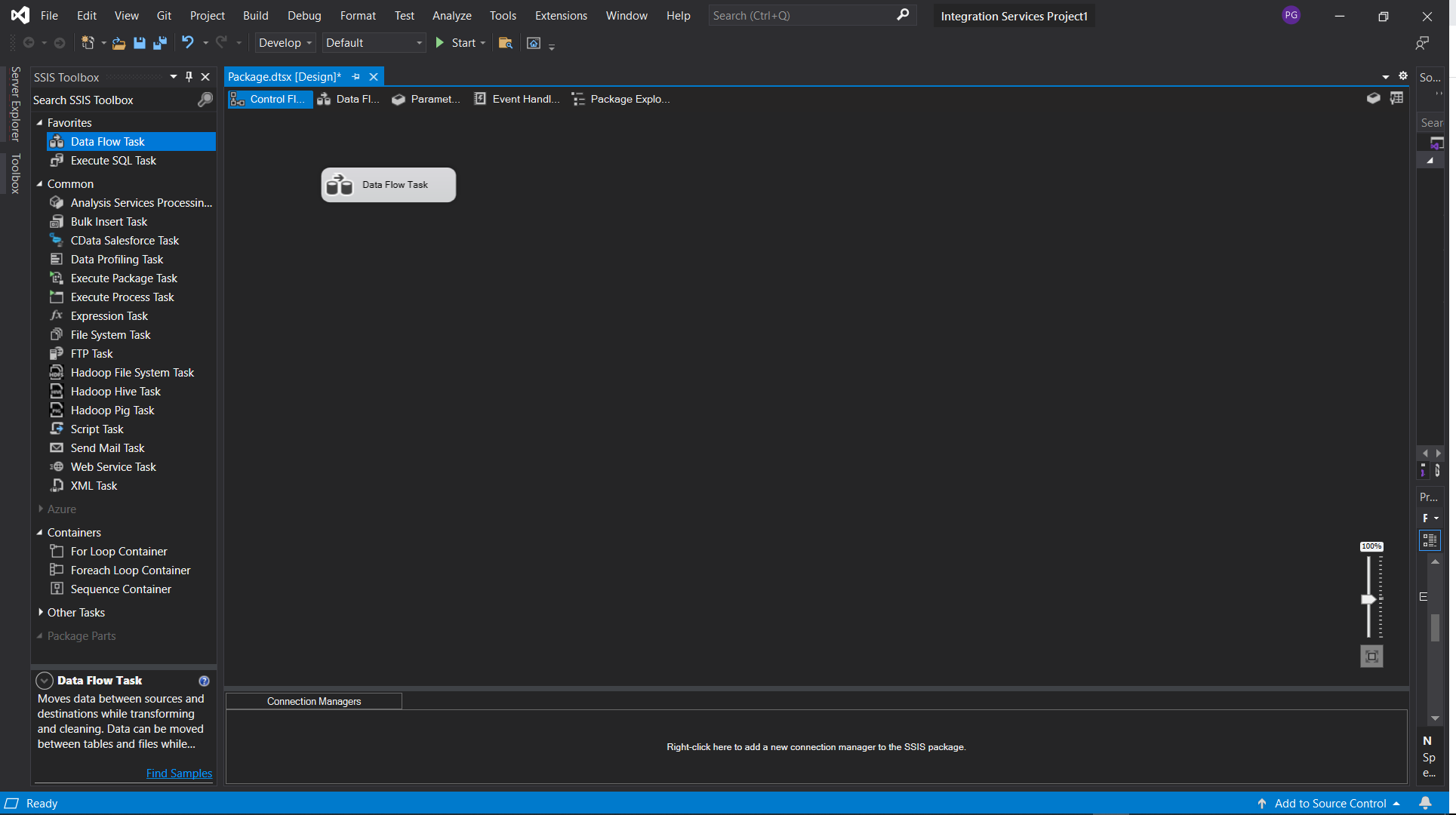
- Double-click the task to open the Data Flow workspace
Using the Source Component
- In the SSIS Toolbox, drag the CData Salesforce Source component into the Data Flow
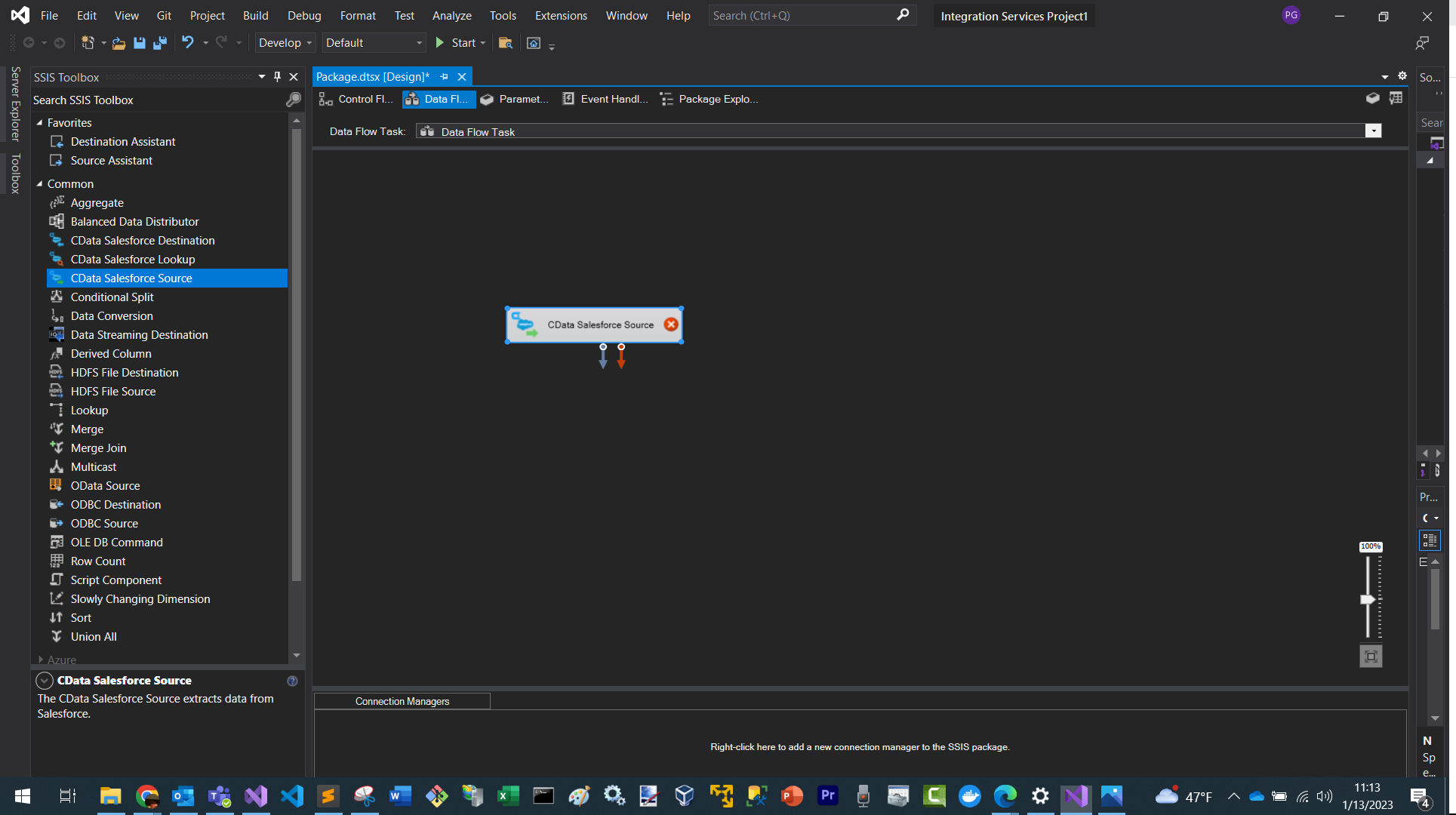
- Double-click it to open the Source Editor
- Select the CData Salesforce Connection Manager you created
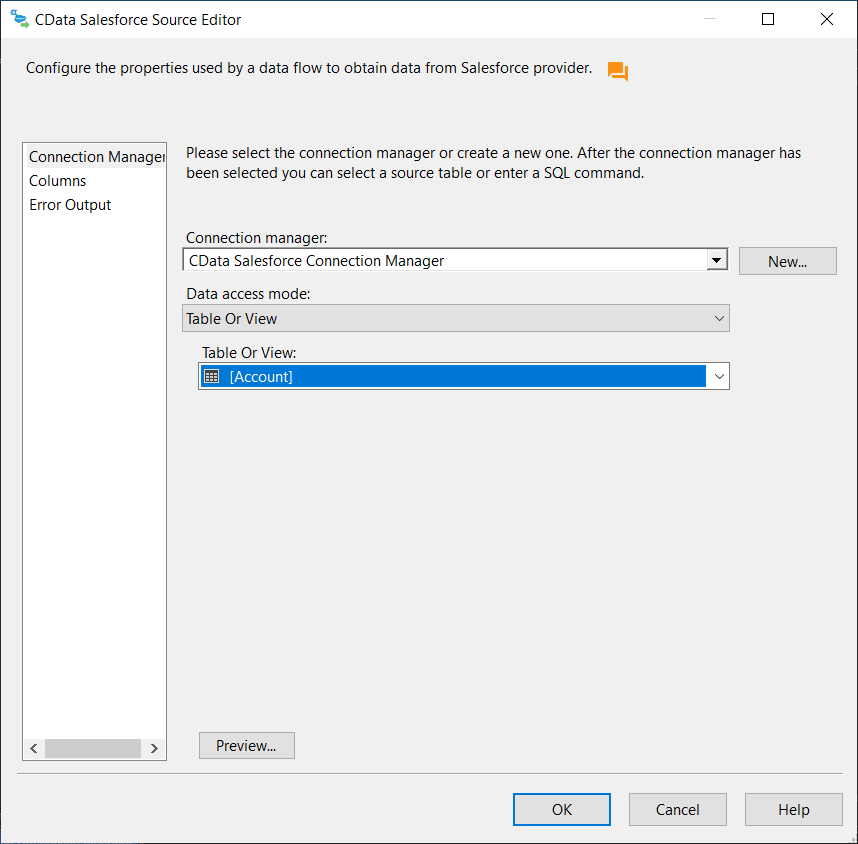
- Choose a table or view to extract records from
- Click OK to save your configuration
Using the Destination Component
- Drag a SQL Server Destination onto the canvas
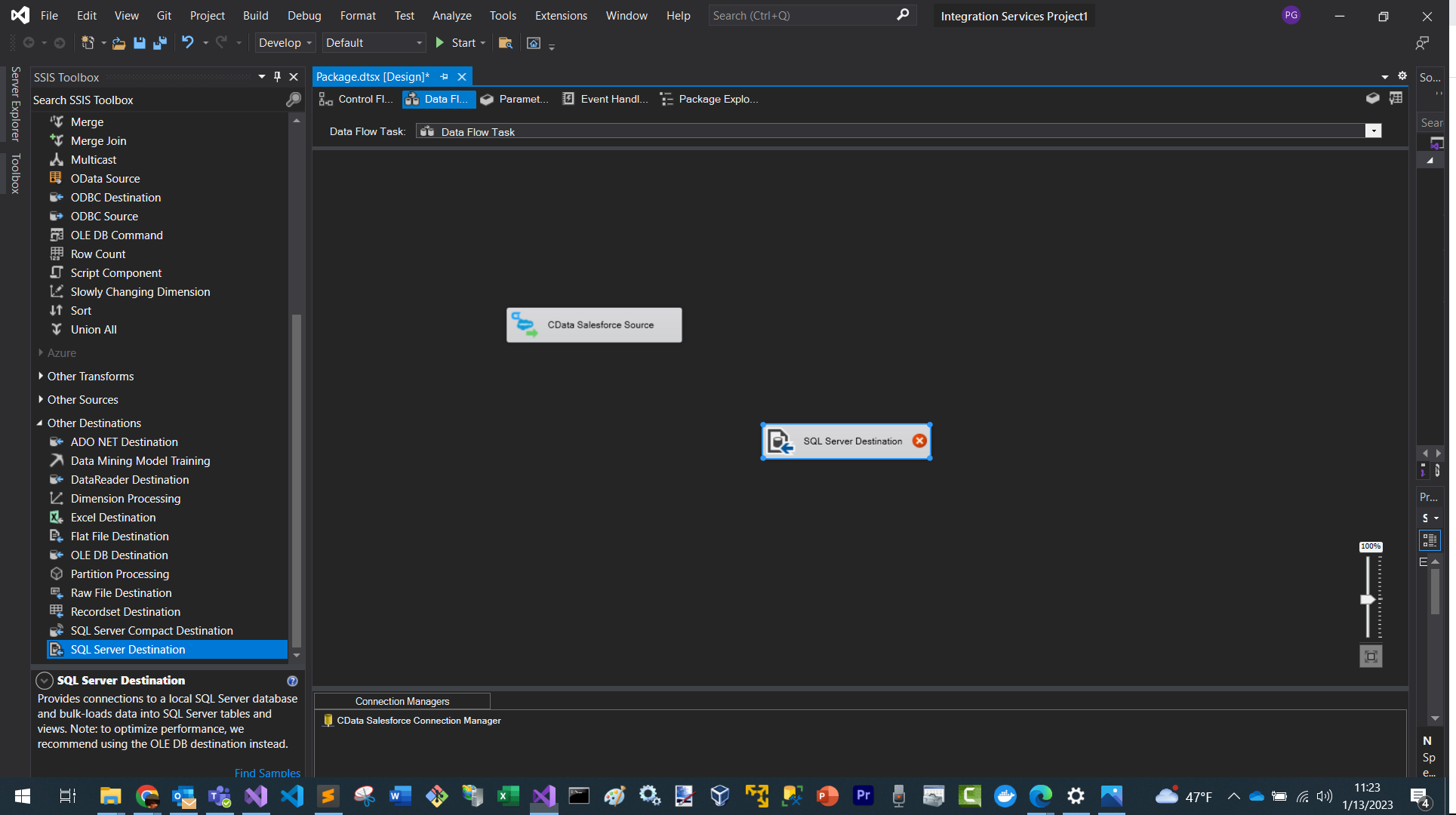
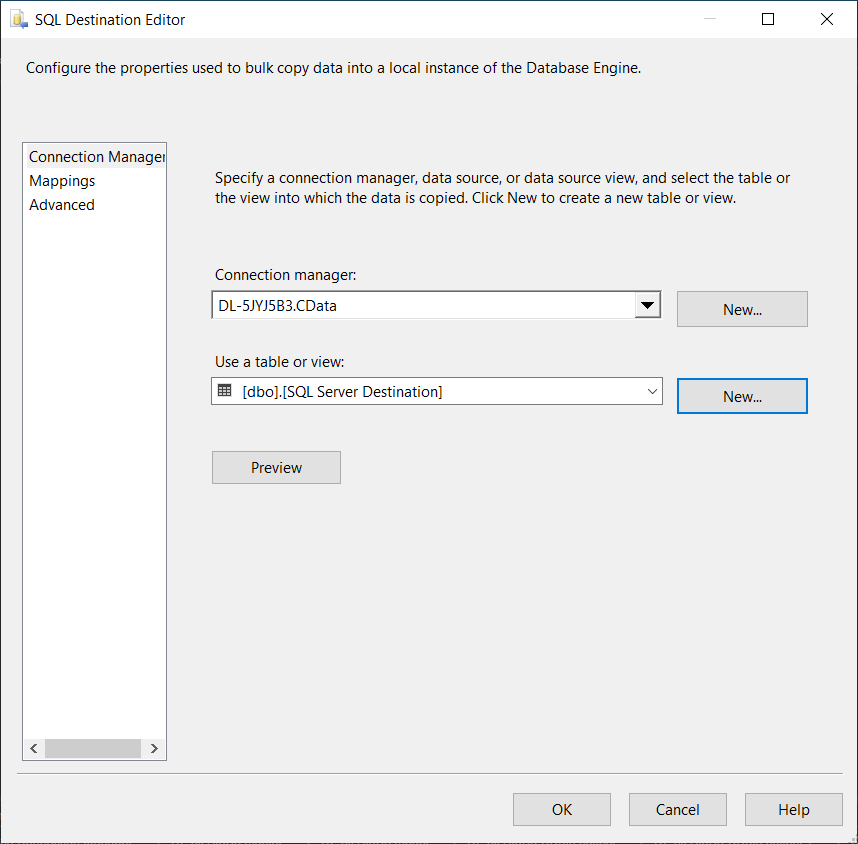
- Double-click it to open the Destination Editor
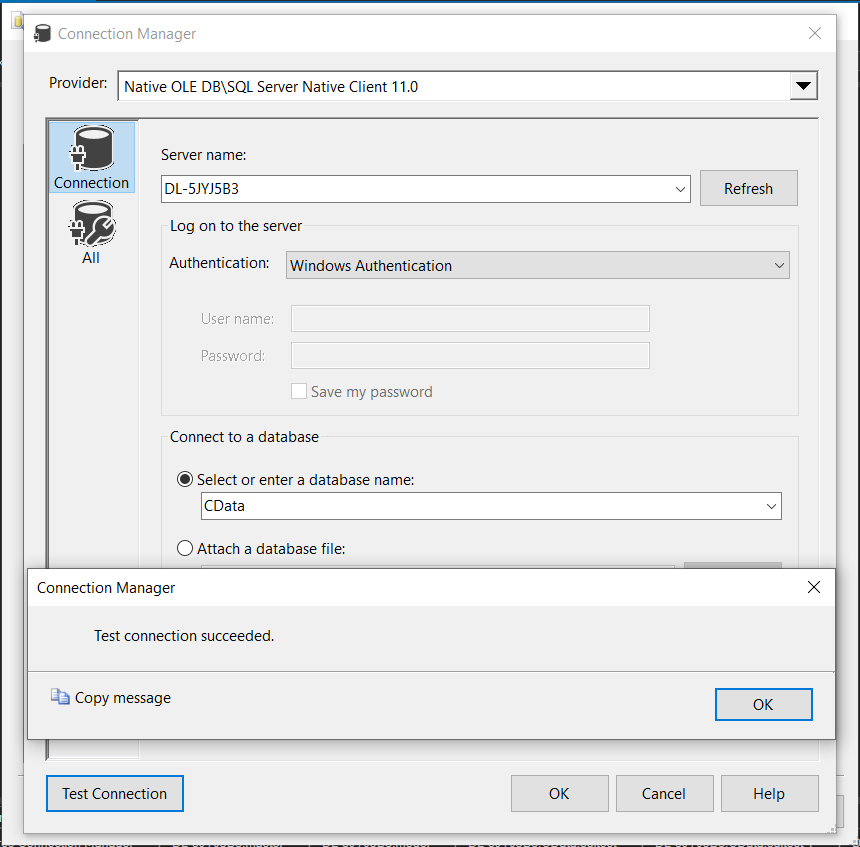
- Select an existing table or click New to auto-generate a table based on the Source schema
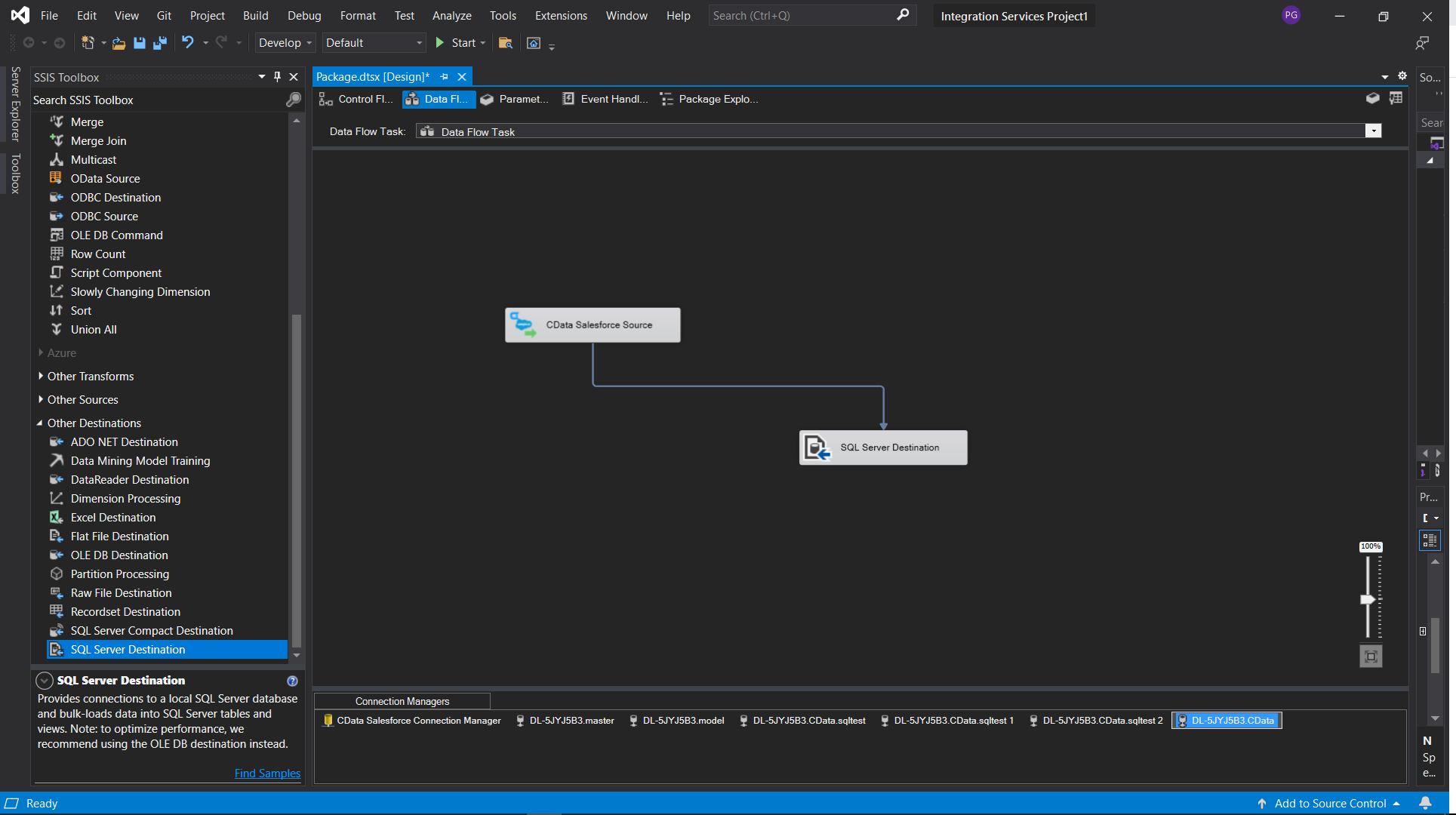
- Connect the Source output to the Destination input and map the columns as needed
- At this point you have created a data flow task for replicating your Salesforce data to a SQL Server database
Testing Your Data Flow
- Return to the Control Flow tab
- Click Start Debugging
- Monitor the progress indicators
- Review row counts and ensure data is loading as expected
Common Connection Issues
Authentication Failed
Solution: Verify OAuth settings, client IDs, secrets, or token permissions for your Salesforce. Contact [email protected] for OAuth troubleshooting.
Cannot Reach Server
Solution: Check firewall, proxy, and VPN configurations. Contact [email protected] for specific port requirements.
Table Not Found
Solution: Confirm you selected the correct schema or database when querying Salesforce.
What's Next
Now that you have installed, licensed, and configured the SSIS Components, here are scenarios you can use to explore our SSIS tools:
| SSIS Component | Article Title |
|---|---|
| BIML | Use Biml to Build SSIS Tasks to Replicate Salesforce to SQL Server |
| SSIS Export | Export Data from SQL Server to Salesforce through SSIS |
| SSIS Import | Import Salesforce Data into SQL Server using SSIS |
| SSIS Lookup | Insert New or Update Existing Salesforce Records from SQL Server |
Get Support
If you need assistance at any point:
- Technical Support: [email protected]
- Community Forum: CData Community Site
- Help Documentation: Installed locally and available online
FAQs
Installation & Licensing
- Do I need administrator rights to install the SSIS Components?
Yes, administrator rights are required to install components for use across Visual Studio. - Do I need an RTK to deploy to Azure Data Factory?
Yes. Set the RTK property in the Connection Manager before publishing.
Connecting
- Can I use multiple Salesforce accounts?
Create separate Connection Managers for each account. - Can I connect through a proxy?
Yes. Configure proxy settings in the Connection Manager properties. - How do I test my connection?
Click Test Connection in the Connection Manager UI.
Performance & Troubleshooting
- Why is my data flow slow?
Add filters, limit rows, and ensure batching settings are configured in the Source component. - How do I enable logging?
Add the following to your connection manager:- Logfile: /path/to/logfile.log
- Verbosity: 3
Be prepared to securely upload the log file upon request when reaching out to [email protected] for troubleshooting analysis.
For questions not covered in this FAQ, contact [email protected].
Ready to get started?
Download a free trial of the Salesforce SSIS Component to get started:
Download NowLearn more:
 Salesforce SSIS Components
Powerful SSIS Source & Destination Components that allows you to easily connect SQL Server with live Salesforce account data through SSIS Workflows.
Use the Salesforce Data Flow Components to synchronize with Salesforce Leads, Contacts, Opportunities, Accounts, etc. Perfect for data synchronization, local back-ups, workflow automation, and more!
