






Getting Started with the CData ADO.NET Provider for SAP
This guide explains everything you need to work with the CData ADO.NET Provider for SAP ERP. You will learn how to install the provider, set up a connection to your SAP data, and run simple commands in your .NET applications using familiar ADO.NET patterns.
Whether you are building desktop apps, web apps, or background services, the provider enables secure, high-performance connectivity to live SAP data without needing to manage API details manually.
About SAP Data Integration
CData provides the easiest way to access and integrate live data from SAP. Customers use CData connectivity to:
- Access every edition of SAP, including SAP R/3, SAP NetWeaver, SAP ERP / ECC 6.0, and SAP S/4 HANA on premises data that is exposed by the RFC.
- Perform actions like sending IDoc or IDoc XML files to the server and creating schemas for functions or queries through SQL stored procedures.
-
Connect optimally depending on where a customer's SAP instance is hosted.
- Customers using SAP S/4HANA cloud public edition will use SAP NetWeaver Gateway connectivity
- Customers using SAP S/4HANA private edition will use either SAP ERP or SAP NetWeaver Gateway connectivity.
While most users leverage our tools to replicate SAP data to databases or data warehouses, many also integrate live SAP data with analytics tools such as Tableau, Power BI, and Excel.
Getting Started
Installation and Licensing
System Requirements
- Windows: Windows 10/11 or Windows Server 2016+
- .NET Versions: .NET Framework 4.0+, .NET 6+, .NET Standard assemblies
- IDE: Visual Studio 2017 or later
Installing the ADO.NET Provider
Windows Installation
- Download the ADO.NET provider installer from your CData account or the evaluation page.
- Run the installer and follow the installation wizard to completion.
- The installer registers the provider and places all assemblies in the appropriate CData installation folders.
-
You will be prompted for your license key during installation:
XXXX-XXXX-XXXX-XXXX-XXXX- Note: If you are using a trial, select Trial Key instead.
Activating your License
Licensing behavior varies depending on whether you are developing with the .NET Framework or .NET Standard. Use the steps below to activate the provider in your environment.
.NET Framework (Windows)
On Windows using the .NET Framework, no extra action is required. The installer or NuGet package automatically installs your development license.
.NET Standard (Windows/Mac/Linux)
For .NET Standard platforms like .NET Core, Mono, or Xamarin, you must install a license manually before using the provider.
Using the Install-License Tool
The toolkit includes an install-license utility in the
lib/netstandard2.0folder for applying trial or full licenses.
To install a trial license:
dotnet ./install-license.dll
To activate a full product license:
dotnet ./install-license.dll
After running the tool, your development machine is licensed and ready to use the provider in .NET applications.
Runtime Licensing
When deploying applications, specify the Runtime Key (RTK) in your connection string to enable redistribution.
| Property | Description |
|---|---|
| RTK | Your Runtime Key used for deployed ADO.NET applications. |
Common Licensing Questions
Can I use my license on multiple machines?
Yes, depending on your subscription tier. If unsure, review your order confirmation or contact [email protected].
I lost my license key. How do I retrieve it?
Email [email protected] with your order number.
Can I transfer my license to another machine?
Submit a License Transfer Request:
https://www.cdata.com/lic/transfer/
Once approved, an activation is added to your product key and the previous installation becomes invalid.
For more licensing support, visit portal.cdata.com or email [email protected].
Connection Configuration
Once installed, the next step is to configure a connection to SAP. Connections are created using ADO.NET connection strings in your .NET application's code or configuration file.
Creating a connection manager
- Open Visual Studio.
- Navigate to View, select Server Explorer.
-
Click Connect to Database from the left sidebar.
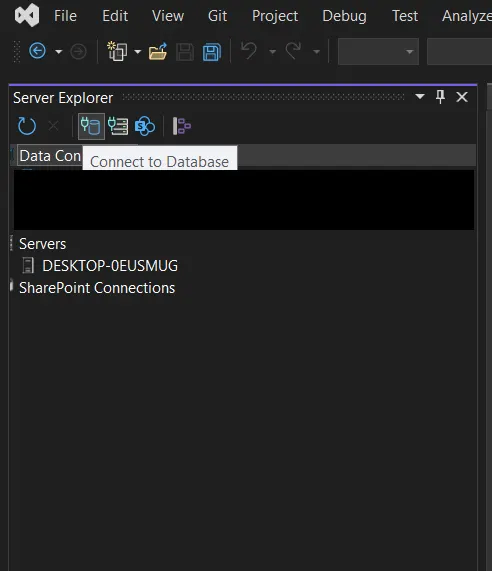
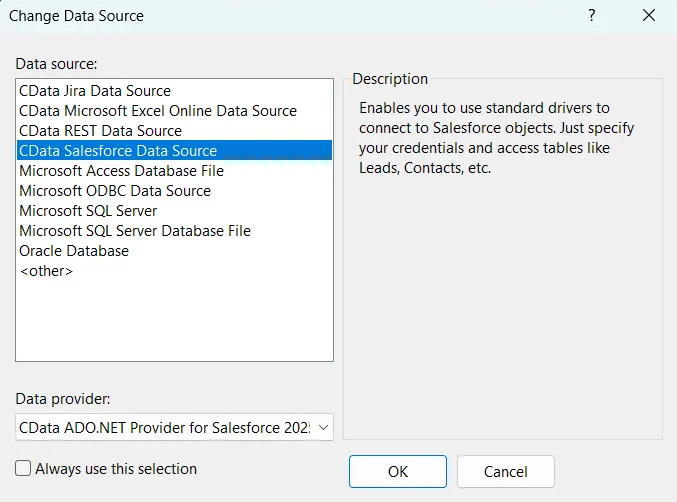
- In the Add Connection dialog, click Change.
-
Choose CData SAP data source, then click OK.
Configuring Connection Properties
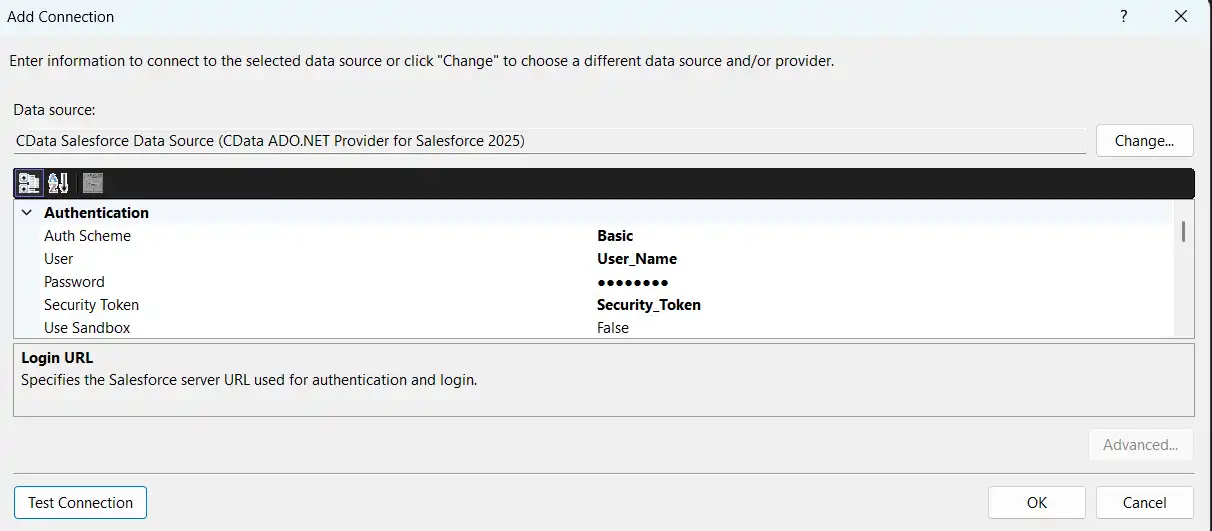
You can connect to SAP systems using either librfc32.dll, librfc32u.dll, NetWeaver, or Web Services (SOAP). Set the ConnectionType connection property to CLASSIC (librfc32.dll), CLASSIC_UNICODE (librfc32u.dll), NETWEAVER, or SOAP.
If you are using the SOAP interface, set the Client, RFCUrl, SystemNumber, User, and Password properties, under the Authentication section.
Otherwise, set Host, User, Password, Client, and SystemNumber.
Note: We do not distribute the librfc32.dll or other SAP assemblies. You must find them from your SAP installation and install them on your machine.
For more information, see this guide on obtaining the connection properties needed to connect to any SAP system.
Test your connection
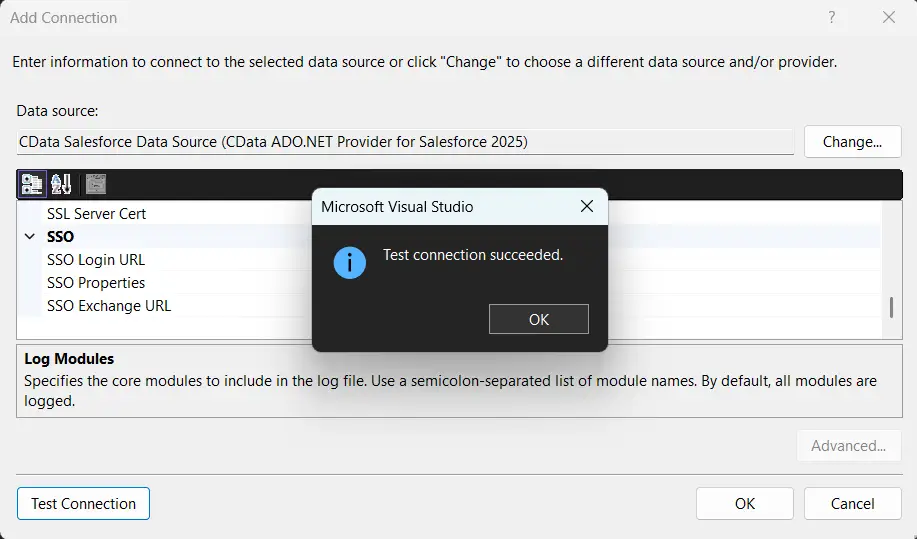
- Click Test Connection.
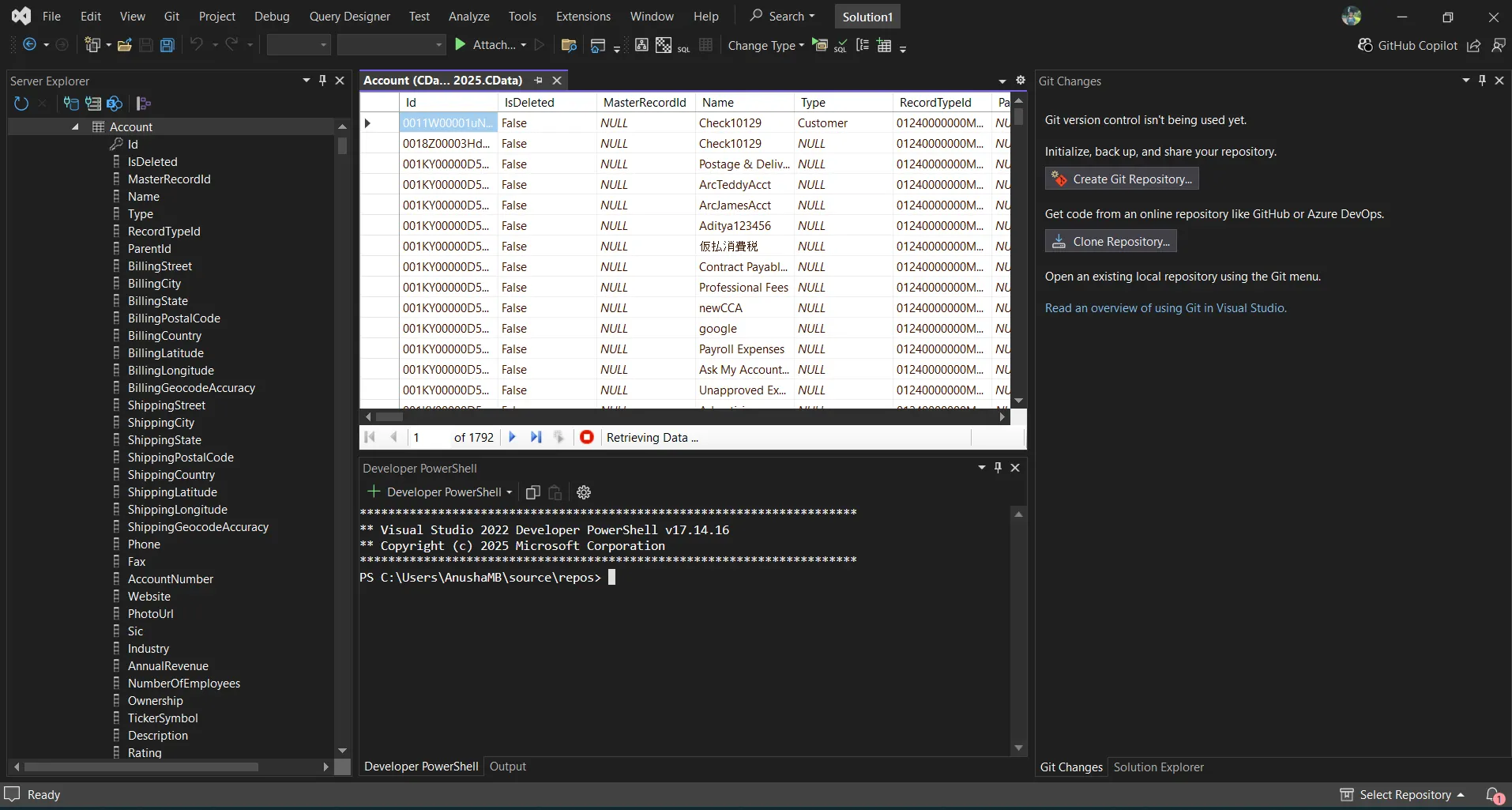
- Once the connection is successful, you can explore the data inside Visual Studio.
Common Connection Issues
Authentication Failed
Solution: Verify OAuth settings, client IDs, secrets, or token permissions for your SAP. Contact [email protected] for assistance.
Cannot Reach Server
Solution: Check firewall, proxy, and VPN configurations. Contact [email protected] for required port information.
Table Not Found
Solution: Confirm you selected the correct schema or database when querying SAP.
What's Next
Now that you have installed, licensed, and configured the ADO.NET provider, here are scenarios you can use to explore our ADO.NET tools:
| ADO.NET Providers | Article Title |
|---|---|
| LINQPad | Working with SAP in LINQPad |
| Microsoft SSAS | Build an OLAP Cube in SSAS from SAP |
| TIBCO Spotfire | Visualize SAP in TIBCO Spotfire through ADO.NET |
| .NET Charts | DataBind Charts to SAP |
| DevExpress | DataBind SAP to the DevExpress Data Grid |
| EF - Code First | Access SAP with Entity Framework 6 |
| EF - LINQ | LINQ to SAP |
| EF - MVC | Build MVC Applications with Connectivity to SAP |
| PowerBuilder | Connect to SAP from PowerBuilder |
Get Support
If you need assistance at any point:
- Technical Support: [email protected]
- Community Forum: CData Community Site
- Help Documentation: Installed locally and available online
FAQs
Installation and Licensing
-
Do I need administrator rights to install the ADO.NET Provider?
Yes, administrator rights are required to install components for use across Visual Studio. -
Do I need an RTK to deploy to Azure Data Factory?
Yes. Set the RTK property in your application's connection string before publishing.
Connecting
-
Can I use multiple SAP accounts?
Create separate Connection =strings for each account. -
Can I connect through a proxy?
Yes. Configure proxy settings in the Connection string. -
How do I test my connection?
Click Test Connection in the Connection Manager UI.
Performance & Troubleshooting
-
How can I improve query performance
Apply filters, limit row counts, and leverage server-side paging properties. -
How do I enable logging?
Add the following to your connection manager:- Logfile: /path/to/logfile.log
- Verbosity: 3
Be prepared to securely upload the log file upon request when reaching out to [email protected] for troubleshooting analysis.
For questions not covered in this FAQ, contact [email protected].
Ready to get started?
Download a free trial of the SAP ERP Data Provider to get started:
Download NowLearn more:
 SAP ERP ADO.NET Provider
Straightforward SAP ERP integration. Now accessing SAP RFC's from .NET applications is as easy as querying SQL Server.
