






Getting Started with the CData ODBC Driver for SAP Business One
This guide walks you through everything you need to get started with the CData ODBC Driver for SAP Business One. You'll learn how to install and license the driver, configure your first connection, and explore next steps for working with SAP Business One data in your applications.
Installation & Licensing
System Requirements
- Windows: Windows 10/11 or Windows Server 2016+
- Linux: Most modern distributions with UnixODBC
Installing the Driver
Windows Installation
- Download the ODBC driver installer from your CData account or the evaluation download page.
- Run the installer and follow the installation wizard.
- The installer will guide you through the setup process and automatically register the driver with the system.
- As part of the installation process, you will be prompted to input the license key in order to activate your license. You should have received your license key via email from the CData Orders Team. The license key looks like this:
XXXX-XXXX-XXXX-XXXX-XXXX.
- Note: If you are running a trial, just select the Trial Key option.
- Both 32-bit and 64-bit drivers are included. Install both if you use applications with different architectures.
Linux Installation
- Ensure UnixODBC is installed: sudo apt-get install unixodbc unixodbc-dev (Debian/Ubuntu) sudo yum install unixODBC unixODBC-devel (RHEL/CentOS)
- Extract the driver package to /opt/cdata/
- The driver will be automatically registered in /etc/odbcinst.ini
Activating Your License
You should have received your license key via email from the CData Orders Team. The license key looks like this: XXXX-XXXX-XXXX-XXXX-XXXX
Windows License Activation
Your license would typically be activated during installation. However, there are cases where you may need to activate it manually. The steps below walk you through manual activation:
- Open the ODBC driver application from the Start menu.
- Navigate to Help > Licensing
- Enter your license key in the provided field.
- Click Activate
- You should see "Licensed" status confirming successful activation.
Linux License Activation
- Navigate to the installation directory where you extracted the driver package. (i.e.cd /opt/cdata/cdata-odbc-driver-for-acumatica/bin/)
- Create a license file by running the following command sudo ./install-license.sh
- Replace
with your actual license key. - To activate a trial, omit the
input.
Common Licensing Questions
Can I use my license on multiple machines?
Yes, depending on your subscription tier. Check your order confirmation or contact your account representative for details. If you are unsure of who your account representative is, contact [email protected].
I lost my license key. How do I retrieve it?
Email [email protected] with your order number, and we'll resend your license key.
Can I transfer my license to a different machine?
Yes. When transferring the license to a different machine, you will need to submit a License Transfer Request on our site linked below:
https://www.cdata.com/lic/transfer/
After the License Transfer Request is submitted and successfully processed, an activation will be added to your Product Key and you will be able to activate the full license on the other machine. Once this process is finished, the license on the previous machine will be invalid.
For additional licensing questions, contact [email protected]. Viewing and upgrading your license can now be done through our self-service portal at portal.cdata.com.
Connection Configuration
Once your driver is installed and licensed, you're ready to configure a connection to SAP Business One. The ODBC driver uses a DSN (Data Source Name) to store connection properties.
Creating a DSN
Windows: Using ODBC Data Source Administrator
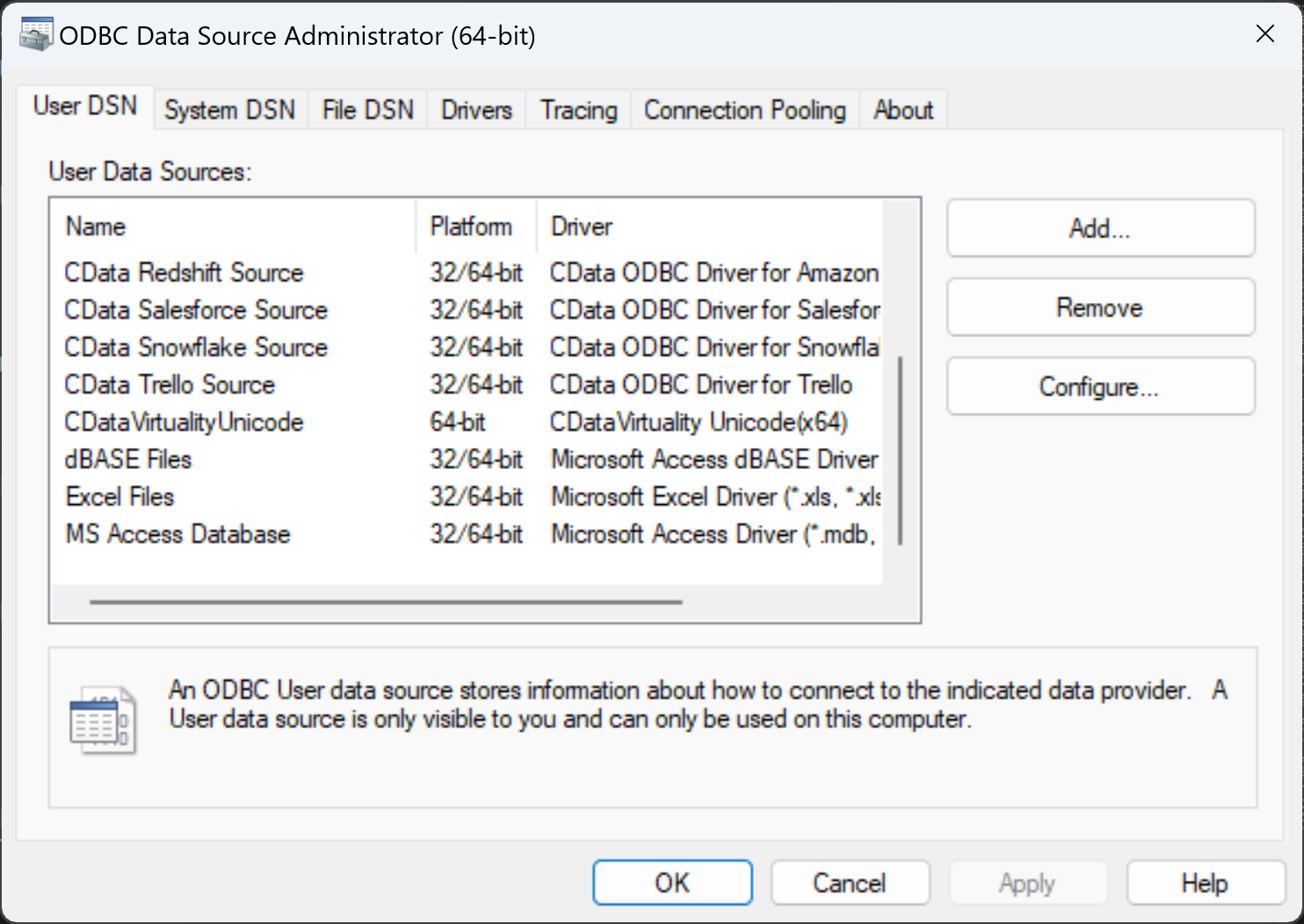
- Open the ODBC Data Source Administrator (64-bit)
Note: Use the 64-bit version for 64-bit applications and the 32-bit version for 32-bit applications.- Search for "ODBC" in the Windows Start menu
- Or navigate to: Control Panel > Administrative Tools > ODBC Data Sources
- Click the System DSN or User DSN tab
- System DSN: Available to all users on the machine (recommended for services)
- User DSN: Available only to the current user
- Select CData ODBC Driver for SAP Business One from the list, or click Add to create a new data source.
- Click OK or Finish to open the connection configuration dialog.
Linux: Editing Config Files (odbcinst.ini & odbc.ini)
- Register the Driver by adding the section below to the odbcinst.ini file. [CData ODBC Driver for SAP Business One] Driver=/opt/cdata/cdata-odbc-driver-for-sapbusinessone/lib/libsapbusinessoneodbc.x64.so Description=CData ODBC Driver for SAP Business One
- Save the file.
- Create the DSN by adding the entry below to the odbc.ini file: [CData SAP Business One Source] Driver=/opt/cdata/cdata-odbc-driver-for-sapbusinessone/lib/libsapbusinessoneodbc.x64.so ConnectionProperty1=Value1 ConnectionProperty2=Value2 Url = http://localhost:50000/b1s/v1 User = username Password = password CompanyDB = dbname InitiateOAuth = GETANDREFRESH
- Save the file.
Configuring Connection Properties
To authenticate to SAP Business One you must provide the Userand Passwordproperties.
To connect to data, specify Url. This is your SAP Business One Service Layer root URL.
Testing Your Connection
- After entering your connection properties, click Test Connection.
- A successful test confirms:
- Authentication credentials are correct.
- Network connectivity is established.
- Required permissions are in place.
- If the test fails, the error message will indicate what needs to be corrected.
- Click OK to save your DSN.
Common Connection Issues
Authentication Failed
Solution: Verify your credentials are current. For OAuth applications, you may need to authorize CData in your application's security settings. Contact [email protected] for authorization assistance.
Cannot Reach Server
Solution: Check firewall & proxy settings. Contact [email protected] for specific port requirements.
Table Not Found
Solution: Verify database and schema names. Use the Data Model tab in the DSN configuration to browse available tables.
Driver Not Found (Linux)
Solution: Verify the driver is correctly registered in odbcinst.ini. Contact [email protected] for further assistance.
For additional connection troubleshooting, contact [email protected] with your specific error message.
What's Next
Now that you have installed, licensed, and configured the driver, here are some scenarios you can use to explore our ODBC Drivers:
Get Support
If you need assistance at any point:
- Technical Support: [email protected]
- Community Forum: CData Community Site
- Help Documentation: Installed locally and available online
FAQs
Installation & Licensing
- Do I need administrator rights to install the driver?
Yes, administrator rights are required for system-wide installation on Windows and Linux. - Can I install both 32-bit and 64-bit drivers on the same machine?
Yes, both versions are installed by default.
Connecting
- What's the difference between System DSN and User DSN?
System DSNs are available to all users on a machine and are required for services. User DSNs are only available to the user who created them. - Can I use a DSN-less connection string instead of creating a DSN?
Yes. Many applications support DSN-less connection strings. See the connection string example below:Driver={CData ODBC Driver for SAP Business One};RequiredConnectionProperty1=Value1;RequiredConnectionProperty2=Value2; - How do I connect to multiple SAP Business One accounts?
Create separate DSNs for each account, each with its own authentication credentials. - Can I connect through a proxy server?
Yes. Configure proxy settings in your DSN connection properties. Refer to the Firewall & Proxy section in the help documentation for proxy configuration.
Performance & Troubleshooting
- Why are my queries slow?
Check the following:- Use caching for infrequently changing data. Refer to the Caching Data section in the help documentation for further details.
- Add filters (WHERE clauses) to reduce result set size.
- Contact [email protected] for query optimization assistance.
- How do I enable logging for troubleshooting?
Add the following to your DSN:- Logfile: /path/to/logfile.log
- Verbosity: 3
Be prepared to securely upload the log file upon request when reaching out to [email protected] for troubleshooting analysis.
- What ports does the driver need access to?
This depends on your data source. Most cloud applications use HTTPS (port 443). Contact [email protected] for specific firewall requirements. - Can I use the driver in a Linux container or Docker?
Yes. Install the driver in your container image and configure your DSN in the container's /etc/odbc.ini file.
General
- Where can I find the complete list of supported SQL operations?
Refer to the SQL Compliance chapter in the help documentation for complete SQL reference. - How often is the driver updated?
CData releases major version updates for our drivers annually. Check your account portal or contact [email protected] for the latest version. - Where can I find code examples for my programming language?
Check the Using ODBC section of the help documentation for language-specific examples (Python, PHP, C#, etc.).
For questions not covered in this FAQ, contact [email protected].
Ready to get started?
Download a free trial of the SAP Business One ODBC Driver to get started:
Download NowLearn more:
 SAP Business One ODBC Driver
The SAP ODBC Driver is a powerful tool that allows you to connect with live SAP Business One, directly from any applications that support ODBC connectivity.
With the SAP ODBC Business One Driver, accessing Accounts, Activities, Orders, Customers, etc. is as easy as querying a database.
