






Connect to SAP Business Warehouse Data from a Connection Pool in JBoss

CData JDBC drivers can be configured in JBoss by following the standard procedure for connection pooling. This article details how to access SAP Business Warehouse data from a connection pool in JBoss applications. This article details how to use the JBoss Management Interface to configure the CData JDBC Driver for SAP Business Warehouse. You will then access SAP Business Warehouse data from a connection pool.
Create a JDBC Data Source for SAP Business Warehouse from the Management Console
Follow the steps below to add the driver JAR and define required connection properties.
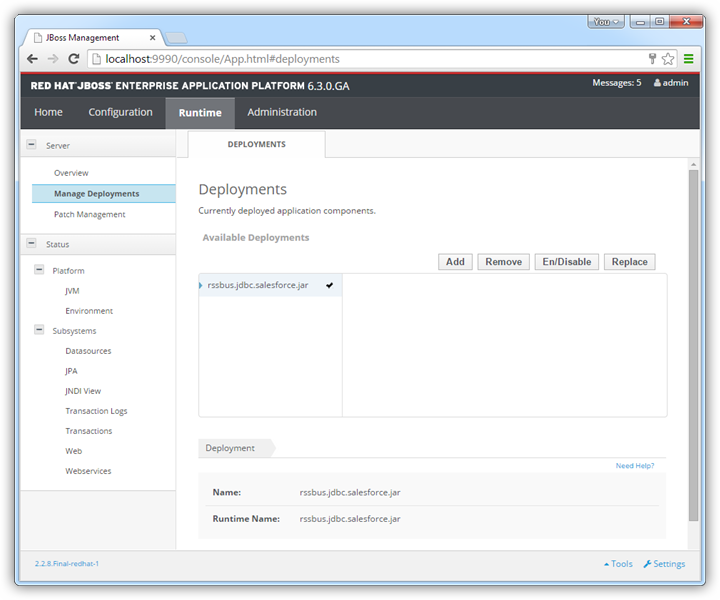
- In the Runtime menu, select the Domain or Server menu, depending on whether you are deploying to a managed domain or to a stand-alone server, and click "Manage deployments" to open the Deployments page.
- Click Add. In the resulting wizard, add the JAR file and license for the driver, located in the lib subfolder of the installation directory. Finish the wizard with the defaults, select the driver, and click Enable.
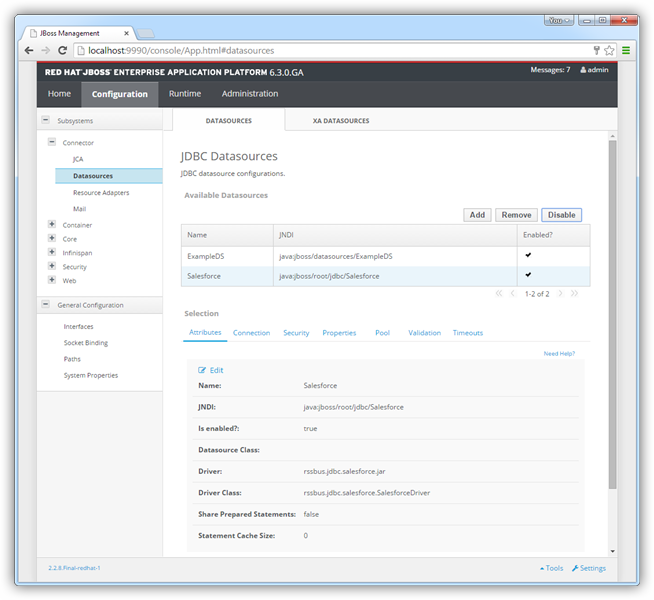
- In the Configuration menu, click Subsystems -> Connector -> Datasources. This opens the JDBC Datasources page.
- Click Add and, in the resulting wizard, enter a name for the driver and the JNDI name. For example:
java:jboss/root/jdbc/SAPBusinessWarehouse
- Select the driver that you added above.
Enter the JDBC URL and the username and password. The syntax of the JDBC URL is jdbc:sapbusinesswarehouse: followed by a semicolon-separated list of connection properties.
To connect to SAP Business Warehouse, set the URL property to a valid SAP Business Warehouse server base URL. The driver must connect to SAP Business Warehouse instances hosted over HTTP with XMLA access.
The driver supports the following authentication schemes via the AuthScheme property:
- None: Anonymous authentication, if available on the server.
- Basic: Set User and Password and set AuthScheme to Basic.
- Kerberos: See the Using Kerberos section of the help documentation for the required Kerberos properties.
By default, the driver attempts to negotiate SSL/TLS by checking the server's certificate against the system's trusted certificate store. To specify another certificate, see the SSLServerCert property for the available formats.
Built-in Connection String Designer
For assistance in constructing the JDBC URL, use the connection string designer built into the SAP Business Warehouse JDBC Driver. Either double-click the JAR file or execute the jar file from the command-line.
java -jar cdata.jdbc.sapbusinesswarehouse.jar
Fill in the connection properties and copy the connection string to the clipboard.

A typical connection string is below:
jdbc:sapbusinesswarehouse:URL=https://mysapserver:8000;AuthScheme=Basic;User=username;Password=password;
- Test the connection and finish the wizard. Select the SAP Business Warehouse data source and click Enable.
More JBoss Integration
The steps above show how to configure the driver in a simple connection pooling scenario. For more information, refer to the Data Source Management chapter in the JBoss EAP documentation.
Ready to get started?
Download a free trial of the SAP Business Warehouse Driver to get started:
Download NowLearn more:
 SAP Business Warehouse JDBC Driver
Rapidly create and deploy powerful Java applications that integrate with SAP Business Warehouse.