






ETL SAP Business Warehouse in Oracle Data Integrator

Leverage existing skills by using the JDBC standard to connect to SAP Business Warehouse: Through drop-in integration into ETL tools like Oracle Data Integrator (ODI), the CData JDBC Driver for SAP Business Warehouse connects real-time SAP Business Warehouse data to your data warehouse, business intelligence, and Big Data technologies.
JDBC connectivity enables you to work with SAP Business Warehouse just as you would any other database in ODI. As with an RDBMS, you can use the driver to connect directly to the SAP Business Warehouse APIs in real time instead of working with flat files.
This article covers a JDBC-based ETL -- SAP Business Warehouse to Oracle. After reverse engineering a data model of SAP Business Warehouse entities, you will create a mapping and select a data loading strategy -- since the driver supports SQL-92, this last step can easily be accomplished by selecting the built-in SQL to SQL Loading Knowledge Module.
Install the Driver
To install the driver, copy the driver JAR (cdata.jdbc.sapbusinesswarehouse.jar) and .lic file (cdata.jdbc.sapbusinesswarehouse.lic), located in the installation folder, into the ODI appropriate directory:
- UNIX/Linux without Agent: ~/.odi/oracledi/userlib
- UNIX/Linux with Agent: ~/.odi/oracledi/userlib and $ODI_HOME/odi/agent/lib
- Windows without Agent: %APPDATA%\Roaming\odi\oracledi\userlib
- Windows with Agent: %APPDATA%\odi\oracledi\userlib and %APPDATA%\odi\agent\lib
Restart ODI to complete the installation.
Reverse Engineer a Model
Reverse engineering the model retrieves metadata about the driver's relational view of SAP Business Warehouse data. After reverse engineering, you can query real-time SAP Business Warehouse data and create mappings based on SAP Business Warehouse tables.
-
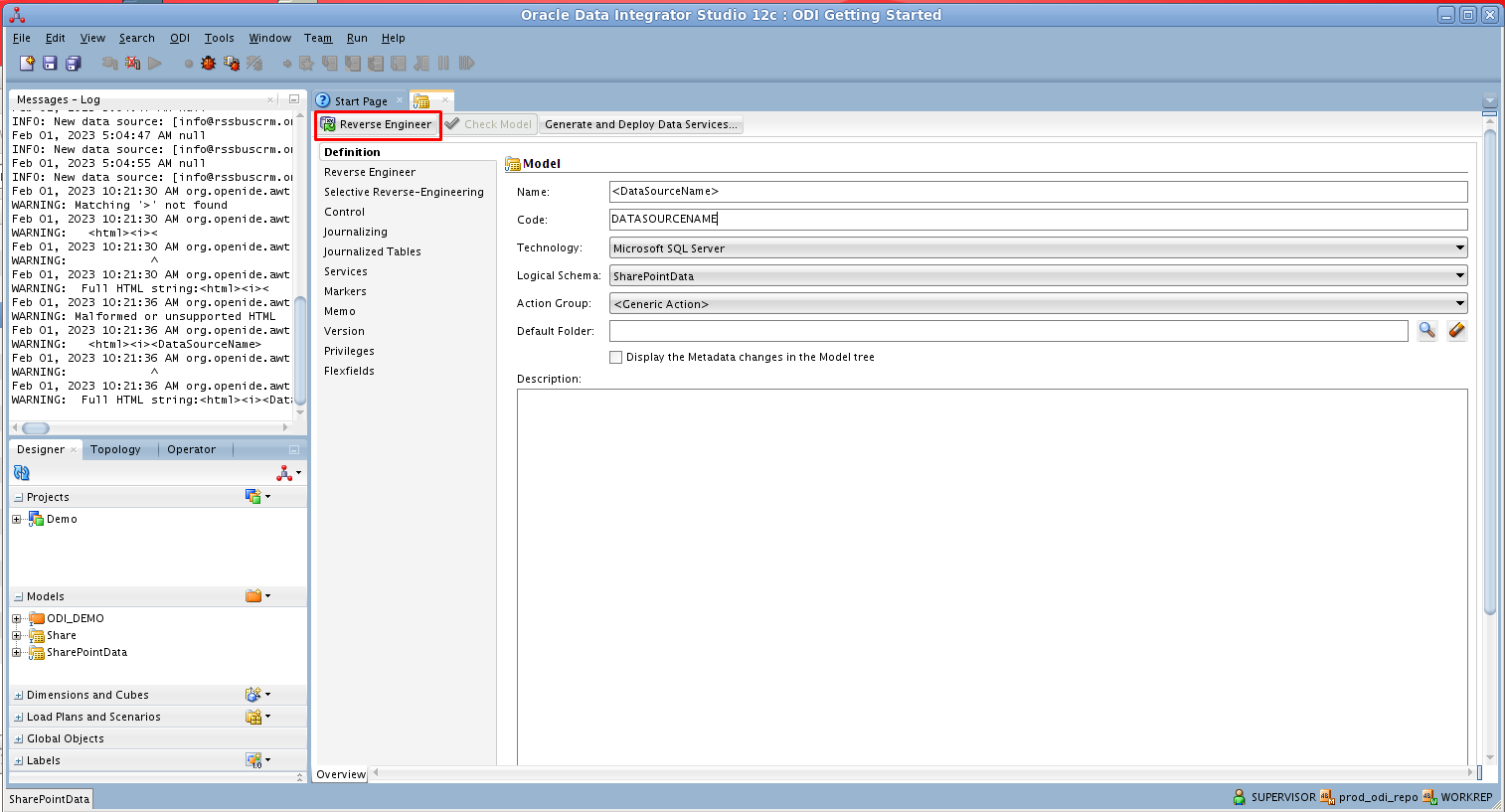
In ODI, connect to your repository and click New -> Model and Topology Objects.
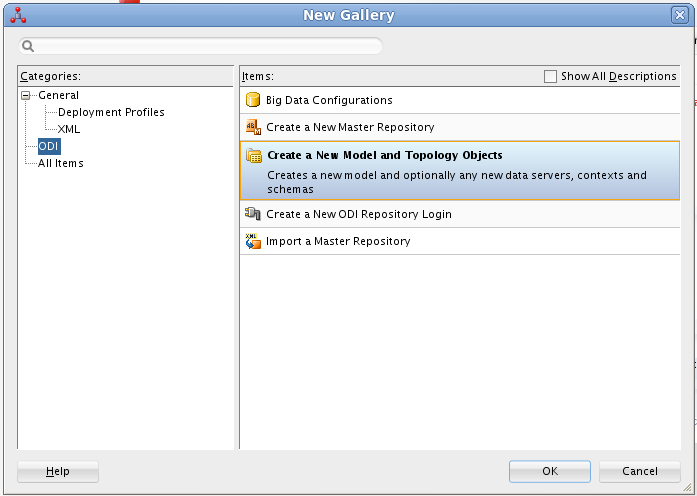
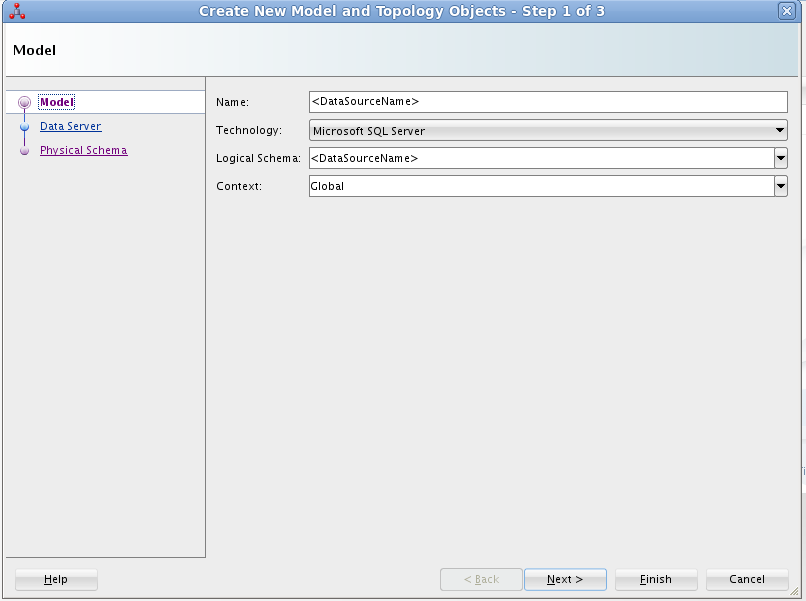
- On the Model screen of the resulting dialog, enter the following information:
- Name: Enter SAPBusinessWarehouse.
- Technology: Select Generic SQL (for ODI Version 12.2+, select Microsoft SQL Server).
- Logical Schema: Enter SAPBusinessWarehouse.
- Context: Select Global.
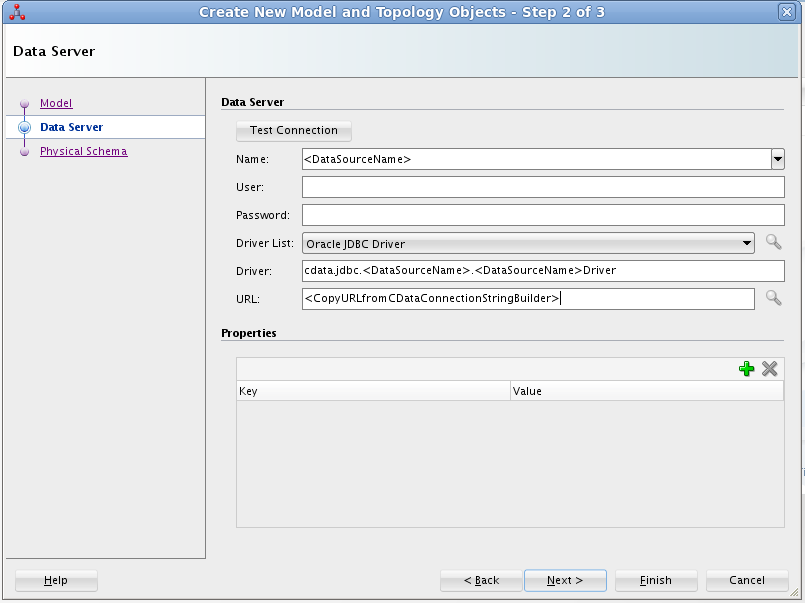
- On the Data Server screen of the resulting dialog, enter the following information:
- Name: Enter SAPBusinessWarehouse.
- Driver List: Select Oracle JDBC Driver.
- Driver: Enter cdata.jdbc.sapbusinesswarehouse.SAPBusinessWarehouseDriver
- URL: Enter the JDBC URL containing the connection string.
To connect to SAP Business Warehouse, set the URL property to a valid SAP Business Warehouse server base URL. The driver must connect to SAP Business Warehouse instances hosted over HTTP with XMLA access.
The driver supports the following authentication schemes via the AuthScheme property:
- None: Anonymous authentication, if available on the server.
- Basic: Set User and Password and set AuthScheme to Basic.
- Kerberos: See the Using Kerberos section of the help documentation for the required Kerberos properties.
By default, the driver attempts to negotiate SSL/TLS by checking the server's certificate against the system's trusted certificate store. To specify another certificate, see the SSLServerCert property for the available formats.
Built-in Connection String Designer
For assistance in constructing the JDBC URL, use the connection string designer built into the SAP Business Warehouse JDBC Driver. Either double-click the JAR file or execute the jar file from the command-line.
java -jar cdata.jdbc.sapbusinesswarehouse.jar
Fill in the connection properties and copy the connection string to the clipboard.

Below is a typical connection string:
jdbc:sapbusinesswarehouse:URL=https://mysapserver:8000;AuthScheme=Basic;User=username;Password=password;
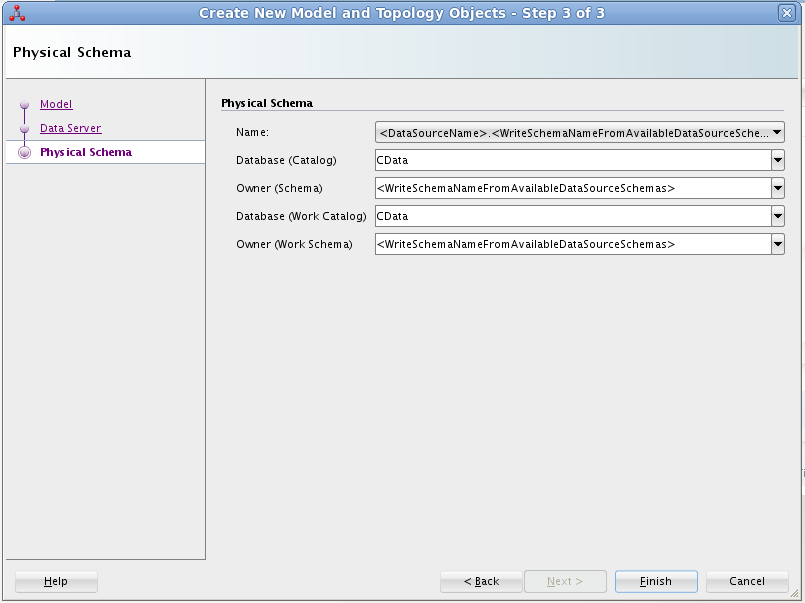
- On the Physical Schema screen, enter the following information:
- Name: Select from the Drop Down menu.
- Database (Catalog): Enter CData.
- Owner (Schema): If you select a Schema for SAP Business Warehouse, enter the Schema selected, otherwise enter SAPBusinessWarehouse.
- Database (Work Catalog): Enter CData.
- Owner (Work Schema): If you select a Schema for SAP Business Warehouse, enter the Schema selected, otherwise enter SAPBusinessWarehouse.
- In the opened model click Reverse Engineer to retrieve the metadata for SAP Business Warehouse tables.
Edit and Save SAP Business Warehouse Data
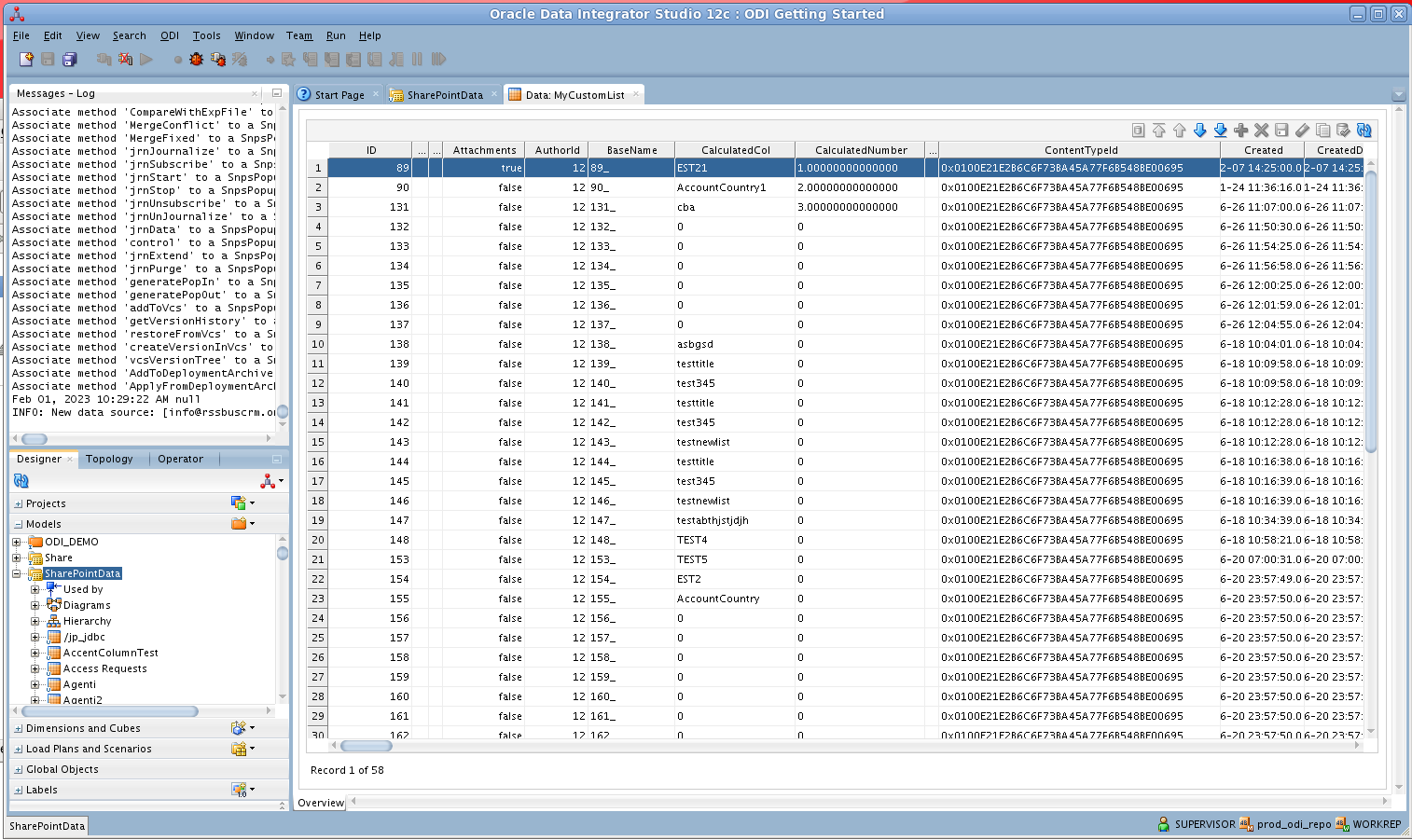
After reverse engineering you can now work with SAP Business Warehouse data in ODI.
To view SAP Business Warehouse data, expand the Models accordion in the Designer navigator, right-click a table, and click View data.
Create an ETL Project
Follow the steps below to create an ETL from SAP Business Warehouse. You will load Sales entities into the sample data warehouse included in the ODI Getting Started VM.
Open SQL Developer and connect to your Oracle database. Right-click the node for your database in the Connections pane and click new SQL Worksheet.
Alternatively you can use SQLPlus. From a command prompt enter the following:
sqlplus / as sysdba
- Enter the following query to create a new target table in the sample data warehouse, which is in the ODI_DEMO schema. The following query defines a few columns that match the Sales table in SAP Business Warehouse:
CREATE TABLE ODI_DEMO.TRG_SALES (CITY NUMBER(20,0),CustomerCount VARCHAR2(255));
- In ODI expand the Models accordion in the Designer navigator and double-click the Sales Administration node in the ODI_DEMO folder. The model is opened in the Model Editor.
- Click Reverse Engineer. The TRG_SALES table is added to the model.
- Right-click the Mappings node in your project and click New Mapping. Enter a name for the mapping and clear the Create Empty Dataset option. The Mapping Editor is displayed.
- Drag the TRG_SALES table from the Sales Administration model onto the mapping.
- Drag the Sales table from the SAP Business Warehouse model onto the mapping.
- Click the source connector point and drag to the target connector point. The Attribute Matching dialog is displayed. For this example, use the default options. The target expressions are then displayed in the properties for the target columns.
- Open the Physical tab of the Mapping Editor and click SALES_AP in TARGET_GROUP.
- In the SALES_AP properties, select LKM SQL to SQL (Built-In) on the Loading Knowledge Module tab.
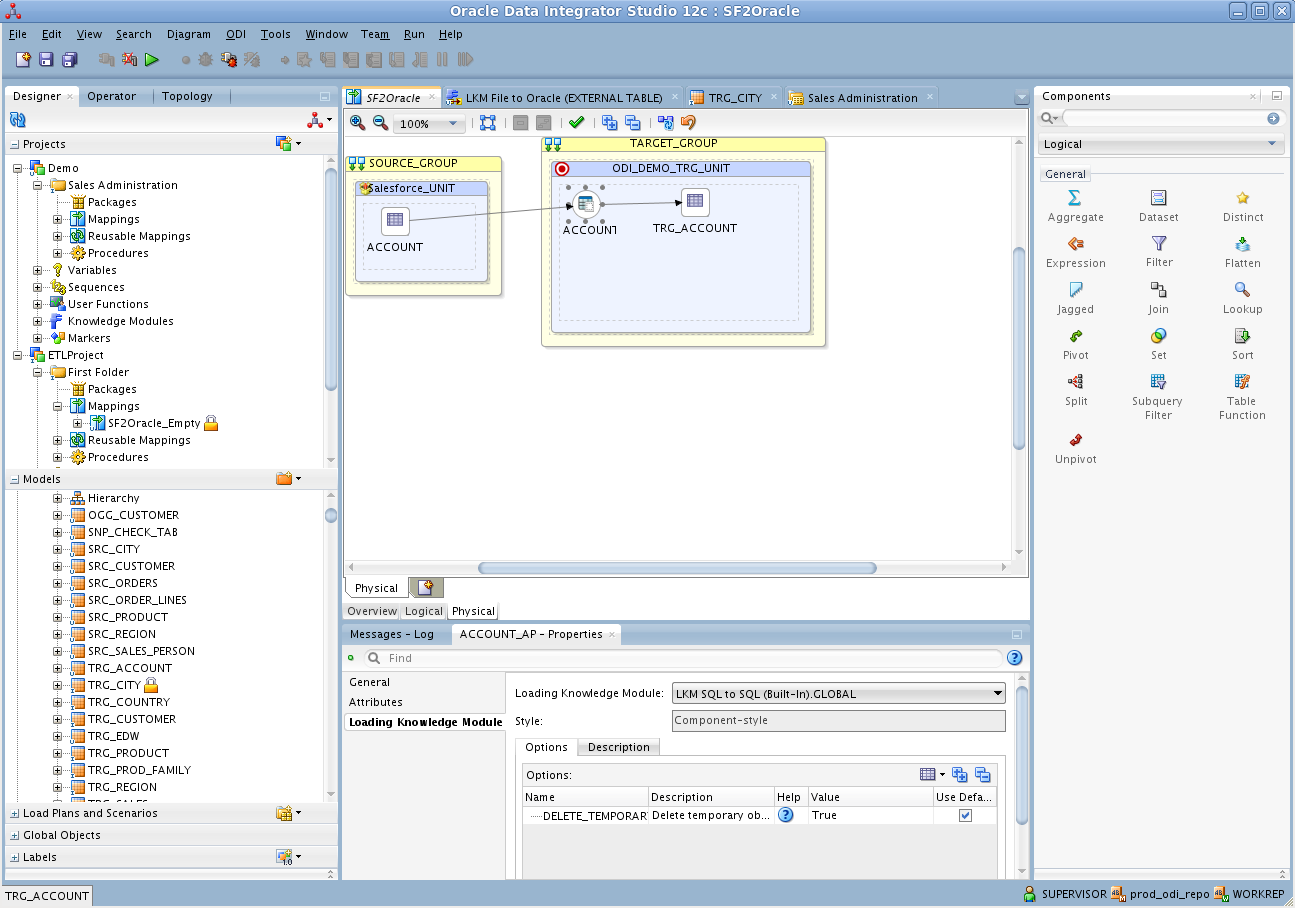
You can then run the mapping to load SAP Business Warehouse data into Oracle.
Ready to get started?
Download a free trial of the SAP Business Warehouse Driver to get started:
Download NowLearn more:
 SAP Business Warehouse JDBC Driver
Rapidly create and deploy powerful Java applications that integrate with SAP Business Warehouse.