





Access SAP SuccessFactors LMS Data from MySQL in PHP

You can use the CData SQL Gateway and ODBC Driver for SAP SuccessFactors LMS to access SAP SuccessFactors LMS data from MySQL clients, without needing to perform an ETL or cache data. Follow the steps below to connect to SAP SuccessFactors LMS data in real time through PHP's standard MySQL interfaces, mysqli and PDO_MySQL.
Connect to SAP SuccessFactors LMS Data
If you have not already done so, provide values for the required connection properties in the data source name (DSN). You can use the built-in Microsoft ODBC Data Source Administrator to configure the DSN. This is also the last step of the driver installation. See the "Getting Started" chapter in the help documentation for a guide to using the Microsoft ODBC Data Source Administrator to create and configure a DSN.
SAP SuccessFactors LMS uses OAuth authentication. Before connecting, you must configure an OAuth application tied to your SAP SuccessFactors LMS account.
To establish a connection, set the following properties:
- User: Your SAP SuccessFactors LMS username.
- CompanyId: Your SAP SuccessFactors company identifier.
- Url: The SAP SuccessFactors API URL (e.g., https://api4.successfactors.com).
- OAuthClientId: The client Id assigned when you registered your custom OAuth application.
- OAuthClientSecret: The client secret assigned when you registered your custom OAuth application.
See the Getting Started chapter of the help documentation for a guide to creating a custom OAuth app and using OAuth.
Configure the SQL Gateway
See the SQL Gateway Overview to set up connectivity to SAP SuccessFactors LMS data as a virtual MySQL database. You will configure a MySQL remoting service that listens for MySQL requests from clients. The service can be configured in the SQL Gateway UI.
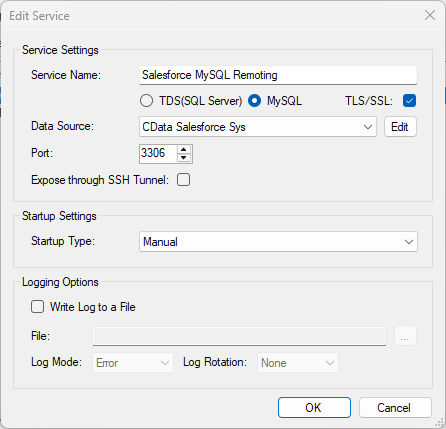
Connect in PHP
The following examples show how to use object-oriented interfaces to connect and execute queries. Initialize the connection object with the following parameters to connect to the virtual MySQL database:
- Host: Specify the remote host location where the service is running. In this case "localhost" is used for the remote host setting since the service is running on the local machine.
- Username: Specify the username for a user you authorized on the SQL Gateway's Users tab.
- Password: Specify the password for the authorized user account.
- Database Name: Specify the system DSN as the database name.
- Port: Specify the port the service is running on; port 3306 in this example.
mysqli
<?php
$mysqli = new mysqli("localhost", "user", "password", "CData SAPSuccessFactorsLMS Sys","3306");
?>
PDO
<?php
$pdo = new PDO('mysql:host=localhost;dbname=CData SAPSuccessFactorsLMS Sys;port=3306', 'user', 'password');
?>
Query in PHP
With the connection established, you can then access tables. The following steps walk through the example:
- Query the table; for example, Items. The results will be stored as an associative array in the $result object.
- Iterate over each row and column, printing the values to display in the PHP page.
- Close the connection.
mysqli
$result = $mysqli->query("SELECT ItemID, ItemTitle FROM [Admin].[Search_Service].[Items] WHERE Active = true");
while($row = $result->fetch_assoc()) {
  foreach ($row as $k=>$v) {
    echo "$k : $v";
    echo "<br>";
  }
}
$mysqli->close();
PDO
$result = $pdo->query("SELECT ItemID, ItemTitle FROM [Admin].[Search_Service].[Items] WHERE Active = true");
while($row = $result->fetch(PDO::FETCH_ASSOC)) {
  foreach ($row as $k=>$v) {
    echo "$k : $v";
    echo "<br>";
  }
}
$result = null;
$pdo = null;
Ready to get started?
Download a free trial of the SAP SuccessFactors LMS ODBC Driver to get started:
Download NowLearn more:
 SAP SuccessFactors LMS ODBC Driver
The SAP SuccessFactors LMS ODBC Driver is a powerful tool that allows you to connect with live data from SAP SuccessFactors LMS, directly from any applications that support ODBC connectivity.
Access SAP SuccessFactors LMS data like you would a database - read, write, and update SAP SuccessFactors LMS 0, etc. through a standard ODBC Driver interface.