Working with ScrapingBee Data in LINQPad

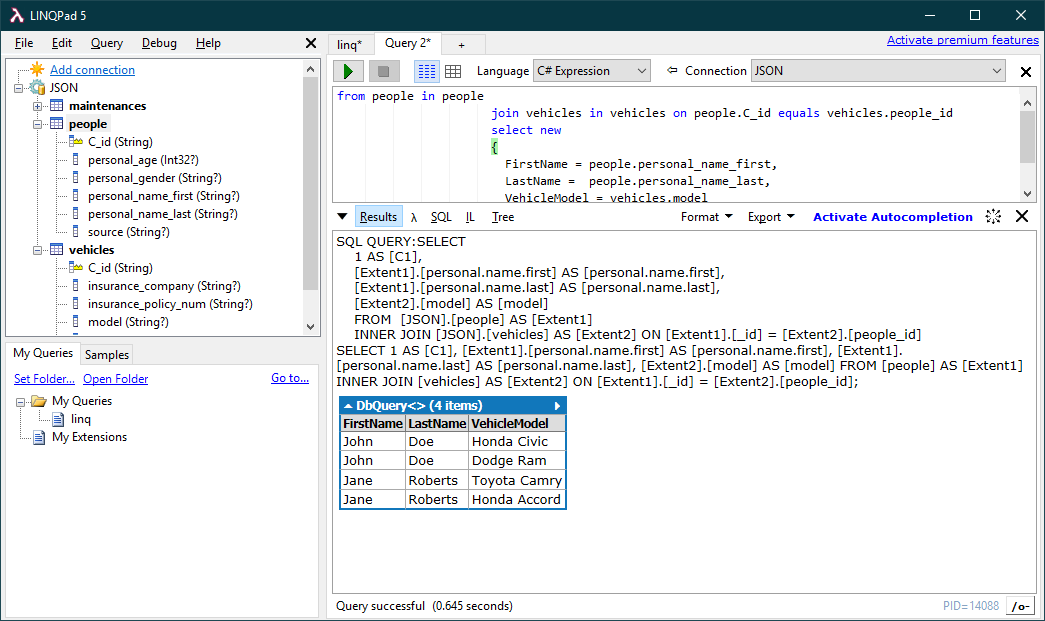
The CData ADO.NET Provider for ScrapingBee enables you to use standard ADO.NET interfaces like LINQ and the Entity Framework to work with ScrapingBee data. This article will demonstrate the process of establishing a connection from LINQPad and executing LINQ queries.
Create the Data Model
After downloading and installing both the provider and LINQPad, create a new class library project within Visual Studio.
See the help documentation for a guide to setting up an EF 6 project to use the provider.
Right-click your project and click Add -> New Item -> ADO.NET Entity Data Model. In the resulting dialog, select Code First from database. Click New Connection and specify the connection string options in the resulting wizard.
Using API Key Authentication
ScrapingBee uses API key authentication. To obtain an API key:
- Sign in to your ScrapingBee account at https://app.scrapingbee.com
- Navigate to the Dashboard and locate your API key in the top section.
- Copy the API key for use in the connection string.
After obtaining your API key, set the following connection properties:
- AuthScheme: Set this to APIKey.
- APIKey: Set this to your ScrapingBee API key.
Example Connection String
Profile=C:\profiles\ScrapingBee.apip;AuthScheme=APIKey;ProfileSettings="APIKey=your_api_key";
Connecting to ScrapingBee
Once the authentication is configured, you can connect to ScrapingBee and query data from any of the available tables. All tables require at least one input parameter (such as a search query or product ID) to retrieve data.
Below is a typical connection string:
Profile=C:\profiles\ScrapingBee.apip;AuthScheme=APIKey;ProfileSettings="APIKey=your_api_key";
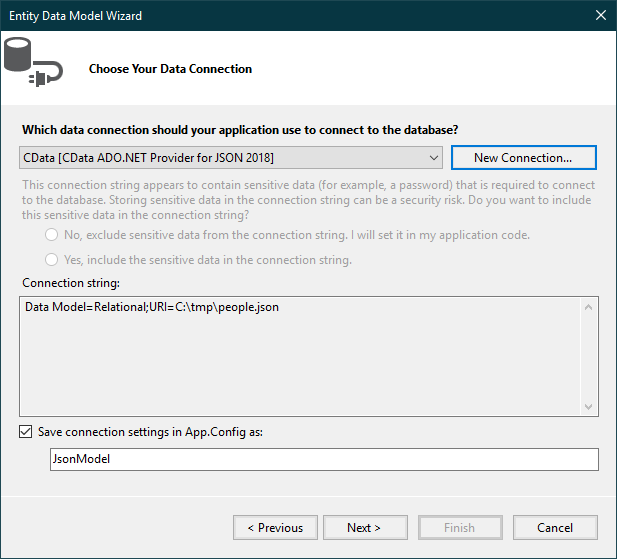
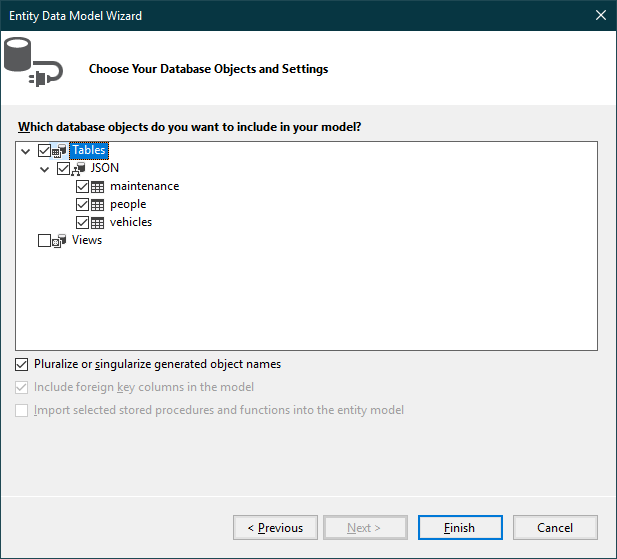
Select the desired tables and views and click Finish to create the data model.
- Build the project. The generated files can be used to create the ScrapingBee connection in LINQPad.
Connect to ScrapingBee Data in LINQPad
After you have obtained the required connection properties and created the data model assembly, follow the steps below to start using the data model in LINQPad.
Open LINQPad and click Add Connection.
Select the "Use a typed data context from your own assembly" option.
Select Entity Framework DbContext.
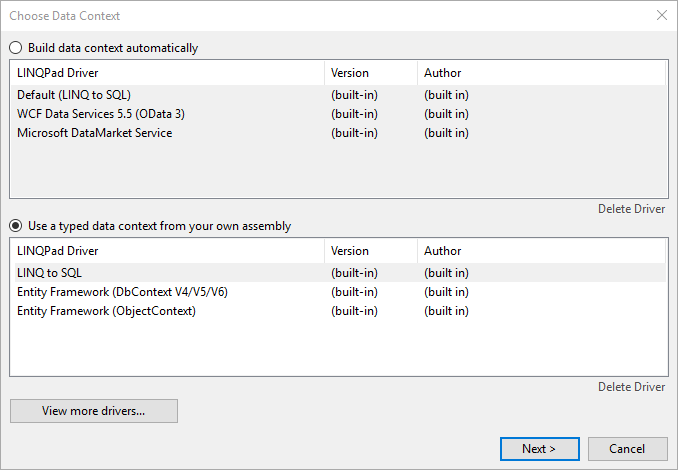
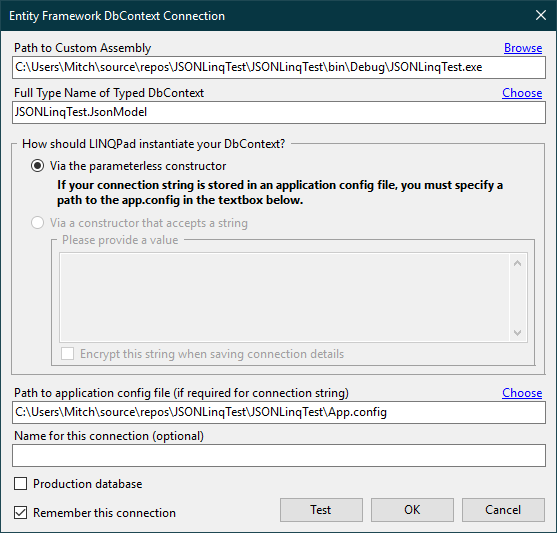
Click Browse next to the Path to Custom Assembly box and browse to your project folder. Browse to the .dll or .exe under the bin folder.
- Select the name of the DbContext.
- If you saved your connection string in App.Config, specify the path to the App.config.
You can now query ScrapingBee data through LINQPad. For examples of the supported LINQ queries, see the "LINQ and Entity Framework" chapter in the help documentation.